1
1
Installation Guide
TellStick User Manual
Welcome
Thank you for choosing a Telldus Technologies product. This manual will help you install and use the
TellStick. We recommend that you read through the entire manual before getting started.
Please feel free to join our forum at www.telldus.com in order to communicate with other users
and developers!
Installing TellStick
1. Software Installation
ATTENTION! Install the software before connecting TellStick to your USB-connection!
Download and start the installation software from www.telldus.com.
Alternatively you can send name and address to [email protected] and we will free of charge send
you an installation CD.
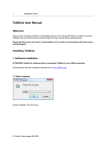
1.1 Select Language
Choose “English” from the menu.
© Telldus Technologies AB 2009
2
Installation Guide
1.2 Welcome
Click on ”Next” to continue.
1.3 License Agreement
Read through the license agreement and click on ”I Agree” if you accept the agreement.
If you do not accept the licence agreement the installation will be cancelled.
© Telldus Technologies AB 2009
3
Installation Guide
1.4 Choose Components
Here you can choose which components to install on your computer. The following options are
available:
Full – Installs all included components.
Minimum – Only installs the driver and configuration tool.
Developer – Installs the necessary components for developing software.
Optional – You choose which components to install.
As the you place the mouse pointer over a component you will see a short description of each
component to the right.
© Telldus Technologies AB 2009
4
Installation Guide
1.5 Choose Install Location
Here you can choose in what computer directory you wish to install the TellStick software.
We recommend the default installation directory, but you can of course choose another directory. Click
on “Install”.
1.6 Installation
At this point TelldusCenter is being installed for the TellStick.
© Telldus Technologies AB 2009
5
Installation Guide
The Telldus driver has not yet been certified by Microsoft. This is why the above window may appear
during installation. However, the driver originates from FTDI Ltd. and is completely safe. Click on
“Continue Anyway” to continue the installation.
1.7 Complete
The software installation is now complete. Click on “Finish”.
© Telldus Technologies AB 2009
6
Installation Guide
2. Hardware Installation
Connect TellStick to a free USB port on your computer.
The below text will now appear in the right hand corner of the screen:
2.1 Welcome
Choose ”No, not this time”. Click on “Next”.
© Telldus Technologies AB 2009
7
Installation Guide
2.2 Install the software automatically
Choose ”Install software automatically (recommended)”. Click on “Next”.
2.3 Installation
The hardware is now being installed.
© Telldus Technologies AB 2009
8
Installation Guide
The Telldus driver has not yet been certified by Microsoft. This is why the above window may appear
during installation. However, the driver originates from FTDI Ltd. and is completely safe. Click on
“Continue Anyway” to continue the installation.
2.4 Finished
When the installation is complete this screen appears. Click on “Finish” and the installation is
complete.
© Telldus Technologies AB 2009
9
Installation Guide
TelldusCenter
Receivers can be added, edited and removed with TelldusCenter. The TelldusCenter is started from
the start menu “All programs” > ”Telldus” > “TelldusCenter”.
TelldusCenter can as well be accessed from the SysTray.
1. Add New Device
Click on “New”.
© Telldus Technologies AB 2009
10
Installation Guide
1.1 Name
Under Name choose the type of remote switch (or projector screen) and manufacturer you want to
add. A device must as well be picked from the chosen manufacturer. Give the chosen device a name
under Address Code in the Name box.
© Telldus Technologies AB 2009
11
Installation Guide
1.2 Address Code
Under Address Code make sure that the two codes are matched. The communication between
TellStick and the receiver will not work if the codes are not matched.
Click on “Save”.
For Self Learning devices you can chose any code in the above step and after saving proceed by
pressing “Learn.”
For Bell devices you can as well choose any code in the above step.
For Kjell o Company, Elro, Sartano, Ikea, and Roxcore devices make the appropriate selections in line
with the above step.
© Telldus Technologies AB 2009
12
Installation Guide
2. Turn On and Off a Device
To turn on a device select it from the window and click on the yellow light bulb icon. Shut off a device
by clicking the grey light bulb icon.
3. Edit a Device
To edit a device select it from the window and click on “Edit” and make the desired changes.
4. Remove a Device
To remove a device select if from the window and click on “Remove”. From the pop up window click on
“Yes” if you want to go ahead and remove the selected device.
© Telldus Technologies AB 2009
13
Installation Guide
5. Uninstall
To properly uninstall the TellStick open the start menu then “All Programs” > “Telldus” > “Uninstall”.
5.1 Welcome
Make sure the TelldusCenter is not running and click on “Next”.
© Telldus Technologies AB 2009
14
Installation Guide
5.2 Uninstall
Click on “Uninstall” to remove TelldusCenter from your computer.
5.3 Finished
Click on “Finish” to close the Uninstall Wizard.
© Telldus Technologies AB 2009
15
Installation Guide
1. Scheduler
In order to set up schedules for you devices to automatically turn on and off run the program
Scheduler under “All Programs” < “Telldus” < “Scheduler”.
It is possible that the above pop up window appears when the Telldus Scheduler program starts.
However, in the case that the window appears it is completely safe to go ahead and click on “OK” in
order to start up the Telldus Scheduler program.
2. Device Scheduling
In order to set up an automatic schedule for a device click on “Create New Schedule”.
© Telldus Technologies AB 2009
16
Installation Guide
2.1 General
Under the “General” tab give a name in the “Title” box (Tip: choose a name that describes what will
happen and on what device). Click on “Add...” in order to choose a device.
2.1.1 Add Device
Chose desired device and action from the menus in the pop up window. Click on “OK”.
© Telldus Technologies AB 2009
17
Installation Guide
2.2 Scheduling
Click on the “Scheduling” tab. Select the desired scheduling information under “Schedule”, “Time”,
Start Date”, and “Scheduling, Days”. Click on “OK”.
2.2.1 User Account
Choose user and give the appropriate password in the pop up window. Click on “OK”.
© Telldus Technologies AB 2009
18
Installation Guide
3. Edit Device Schedule
Click on the “Scheduled Devices” tab.
3.1 Scheduled Devices
Select desired scheduling. Click on “Edit”.
© Telldus Technologies AB 2009
19
Installation Guide
3.2 Editing
Perform the desired changes under the “General” and “Scheduling” tabs. Click on “OK”.
4. Remove Device Schedule
Click on the “Scheduled Devices” tab.
© Telldus Technologies AB 2009
20
Installation Guide
4.1 Scheduled Devices
Select desired scheduling. Click on “Remove”.
4.1.1 Remove
Click on “Yes” if you wish to remove the selected scheduling.
© Telldus Technologies AB 2009
21
Installation Guide
5. Configure Devices
To configure devices click on “Configure Devices” to open TelldusCenter.
5.1 TelldusCenter
Perform the desired change (for more information see the TelldusCenter manual).
© Telldus Technologies AB 2009
22
Installation Guide
Troubleshooting
Problem
The receiver is not switching on and off
TellStick is not recognized by the computer
The receivers are not recognizing my commands
Measure
• Check that the codes are matched.
• Check that the receiver is placed within
the TellStick range.
• Disconnect TellStick and uninstall the
software. Then install the software again.
• Check to makes sure that no other
433.92 MHz-products are disrupting the
TellStick.
TellStick Care
•
•
•
Avoid storing or using TellStick in moist environments.
Do not store TellStick where it is exposed to direct sunlight.
Remember to use an USB extension cable if it is a possibility that the TellStick may be bent or
cracked.
Specifications
Frequency
Range
Connection
Power usage
Out effect
Size
© Telldus Technologies AB 2009
433.92 MHz – license free
Up to 30 meters
USB 1.1, 2.0
Type: 11 mA, max: 30 mA
3.3 mW
60 x 20 x 10 mm