1
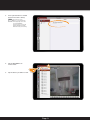
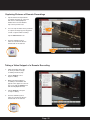
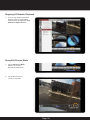
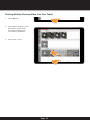
Capturing Pictures of Remote Recordings
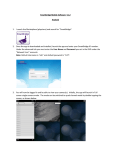
1. Tap the Camera Feed you’d like
to Capture an image of. The feed
will show a small highlighted
border when selected. Double
tap to view just that feed.
2. You can stop the video where you’d like
to capture an image by pressing pause
or take a capture while recording.
1
Tap the Take Picture icon.
3. Pictures and video you’ve
taken are saved in the Picture
& Video tab on the side bar.
2
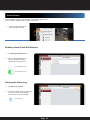
Taking a Video Snippet of a Remote Recording
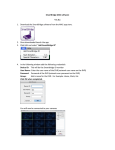
1. Slide the timeline bar to the
location you’d like to begin
recording and touch play.
2. Tap the Snippet icon to
begin recording.
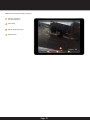
3. While your video snippet is
recording a small red dot will
appear in the upper left corner of
the screen and the Snippet icon
will show highlighted in red.
4. Tap the Snippet icon again
to stop recording.
5. Pictures and video you’ve
taken are saved in the Picture
& Video tab on the side bar.
1
Page 22