1
User Manual of Cube DVR Series
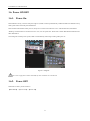
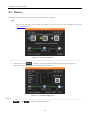
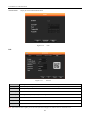
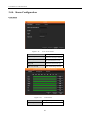
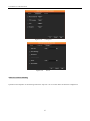
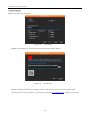
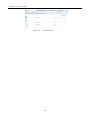
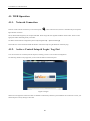
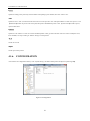
Figure 4.2 Install
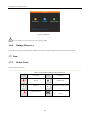
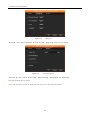
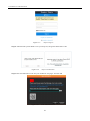
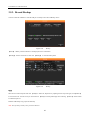
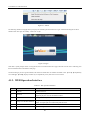
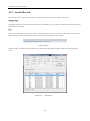
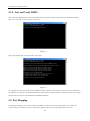
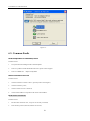
The following interface will popup when you input your username, password and click “Login”. Interface like Diagram 4-3 Web
Interface when user login successfully. Click “Exit” to quit.
Figure 4.3 Login
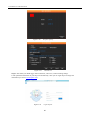
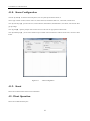
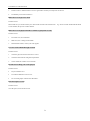
If the Win 7 system prompts control is not registered, click Close button in the above page, and click close the Active X filtering, and
then click Install button in the bottom of the page.
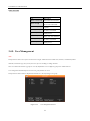
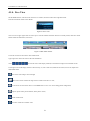
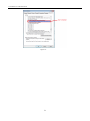
It needs resetting if you can login the interface, but camera 01 and the other 15 channels are hidden. Click 【Tool】-【Compatibility
View Setting】-【Check】(display all outlets (E) in compatibility View), then click Close to finish it.
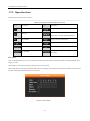
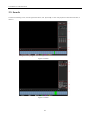
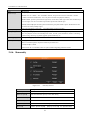
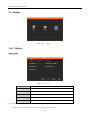
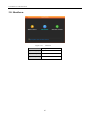
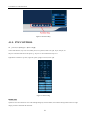
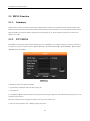
4.1.3. WEB Operation Interface
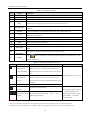
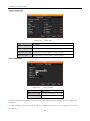
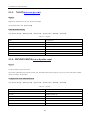
Table 4.1 Web operation Interface
Index
Name
Description
1
Channel
Channel selection
2
Function
3
Surveillance window
4
Image color & other saturation
5
PTZ control
PTZ Control Menu
6
Menu
System config, record search, alarm setting, exit, etc.
Local playback: playback local record
Open all: play live views in surveillance window
Change window layout
Image color: modify brightness, contrast and saturation
Other: set capture path, record download path and reboot
50