1
DIMFix Tester
Installation & User’s Manual
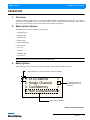
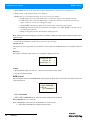
Select the Library function by rotating the thumb wheel until Library appear. Select it by pressing the thumb wheel.
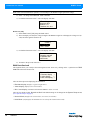
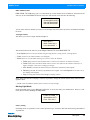
< 1. Library setting >
FX No.:01 NAME_1 >
01 Pan 02 Tilt
03 Focus 04 Frost
1) You can select the fixture and name it. Turn and press the thumb wheel to select the characters for the name.
2) You can select define each channel's function. Turn and press the thumb wheel to select the channel number.
You can also scroll through the list of attributes and select the one you want to adjust.
3) Once you have set up the parameters for the fixture you can store them. Click on the > on the first line and
select the store option. You will get a message telling you the parameters are stored.
Play Mode
Play mode allows you to use the fixture profiles stored on the DIMFix Tester to test moving fixtures.
Select Play mode by rotating the thumb wheel. Select it by pressing the thumb wheel when the menu option appears.
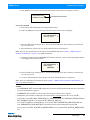
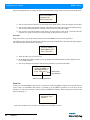
The following will be shown on the LCD display:
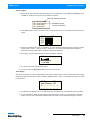
< 2. Play mode
FX No.:01 NAME_1 >
Start address: 001 >
Func : Pan> 001 >
1) Select the fixture type you want to test.
2) Set the DMX start address and then you can go through each individual fixture function and then set the
level for that parameter.
3) You can go through each parameter and adjust the parameters to test their functionality.
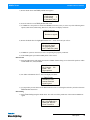
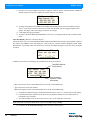
< 2. Play mode
FX No.:01 NAME_1 >
Start address: 001 >
Func : Pan> 001 >
Select value
for parameter
Select to change parameter
Save Cue
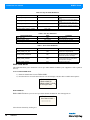
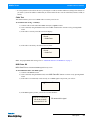
If there is an incoming DMX512 data stream, it is possible to capture the DMX512 channel levels and store them as
scenes. If there is not DMX512 data stream it is possible to use the DMX TX function to set the levels for the
channels (you will need to set these levels by going to the DMX TX function). When selecting this mode the LCD
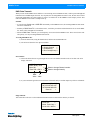
display will appear as:
< Save Cue ( Scene ) ?
As Cue No.: 001 >
Confirm >
• Select the cue number that you wish to save and then select Confirm to store it.
20
OPERATION