1
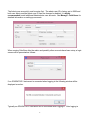
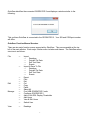
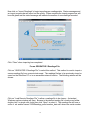
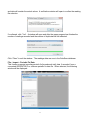
Create a KML file by clicking on “Export Selected Table Rows to KML”. A “Save” dialog
window will open where the desired folder and file name are selected and entered. The KML
file will be generated, named and stored as selected. When satisfied with KML file generation
the selected fix data can be deleted from the ODORATOR 2 by clicking on “Remove Data For
Selected Dates From ODORATOR 2”.
Click “Close” to exit the Import Periodic Fix Data window.
For an ODORATOR 2 Periodic Fix File:
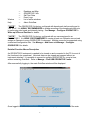
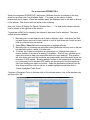
Click on “ODORATOR 2 Periodic Fix File” in the drop down box to select this method. This
method is used to import a secure periodic fix file from a remote instrument. The periodic fix
file has to be previously stored or saved on the OdorSeer PC or in an accessible network
location.
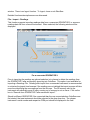
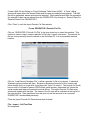
Click on “Load Remote Readings File” to allow a periodic fix file to be chosen. A standard
Windows explorer window will open. Browse to the desired periodic fix file’s location and
either double click it or single click it and then click “Open” to select it. The periodic fix file will
have a suffix of odf and be named “OD2FixData_serial number_datetodate.odr” where the
serial number and dates will contain the actual values. The Import Periodic Fix Data main
window will update with the data. The status of the file load will be indicated in the top left of
the main window. Data operations from this point on are the same as for a connected
ODORATOR 2 as described previously.
Close the Import Periodic Fix Data window when finished.
File – Import – Self Test Data
Not supported.
13