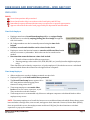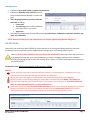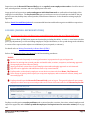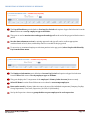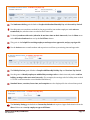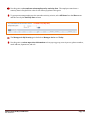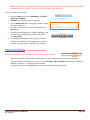
1
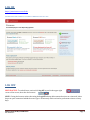
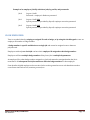
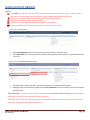
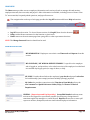
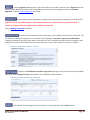
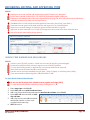
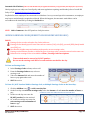
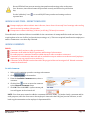
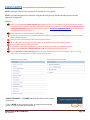
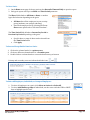
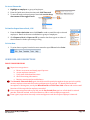
KRONOS USER MANUAL BASIC (HTML) 05/25/2012 Cornell University University Payroll Office TABLE OF CONTENTS LOG ON......................................................................................................................................................................................................................... 4 LOG OFF....................................................................................................................................................................................................................... 4 WHAT IS KRONOS ................................................................................................................................................................................................... 5 WHAT YOU NEED TO KNOW .............................................................................................................................................................................. 5 USER ROLES AND RESPONSIBILITIES – WHO ARE YOU? ...................................................................................................................... 6 EMPLOYEES .......................................................................................................................................................................................................... 6 SUPERVISORS ...................................................................................................................................................................................................... 7 PAY REPS (PAYROLL REPRESENTATIVES)............................................................................................................................................. 8 MULTIPLE JOBS AND TIME COLLECTION PROCEDURES .................................................................................................................... 10 WEB EMPLOYEES ............................................................................................................................................................................................. 10 CLOCK EMPLOYEES .........................................................................................................................................................................................11 NAVIGATION IN KRONOS ..................................................................................................................................................................................12 TIMECARD OVERVIEW ....................................................................................................................................................................................... 15 OPENING THE TIMECARD ............................................................................................................................................................................15 REVIEWING THE TIMECARD ......................................................................................................................................................................15 TIMECARD ACTION MENU ...........................................................................................................................................................................15 TIMECARD GRID ...............................................................................................................................................................................................17 EMAIL AND PRINT ...........................................................................................................................................................................................18 RECORDING, EDITING, AND APPROVING TIME ....................................................................................................................................... 19 ADDING TIME WORKED AND MEAL BREAKS ...................................................................................................................................... 19 ADDING EARNINGS CODES (Benefits-Eligible Employees Only) ........................................................................................................ 20 ADDING LEAVE TIME – EXEMPT EMPLOYEE ...................................................................................................................................... 21 ADDING COMMENTS.......................................................................................................................................................................................21 TRANSFERS ON A TIMECARD ..................................................................................................................................................................... 22 HOLIDAY ON A TIMECARD...........................................................................................................................................................................25 SAVING THE TIMECARD................................................................................................................................................................................25 EDITS TO A TIMECARD ..................................................................................................................................................................................26 TIMECARD APPROVALS ................................................................................................................................................................................26 TIMECARD SIGN-OFFS (Pay Reps Only) .................................................................................................................................................... 27 USING GENIES (Online Reports For Supervisor And Pay Rep Use Only) .................................................................................................28 GENIE USES AND DESCRIPTIONS.............................................................................................................................................................. 30 DESCRIPTIONS OF GENIES USED BY BOTH SUPERVISORS AND PAY REPS....................................................................... 31 DESCRIPTIONS OF GENIES USED BY PAY REPS ONLY ................................................................................................................ 35 KRONOS BASIC (HTML) USER MANUAL Ver. 04-23-12 Page 2 HISTORICAL EDITS ...............................................................................................................................................................................................39 ACCRUAL INFORMATION AND ADJUSTMENTS ....................................................................................................................................... 39 AD HOC QUERIES (Supervisors And Pay Reps) ............................................................................................................................................. 39 SCHEDULING (Supervisors And Pay Reps)...................................................................................................................................................... 39 PEOPLE EDITOR (Supervisors And Pay Reps) ............................................................................................................................................... 40 USING REPORTS ....................................................................................................................................................................................................41 REPORTS FOR EMPLOYEES .........................................................................................................................................................................41 REPORTS FOR SUPERVISORS AND PAY REPS...................................................................................................................................... 41 MISSING FUNCTIONALITY IN KRONOS BASIC (HTML) ........................................................................................................................ 43 RESOURCES AND CONTACTS ...........................................................................................................................................................................44 KRONOS BASIC (HTML) USER MANUAL Ver. 04-23-12 Page 3 LOG ON https://www.kronos.cornell.edu EXAMPLE OF THE CORNELL UNIVERSITY KRONOS LOG ON PAGE LOG OFF BEST PRACTICE: To end a Kronos session click Log Off, located in the upper right corner of the screen, then close the browser. NOTE: Closing the browser rather than using the Log Off link may delete unsaved actions on a timecard. It also keeps an open connection behind the scenes (up to 30 minutes) which can lead to performance issues on busy days. KRONOS BASIC (HTML) USER MANUAL Ver. 04-23-12 Page 4 WHAT IS KRONOS Kronos is a web-based time collection system. A Kronos user can be a manager, an employee, or both. Time worked and leave time is collected through a variety of methods such as: • • • • Swiping a badge on a time clock. Using a desktop computer terminal to register a time stamp. Manually entering start and end (IN/OUT) time worked on a web-based timecard (the most common type of access). Using a combination of these methods. The supervisor and Payroll Services inform the employee which method to use. Kronos also provides Payroll Reps (Pay Reps) and Supervisors with a variety of tools to help them manage employees and payroll. Employees are assigned a work/pay rule in Kronos which automatically applies the correct earnings codes and determines appropriate pay for regular work, overtime, shift differentials, holidays, etc. The Pay Rule also determines how the employee’s time rounds. WHAT YOU NEED TO KNOW Employees and their managers should learn the following functions to be successful with the Kronos Time-Keeping System, and to assure an accurate and timely payroll: Basic Navigation: log on, log off, and use of the navigation, quick link, and action menus. How to enter time worked, meal breaks, and leave time (earnings codes such as SIC, VAC, PER, etc.). How to edit timecards in the current pay period, and from prior pay periods. How to attach comments and notes to timecard punches and earnings codes. How to use genies (online reports for supervisors and pay reps). How and when to approve timecards. How and when to sign-off timecards (pay reps only). How to view and create reports. How to use Kronos print and email functions. Kronos Basic (HTML) works on most browsers and can be used by employees to perform standard tasks such as recording work and leave time, adding comments, applying transfers, checking accrual balances, and approving timecards. Pay Reps and supervisors (and occasionally employees) need to use Kronos Full (Java) for advanced functions such as historical edits (prior pay adjustments), creating or adjusting work schedules, setting up or changing people records, adjusting or suspending accruals, and viewing the audit trail. For a detailed list of HTML limitations refer to: Missing Functionality in Kronos Basic (HTML). For Kronos Full (Java) system requirements refer to: http://www.dfa.cornell.edu/payrollservices/services/kronos/requirements.cfm KRONOS BASIC (HTML) USER MANUAL Ver. 04-23-12 Page 5 USER ROLES AND RESPONSIBILITIES – WHO ARE YOU? EMPLOYEES BASICS: Record time punches daily as worked. Record meal breaks daily in accordance with Cornell policy and NYS law. Immediately report problems with time entry to a supervisor or payroll representative. Approve timecards at the end of each pay period by the department issued deadline. Time Clock Employee • • • • • • Employee must have a Cornell issued employee ID or an assigned badge. IN/OUT time is recorded by swiping (sliding) the ID or badge through the time clock reader. ID / badge numbers can also be manually entered using the time clock keypad. Punches, accruals and schedules can be viewed on the clock. Employees can use the function buttons to transfer to different labor levels such as cost center or job number. Work rules can also be transferred as needed. Functions that cannot be done on a time clock include: Transfer of time worked to different supervisors. Entering earnings codes such as VAC, SICK, PER, FHC, etc. (used by benefits-eligible employees only). These functions can be done by a supervisor, or by the employee if s/he also has access to a web-based timecard which allows those functions to be applied from a computer. Time Stamp Employee • • • • • Allows employees to use their desktop terminals as a time clock. Employees log on with NetID and Kerberos password. The Record Time Stamp button registers IN or OUT time punches without logging onto a timecard or using a time clock. Time stamp employees can transfer labor levels such as cost center, supervisor, or job. They can also do work rule transfers. Time stamp access is recommended only if there are adequate computers or dedicated kiosks to allow employees easy access. NOTE: Time stamp employees at Cornell also have access to web-based timecards which allows them to enter leave and other earnings codes, view accruals, and approve their timecards. However, Kronos Basic (HTML) does not provide this access; the employee must use Kronos Full (Java) for those functions or ask their supervisor or pay rep for assistance. KRONOS BASIC (HTML) USER MANUAL Ver. 04-23-12 Page 6 Web Employees • • • • Employees log in with NetID and Kerberos password. Employees manually enter IN/OUT punches (time worked and meal breaks) on a timecard grid. Time-keeping functions are done from the timecard, including: Leave time Transferring time worked to different jobs/supervisors/cost centers Approvals Information available from the timecard includes overtime hours, cumulative work time, totals by pay code, and comments. NOTE: Historical Edits (prior pay adjustments) can only be applied using Kronos Full (Java). SUPERVISORS Supervisors can use Kronos Basic (HTML) for daily tasks such as reviewing and editing employee timecards, monitoring leave accruals and overtime, applying timecard approvals, and creating simple reports. However, Kronos Basic (HTML) lacks some important functionality that a supervisor may need, such as applying historical edits (prior pay adjustments), creating or changing employee work schedules, viewing or changing people records, and creating ad hoc reports. For those tasks supervisors need to use Kronos Full (Java). For details review Missing Functionality in Kronos Basic (HTML). BASICS: Review employee timecards frequently (daily) to monitor for missed punches, exceptions to the work schedule, missed meal breaks, and time not entered on a daily basis. At pay end, review and approve each employee timecard by the department issued deadline. Supervisors who are also hourly employees access their own timecards from Home / My Timecard. Use of the following three genies (online reports) will ensure a successful payroll: Reconcile Timecard Daily, Accrual-Biweekly Balance, and Payroll Readiness. Supervisors should open the Reconcile Timecard Daily genie at log on. This genie displays an overview of timecard information for all their non-exempt employees for the Current Pay Period, and is used to identify and resolve timecard problems to assure an accurate and timely pay end process. Reconcile Timecard Daily Genie KRONOS BASIC (HTML) USER MANUAL Ver. 04-23-12 Page 7 Supervisors use the Reconcile Timecard Daily genie to regularly scan employee timecards to check for missed time, missed punches, overtime, and use of appropriate leave time. At pay period end, supervisors review and approve individual timecards to confirm direct knowledge of the employees’ worked hours. The Pay Period Close genie provides an overview of actual time worked for the pay period, leave time, holiday time, missed punches, and unexcused absences. It also identifies missing employee approvals. Refer to Genie Uses and Descriptions for recommended functions and details on genies available to supervisors. PAY REPS (PAYROLL REPRESENTATIVES) Pay Reps and Pay Reps with Reset, have responsibilities that require the use of Kronos Full (Java). Kronos Basic (HTML) lacks important functionality including the ability: to enter or view historical edits (prior pay adjustments), to view and change employees’ People information, to set-up and change work schedules, to create ad hoc reports, and to adjust accrual balances (reset, suspend, or reinstate). For details refer to Missing Functionality in Kronos Basic (HTML). Refer to the Kronos Full (Java) User Manual for full-functionality procedures. BASICS: Review timecards frequently for missing information in preparation for pay end approvals. Monitor for missing time, missed punches and meal breaks, overtime, exceptions, and missing approvals. Set-up employees new to Kronos (daily). At pay period end, review direct-report employee timecards and apply approvals to each timecard. Sign-offs can be applied to individual timecards or by a mass function. Pay Reps who are also hourly employees access their own timecards from Home / My Timecard. Use a variety of genies (online reports) to set-up new employees, and to ensure an accurate, timely, and successful payroll. Pay Reps should open the Reconcile Timecard Daily genie at log on. This genie displays all non-exempt employees in their security access and provides an overview of the timecards for the Current Pay Period. Reconcile Timecard Daily Genie Pay Reps use this genie to scan for problems such as missed punches, overtime, leave time, missed employee and supervisor approvals, and to follow-up with the employees and supervisors for corrective actions prior to pay end. KRONOS BASIC (HTML) USER MANUAL Ver. 04-23-12 Page 8 Pay Reps have responsibility for reviewing and approving timecards for their direct reports and for sign-off on all unit/department employees after the pay period ends. The Pay Period Close and the Payroll Readiness genies allow for a final review of timecards at pay end to identify possible problems, and to confirmation that all employee and supervisor approvals are on the timecards before doing a final mass sign-off of all timecards. Other genies may be useful for identifying People to be Set Up, and for specific tasks that require separating employee types (exempt, non-exempt, or student employees). Refer to Using Genies for recommended functions and details on genies available to Pay Reps. KRONOS BASIC (HTML) USER MANUAL Ver. 04-23-12 Page 9 MULTIPLE JOBS AND TIME COLLECTION PROCEDURES BASICS: Cornell employees can hold multiple jobs in the same and/or different departments. Jobs can be non-exempt (hourly) or exempt, full-time or part-time, or any combination of these job types. Non-exempt employees are paid by the hour and must record start time and end time for work shifts and meal breaks. Work hours are tracked by web-based timecard, time clock, time stamp, or a combination of these timecollection methods. Student employees are the largest group of multiple job holders, although an increasing number of benefits-eligible employees are also working more than one job. Payroll Services sends employees who have multiple jobs a special password and log on instructions for each job. The transfer function on a timecard automatically moves time worked to a different job, supervisor, or cost center. WEB EMPLOYEES: A web-based timecard is used to manually record IN/OUT punches and leave time. The time stamp method uses a computer like a time clock to automatically record IN/OUT punches when the employee logs on. Web employees receive a confirmation email from Payroll Services with log on information for Kronos. A web employee with Multiple Jobs in the Same Pay Rep Group has only one timecard. • • The primary job is called the Home Job, which is the default job number and pay rate on the timecard. An employee uses the home job timecard to transfer hours worked to a different job, supervisor, cost center, or other labor account item when the employee works for another job in the same pay rep group. A web employee with Multiple Jobs in Different Pay Rep Groups will have different log on NetIDs and passwords for jobs in each pay rep group. • • • • • Payroll Services provides the employee with specific log on information and special passwords for each job. The Payroll assigned passwords expire and must be reset to a personal password by the employee prior to the expiration date. The first web job is tied to the employee’s Cornell assigned NetID # and Kerberos password. Subsequent jobs (second, third, or more) are assigned different log on ID’s and passwords. Each subsequent ID is the employee’s NetID with the job number concatenated. KRONOS BASIC (HTML) USER MANUAL Ver. 04-23-12 Page 10 Example of an employee (NetID) with three jobs, log on IDs, and passwords: Job 0 Job 1 Job 2 Log on = NetID Password = employee’s Kerberos password. Log on = NetID-001 Special password is provided by Payroll; employee resets the password. Log on = NetID-002 Special password is provided by Payroll; employee resets the password. CLOCK EMPLOYEES: Time is recorded either by swiping an assigned ID card or badge, or by using the clock keypad to enter an employee ID number or badge number. A badge number is specific and distinct to a single job and cannot be assigned to more than one job/timecard. Employees with only one clock job can have their employee ID assigned as their badge number. Employees will have multiple badge numbers if they have jobs in multiple departments. An employee ID or other badge number assigned to a clock job cannot be reassigned unless the job is terminated. All subsequent clock jobs must have different badge numbers for that employee. Some benefits-eligible employees who use time clocks are also granted access to web-based timecards to record leave time such as sick, vacation, personal, etc. KRONOS BASIC (HTML) USER MANUAL Ver. 04-23-12 Page 11 NAVIGATION IN KRONOS BASICS: The HOME menu, Quick Links, and Action menus provide access to timecards, reports, resources, and to functions to record, manage, edit, and monitor payroll-related information and processes. Menu bars are located above timecards and open genies (on-line reports). Employees have basic navigation/functionality. Supervisors and Pay Reps have enhanced navigation/functionality. Functions available only to Supervisors and/or Pay Reps are noted as such. HOME MENU FOR EMPLOYEES • • Select My Timecard to enter time worked, work rule transfers, and leave time. Select My Links to view your paychecks, identify earnings (leave) codes, and access payroll and Kronos resources. HOME MENU FOR SUPERVISORS AND PAY REPS • • Pay Reps have a larger “My Genie” list than supervisors, and enhanced functionality. Managers who are also hourly employees select My Timecard to enter work times, work rule transfers, and leave time. BEST PRACTICE: Supervisors and Pay Reps should select the Reconcile Timecard Daily genie on a frequent (daily) basis to monitor payroll activity for their employees. This report lists all your non-exempt employees, and includes information such as missed punches, overtime, leave time, total time worked, and total time paid. KRONOS BASIC (HTML) USER MANUAL Ver. 04-23-12 Page 12 HOME MENU The Home menu provides access to employee information and a variety of tools to manage, edit and monitor employee timeards, leave accruals, and payroll. Other information is available, including access to Kronos “How To” user materials, frequently asked questions, and payroll resources. The navigation bar at the top of each page provides the Log Off function and Kronos Help information. • • • Log Off closes the session. To close a Kronos session, click Log Off, then close the browser Help provides Kronos assistance for the function or genie in use. Home returns to the main menu page from open genies or other open menu selections. . NOTE: The Change Password function should not be used. HOME MENU SELECTIONS: MY INFORMATION Employees access their own Timecards and Reports from this section. MY CALENDARS / MY WORK & ABSENCE SUMMARY Is specific to the employee who is logged on, and provides a color-coded overview of the employee’s worked and non-worked days by pay period, a range of dates, or daily. MY LINKS Provides direct links to the employee’s pay check and payroll calendars for both biweekly (non-exempt) and semi-monthly (exempt) pay dates. My Links also provides connections to the Time Away From Work policies, the user’s manual and Quick Reference Guides, FAQs, and Kronos Technical Requirements. GENERAL (Supervisors and Pay Reps Only) Group Edit Results details any mass actions such as sign-offs or special time punches for emergency closings that are sometimes applied by managers or central Payroll. Reports allow users to create .pdf reports to monitor, manipulate, and save timecard and employee information. KRONOS BASIC (HTML) USER MANUAL Ver. 04-23-12 Page 13 PAY REP GENIE MENU MY GENIES (Supervisors and Pay Reps Only) used to manage employee time. Genies are online reports that can be Supervisors and Pay Reps log on to a view of the Reconcile Timecard Daily genie, and select other genie reports from the My Genies tab. SUPERVISOR GENIE MENU Genies are used to review and edit timecards, employee information (People Editor), adjust schedules, and run reports on selected individuals or groups of employees. Genies can be filtered using pre-built hyper find queries or ad hoc queries (temporary, personal reports). Refer to Genie Uses and Descriptions for details about specific genies and their use. SCHEDULING / CU WORK & ABSENCE SUMMARY (Supervisors and Pay Reps Only) Provides a color-coded display of an employee’s worked days and non-worked days in a monthly, weekly, or daily format. QUICK LINKS MENU (Supervisors and Pay Reps Only) The Quick Links menu bar is active from open genies. QUICK LINKS MENU FOR SUPERVISORS AND PAY REPS To Access Timecards from the Quick Links Menu: 1. From any genie select an employee, or group of employees. 2. Click on Timecards. 3. View each timecard by using the Person & ID menu or toggle arrows. NOTE: Schedule, People, and Reports functions are not available from the Quick Links menu in Kronos Basic (HTML). Schedule and People functions must be handled using a computer that has Kronos Full (Java) installed. Report functions in Kronos Basic (HTML) can be accessed from the Home menu page by selecting Reports. KRONOS BASIC (HTML) USER MANUAL Ver. 04-23-12 Page 14 TIMECARD OVERVIEW OPENING THE TIMECARD BASICS: Hourly employees select My Timecard from the Home menu page. Supervisors and Pay Reps select the Reconcile Timecard Daily genie to access non-exempt employee timecards for review, edits, approvals, and sign-offs. Supervisors and Pay Reps access their own timecards from Home / My Timecard. NOTE: Supervisors and Pay Reps cannot edit their own timecards from a genie. NOTE: Supervisors and Pay Reps should also refer to Using Genies for details and procedures. REVIEWING THE TIMECARD BASICS: The timecard opens with a full view of the Current Pay Period (two weeks). The non-exempt pay period starts on Thursday at midnight and ends two weeks later on Wednesday at 11:59 pm. Exempt leave time periods are semi-monthly (1st – 15th and 16th – 31st of each month). SAMPLE TIMECARD Timecard Action Menu Provides basic timecard functions and i f ti Timecard Grid Records time worked, transfers, leave time, and comments. TIMECARD ACTION MENU : Registers time punches, leave times, and edits to the timecard. Refer to Saving the Timecard for details. BEST PRACTICE: Save early and save often. KRONOS BASIC (HTML) USER MANUAL Ver. 04-23-12 Page 15 : Selecting Approve adds the user’s approval to the time recorded on the timecard. Approve locks the timecard from additional punches, adds a timestamp for the audit trail, and changes the button to Remove Approval. Refer to Timecard Approvals for details. : Can be added to timecard punches, earnings codes, and transfers to explain or verify the punch. BEST PRACTICE: For audit purposes, add comments whenever clarification on a punch is needed, or whenever changes (edits) are applied to an employee’s timecard. Refer to Adding Comments for details. : Primary Account shows the labor level history of the employee for the selected timecard. The last dated row details the employee’s current labor levels, including: cost center, supervisor, job number, company, department, pay rep group, and job code and title. This is a helpful reference point for employees with multiple jobs, who use the transfer function on the timecard to move time worked from one job to another. EXAMPLE OF EMPLOYEE'S PRIMARY ACCOUNT : Displays the total hours recorded by pay code (earnings code) for the selected range of dates on the timecard. Primary Account information is also available from this window. EXAMPLE OF TOTALS SUMMARY ON A TIMECARD : Refresh pulls recent changes into the timecard or restores data from the last Save action. KRONOS BASIC (HTML) USER MANUAL Ver. 04-23-12 Page 16 NOTE: Refresh does not duplicate the Save function. (Supervisors and Pay Reps Only) The Select an Action button is available to Supervisors and Pay Reps on timecards and on genies. On a timecard: • • This function provides supervisors and pay reps with the ability to email employees directly from the timecard. It also allows Pay Reps to apply Sign Off or Remove Sign Off functions to timecards. (Refer to Timecard Sign-Offs for procedures.) On a genie (such as Reconcile Timecard Daily): • • Functions include: Email, Approve/Remove Approval, Export to Excel, and Export to CSV. Pay Reps have the additional functions of Sign Off and Remove Sign Off. TIMECARD GRID BASICS: Provides date rows and columns to record IN/OUT time punches, meal breaks, transfers, and comments. Benefits-eligible employees (not student employees) also record leave time (earnings codes) such as vacation (VAC), sick (SIC), personal (PER), family health care (FHC), and paid leave (PDL). Hours worked are totaled by shift, by day, and cumulative for the pay period. Exceptions (missed punches, absences, or IN/OUT punches out of sync with the employee’s schedule) are indicated with red outlines or solid red boxes. SAMPLE TIMECARD WITH EXCEPTIONS AND A MISSED PUNCH Red Outlines indicate exceptions to the employee’s standard (or expected) work schedule. Exceptions include: absences, early and late punches, and unscheduled work times. Solid Red Boxes identify missed punches (an unmatched pair of IN/OUT punches). NOTE: If the missing punch is not completed before the timecard is approved and signed-off, time worked for that day is incomplete and will not be paid. KRONOS BASIC (HTML) USER MANUAL Ver. 04-23-12 Page 17 To Define An Exception: 1. Position (hover) the cursor over the exception box for a pop-up description. EXAMPLES OF MARKED EXCEPTIONS and FLAGGED DEFINITIONS Exceptions are flagged if the employee has a work schedule set up in Kronos and the time punch is out of sync with the schedule. Exceptions display on timecards, on genies, and on the employee’s Work and Absence Summary reports. Missed punches look for an incomplete pair of IN/OUT punches. EMAIL AND PRINT Users can Print timecards and reports by using the browser’s File / Print functions. Supervisors and Pay Reps can also use the print functions available on Report toolbars. The Email function is available only to Supervisors and Pay Reps from the Select an Action menu on timecards and genies. KRONOS BASIC (HTML) USER MANUAL Ver. 04-23-12 Page 18 RECORDING, EDITING, AND APPROVING TIME BASICS: Employees enter time worked and meal breaks as IN/OUT times on a daily basis. Leave time is entered as taken (VAC, SIC, PER, FHC) by benefits-eligible employees. Employees with multiple jobs in the same department/pay rep group, have one timecard from which time worked is transferred to other jobs and supervisors. The Save action records actions and edits applied to timecards. (Save Early, Save Often!) Timecards must be approved by both employee and supervisor on a biweekly basis. Supervisors can make changes to employee approved timecards before sign-off. Approvals lock the timecard. Prior to sign-off, an approval can be removed to allow timecard edits. Sign-off locks the timecard for the pay period. SAMPLE NON-EXEMPT TIMECARD ADDING TIME WORKED AND MEAL BREAKS BASICS: A shift is a set of IN/OUT punches. A shift can cross into the next day (past midnight). Each meal break (lunch and/or dinner) requires a set of IN/OUT punches. To enter meal break punches, a duplicate day row must be added to the timecard. Work shifts and meal breaks should be entered daily. Punches can be entered as standard time (8a, 8am, / 430p, 4:30pm) or as military time (1800). Time entered without indicating AM or PM will default to “AM”. To Add a Work Shift and Meal Breaks: Do not use the Earnings Code column to enter regular work time (REG). To enter meal break punches, add a day row by clicking the icon Enter start time in the IN cell. In the OUT cell enter meal break start time. Add a row for the meal break, and enter the meal break end time in the IN cell. In the OUT cell enter the shift or work SAMPLE TIMECARD WITH WORK SHIFTS AND MEAL BREAKS day end time. 5. Add a day row for each additional shift, meal break, transfer, or leave code recorded on the same day. 6. SAVE the action. 1. 2. 3. 4. KRONOS BASIC (HTML) USER MANUAL Ver. 04-23-12 Page 19 Automatic Meal Deducts (This override should rarely be applied and must be pre-approved by the employee’s supervisor.) Hourly employees are subject to Cornell policy and state regulations requiring meal breaks (refer to Cornell HR Policy 6.7.10 Standard Workweek and Pay Periods). Pay Rules for some employees have automatic meal deducts. In very rare and special circumstances, an employee may have to work through a required meal break. When this happens, the automatic meal deduct can be overridden on the timecard by clicking the No Meal box. NOTE: Add a Comment to the OUT punch to clarify the action. ADDING EARNINGS CODES (BENEFITS-ELIGIBLE EMPLOYEES ONLY) BASICS: Earnings Codes are also referred to Pay Codes in Kronos. Earnings Codes identify specific leave time such as vacation (VAC), sick (SIC), personal (PER), family health care (FHC), etc. Non-benefits-eligible temps and student employees do not use earnings codes. Earnings codes and time punches, or different types of earnings codes, cannot be entered on the same row. Definitions for earnings codes are available at Home / Earnings Code Descriptions. Time worked must be entered as IN/OUT punches. Do not use the earnings code REG to record total time worked for the day. To Enter an Earnings Code: 1. In the Earnings Codes column, select a cell. 2. From the Earnings Codes menu, select an earnings code. 3. Tab to the Amount field and enter the number of hours to pay against that code. 4. SAVE the action. To Enter IN / OUT Punches With An Earnings Code, or Multiple Earnings Codes on the Same Day: 1. Click the Add Row icon ( ) to add a new day line. 2. On the first day row select an earnings code, tab to the Amount cell and enter the number of hours to pay. EARNINGS CODES AND TIME PUNCHES ON THE SAME DAY 3. On the second day row enter the IN/OUT punches for time worked. 4. Or, on the second day row enter the next earnings code and number of hours to pay. 5. SAVE the action. KRONOS BASIC (HTML) USER MANUAL Ver. 04-23-12 Page 20 Kronos HTML will not prevent entering time punches and earnings codes on the same line. However, time entered cannot be processed correctly and will not be paid for that day. Use the “add a day” icon ( separate lines. ) to record IN/OUT time punches and earnings codes on ADDING LEAVE TIME – EXEMPT EMPLOYEE Exempt employees who track their time in Kronos, choose from a ‘leave only’ list of earnings codes and log their leave time by number of hours taken. Exempt time is taken in half day (3.9 hours) or full day (7.8 hours) increments. ‘Hours Worked’ recorded as 0.0 hours is available for the convenience of exempt staff who track non-leave days requiring them to be out of office (ex: funeral time, meetings, etc.). This is not required, but allows the employee to attach a comment to a non-leave day if desired. ADDING COMMENTS BASICS: Comments clarify actions or edits on a timecard. Comments can be added to IN/OUT punches and Earnings Codes amounts. For audit purposes, comments should be added whenever edits are made to a timecard. Comments are viewed on the timecard and are available to anyone with access to the timecard (employee, supervisor, pay rep, payroll services, audit, etc.). Comments can be deleted from the timecard if the pay period has not been signed off. Deleted comments remain in the audit trail. To Add a Comment: 1. Select a cell containing a punch or earnings code amount. 2. Click on the menu bar. 3. From the Available Comments menu, select a comment. 4. Click the blue arrow to move the comment to the Selected Comments frame. 5. Click OK. Then click SAVE. A yellow memo pad icon will appear in the selected cell. NOTE: Free form notes cannot be added to comments in Kronos HTML. To further clarify a comment and for audit purposes, add a free form note to the employee’s timecard in the Full (Java) version of Kronos, or add hard-copy documentation to the employee’s departmental file. KRONOS BASIC (HTML) USER MANUAL Ver. 04-23-12 Page 21 To View a Comment: 1. Select a cell containing a comment. 2. Click on the yellow comment note in the cell to open and view it. 3. The comment displays in the Selected Comments frame. 4. Click Cancel to close the window. To Delete a Comment: 1. Select a cell containing a comment. 2. Click on the menu bar. 3. From the Selected Comments frame, highlight the comment and click the blue arrow to remove the comment. 4. Click OK. Then click SAVE. The yellow memo pad icon will disappear in the selected cell. NOTE: A deleted comment can still be viewed on the Timecard Audit Trail (refer to Reports for Supervisors and Pay Reps). TRANSFERS ON A TIMECARD BASICS: Transfers move time worked to a different labor account (job number, supervisor, cost center, department, pay rep group, job code, or company). Transfers to job number, supervisor, and cost center are most common. (Departments use Cost Centers to denote different projects or duties for reporting purposes.) Most transfers are done by non-exempt/student employees with multiple jobs in the same department and Pay Rep Group. Transfers are done from the home job timecard. A transfer is entered after the IN punch, which is the start time for the work hours being transferred. The Totals Summary tab on the timecard displays the labor account, the pay code, and the total hours transferred. Transferred accounts are identified by an (X). The employee’s pay for transferred hours is based on the job information in the HR/Payroll system. NOTE: The Primary Account button on the timecard identifies the employee’s labor account (home job information) for that timecard / job. EMPLOYEE'S PRIMARY ACCOUNT HISTORY KRONOS BASIC (HTML) USER MANUAL Ver. 04-23-12 Page 22 To Transfer Time Worked: 1. Enter an IN punch. 2. In the Transfer column click the search icon. 3. In the Transfer Selection box use the Account drop-down menus to select different account items, or change the Work Rule. 4. Click OK, then click SAVE. Work Rule transfer is done for non-exempt employees working occasional shifts earning inconvenience pay, or during a holiday when choosing a holiday option of pay and comp time that differs from the employee’s default holiday work/pay rule. BEST PRACTICE: Transfer both job number and the matching supervisor to ensure that the supervisors for each job can view the employee’s timecard. NOTE: The employee may not be paid if incorrect job numbers are used in a transfer action. Or, the employee may be paid incorrectly or, the wrong accounts may be charged. Confirm the correct job number and supervisor for each multiple job transfer action. To Transfer On A Split Shift: 1. 2. 3. 4. 5. 6. Employee works for more than one job in the same pay rep group, with an unpaid break between jobs. Multiple transfer actions are required. Depending on the employee’s work rule, the SAVE action may split the shifts onto separate rows. Each transfer action is added after an IN punch. For the first job enter an IN punch then select the transfer elements. At the end of the shift, enter an OUT punch for the start of the unpaid break period. For the second transfer, click the Add Row icon for the same day. Enter an IN punch then select the transfer elements for the next job. At the end of the shift/day, enter an OUT punch. SAVE the action. Sample Timecard with 2 Job Transfers on a Split Shift 1st Shift 2nd Shift KRONOS BASIC (HTML) USER MANUAL Ver. 04-23-12 Page 23 To Transfer On A Continuous Shift: A continuous shift has no break between jobs. Time worked is transferred from one job to the next job without a break. Each transfer is added after an IN punch. 1. On the work day, click the Add Row icon to create two sets of IN/OUT and transfer cells for that day. 2. For the first job, on the first day row enter an IN punch. 3. In the Transfer column click the search icon then select the search elements. Do not enter an “OUT” punch for job transfers when there are no breaks between the two jobs. 4. For the second job, on the second row enter an IN punch. 5. 6. 7. 8. In the Transfer column click the search icon then select the search elements for the second job. Enter an OUT punch for the end of the shift/day. SAVE the action. The Save action completes the transfer and automatically generates the missing “Out” punch in a purple font. Sample Timecard with 2 Job Transfers for a Continuous Shift 1st Job Kronos-generated OUT punch. 2nd Job These actions prevent a gap in time and pay. If the same actions were entered manually (two sets of IN/OUT punches) a warning message will display indicating there’s a duplicate punch. Time worked for each IN/OUT transfer shift is added to the Totals Summary tab at the top of the timecard. Transfer labor accounts are prefaced with an (x). KRONOS BASIC (HTML) USER MANUAL Ver. 04-23-12 Page 24 HOLIDAY ON A TIMECARD BASICS: University recognized holidays are automatically added to employee timecards by the Kronos system approximately 14 days prior to the holiday. Holiday Leave Time is paid based on an employee’s work rule and standard hours. Time worked on a holiday is paid based on the employee’s work rule, and is automatically deducted from the holiday paid time. The department can select from three different holiday pay options to compensate employees who work on a holiday. Refer to the Recording Time Worked on a Holiday manual for information and procedures about applying a different holiday work rule. To Record Holiday Time Worked: NOTE: IN/OUT punches for time worked on a holiday cannot be recorded on the same row as the holiday. 1. Highlight the holiday row. 2. 3. 4. 5. Click the Add Row icon to create another row for the same day. On the new row enter IN/OUT punches for time worked. Click the Add Row icon to record meal break punches and additional work shifts. SAVE the action. NOTE: Areas that do not want an automatic holiday default can choose a work rule without holiday built in. SAVING THE TIMECARD BASICS: Save early and often! Save after entering a time punch, an earnings code, comments, or after applying timecard edits. A red flag displays when an edit on the timecard affects non-exempt accruals. The SAVE action applies the adjustment and removes the red flag. Navigating away from the page or closing the Kronos session triggers a reminder to save. Closing the browser will not trigger a reminder and unsaved actions will be lost. To Save an Action or Edit on a Timecard: 1. Click the button on the menu bar. 2. If the save is successful, the save action is displayed. legend will change from orange to blue and a timestamp for the 3. If the save action is not successful, the legend remains orange and an error message prefaced with an exclamation mark (!) displays above the timecard. KRONOS BASIC (HTML) USER MANUAL Ver. 04-23-12 Page 25 EDITS TO A TIMECARD BASICS: Edits are changes, additions, or deletes on a timecard, and can include actions to time punches, transfers, leave codes, and comments/notes. The employee can apply edits to the current pay period if the timecard has not been approved. Historical Edits (prior pay adjustments) can only be done by using Kronos Full (Java). Contact a supervisor or pay rep for assistance. Approval by a supervisor locks the employee’s timecard from further edits. Supervisor and employee approvals can be removed from a timecard prior to sign-off to allow edits. Supervisors and Pay Reps can edit timecards approved by an employee without removing the employee’s approval. When an approved timecard has been edited by someone other than the employee, an automatic email notification is sent to the employee. Sign-Off closes the previous pay period and locks timecards from further edits. To Edit or Change a Timecard in the Current Pay Period: 1. On the timecard, select the cell to be changed and apply the change. 2. Add a Comment to justify the edit for audit purposes. 3. SAVE the action. To Edit or Change a Timecard in a Signed-Off Previous Pay Period: 1. Refer to Historical Edits in the Missing Functionality section for information and procedures. TIMECARD APPROVALS BASICS: An approval is an electronic signature confirming that all actions on the timecard are valid and true. The person approving the timecard is verifying direct knowledge of the time worked and leave taken for that pay period. Approvals can be applied daily, by a range of dates, or by pay period. Timecards are approved in the current pay period and must be approved by the department’s pay end deadline. At pay end the employee reviews and edits the timecard as needed, then applies an approval. Supervisors review and approve individual timecards; there is no mass approval process. Approvals lock the timecard from further edits unless the approval is removed. Only the individual who applied an approval can remove the approval. Supervisors and pay reps can edit employee timecards without removing the employee’s approval. NOTE: An email notice is automatically sent to the employee when someone other than the employee edits the employee’s approved timecard. The email informs the employee that the timecard was adjusted, by whom, when, and where to view the change. NOTE: An employee can approve but not edit a timecard after the supervisor’s approval if the timecard has not been signed-off. KRONOS BASIC (HTML) USER MANUAL Ver. 04-23-12 Page 26 To Approve a Timecard: 1. From the menu bar on a timecard, click Approve. 2. The Approve action is automatically saved and a date stamp displays to indicate who approved the timecard and when it was approved. To Remove an Approval: 1. From the menu bar on a timecard, click Remove Approval. 2. The Remove Approval action is automatically saved and a date stamp displays indicating when the approval was removed. TIMECARD SIGN-OFFS (PAY REPS ONLY) Pay Reps should be using Kronos Full (Java) for access to full-functionality, historical edits, and sign offs. Refer to the Kronos Full (Java) User Manual for Sign-Off procedures. BASICS: A sign-off is the final approval applied to a timecard by a Pay Rep or Payroll Services. Sign-off closes the pay period and locks timecards from further edits. Pay Reps can apply mass sign-offs, or sign-off on individual timecards. At pay period end, use the Pay Period Close genie to follow-up on missing “Worked Time”, “Missed Punches”, and missing employee and manager approvals. On the Thursday after pay end, use the Payroll Readiness genie for a final review and confirmation that all employee and manager approvals have been applied. After sign-off, time is pulled for the pay period as part of the interface process between Kronos and the payroll system, regardless of the approval status on the timecard. Pay Reps who are also supervisors must review and approve their direct report employee timecards individually. Pay Reps who are hourly employees cannot sign-off on their own timecards. Sign-off must be done by another Pay Rep. NOTE: Sign-offs close the pay period and lock timecards from further edits. Sign-offs applied in the current pay period should be done after timecards have been finalized and approved. NOTE: All timecards (approved or unapproved / with or without time) must be signed-off to prevent pay processing problems. KRONOS BASIC (HTML) USER MANUAL Ver. 04-23-12 Page 27 USING GENIES (ONLINE REPORTS FOR SUPERVISOR AND PAY REP USE ONLY) NOTE: Employees who are not supervisors do not have access to genies. NOTE: Pay Reps and Supervisors should be using Kronos Full (Java) for full-functionality, historical edits, approvals, and sign offs. BASICS: Genies are customized online reports that provide an overview of employee payroll information such as total work time, overtime, leave time, holiday time, and accrual balances. Genies also allow easy access to employee timecards for review and approval. (Refer to Genie Uses and Descriptions for details and the recommended use of each genie.) Genie reports are selected from the HOME menu. Supervisors have basic genie selections and functionality; Pay Reps have additional genie selections with enhanced functionality. Each genie has a default Show and Time Period parameter Show and Time Period hyper find selections can be used to further narrow data results. Data in a genie can be sorted by column. Timecards for individual employees or groups of employees can be accessed from a genie. Actions such as Email and Export to Excel / CSV are available from genie reports. Use the Reconcile Timecard Daily genie to monitor employee timecards on a regular basis for red flag issues such as missing time, overtime, and missed punches. GENIE MENU FOR PAY REPS GENIE MENU FOR SUPERVISORS NAVIGATION NOTE: The HOME button works similar to the browser back arrow. Click on HOME to move between genies, or between timecards and genies, or to choose other menu selections. KRONOS BASIC (HTML) USER MANUAL Ver. 04-23-12 Page 28 To Use a Genie: 1. On the Home menu page click on a genie such as Reconcile Timecard Daily to open the report. 2. Each genie opens with a pre-set Show and Time Period parameter. The Show field defaults to All Home or None, or another hyper find selection depending on the genie. • • All Home lists all the employees in your security group (students, non-exempt, and temp). Narrow the employee list by selecting a different Show menu option such as “All Active Students”. The Time Period field defaults to Current Pay Period or Previous Pay Period depending on the genie. • • Specific dates or range of dates can be selected from the Time Period menu. Click Apply To Sort and Group Similar Data in a Genie: 1. Click on the column header for a primary sort 2. Click on a different column header for a secondary sort. 3. Double click on a column header to resort the data from top to bottom. Primary and secondary sorts are indicated with the icons and TIMECARD SORTED BY 1) MISSED PUNCH AND 2) WORKED TIME COLUMNS To Select All Employees, Individuals, or Groups of Employees: 1. To select all employees on a genie, click Select an Action then Select All. 2. To select individuals or groups of individuals, use the cursor with the CTRL or SHIFT keys to highlight specific rows. EXAMPLE OF TWO SELECTED EMPLOYEES KRONOS BASIC (HTML) USER MANUAL Ver. 04-23-12 Page 29 To Access Timecards: 1. Highlight an employee or group of employees. 2. From the Quick menu above the timecard, click Timecard. 3. To move through a selected group of timecards use the drop down menu or the toggle arrows. To Email or Export Data to Excel / CSV: 1. From the Select An Action menu click Email to send an email directly to selected employees. Email can be sent to individuals or groups of employees. 2. Click Export to Excel or Export to CSV to transfer data from a genie to either of those formats for further processing or filing. To Print Data: 1. To print data on a genie, from the browser menu bar open File and select Print. GENIE USES AND DESCRIPTIONS BASICS FOR SUPERVISORS: Supervisors use genies to: a. Ensure an accurate and timely payroll process b. Access employee timecards c. Verify time worked and leave time d. Check for missing information e. Monitor overtime and accrual balances The Reconcile Timecards Daily genie should be used frequently throughout the pay period to quickly monitor employee timecards and resolve problems prior to pay end. To identify timecards with incomplete or missing time, sort by the Missed Punch and Total Time Paid columns and use the email function to follow-up with the employee as needed. Prior to approving timecards at pay end, use the Pay Period Close genie as a final check for missed punches, total time worked, unexcused absences, and to confirm employee approvals. From a genie, supervisors can easily review and approve each direct report employee’s timecard. KRONOS BASIC (HTML) USER MANUAL Ver. 04-23-12 Page 30 BASICS FOR PAY REPS NOTE: Pay Reps will find that Kronos Basic (HTML) lacks the full-functionality provided by Kronos Full (Java). Primary functions not available in Kronos Basic (HTML) include: setting up new employees, accrual adjustments, recording historical edits, creating schedules, and an easier mass sign-off process at pay end. Refer to Missing Functionality in Kronos Basic (HTML) for a full list of missing or limited functions. Pay Reps who are also supervisors can use Kronos Basic (HTML) for simple tasks associated with reviewing, editing, and approving employee timecards. Genies to help with these tasks include: Reconcile Timecards Daily, Pay Period Close, and Payroll Readiness. KRONOS GENIES USED BY BOTH SUPERVISORS AND PAY REPS 1) 2) 3) 4) Reconcile Timecard Daily – recommended as the default genie for supervisors and pay reps Accrual-Biweekly Balance – leave accrual information for vacation, sick, personal, family health care, etc. Payroll Readiness – pay end preparation QuickFind – a search function with access to all employees (exempt, nonexempt, students, and temps) 1) 2) 3) 4) 5) 6) 7) 8) 9) Payroll Readiness Employee Information Hours and Pay Pay Code Check Emergency Pay Review Students with Pay Holiday Review Seniority Listing Managers in my Security KRONOS GENIES USED BY PAY REPS ONLY DESCRIPTIONS OF GENIES USED BY BOTH SUPERVISORS AND PAY REPS 1) RECONCILE TIMECARD DAILY GENIE -- Recommended as the default genie for Supervisors and Pay Reps The Reconcile Timecard Daily genie lists all non-exempt employees (All Home) in the Pay Rep’s or Supervisor’s security and defaults to ‘Current Pay Period’. KRONOS BASIC (HTML) USER MANUAL Ver. 04-23-12 Page 31 Use the Show field to expand or narrow the employee list (examples: People with Biweekly Pay, Exempt Payrules, People to Be Set Up, People with Student Biweekly Pay, People with Holiday Pay, and All Active Students). Use the Time Period field to select a different pay period or range of dates. This genie is an effective tool to select and sort timecards which need review for missing punches, or to monitor whether or not employees are entering time on a daily basis. Columns can be sorted by exception, and selected employees can be highlighted. Use the Timecard quick link on the menu bar to open and toggle between employee timecards. The Reconcile Timecard Daily genie includes information such as Worked Time, Leave Time, and Overtime. It also shows any employee who has logged a punch and is ‘On Premises’ for the day. 2) ACCRUAL-BIWEEKLY BALANCE GENIE -- Available To Supervisors and Pay Reps The Accrual – Biweekly Balance genie defaults to Current Pay Period and requires a hyper find selection from the Show field menu. Use this genie to monitor accrual balances, and to identify employees with negative leave balances or employees who are in danger of losing unused leave time. To see accrual information for non-exempt employees, select All Home from the Show field. Accrual information is “as of” the Time Period selected. Although Kronos cannot display the maximum vacation allowed, the Hire Date column is next to the Vacation Balance column for comparison to help identify who is in danger of losing unused leave time. To view the Cornell policy for maximum accrual amounts, click the My Links tab then select Time Away from Work. NOTE: In the units which use Kronos to record exempt employee leave and accruals, Pay Reps also have access to the Accrual – Exempt Balance genie. KRONOS BASIC (HTML) USER MANUAL Ver. 04-23-12 Page 32 3) PAY PERIOD CLOSE GENIE -- Available To Supervisors and Pay Reps The Pay Period Close genie defaults to All Home (all your non-exempt employees) and Previous Pay Period. This genie should be used biweekly at the end of the pay period to monitor for and correct missing timecard approvals, missing punches, unexcused absences, and total time worked. It is also useful to check for missing sign-offs. The Expected PP (Pay Period) Hours are an employee’s expected standard hours as defined in the HR/Payroll system. This data provides a reference point to quickly identify employees who have not entered a full complement of hours for the pay period. 4) QUICKFIND GENIE -- Available to Supervisors and Pay Reps The QuickFind genie is a hyper find search process using the Name or ID and Time Period fields to define search parameters. The asterisk (*) in the Name or ID field is a required wildcard used for the search process. If the asterisk is removed, the search will fail. To View All Employees (exempt and non-exempt, including student employees and temps): 1. Select a Time Period then click the To Find Individuals: button. 1. In the Name or ID field, type the name, part of the name, or the emplid followed by the asterisk *. Examples: • • • • • • S* Returns all employees whose last name starts with “s” Smith* Returns all employees whose last name is “Smith” Smith, A* Returns all employees with last name of “Smith” and first name starting with “a” 123* Returns all employees whose emplid starts with “123” 1234567* Returns the employee with this emplid 1234567-001* Returns the employee with this emplid and job number “001” KRONOS BASIC (HTML) USER MANUAL Ver. 04-23-12 Page 33 To Select Employees from a List: 1. Use the Shift or Ctrl keys with the mouse to highlight individuals, groups of employees, or all employees. 2. Selected employees can be “carried” to the Timecard link for further actions. 3. 3. From the Timecard link, use the Person & ID menu to view individuals, or use the arrow keys to toggle through the list one employee at a time. To Isolate A Specific Type Of Employee: NOTE: The QuickFind genie does not separate exempt employees from non-exempt employees, or your direct reports from the employees of supervisors you back up. 1. Choose a different genie such as Reconcile Timecard Daily. 2. Select one of the following Show field parameters: a. Exempt Payrules (returns only employees who have an exempt pay rule in the PeopleSoft system) b. People with Biweekly Pay (displays hourly employees, including student employees and temps, who have time on their timecards) c. All Active Students (displays only employees with active student jobs, whether or not there is time on their timecards) d. People to be Set Up (displays employees who need to be set-up in Kronos) KRONOS BASIC (HTML) USER MANUAL Ver. 04-23-12 Page 34 DESCRIPTIONS OF GENIES USED BY PAY REPS ONLY 1) PAYROLL READINESS GENIE -- Available to Pay Reps Only The Payroll Readiness genie defaults to Previous Pay Period and requires a hyper find selection from the Show field menu to sort by employee type or All Home. This genie is used to monitor timecard approvals and sign offs at the end of the pay period before time is pulled. Sort the data columns to review for missing approvals and sign-offs, and to confirm appropriate combined totals of work, leave, and holiday time are recorded for the pay period. To see active or terminated employees with time punches in the pay period, select People with Biweekly Pay from the Show menu. 2) EMPLOYEE INFORMATION GENIE -- Available to Pay Reps Only The Employee Information genie defaults to Current Pay Period and requires a hyper find selection from the Show field menu to sort by employee type or All Home. This genie displays the 7 components of the employee’s Primary Labor Account (home account). Select All Home from the Show field menu to view data for non-exempt employees. Data can be sorted by Primary Labor Account or by any of the individual components (Company, Pay Rep Group, Department, Cost Center, Supervisor, Job Code, or Job Number). Sort by the Supervisor column to group the direct report employees for each supervisor. KRONOS BASIC (HTML) USER MANUAL Ver. 04-23-12 Page 35 4) HOURS AND PAY GENIE -- Available to Pay Reps Only The Hours and Pay genie defaults to All Home and Previous Pay Period. This genie provides a snapshot of timecard activity, and includes basic information about the employee such as Hire Date, Pay Rule, Job Code, and Standard Hours. Use this genie to scan for timecard problems and select email from the Action menu to communicate with supervisors and employees for corrective actions. To display all employees (active and terminated) who have timecard activity for the previous pay period, select People with Biweekly Pay from the Show field menu. Wage Rate is displayed only to managers with high security access. 5) PAY CODE CHECK GENIE -- Available to Pay Reps Only The Pay Code Check genie defaults to the Current Pay Period and requires a hyper find selection from the Show field menu to sort by employee type or All Home. Use this genie to monitor employees’ overtime, vacation, sick, and regular hours. 6) EMERGENCY PAY REVIEW GENIE -- Available to Pay Reps Only The Emergency Pay Review genie defaults to People with Biweekly Pay and Previous Pay Period. Use this genie to monitor employees who perform special work that might result in overtime hours, such as working during University closed situations or emergency call backs. KRONOS BASIC (HTML) USER MANUAL Ver. 04-23-12 Page 36 7) STUDENTS WITH PAY GENIE -- Available to Pay Reps Only The Students with Pay genie defaults to People with Student Biweekly Pay and Current Pay Period. Use this genie to see total time worked for the pay period for just student employees with active or terminated jobs, who have time recorded on their timecards. To identify students with active jobs who do not have time on their timecards, from the Show menu select All Active Students then sort by the Paid Time column. This genie is also helpful for tracking employee and supervisor approvals, and pay rep sign-offs. Use the Action menu to email students and supervisors to follow-up on missing time and approvals. 8) HOLIDAY REVIEW GENIE -- Available to Pay Reps Only The Holiday Review genie defaults to People with Biweekly Holiday Pay and Previous Pay Period. Use this genie to identify employees with holiday earnings codes on their timecards, and to confirm holiday earnings codes were used correctly. (For example, the earnings code for holiday time worked 1.5 “HTH” is often misused to record health-related leave.) Standard hours, overtime, leave time, and comp time are also displayed for the selected time period. 9) SENORITY LISTING GENIE -- Available to Pay Reps Only The Seniority Listing genie defaults to Current Pay Period and requires a hyper find selection from the Show field menu to sort by employee type or All Home. KRONOS BASIC (HTML) USER MANUAL Ver. 04-23-12 Page 37 Use this genie to view and sort union employees by seniority date. The employees must have a seniority date in PeopleSoft in order for the data to populate in this genie. To group non-exempt employees who meet the seniority criteria, select All Home from the Show menu and then sort by the Seniority Date column. 10) MANAGERS IN MY SECURITY GENIE --- Available to Pay Reps Only The Managers in My Security genie defaults to Manager-Active and Today. Use this genie to review supervisor information such as pay rep group, security access, phone numbers, email address, department, and role. KRONOS BASIC (HTML) USER MANUAL Ver. 04-23-12 Page 38 HISTORICAL EDITS Historical Edits are additions, deletions, or edits to punches or earnings codes made in signed-off pay periods (also called prior pay adjustments). A Historical Edit automatically adjusts time paid, leave accruals, and overtime based on the employee’s pay rule and the number of hours previously paid. NOTE: Historical Edits cannot be processed on Kronos HTML. Edits to previous pay periods must be processed on a computer that has Kronos Full (Java) installed. Contact your Supervisor or Pay Rep for assistance. ACCRUAL INFORMATION AND ADJUSTMENTS Nonexempt Benefits-Eligible Employees: View their leave accrual information from Home / My Reports. NOTE: In Kronos Basic (HTML) accrual balances are available only as of a specific date, not by range of dates. Employees who wish to view Accrual Balances and Projections for a range of dates must use Kronos Full (Java). Refer to Using Reports / Reports for Employees for report information and procedures to view and print accrual reports. Supervisors and Pay Reps: View employee accrual information through the Accrual - Biweekly Balance genie, or by running a report. Refer to Genie Uses and Descriptions and Using Reports for information and procedures. Pay Reps with Reset Only: Accrual adjustments are handled in Kronos by Pay Reps with Reset access. An accrual adjustment changes the leave accrual balance, or suspends/reinstates the leave accrual process. NOTE: Adjustments to leave accruals cannot be processed on Kronos HTML. Accrual adjustments must be processed by a Pay Rep with Reset access using Kronos Full (Java). AD HOC QUERIES (SUPERVISORS AND PAY REPS) Ad Hoc queries allow supervisors and pay reps to create non-standard, temporary reports from Kronos data. NOTE: The Ad Hoc Query function is not available in Kronos HTML. Refer to Reports for Supervisors and Pay Reps for available report functions. SCHEDULING (SUPERVISORS AND PAY REPS) The schedule functions in Kronos allow Supervisors and Pay Reps to set-up standard or non-standard work schedules for employees. Work Rule, Job Number, and Cost Center transfers can be built into a schedule to be automatically applied when a punch or time is entered on a timecard. KRONOS BASIC (HTML) USER MANUAL Ver. 04-23-12 Page 39 NOTE: Functions for setting up and adjusting employee work schedules are not available in Kronos HTML. Schedules must be set up by a supervisor or pay rep using Kronos Full (Java). To View Employee Schedules: 1. From the Home menu select Scheduling / CU Work & Absence Summary. 2. All Home is the default employee selection. 3. Use the Name & ID field or the toggle arrows to select individual employees. 4. Or, choose a different selection from the hyper find Show menu. 5. From the selected employee’s calendar, highlight a day or range of days using the mouse and Ctrl key then click Day Detail. 6. Scheduling details display on the pop-up window for the first selected date. Use the toggle arrows to move through a selected range of dates one day at a time. PEOPLE EDITOR (SUPERVISORS AND PAY REPS) NOTE: The PEOPLE record functions are not available in Kronos HTML. • • • Supervisors and pay reps need Kronos Full (Java) to view or change employee People information. Pay Reps need Kronos Full (Java) to set up or change Primary Labor Account information for employees, including: supervisor, cost center, and job number. Changes to an employee’s Pay Rule must also be done through Kronos Full (Java). KRONOS BASIC (HTML) USER MANUAL Ver. 04-23-12 Page 40 USING REPORTS REPORTS FOR EMPLOYEES Employees can view the following payroll reports in Kronos: Accrual Balances and Projections – This report displays leave code (VAC, SIC, PER, FHC) balances as of the selected date. Note: Employees can only see balances as of a specific date (not a range of dates) in Kronos Basic (HTML). Schedule – If the employee has a schedule set-up in Kronos, this report lists the daily/weekly work schedule. Time Detail – This report displays work and leave totals recorded on the timecard for the selected time period. Primary Account – Provides a historical list of changes to the employee’s primary account. To View and Print a Report: 1. 2. 3. 4. From the Home menu open My Reports. Select a report and specify Time Period or ‘As of’ date. Click To print the report, select File / Print from the browser menu. 5. To run a different report, click REPORTS FOR SUPERVISORS AND PAY REPS Pay Reps and Supervisors (including those with ‘read only’ access) can run limited reports in Kronos Basic (HTML) including: Accrual Balances and Projections Accrual Detail Badge Numbers CU Timecard Audit Trail Hours by Labor Account Schedule by Labor Account – Weekly Time Detail Timecard Sign-off, Request and Approval NOTE: Kronos Full (Java) provides full report functionality and the ability to create ad hoc queries. Reports can be printed, emailed, or saved on your computer. Supervisors in Kronos do not see wages, so reports that normally include a dollar amount will print without that information. Supervisors who need to see wages for their employees/jobs should discuss options with their Kronos Representative. The Pay Rep may have a higher security access that allows him/her to schedule a report for the supervisor to include the employee wage detail needed. KRONOS BASIC (HTML) USER MANUAL Ver. 04-23-12 Page 41 To Create a Report in Kronos Basic (HTML): 1. From the Home menu, click Reports. 2. From the Select Reports tab, open a report category and select a report. 3. A report description box opens to allow changes to the default settings for the selected report. 4. Click Run Report. To View A Report: 1. Create a report then open the Check Report Status tab and click Refresh Status to update status to Complete. 2. Highlight the report then click View Report. 3. The report displays in a new window. 4. Use the menu bar at the bottom of the report to adjust report dimensions, to print or file the report, or to open the acrobat toolbar for additional functions such as find and email. 5. To run a different report, close any open report then click the Select Reports tab. 6. To exit the Reports screen, click the Home icon. To Save or Print a Report: When a report is viewed on-screen, a toolbar menu appears at the bottom of the report. 1. To save the report as a .pdf file, click the ‘Save a Copy’ icon 2. To print the report, click the ‘Print File’ icon NOTE: Use the Create Favorite and Save Favorite reporting functions to retain and access information needed on a frequent basis. KRONOS BASIC (HTML) USER MANUAL Ver. 04-23-12 Page 42 MISSING FUNCTIONALITY IN KRONOS BASIC (HTML) NOTES: Kronos Basic (HTML) works on most browsers and can be used by employees and supervisors to perform standard tasks such as recording work time, leave codes, applying transfers, checking accrual balances, and approving timecards. Pay Reps need to use Kronos Full (Java) for advanced functions such as historical edits (prior pay adjustments), creating or adjusting work schedules, setting up or changing people records, and for adjusting or suspending accruals. Supervisors and employees may occasionally need Kronos Full (Java) for some of the same tasks listed above. The following information identifies the missing or limited functionality in Kronos Basic (HTML). Shift Limitations on the Timecard for Recording Work/Leave Times and Meal Breaks o Kronos Basic (HTML) provides only one set of In/Out columns per day. o A duplicate row must be added to each day in order to record meal breaks, or more than one work shift, leave code, or combination of work time and leave time. Historical Edit function o Historical edits (changes/corrections to timecards in previous signed-off pay periods) must be done using Kronos Full (Java). There is no “work around” in Kronos Basic (HTML) to record prior pay corrections. Timecard Information o Information about employee timecards, such as Time Detail, and Accruals Balances can be accessed through the Reports function. Accrual Reset / Suspend / Reinstate (Pay Reps with Reset Only) o Pay Reps with Reset cannot adjust accruals (vacation, sick, personal, family health care, etc.). o Accrual functions such as Reset, Suspend, and Reinstate must be handled using Kronos Full (Java). Reporting (Supervisors and Pay Reps) o Reporting functions are not as robust as Kronos Full (Java). o There is no Ad Hoc Query functionality. People Editor (Supervisors and Pay Reps) o Access to the People Editor is not available. o Employees new to Kronos must be set-up by Pay Reps using Kronos Full (Java). o Pay Reps and Supervisors cannot change the Pay Rule for employees. Schedules (Supervisors and Pay Reps) o Supervisors and Pay Reps cannot set up or adjust work schedules for an employee or group of employees. o Schedules can be viewed by Supervisors and Pay Reps from Scheduling on the Home menu by selecting CU Work and Absence Summary, or by using the Reports function. KRONOS BASIC (HTML) USER MANUAL Ver. 04-23-12 Page 43 Audit Trail o The history of all timecard actions (dates, times, action, and user) is available to supervisors and pay reps in Kronos Basic (HTML) through the Reports function. Historical Edits and Comments are not included. Transfers o Transfer searches are not retained for future use and must be created for each new transfer action. Email o Employees do not have access to email functionality in Kronos. o Supervisors and Pay Reps can email from timecards or genies by using the Notes o Free-form notes to clarify edits and punches cannot be added to Comments. menu. Genies (Supervisors and Pay Reps) o When navigating from a genie to timecards and back to the genie, previous genie selections and sorts are not retained; data must be selected and/or resorted as needed. Navigation Functions o Cannot click and drag to select groups of individuals from a list. o Cannot double click to open a timecard. o ‘Right click’ mouse functions are limited and generic. o Cannot resize columns, rows, or windows. o Delete a row icon is unavailable on Basic (HTML) timecards; incorrect punches must be manually highlighted and deleted or over-written. o Mass process functionality is missing for groups of timecards; add/delete punches must be entered individually. RESOURCES AND CONTACTS ACCESS TO KRONOS: https://www.kronos.cornell.edu “HOW TO” MANUALS, QUICK REFERENCE GUIDES, AND FAQS: http://www.dfa.cornell.edu/kronos/ TECHNICAL REQUIREMENTS FOR KRONOS: http://www.dfa.cornell.edu/kronos/ QUESTIONS OR PROBLEMS: [email protected] HelpDesk Phone: 607-255-8990 KRONOS BASIC (HTML) USER MANUAL Ver. 04-23-12 Page 44