1
Connections
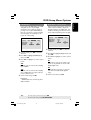
● To enjoy optimum multi-channel
surround sound
English
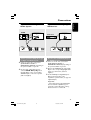
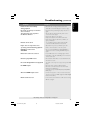
Optional: Connecting to a
HDMI compatible device
HDMI
compatible
TV
OUT
IN
VIDEO
HDMI IN
AUDIO
HDMI compatible
device
OUT
IN
VIDEO
HDMI
compatible
amplifier
HDMI IN
AUDIO
VIDEO
HDMI
DIGITAL
COAXIAL
OUT
Cr/Pr
AUDIO
OUT
DIGITAL
COAXIAL
OUT
Cr/Pr
AUDIO
OUT
Y
CVBS
HDMI
Cb/Pb
SCART
VIDEO OUT
AUDIO
Y
CVBS
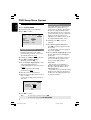
● To enjoy optimum multi-channel
surround sound without HDMIcompatible television
TV
OUT
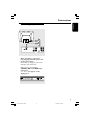
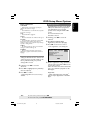
Using HDMI (High Definition
Multimedia Interface) sockets
● HDMI connects untouched and
uncompressed digital transmission for the
highest and cripest sound/image quality.
● It has plug and play capability using only
one cable for both audio/video output.
● Use a HDMI cable (not supplied) to
connect the HDMI OUT on the DVD
Player to HDMI IN on an HDMI
compatible device (eg.; PC, DVD Player,
Set Top Box).
➜ It may take a while for the DVD
player and input device to communicate
and initialise.
➜ Playback starts automatically.
● The HDMI is backward compatible with
some DVI devices using an appropriate
adaptor plug.
➜ If a DVI device is connected, an
additional audio cable will be needed for
audio transmission.
➜ This DVD player supports HDCP
compliance devices only.
IN
VIDEO
AUDIO
VIDEO
HDMI
compatible
amplifier
HDMI
AUDIO
1
DIGITAL
COAXIAL
OUT
Cr/Pr
AUDIO
OUT
Y
CVBS
HDMI
Cb/Pb
12
SCART
VIDEO OUT
● Most older DVI enable devices are not
HDCP compliant and playback is not
possible.
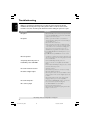
➜ A pop-up menu will appear on the TV
screen.
Helpful hint:
– HDCP (High-bandwidth Digital Content
Protection) is a specification that provides a
secure transmission of digital contents
between different devices (to prevent
unauthorised copy-right).
12
01-37-DVP5900_Eur3
SCART
Cb/Pb
VIDEO OUT
HDMI
22/09/05, 2:56 PM