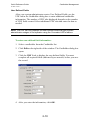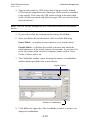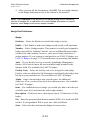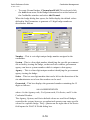
1
P2000 Security Management System quick reference guide for P2000 operators version 3.12 24-10685-114 Revision – May, 2013 Copyright 2013 Johnson Controls, Inc. All Rights Reserved No part of this document may be reproduced without the prior permission of Johnson Controls, Inc. If this document is translated from the original English version by Johnson Controls, Inc., all reasonable endeavors will be used to ensure the accuracy of translation. Johnson Controls, Inc. shall not be liable for any translation errors contained herein or for incidental or consequential damages in connection with the furnishing or use of this translated material. Due to continuous development of our products, the information in this document is subject to change without notice. Johnson Controls, Inc. shall not be liable for errors contained herein or for incidental or consequential damages in connection with furnishing or use of this material. Contents of this publication may be preliminary and/or may be changed at any time without any obligation to notify anyone of such revision or change, and shall not be regarded as a warranty. Other Manufacturers’ Documentation Johnson Controls does not duplicate documentation of other equipment manufacturers. When necessary, Johnson Controls provides documentation that supplements that of other manufacturers. When unpacking your equipment, keep all original manufacturer documentation for future reference. Technical Support Johnson Controls authorized dealer representatives can call the Field Support Center at (800) 524-1330 or (414) 524-5000 and use options 6, 1, 7. System users that need information on maintenance contracts or on-site field support can call a local Johnson Controls sales or service office. Acknowledgment Metasys® and Johnson Controls® are trademarks of Johnson Controls, Inc. All other company and product names are trademarks or registered trademarks of their respective owners. Declaration of Conformity This product complies with the requirements of the EMC Directive 2004/108/EC and the Low Voltage Directive 2006/95/EEC. This equipment must not be modified for any reason and it must be installed as stated in the Manufacturer’s instruction. If this shipment (or any part thereof) is supplied as second-hand equipment, equipment for sale outside the European Economic Area or as spare parts for either a single unit or system, it is not covered by the Directives. Quick Reference Guide Table of Contents 24-10685-114 Rev. – TABLE OF CONTENTS Chapter 1: Introduction Get Help 1-2 P2000 Tutorial 1-2 Manual Conventions 1-2 Chapter 2: Cardholder Management Provide Access to Cardholders and Visitors 2-1 Entering Cardholder Information 2-1 Cardholder Types 2-2 Additional Cardholder Data 2-3 Cardholder Field Definitions 2-4 Adding a Cardholder Image 2-7 Adding a Cardholder Journal 2-7 User Defined Fields 2-10 Entering Badge Information 2-13 Badge Field Definitions 2-14 Viewing Badge Data 2-22 Bulk Badge Change 2-23 Entering Visitor Information 2-25 Add Visitor Field Definitions 2-26 Badge Resync 2-28 Image Recall 2-31 Image Recall FS (Full Screen) 2-34 Chapter 3: Alarm Monitoring Handling Alarms 3-1 Monitoring Remote Alarms 3-1 Viewing the Alarm Monitor 3-2 Alarm Monitor Definitions 3-2 Acknowledging an Alarm 3-4 Responding to an Alarm 3-5 Completing an Alarm 3-6 i Quick Reference Guide Table of Contents 24-10685-114 Rev. – Removing the Alarm from the queue 3-6 Other Alarm Monitor Functions 3-7 Configuring Alarm Colors 3-7 Creating Predefined Alarm Response Text 3-10 Chapter 4: Operator Controls Controlling Doors 4-1 Controlling Outputs 4-3 Security Threat Level Control 4-4 Defining Security Levels 4-5 Chapter 5: Real Time Monitoring Using the Real Time List 5-1 Monitoring Remote Messages in Real Time 5-1 Viewing Real Time List Transactions 5-2 Printing the Real Time List 5-5 Using the Real Time Map 5-7 Sub Maps and Attachments 5-7 Opening a Door 5-9 Activating Events from the Real Time Map 5-10 Using the System Status 5-10 System Status – Reader Terminals 5-13 System Status – Input Terminals 5-13 System Status – Output Terminals 5-14 System Status – Inputs 5-14 System Status – Outputs 5-14 System Status - OTIS Elevator Status 5-14 System Status – Mustering Zones 5-14 System Status – Security Level Terminals 5-15 System Status – Intrusion Areas 5-15 System Status – Intrusion Zones 5-15 System Status – Intrusion Annunciators 5-16 System Status – Fire Zone 5-16 System Status – Fire Detector 5-17 System Status – Fire IO Module 5-17 ii Quick Reference Guide Table of Contents 24-10685-114 Rev. – System Status – Wireless Parameters 5-18 System Status - Integration Components 5-18 Chapter 6: Report Generation iii Quick Reference Guide Table of Contents 24-10685-114 Rev. – iv Quick Reference Guide Introduction 24-10685-114 Rev. – 1. INTRODUCTION This guide describes procedures typically performed by operators of the P2000 Security Management System. Your system administrator must complete all configuration steps outlined in Chapter 2: Configuring the System in the P2000 Software Users Manual before you can program and use the essential functions described in this guide. If configuration is not completed, some of the functions described here may not be ready to operate. Operations typically performed as part of system maintenance, such as downloading data, updating software and panels, starting and stopping service control, and reviewing system and workstation status, must also be performed by a system administrator and are described in Chapter 5: System Maintenance in the P2000 Software Users Manual. Where to go when you want to ..... Provide access to cardholders and visitors (go to page 2-1) Open/Lock Doors and perform other operator controls (go to page 4-1) Monitor alarms (go to page 3-1) Monitor the system in Real Time (go to page 5-1) Run a Report (go to page 6-1) 1-1 Get Help (go to page 1-2) Quick Reference Guide Introduction 24-10685-114 Rev. – GET HELP Help is available from most P2000 windows by pressing F1. Once you press F1, help text for the selected item displays in a separate window. The P2000 software contains virtually the entire Software User Manual in online documentation accessed via the Help option on the Main menu. You can access information under each topic or use the Index to search for specific topics. P2000 TUTORIAL The tutorial presents an overview of P2000 major features and options. It also covers a number of system configuration, installation, and troubleshooting tips. Adobe® Flash is required to run the tutorial and can be installed when you launch the tutorial program from the Help option in the P2000 menu bar. The modular design enables navigation to all or specific tutorial topics. The tutorial introduces topics and sub-topics, which are discussed through Flash presentations that provide audio narration (with matching text if desired) to guide users on how to make the most of P2000’s main popular features. Software screenshots are used to walk the user through actual configuration and installation steps. NOTE: Depending on the software version you are using, the screen captures in this manual may differ slightly. MANUAL CONVENTIONS The following items used throughout this manual indicate special circumstances, exceptions, important points regarding the equipment or personal safety, or emphasize a particular point. NOTE: Notes indicate important points or exceptions to the information provided in the main text. IMPORTANT: Important messages remind you that certain actions, if not performed exactly as stated, may cause damage to equipment or make your system non-operational. TIP: Tips describe time-saving or additional information. 1-2 Quick Reference Guide Cardholder Management 24-10685-114 Rev. – 2. CARDHOLDER MANAGEMENT PROVIDE ACCESS TO CARDHOLDERS AND VISITORS Access privileges define which cardholder or visitor may enter a specific area of the facility, and at what time they may enter. These privileges are assigned to individual reader terminals and group of reader terminals; these devices are assigned to specific access groups, and then when cardholder records are added to the database, the cardholders are assigned to the access groups. You can create cardholder records and assign badges to grant or deny facility access. At a minimum, you must enter a first and last name into the Cardholder database for each person who needs to have access to your facility. Additional cardholder information can include personal information such as address and phone; company information such as a company name and department; a photo ID; and any additional information such as car make, parking assigned, or other information defined in User Defined Fields (UDFs). ENTERING CARDHOLDER INFORMATION Every person who needs access to the facility must have a Cardholder and Badge record entered into the P2000 system. You can enter cardholders all at once at system startup, and then edit or remove them as necessary thereafter. You can add and view permanent cardholders and visitor cardholders in the same Cardholder window. If you use database partitioning, the cardholder can belong to one partition, and could have multiple badges, each in a different partition with different access parameters. To view cardholder information: 1. Select Access>Cardholder from the P2000 Main menu to open the Cardholder window. 2-1 Quick Reference Guide Cardholder Management 24-10685-114 Rev. – 2. To view current cardholder information, select a Type from the dropdown list at the right side of the window (All, Regular, or Visitor). NOTE: The system displays up to 20,000 cardholders at a time, for the partition selected in the Partition field. If the number of cardholders in your system exceeds 20,000, use the Search feature, described on page 2-11, to display specific data. Cardholder Types Regular – These are the permanent cardholders in the system. Their access begins with a start date, but unless terminated or temporarily reassigned, no end date is specified. Visitor – Visitors are given temporary access to the system. Their access is limited by start and end dates and times, and they are assigned a company Sponsor to take responsibility for them while visiting the facility. All – Displays all cardholders currently in the system. 2-2 Quick Reference Guide Cardholder Management 24-10685-114 Rev. – Additional Cardholder Data When you select a cardholder from the list, additional cardholder data displays in the tabs in the middle of the Cardholder window, such as: • Image, address, start and end badges, UDFs, and other information • Sponsor information, for cardholders of Visitor type • Sponsored Visitor information, which displays the visitors sponsored by the selected cardholder • Site selection (for facilities that use the P2000 Enterprise option), which allows you to view only cardholders that belong to the selected Site name. An Enterprise Sites tab is also added to the window to display the site names assigned to the cardholder. To enter cardholder information: 1. From the Cardholder window, click Add. The Cardholder dialog box opens at the Cardholder Edit tab. 2. Enter the information as described in the following Cardholder Field Definitions section. Required fields are indicated by an asterisk and must be completed before a record is saved. 2-3 Quick Reference Guide Cardholder Management 24-10685-114 Rev. – 3. Click Apply at any time to save the record. When you finish, click OK to return to the Cardholder window. The name of the newly added cardholder displays highlighted in the list box. Cardholder Field Definitions Cardholder Tab Partition – If this is a partitioned system, select the Partition to which this cardholder is assigned. Public – If this is a partitioned system, click Public to make this cardholder record visible to all partitions. Type – Select Regular or Visitor. If you select Visitor, the Sponsor box at the bottom of the window is activated. (See Sponsor on page 2-5 for more information.) First – Enter the first name of the cardholder. Middle – Enter the middle name of the cardholder. Last – Enter the last name of the cardholder. ID – This field displays the ID number that was automatically assigned from the Automatic Employee ID pool numbers. Depending on your settings, this field may allow editing. Address Address fields are optional, unless they are defined as required fields in your facility. Enter the suite, street, city, state, zip, phone number, and extension, if required. Other Email – If available in your facility, enter the email address assigned to this cardholder. Company and Department – Select a Company and Department. Your system administrator must create Companies and Departments before the selections display in the drop-down lists. Guard – This field is used with the Guard Tour feature and allows you to assign Tour Badges to cardholders who participate in guard tour operations. 2-4 Quick Reference Guide Cardholder Management 24-10685-114 Rev. – All Badges Start – This is the date and time that badges become active. Select the check box and select a start date. This date applies to all badges assigned to this cardholder. After you select a start date, the time field is enabled. Select the time that badges are activated. End – This is the date and time that badges are voided. Select the check box and select an end date. This date applies to all badges assigned to this cardholder. This box is typically used for Visitor badges, but can also be used to void badges for a terminated employee or similar situation. The system automatically voids the badge on the date specified. After you select an end date, the time field is enabled. Select the time that badges are voided. NOTE: If you create a Visitor badge and do not enter an end date and time, the date and time default to the Visitor Validity Period value specified in your Site Parameters setting. Web Access Menu Permission Group – If your facility uses the Web Access feature, select the permission group that is assigned to this cardholder. The cardholder is allowed to perform any Web Access function defined in this permission group. Password – Enter the password that the cardholder uses to log on to the P2000 Web Access site. Enterprise If your facility uses P2000 Enterprise, the Enterprise box displays all the sites defined in the system. Select the check box next to the site that this cardholder may access. Sponsor If you selected Visitor as the cardholder type, the Sponsor box is activated. A sponsor is the name of the cardholder responsible for the visitor. 2-5 Quick Reference Guide Cardholder Management 24-10685-114 Rev. – To enter a visitor sponsor: 1. If your cardholder type is Visitor, the Sponsor box at the bottom of the Cardholder Edit dialog box is activated. Click Select. The Cardholder – Find Sponsor dialog box opens. 2. Enter a value in any of the fields. The list box displays the cardholder records that match the entered values. 3. Select a cardholder name and click OK. Basic cardholder information displays in the Sponsor box. 2-6 Quick Reference Guide Cardholder Management 24-10685-114 Rev. – This information also displays in the Sponsor tab of the Cardholder window. In addition, when you select a sponsor name from the Cardholder window and click the Sponsored Visitors tab, the list displays all visitors sponsored by the selected cardholder. If you double-click a visitor name in the list, the visitor becomes the selected cardholder. Adding a Cardholder Image You can import an image to display in the Cardholder Image tab. The P2000 system supports a large number of image formats; however, if your image format is not supported, you may need to use an imageediting program to convert to a supported format. If the workstation is configured as a badging workstation, you can use the Badging buttons to capture an image. Adding a Cardholder Journal Journal entries supplement cardholder information by storing notes associated with each cardholder. For example, you may want to keep track of cardholders with parking violations, or keep a record of cardholders that attended specific company training, or track cardholders with suspicious behavior. 2-7 Quick Reference Guide Cardholder Management 24-10685-114 Rev. – To enter journal entries: 1. Select a cardholder from the Cardholder list. 2. Click Journal in the Image tab located in the middle of the Cardholder window. The Journal dialog box opens displaying the journal entries associated with the cardholder, together with the date and time when the journal was entered, the name of the operator who last edited the journal, the date and time the journal was last edited, and whether there is an attachment file associated with the journal entry. 3. Click Add. The Journal Edit dialog box opens. 2-8 Quick Reference Guide Cardholder Management 24-10685-114 Rev. – 4. Enter a descriptive Title to identify the subject of this note. 5. Click in the text area and enter the details of the note. 6. To add additional information to the note, click Import and navigate to the directory that contains the text file you want to include. Select the file and click Open. The text file displays in the text area. 7. To save the note as a text file, click Export and navigate to the directory where the exported notes are stored. Enter a file name and click Save. 8. To attach a file to the journal entry, click Attach and navigate to the directory that contains the file you wish to attach. Select the file and click Open. 9. If you do not wish to use the attachment file, select the file and click Detach. The attachment file is removed from the list. 10. To save the attachment file, click Save and navigate to the directory where the attachment file is stored. 11. To view the contents of the attachment file, click Open. 12. To email the attachment file, click Email. The program launches your default email client with the file attached. Check with your Internet Service Provider (ISP) or IT department to verify the required email client settings. 13. When you finish with the note details, click OK to save the entry and return to the Journal dialog box. 14. To view the contents of a note, select the note from the list and click View. When you finish viewing the note, click Cancel. 15. If you wish to modify an existing note, select the note from the list and click Edit; make your changes, then click OK. 16. To delete a note, select the note from the list and click Delete. You are prompted for verification. 17. When you finish with the Journal entries, click Exit. The Journal button displays the number of notes associated with the cardholder. 2-9 Quick Reference Guide Cardholder Management 24-10685-114 Rev. – User Defined Fields After your system administrator creates User Defined Fields, use the UDF tab in the Cardholder dialog box to enter additional cardholder information. The number of UDF tabs displayed depends on the number of UDF fields created. Select additional UDF tabs and enter the data as needed. NOTE: The UDF tab only displays the user defined fields that your system administrator assigns to the operator using the Concealed UDFs feature. To enter user defined field information: 1. Select a cardholder from the Cardholder list. 2. Click Edit on the right side of the window. The Cardholder dialog box opens. 3. Click the UDF 1 tab to display the user defined fields. You must complete all required fields (indicated by an asterisk) before you save the record. 4. After you enter the information, click OK. 2-10 Quick Reference Guide Cardholder Management 24-10685-114 Rev. – 5. Click the UDF tab located in the middle of the Cardholder window. The User Defined Fields and entries display for the cardholder selected. To search for specific cardholders: 1. In the Cardholder window, click Search on the right side of the cardholder list. The Database Search dialog box opens. Click to select a UDF Enter UDF search criteria 2. Enter or select from the associated drop-down lists, the information for any or all of the fields to search for specific cardholders. 3. If you wish to search by Company and Department, select a previously defined name from the drop-down list. 2-11 Quick Reference Guide Cardholder Management 24-10685-114 Rev. – 4. You can also search by UDF. Select any of the previously defined UDFs from the drop-down lists (Date type UDFs cannot be included in the search). Then enter the UDF search criteria in the associated fields. (Fields associated with Selection type UDFs are selected from drop-down lists.) NOTE: The UDF list only displays the UDF fields associated with the operator record. 5. If you wish to clear the existing search criteria, click Clear. 6. After you define the search criteria, click one of the following: Exact Match – to display an exact match to your search criteria. Partial Match – to display all possible selections that match the initial characters of the search criteria; for example, if you enter Carl in the First Name field, the list box displays names such as Carla, Carlos, Carlton, and so on. 7. The Cardholder window opens showing the number of cardholders and the match specified in the search criteria. Search Criteria Number of Cardholders 8. Click All on the right side of the Cardholder window to restore it to display all cardholders. 2-12 Quick Reference Guide Cardholder Management 24-10685-114 Rev. – ENTERING BADGE INFORMATION The lower portion of the Cardholder window displays badge information associated with the selected cardholder. You can create a badge strictly for identification, or you can assign a badge with access privileges. To enter badge information: 1. In the Cardholder window, select a cardholder from the list. 2. In the Badge Information box at the bottom of the Cardholder window, click Add. The Badge dialog box opens. TIP: You can also access the Badge dialog box from the Cardholder Edit tab by selecting Create Badge at the bottom of the window. 3. Enter the information as described in the following Badge Field Definitions. 2-13 Quick Reference Guide Cardholder Management 24-10685-114 Rev. – 4. After you enter all the information, click OK. The new badge displays in the Badge Information box at the bottom of the window. NOTE: Click Duplicate at the bottom of the Badge dialog box to create any number of badges for a cardholder. All current badge information is copied; however, each badge must have a unique number. Badge Field Definitions Badge Partition – Select the Partition in which this badge is active. Public – Click Public to make this badge record visible to all partitions. Number – Enter a badge number. This number is usually pre-assigned to badges provided by Johnson Controls. Access and Identification badges can have the same number; however, each access badge must have a unique number. If your system is configured to use FASC-N badges, see FASC-N Badges on page 2-15 for instructions on generating this number. Auto – If your facility is set up to use the AutoBadge Management feature, click Auto to insert the next available badge number in the Number field. Not available for FASC-N badges. Facility Code – Select the facility code to be assigned to this badge. Facility codes are defined in Site Parameters and identify the badges that belong to your particular site. Not available for FASC-N badges. Alpha – Some custom badges may provide space for additional characters. If so, you may enter up to four characters here. Not available for FASC-N badges. Issue – If a cardholder loses a badge, you would give him or her the next available issue level and retain the same badge number. Description – If desired, enter a description (up to 32 characters) of this badge. Pin – Enter the personal identification number (PIN) to be used with PIN readers. If an algorithmic PIN is used, leave this field blank. Start – Select the date and time this badge becomes active. 2-14 Quick Reference Guide Cardholder Management 24-10685-114 Rev. – End – Select the date and time this badge is automatically voided. If this is a Visitor badge and you do not enter an End date and time, the badge is automatically voided as configured in Site Parameters. Type – Select Access or Identification. Format – Select the badge format. Your system administrator must create Badge Formats before the selections display in the drop-down list. Purpose – If you wish to include this badge information, select a purpose to indicate the badge’s intention. Your system administrator must create Purpose fields before the selections display in the drop-down list. Reason – Select a reason to indicate why the badge is being issued. Your system administrator can add or edit badge reasons using the Edit Badge Reason application. Design – Select the badge design that your system administrator created using the Video Imaging software. FASC-N Badges To support the Federal Government smart card encoding protocol, an encoded badge must include FASC-N (Federal Agency Smart Credential Number) data fields. NOTE: Smart card encoding is only available if the Video Imaging software option used at your facility is EPI Builder. A FASC-N badge number is a unique number assigned to one individual. This type of badge is typically issued to government employees; however, it could also be used by any industry. Data elements in this number determine whether a cardholder should be granted access to specific buildings and controlled places. To create FASC-N badges, your system administrator must define the Badge Edit Style as FASC-N Only or Normal and FASC-N. • If FASC-N Only was selected, click Add in the Badge Information box at the bottom of the Cardholder window, or click Create Badge in the Cardholder Edit tab. • If Normal and FASC-N was selected, click the Add down arrow in the Badge Information box at the bottom of the Cardholder window and select Add FASCN. The Create Badge button in the Cardholder Edit tab only allows you to create FASC-N badges. 2-15 Quick Reference Guide Cardholder Management 24-10685-114 Rev. – • To create Normal badges if Normal and FASC-N is selected, click the Add down arrow in the Badge Information box at the bottom of the Cardholder window and select Add Normal. When the badge dialog box opens, the fields display the default values defined in Site Parameters to generate a 15-digit badge number as described as follows. Number – This is a six-digit unique badge number assigned to the cardholder. System – This is a four-digit number identifying the specific government site or facility issuing the badge, so that each site within a government agency can have a system number which is unique to that agency. Agency – This is a four-digit unique number identifying the government agency issuing the badge. Series – This is a one-digit number that can be left to the discretion of the site administrator as to how this number can be used. Generated – This box displays the generated number containing the 15 digits as follows: AAAASSSSRNNNNNN where A is the Agency code, S is System code, R is Series, and N is the Credential Number. The Agency, System, and Series default values are used for all badges created in the system; however, an authorized operator can enter specific values for a specific badge. The [...] button on the right side of the Series field opens the FASC-N Fields dialog box. 2-16 Quick Reference Guide Cardholder Management 24-10685-114 Rev. – You can change any of the default values, which are used instead of the configured default values for the badge currently being edited. If you want to go back to the default values, click Defaults. After you save the badge record, and if the Badge Edit Style used at your facility is Normal and FASC-N, you can edit the badge and click Change Style at the top-right corner of the window to change the badge style, if necessary. Security Options Tab These options allow you to define access privileges for a cardholder. TIP: Some security options are panel specific. Refer to the Appendix C: Panel Comparison Matrix in the P2000 Software User Manual for a detailed list of features and capabilities supported by your panel type. In Enterprise systems, the Badge dialog box displays the site name tabs of the sites assigned to the cardholder. The first tab is always the local site tab and is used to assign local access privileges. The second tab is the Enterprise tab and is used to assign global access privileges. Additional tabs show other site names assigned to the cardholder. When you define access to the local site or to a different site and click Apply Security Options Enterprise, the security options defined in the Enterprise tab are applied. Disabled – When a badge is created, it is automatically enabled. Select this check box to disable this badge. This function is useful when you wish to disable a badge, but do not wish to re-issue or redefine a badge for this cardholder. 2-17 Quick Reference Guide Cardholder Management 24-10685-114 Rev. – Executive – If enabled, the cardholder has unlimited access to all operational doors controlled by the access control system. (If a specific terminal requires the use of a PIN code with a badge, the PIN code is still required.) Trace – Enable to trace cardholder movement throughout the facility. If configured, badge trace transactions can be printed, as they occur. Override – If enabled, the cardholder can unlock any door controlled by a keypad reader that has the Override option enabled. Download to STI-E – If enabled, the badge is downloaded to the STI-E terminal (used with legacy panels). The STI-E terminal can save up to 1,000 badges in a resident database for use if the panel becomes inactive. Special Access – Enable any of the three special access flags, if the cardholder requires special access at a reader. Special access allows a door’s access time to be different. Security Level Select a security level number. To obtain access at a door, this number must be equal to or greater than the security level set up at the terminal. If the security level at the terminal is raised, cardholders are denied access, unless the badge has the Executive privilege enabled. Event Privilege Every badge has an event privilege level, ranging from 0 to 7, with zero as the lowest level. If a cardholder’s badge is to initiate a card event, this event privilege level must be equal to or greater than the privilege level defined in the Panel Card Event dialog box. Guard Tour Select a priority number from 1 (lowest) to 99. This number determines which tours the selected cardholder can perform. Only tour badges with equal to or greater than this priority can perform a tour. Access Rights Tab Use this tab to define the Access Groups and corresponding Time Zones that can be assigned to this badge. 2-18 Quick Reference Guide Cardholder Management 24-10685-114 Rev. – To define access rights: 1. In the Access Rights tab, double-click the line item you wish to define. The Access Rights Definition dialog box opens. The Index number automatically displays. 2. Select the Access Group you wish to assign to this badge. 3. To modify the settings in the selected Access Group, click [...] to open the Access Group Edit dialog box. Make your changes and click OK. 4. Select a Time Zone to be assigned to the selected Access Group. 5. If you wish to define a Temporary Access Period for the selected Access Group, select the check box and select the Start date and time when permission for access is granted. If the check box is not selected, access is allowed immediately. 2-19 Quick Reference Guide Cardholder Management 24-10685-114 Rev. – NOTE: For example, if the reader doors included in the Access Group normally grant access from 8:00 A.M. to 5:00 P.M., you can set up temporary access on a selected date and time period that can grant the cardholder permission for limited access within the normal time zone. This feature is performed by the Smart Download service and only works on terminals running in Local mode. 6. Select the Void check box and select the stopping date and time when permission for access expires. 7. Click Apply to save your settings. To assign another access group to this badge or see other definitions, select the spin box next to the Index field. 8. To define personalized settings, click Personalized Access Group. See Personalized Access Groups at the end of this section. 9. Click OK to return to the Access Rights tab. 10. To remove a definition, select the line item and click Remove. 11. The list displays the access groups assigned to the badge. To edit an access group, select the line item and click the [...] button. Personalized Access Groups You can use personalized access group for each cardholder. The Personalized Access Group button provides a shortcut to set up access groups without the need of scanning through all existing access groups. By default, the Name of the access group is always the name of the cardholder. However, be aware that the name of the access group is not automatically modified if you change the name of the cardholder. Once you have all the access group elements defined, such as terminals, terminal groups, elevators, or cabinets, click OK. The new personalized access group displays automatically in the Access Group field. Assign a time zone to the new access group as you would for any other access group. NOTE: Although initially created for a particular cardholder, a personalized access group becomes a standard access group within the P2000 system and can also be assigned to other cardholders. 2-20 Quick Reference Guide Cardholder Management 24-10685-114 Rev. – Access Template If a large number of cardholders uses badges having the same options, you can assign all badge options at once by applying an Access Template. The Access Template contains preset badge options, access groups, and time zones, and overrides any settings already defined for the badge, before the template was applied. You can edit badge options individually after the template is applied; if you re-select the template, the settings mirror the template settings. In addition, if changes are made to an Access Template, you have to re-select the template to apply the new settings. NOTE: In addition to selecting Access Templates from the Apply Access Rights drop-down list, you can also select another badge owned by the same cardholder and apply the same access rights from the selected badge. To apply access rights to a badge: 1. From the Apply Access Rights drop-down list, at the bottom of the Badge dialog box, select the Access Template or badge number you wish to apply to the badge. All access options defined for the Access Template or selected badge number are applied to the badge. 2. If you wish, you can change specific options, access groups, or time zones for this badge. All other settings remain in effect. 2-21 Quick Reference Guide Cardholder Management 24-10685-114 Rev. – Viewing Badge Data Badge data such as number, status, access group, and other information displays in the list box at the bottom of the Cardholder window. When you select a cardholder from the list, all badges assigned to that cardholder display in the Badge Information box. You can also view the badge’s transaction history. To display badge transaction history: 1. In the Cardholder window, select a cardholder from the list. 2. In the Badge Information box, right-click the badge number you wish to view. 3. Select Transaction History. The Badge Transaction History dialog box opens displaying the selected Cardholder name and Badge number. The list box displays the date, transaction type, and location where the badge was presented. 4. To change the number of transactions displayed, enter the desired number in the Num Records field. 5. To update the list box with new data, click Refresh. 6. Click Done to close the dialog box. 2-22 Quick Reference Guide Cardholder Management 24-10685-114 Rev. – Bulk Badge Change This tool is used to change badge parameters across multiple records, in a single operation. This feature not only allows you to save time by modifying multiple records at once, but also improves the accuracy from single record editing. You can also delete multiple badges and associated cardholder records at the same time. To bulk change badge records: 1. From the P2000 Main menu, select Access>Bulk Badge Change. The Bulk Badge Change dialog box opens. 2. Enter or select from the associated drop-down lists, the information for any or all of the fields. NOTE: The list box displays cardholders that match all fields in the search criteria. Make sure you use the AND logic to define your search. 2-23 Quick Reference Guide Cardholder Management 24-10685-114 Rev. – 3. To search by Company and Department, select a previously defined name from the list. 4. You can also search by UDF. Select any of the previously defined UDFs from the drop-down lists (Date type UDFs cannot be included in the search), then enter or select the UDF search criteria in the associated fields. 5. To search for badges that have not been used for a while, enter in the Badge Unused For field the number of days that the badges have not been used. 6. After you define the search criteria, click one of the following: Exact Match – to display an exact match to your search criteria. Partial Match – to display all possible selections that match the initial characters of the search criteria; for example, if you enter Carl in the First Name field, the list box displays names such as Carla, Carlos, Carlton, and so on. 7. Once the list box displays the cardholders specified in the search criteria, select from the Action drop-down list one of the following: Add Access Group – to assign all badges in the list box with access to all terminals defined in the access group. Select the Access Group and Timezone to be assigned to the selected badges. Apply Access Template – to apply all preset access privileges, badge options, access groups, and time zones that were defined in the access template. Select an Access Template from the drop-down list. NOTE: You cannot apply Facility Code settings using the Bulk Badge Change function. Delete Access Group – to remove from the selected badges access to all terminals defined in the access group. Select the Access Group to remove. Delete Badge – to delete all badges in the list box. Delete Badge and Cardholder – to delete all badges and associated cardholders in the list box. 2-24 Quick Reference Guide Cardholder Management 24-10685-114 Rev. – NOTE: If a cardholder owns more than one badge, and that badge is not included in the list box, the cardholder record is not deleted. Disable Badge – to disable all badges in the list box. Replace Access Group – to replace the existing access group. Select the New Access Group you wish to assign, then select the Old Access Group you wish to replace. The original timezone for the access group does not change. 8. If you wish to print the data in the list box, click Print. 9. Click Apply to change the selected badge records. 10. Click Done to close Bulk Badge Change. ENTERING VISITOR INFORMATION This function introduces an easier and faster way to enter visitor and badge information using a single user interface. Prior to a visitor’s arrival, the operator enters the appropriate visitor data into the system, assigns a visitor sponsor, enters the date and time period of the scheduled visit, and assigns access privileges using Access Templates. Subsequently and from the same screen, the visitor badge is printed. To enter visitor information: 1. From the P2000 Main menu, select Access>Add Visitor. The Add Visitor dialog box opens. 2-25 Quick Reference Guide Cardholder Management 24-10685-114 Rev. – 2. See the following Add Visitor Field Definitions. 3. After you enter all the information, click Save. The new visitor data is also reflected in the Cardholder window. 4. To save and print the badge, click Save and Print (requires the Video Imaging application). 5. If you wish to enter additional visitors, click Clear, then enter the information according to the Add Visitor Field Definitions. 6. Click Exit to close the Add Visitor dialog box. Add Visitor Field Definitions Visitor Box First – Enter the first name of the visitor. Middle – Enter the middle name of the visitor. Last – Enter the last name of the visitor. ID – Enter a unique ID for this visitor (up to 25 characters). Company – Select the visitor’s Company name. If the company name does not already exist in the database for the visitor’s assigned partition, click the browse button [...] to open the Company window. Partition – Select the partition to be assigned to the visitor. Found in DB – Indicates whether or not P2000 has identified a matching Visitor record in the cardholder database after you click Search. If Found in DB shows Yes, then the existing visitor record in the P2000 database is updated. If it shows No, the new visitor is added when you click Save. Approved Visits – Displays the number of approved visits. This field is only valid if the Found in DB field displays Yes. NOTE: The Add Visitor application creates four UDFs: Approved Visits, Most Recent Visit, Second Most Recent Visit, and Third Most Recent Visit. These UDFs are automatically updated and allow you to monitor the visits associated with the selected visitor. 2-26 Quick Reference Guide Cardholder Management 24-10685-114 Rev. – Search – If the visitor information already exists in the database, you may search the database by entering a value in any of the Visitor fields and then clicking Search. The Find Visitor dialog box opens displaying the visitor records that match the entered values. You may also click Search without entering any values to display all visitors in the database. Select the visitor’s name and click OK. Take – If your facility uses the Video Imaging application, click Take to capture the visitor’s portrait. Sponsor Box Displays the First, Middle, Last, ID, Company, and Partition information of the person who sponsors this visitor. Click Search to find a Sponsor in the database. The Find Sponsor dialog box opens. When you enter a value in any of the fields, the list box displays the sponsor records that match the entered values. If no value was entered, all cardholders in the database display. Select the sponsor’s name and click OK. 2-27 Quick Reference Guide Cardholder Management 24-10685-114 Rev. – Badge Box Number – Enter a badge number. NOTE: The Add Visitor application does not support FASC-N badge numbers. Auto – If your facility uses the AutoBadge Management feature, click Auto to insert the next available badge number in the Number field. Issue – Enter an issue level per badge number. If a visitor loses a badge, give the next available issue level and retain the same badge number. Template – Select the access template to be applied to this badge. See Access Template on page 2-21. Design – Select a badge design. Start Date and Start Time – Select the check box and select a date and time when this badge becomes active. Void Date and Void Time – Select the check box and select a date and time when this badge is automatically voided. BADGE RESYNC Entry and Exit terminals require cardholders to enter and exit an area in sequence. That is, when cardholders badge in at an entry terminal, they must badge out at the next badging. If, for example, they follow another cardholder out without swiping their badge, their badge remains in the In state (out-of-sync). When they attempt to badge back into the area, they are denied access. You can manually adjust the state of a badge to return it to the correct state. You can also reconfigure this badge as Undefined to clear the Entry/Exit status until the next badging. To resync badges: 1. From the P2000 Main menu, select Access>Badge Resync. The Badge Resync dialog box opens. 2-28 Quick Reference Guide Cardholder Management 24-10685-114 Rev. – 2. Select the Partition in which the badges are active. 3. From the Show drop-down list, select one of the following options: Cardholders – to resync the status of badges that belong to all or specific cardholders. Last Badging Terminal – to resync the status of all badges last presented at the selected terminal. Last Badging Terminal Group – to resync the status of all badges last presented at all terminals in the selected terminal group. NOTE: The Last Badging Terminal and Last Badging Terminal Group options are used, for example, to quickly reset the status of all badges after a mustering event or reset the status of badges in situations when cardholders badged in at an entry terminal and they were unable to badge out at an exit terminal because the exit terminal was down. 4. If you selected Last Badging Terminal or Last Badging Terminal Group, select a terminal or terminal group from the list and continue with Step 16. 2-29 Quick Reference Guide Cardholder Management 24-10685-114 Rev. – 5. If you selected Cardholders, select the Type of cardholder (Regular, Visitor, or <all>) that you wish to display in the list box. 6. If you wish to display specific cardholders (within the type selected), click Search. The Database Search dialog box opens. 7. Enter the information on any or all of the fields to search for specific cardholders. 8. If you wish to search by Company and Department, select a previously defined name from the drop-down list. 9. You can also search by UDF. Select any of the previously defined UDFs from the drop-down list (Date type UDFs cannot be included in the search). Then enter or select the UDF search criteria in the associated field. 10. If you wish to clear the existing search criteria, click Clear. 11. After you define the search criteria, click one of the following: Exact Match – to display an exact match to your search criteria. Partial Match – to display all possible selections that match the initial characters of the search criteria; for example, if you enter Carl in the First Name field, the list box displays names such as Carla, Carlos, Carlton, and so on. 2-30 Quick Reference Guide Cardholder Management 24-10685-114 Rev. – 12. The list box displays the cardholders specified in the search criteria. 13. If you wish to display all cardholders again (within the type selected), click All. 14. After you define the cardholders you wish to display in the list, select a cardholder from the list. 15. The badge number and status of all badges assigned to this cardholder displays in the Badges list. Select the badge or badges to be resync. NOTE: To resync the status of all badges of all cardholders currently in the list, click Select All. 16. Click the appropriate button, In, Out, or Undefined to change the status of the badges. 17. Click Done. The badge status is now changed. IMAGE RECALL If the Image Recall window is open on the workstation, any badging (for the partition selected in Image Recall Filters) displays the cardholder’s image and information. An operator with proper menu permissions can define access conditions and other filter criteria (transactions set up in the Image Recall Filter Edit dialog box, such as an Access Grant or any invalid transaction), to determine if an image displays in the Image Recall window. Image Recall Filters 1. From the P2000 Main menu, select Access>Image Recall Filters. The Image Recall Filters dialog box opens. 2-31 Quick Reference Guide Cardholder Management 24-10685-114 Rev. – 2. Click Add. The Image Recall Filter Edit dialog box opens. 3. Select the Partition in which this image recall filter is active. 4. Click Public to make this image recall filter visible to all partitions. 5. Enter a descriptive Name for the image recall filter. 6. From the Type to Display box, select the transactions that you wish to monitor. You do not need to select all conditions. If you select Any Deny, all other filtering conditions are grayed out, except Access Grant and Duress. NOTE: Cardholder image and information always display in the Image Recall window if the associated badge has the Trace option enabled, regardless of the filter conditions selected here. 7. Select a Terminal to be monitored. 8. Select a Terminal Group name if you wish to monitor a Terminal Group. 9. Click OK. The new image recall filter displays in the Image Recall Filters list. 10. Click Done. 2-32 Quick Reference Guide Cardholder Management 24-10685-114 Rev. – To activate image recall: 1. From the P2000 Main menu, select Access>Image Recall. The Image Recall window opens. 2. Select the Partition in which the image recall is active. 3. Select Popup if the Image Recall window is to move to the front of all windows on the P2000 screen whenever an access attempt that matches the current filter occurs. NOTE: If the Image Recall window does not pop up in front of other windows, the Image Recall button may begin flashing in the Microsoft® Windows® taskbar. 4. Click Show UDF Fields, if you wish to display the user defined fields associated with the cardholder. 5. In the Blanking Time field, enter the time in minutes after which the image and the data are cleared. If you enter a value of zero, the display is not blanked. 6. Select a Filter from the drop-down list. 7. When a cardholder presents a badge at a terminal or group of terminals that meets the filtering conditions, the cardholder’s image displays, along with the current cardholder information. 8. This image and information remain in the window until another cardholder badges within the partition, or until the Blanking Time defined elapses, or until you click Clear to clear the information in the Image Recall window. 2-33 Quick Reference Guide Cardholder Management 24-10685-114 Rev. – 9. Leave the Image Recall window open on the workstation to view images displayed as a result of subsequent badgings. Image Recall FS (Full Screen) The Image Recall FS feature offers a simplified display and works in both default and full screen modes. When the Image Recall FS window is open and a cardholder presents a badge at a terminal or group of terminals that meets the filtering conditions, the cardholder’s image displays along with the cardholder name. Optionally, one or two of the following can also display: Company, Department, ID, and any text or numeric user defined field (UDF). To activate image recall FS: 1. From the P2000 Main menu, select Access>Image Recall FS. The Image Recall FS window opens. 2. Select Edit>Options to open the Image Recall Options dialog box and define the elements you wish to display. 2-34 Quick Reference Guide Cardholder Management 24-10685-114 Rev. – 3. Select the Partition in which the image recall is active. 4. Select a Filter that contains the access conditions that determine which images to display. See Image Recall Filters on page 2-31. 5. Select Popup if the Image Recall FS window is to move to the front of all windows on the P2000 screen whenever an access attempt that matches the current filter occurs. NOTE: If the Image Recall window does not pop up in front of other windows, the Image Recall button may begin flashing in the Windows taskbar. 6. From Line 1, Line 2, or Line 3, select the data to be displayed in the first, second, or third line under the cardholder’s image. You can select Badge Expiration Date, Cardholder Expiration Date, Cardholder First Name, Cardholder Full Name, Cardholder Last Name, Company, Department, ID, or any text or numeric user defined field. 7. Click the Text Font browse button [...] to select the font type you wish to display. The font style and size are not configurable. 8. Click the Text Color browse button [...] to select the text color you wish to display. 9. Click the Background Color browse button [...] to select the background color you wish to display. 2-35 Quick Reference Guide Cardholder Management 24-10685-114 Rev. – 10. Click the Background Image browse button [...] to select a background image. 11. In the Blanking Time field, enter the time in minutes after which the image and the data are erased and the background is displayed. If you enter a value of zero, the display is not blanked. 12. Click OK to save your options and return to the Image Recall FS window. 13. Select View>Full Screen to change the display mode to full screen. Press ESC to return to the previous view. 14. The image and information remain in the window until another cardholder badges within the partition, or until the Blanking Time defined in Image Recall Options elapses, or until you select View>Clear to clear the information. 15. Leave the Image Recall FS window open on the workstation to view images displayed as a result of badgings, or select File>Exit to close. 2-36 Quick Reference Guide Alarm Monitoring 24-10685-114 Rev. – 3. ALARM MONITORING P2000 alarms are generated to inform operators of any abnormal condition in the system. Operators can monitor alarms in real time and respond accordingly. For example, when an alarm is reported, the operator acknowledges the alarm, makes the appropriate response, and then completes the response. HANDLING ALARMS The Alarm Monitor window opens immediately after logging on to the Server, so that ongoing alarms are always visible. The alarm handling typically includes the following steps: 1. Acknowledge that an alarm condition has been reported by the system. See Acknowledging an Alarm on page 3-4. 2. Respond by entering the appropriate response. 3. Complete the alarm. 4. Remove the completed alarm condition from the Alarm Monitor window. MONITORING REMOTE ALARMS Operators can simultaneously monitor alarms locally and at multiple remote sites. This feature is useful to monitor alarms at unattended sites that are closed for the weekend or a holiday, and ensures that all alarm conditions, even at far away locations, are watched closely at all times. The procedures for handling remote alarms are similar as for local alarms; however, the following points should be noted: Responding to remote alarms – alarm instructions are sent to remote sites; however, the alarm responses remain local. While the Alarm Status column in the Alarm Monitor displays a Responded status, the alarm response entered at a remote site is not be part of the alarm history in your local site. Completing remote alarms – Remote alarms can be completed, regardless of the current alarm state. 3-1 Quick Reference Guide Alarm Monitoring 24-10685-114 Rev. – Removing remote alarms – Remote alarms can be removed from the queue, regardless of the current alarm state. Removed alarm are automatically completed. VIEWING THE ALARM MONITOR To open the Alarm Monitor, select Alarm>Alarm Monitor from the P2000 main menu. The Alarm Monitor queue displays alarms in a scrolling list, as they occur. When a new alarm displays, an audible beep sounds, and a red color bell icon in the line item entry message begins flashing. The entry continues in this Pending state until an operator acknowledges the alarm, after which the beep stops and the bell icon changes to yellow. NOTE: Use the Refresh button in the Alarm Monitor window to display alarms with updated information. Alarm Monitor Definitions Date/Time – The date and time the alarm was reported to the system. Alarms that originated at remote sites with different geographical time zones display the actual time at the remote site. NOTE: Click any of the column headings to sort the alarms by the selected column heading. Escalation – Escalation level of the alarm (the highest is 10). Escalation ensures that alarms are handled in a timely manner. 3-2 Quick Reference Guide Alarm Monitoring 24-10685-114 Rev. – Priority – The Alarm Priority set for each alarm type (the highest is 0). You can assign sounds to Alarm Priorities from Control Panel in your Windows desktop. Alarm Status – Displays one of the following: • Pending – Not yet acknowledged. • Acknowledged – Acknowledged but no action taken. • Responding – Acknowledged and response action in progress. • Complete – Action taken. Alarm State – The state of the alarm, such as Secure, Alarm, Open, Short, Suppressed, Tamper, Bypassed, and so on. Description – The description of the element that activated the alarm. Alarm Category – The Alarm Category to which the alarm belongs. The default category is P2000. When an alarm is assigned to multiple Alarm Categories, and the operator is configured to view alarms from these multiple categories, the alarm displays separately for each category. User Site – The site name from where the operator is handling the alarm. User Name – The name of the operator who handles the alarm. Action Date/Time – The date and time the action (respond, complete, and so on) takes place. This is always the local time, regardless if a remote site is in a different geographical time zone. Query String – The query string value (if it was defined) of the item associated with the alarm. Alarm Site – The name of the P2000 site where the alarm was originated. Partition – The name of the partition containing the item (input point, terminal, panel, and so on) that originated the alarm. Public – Displays whether the alarm message is visible to other partitions. Audible Alarm Button – Click the Audible Alarm button to temporarily disable the audible alarm beep. All alarms are affected. Unless you acknowledge, respond, or complete the alarm, the beep becomes audible again in 40 seconds. If you wish to turn off the audible alarm beep, select from the Sounds dialog box in Control Panel, any of the Pegasys Alarm Priorities, then browse for the None.wav file located in the bin folder of the P2000 software installation. 3-3 Quick Reference Guide Alarm Monitoring 24-10685-114 Rev. – Msg Routing Status – The indicator displays in green to indicate that all communications between the workstation and the Server are up. If communications go down, the indicator turns red. Total – The total alarm count in the Alarm Monitor window. Pending – The number of pending alarms in the Alarm Monitor window. Map Button – To see the location of an alarm on a Real Time Map, select an alarm and click the Map button. The map displays and the icon blinks indicating the location of the alarm. For more information, see Using the Real Time Map on page 5-7. This feature is available for local alarms only. AV – Available if your facility uses the DVR feature. If the alarm message displayed is associated with a camera, you can select the message line from the list and click the AV arrow, then select whether you want to display live or stored video. For more information, refer to the DVR documentation. Print – Click the Print arrow and select whether you want to Print All alarms in the queue or select Print Displayed to print the alarms that are visible in the Alarm Monitor list box. Acknowledging an Alarm You may be required to acknowledge a new alarm as soon as it is received. You may do so and then return later to actually respond to the alarm, depending on company policy and the priorities assigned to that alarm. Alarm acknowledgment is optional and does not need to occur prior to response; its use is typically dictated by company policy. To acknowledge an alarm: 1. Find the alarm you wish to acknowledge. 2. Click Ack. The Alarm Status changes to Acknowledged. This informs the system and anyone else monitoring the system that the alarm has been recognized. 3. If a number of alarms come in at once, you can acknowledge them in any order you wish; however, company policy may dictate that you respond by priority. If desired, select the highest priority by number, or click the Priority column title to sort by priority. 3-4 Quick Reference Guide Alarm Monitoring 24-10685-114 Rev. – Responding to an Alarm When an operator responds to an alarm, the operator name displays in the User Name column of the Alarm Monitor window and the response is recorded in alarm history database. The operator would typically review the Alarm State and Description to note any known conditions. Specific instructions created for the particular alarm display in the Instruction box during the response to help the operator perform the appropriate action. To respond to an alarm: 1. Find the alarm you wish to respond. 2. Click Respond. The Alarm Response dialog box opens. 3. The Description box displays the description for the line item selected in the Alarm Monitor window. 4. The Condition box displays the alarm condition. 5. The Instruction box displays any instruction text associated with the alarm. 6. The History box displays all stored history for the line item selected from the Alarm Monitor. 3-5 Quick Reference Guide Alarm Monitoring 24-10685-114 Rev. – 7. To add a predefined response, click the Predefined Alarm Response Text drop-down list and select the desired response. The response text displays in the Text box. Click Add to add the selected response to the History box. The Alarm Status changes to Responding. This stores a record of the response in the transaction history. See Creating Predefined Alarm Response Text on page 3-10 for information on adding different responses for specific alarms. 8. If you wish, you can also enter a specific response in the Text box and click Add to add your response to the History box. 9. Click Done to return to the Alarm Monitor window. NOTE: You can open multiple Alarm Response windows and respond to multiple alarms simultaneously. You can also acknowledge or complete alarms in the Alarm Monitor window while the Alarm Response window is open, but you cannot acknowledge or complete those alarms that are currently open in the Alarm Response windows. Completing an Alarm Several actions may take place during the handling of an alarm. When all actions needed to process the alarm have been completed, the operator completes the alarm. This action is recorded in the alarm history database. An alarm can only be completed if the alarm state is secure. NOTE: Responding to an alarm that has not been acknowledged automatically causes an acknowledgment to occur. Similarly, completing an alarm causes an automatic acknowledge, if needed. To complete an alarm: 1. Find the alarm you wish to complete. 2. Click Complete to end the alarm processing sequence. The Alarm Status changes to Complete. Removing the Alarm from the queue According to company policy, operators may remove completed alarms from the alarm queue. The alarm response sequence remains in the alarm history record. An alarm can only be removed if the alarm state is secure. 3-6 Quick Reference Guide Alarm Monitoring 24-10685-114 Rev. – To remove an alarm message from the queue: 1. Find the alarm you wish to remove. 2. Click Remove. Other Alarm Monitor Functions You can right-click an alarm in the Alarm Monitor window and select from the shortcut menu any of the previous functions (acknowledge, respond, complete, and remove). You can also use the shortcut menu to: • display alarm details, including associated alarm instruction, alarm history, and any response entered for the alarm • see the location of the alarm on a Real Time Map • view alarm instructions • display live or stored AV video (if available) • view all alarm items by clicking Display All • manually activate events • select to Print All alarms in the queue or select Print Displayed to print only the alarms that display in the list box Configuring Alarm Colors The P2000 system provides color configuration capability for each alarm priority (0 to 255) and its corresponding alarm status. Each alarm status can have a unique color assigned to help operators recognize specific alarms. When a new alarm displays in the Alarm Monitor window, the line for the affected alarm displays in the color that was assigned using the Default Alarm Colors dialog box. To define color-coded alarms: 1. From the P2000 Main menu, select Config>System. Enter your password if prompted. The System Configuration window opens. 2. In the left pane, expand Site Parameters. 3. Select Default Alarm Colors and click Edit. The Default Alarm Colors dialog box opens. 3-7 Quick Reference Guide Alarm Monitoring 24-10685-114 Rev. – 4. Click the Priority line you wish to define. 5. Click one of the following buttons: Pending Color – to assign a specific color to alarms that have not yet been acknowledged. Acked Color – to assign a specific color to alarms that have been acknowledged. Respond Color – to assign a specific color to alarms that have been responded. Complete Color – to assign a specific color to alarms that have been completed. All Colors – to assign the same color to all alarm status for the priority selected. Regardless of the option selected, the Edit Color dialog box opens. 3-8 Quick Reference Guide Alarm Monitoring 24-10685-114 Rev. – 6. Click Text Color and select the desired text. Click OK. 7. Click Background Color and select the desired background color. Click OK. 8. The Sample Text box displays the selected colors. Click OK to return to the Default Alarm Colors dialog box. You cannot see the new color until you select other priority number or click anywhere on the screen. 9. Repeat the same steps if you wish to assign colors to other alarm priorities. 10. To return to the default system colors, select the Priority line and click Set To Default. 11. When you finish setting all alarm colors, click OK. The assigned colors for each priority and corresponding alarm status are the default colors for all operators; however, operators who are required to handle certain alarm conditions may want to use different colors for the alarms they need to see. In that case, the default alarm colors can be changed from the Alarm Monitor window. NOTE: The ability to change alarm colors from the Alarm Monitor window is controlled by menu permissions. See your system administrator if you need menu permissions to override the default alarm colors. 12. Open the Alarm Monitor window, and click the system menu button. System Menu Button 13. From the control menu select Alarm Colors. The Alarm Colors dialog box opens displaying the default colors that were defined from the System Configuration window. 3-9 Quick Reference Guide Alarm Monitoring 24-10685-114 Rev. – 14. Assign the desired colors as described before, then click OK to save your settings. NOTE: Alarm colors that are assigned from the Alarm Monitor window are associated with the operator who made the changes. In addition, the Set To Default button resets to the default colors assigned from the System Configuration window. CREATING PREDEFINED ALARM RESPONSE TEXT You can create Response text to speed alarm response to specific types of alarms. For example, when panels go down for regular maintenance, a Panel Down soft alarm is sent to the Alarm Queue. The operator can quickly respond by selecting a predefined response from the drop-down list. To create predefined alarm response text: 1. From the P2000 Main menu, select Alarm>Alarm Response Text. The Alarm Response Text list opens. 2. Select the Partition in which this alarm response text applies. 3. Click Add. The Alarm Response Text dialog box opens. 4. Select a Partition and click Public if you wish the text to be seen by all partitions. 5. Enter a descriptive Name for the text. 6. Enter the actual Text you wish to enter into the Alarm Response record. 7. Click OK. The Response text name is now available in the drop-down list of the Alarm Response dialog box. 3-10 Quick Reference Guide Operator Controls 24-10685-114 Rev. – 4. OPERATOR CONTROLS Most system functions operate automatically; however, operators with the appropriate permissions can manually control doors, output devices, or raise the security level of the terminals to restrict access in emergency situations. CONTROLLING DOORS An operator can manually control a door, a group of doors, or all doors (override system controls) for a specific time period. For example, an authorized operator can manually control access to a specific door during off business hours. To manually control doors: 1. From the P2000 Main menu select Control>Door Control. 2. Enter your password if prompted. The Door Control dialog box opens. 3. Select the Partition in which this door is active. 4. Select if you wish to control a Door or Group of doors. 5. Select a Name from the drop-down list. 4-1 Quick Reference Guide Operator Controls 24-10685-114 Rev. – 6. In the Action box, select one the following: Return to Normal – to return the door to its normal state. Open for Access Time – to unlock the door for the amount of time set in the Access Time field defined in the Terminal dialog box. Unlock – to unlock the door for the number of minutes entered (up to 1440 minutes) in the Duration field, after which the doors reverts back to their original system-controlled condition. Lockout – to prevent access by all badges at the door. Only supported by OSI and Assa Abloy® panels. 7. Click Perform. The Action selection goes into effect. 8. Click Done to exit the window. To control all doors at once: 1. From the P2000 Main menu select Control>Control All Doors. 2. Enter your password if prompted. The Control All Doors dialog box opens. 3. Select the Partition in which the doors are active. 4. Click All Panels if you wish to control all doors in the system, or click Selected Panel and select a panel to control all doors connected to the selected panel. 5. Click Unlock All Doors if you wish to unlock all doors. 4-2 Quick Reference Guide Operator Controls 24-10685-114 Rev. – 6. Click Perform. The system informs you that the doors remain unlocked until you lock the doors again, and prompt you to continue. 7. Click Yes. This overrides the system control until you reverse the command. 8. To return the doors to their previous state, click Resume Normal Operation. 9. Click Perform. The system prompts for verification. 10. Click Yes. The Door Control override is reversed. CONTROLLING OUTPUTS An operator can manually control an output (override system controls) for a specific output point or group. (The operator must first have menu permissions for Output Control to use this feature.) To manually control an output point: 1. From the P2000 Main menu, select Control>Output Control. The Output Control dialog box opens. 2. Select the Partition in which this output is active. 3. Select whether you wish to control a Point or Group of points. 4. Select an output point or output group Name. 4-3 Quick Reference Guide Operator Controls 24-10685-114 Rev. – 5. Click Activate to activate the output point (or group) and select from the drop-down list one of the following choices (the actions available in the list depend on the panel type): Preset – to turn the output point to a predefined state. Set On – to turn on the output point. Slow Flash – to toggle the output point on and off slowly. Fast Flash – to toggle the output point on and off quickly. Timed/Pulse – to turn the output point for a specified time in seconds. If you select this option, you must enter the time in seconds in the Duration field. NOTE: If you manually turn a P900 output point for a timed duration, you must click Refresh in the System Status window to update the P900 output point status information after the timed duration has expired. 6. Click Perform to manually activate the output point. 7. If you wish to return the output point to a Normal state, click Deactivate, then click Perform. 8. If you wish to temporary disable a P900 output point, click Disable, then click Perform. 9. Click Exit to close the dialog box. SECURITY THREAT LEVEL CONTROL Security threat level control provides a rapid method of restricting access in case of an emergency. In the event of a security breach, an authorized operator is able to quickly change access privileges for all cardholders at any reader terminal connected to a panel that supports security threat level control. The default security level for these terminals is 0 (the lowest) and could be raised up to 99 (the maximum security level). For this feature to work, you must assign security levels to badges (see page 2-18). To obtain access at a door, the badge security level must be equal to or higher than the terminal security level. When an event occurs, the operator raises the security level of the terminals in question, and access is immediately restricted, unless the badge has the Executive privilege option enabled. 4-4 Quick Reference Guide Operator Controls 24-10685-114 Rev. – Defining Security Levels The Security Level Range Editor application allows a system administrator to modify the default values of the security level. Security levels are represented by five colored alert codes (Red, Orange, Yellow, Blue, and Green). For each color there is a range defined by Minimum, Maximum, and Set numeric values between 1 and 99. Once the system administrator defines the Security Level ranges, the operator can rapidly apply a Security Level value to terminals using the Security Level Control dialog box. To apply security levels: 1. From the P2000 Main menu, select Control>Security Level. The Security Level Control dialog box opens. TIP: As an alternative, you can click the Security Level Control icon in the P2000 toolbar to rapidly open the Security Level Control dialog box. 2. Select the Partition in which the terminals reside. 3. In the Select Terminals By box, select one of the following options: 4-5 Quick Reference Guide Operator Controls 24-10685-114 Rev. – Terminal – All terminals (for the partition selected) are listed on the right side of the dialog box. Use this option to restrict access to the selected terminals. Panel – All panels (for the partition selected) are listed on the right side of the dialog box. Use this option to restrict at once access to all terminals connected to the selected panels. Terminal Group – All terminal groups (for the partition selected) are listed on the right side of the dialog box. Use this option to restrict at once access to all terminals that belong to the selected terminal groups. 4. Depending on your selection in the Select Terminals By box, select from the list box the desired terminal, terminal group, or panel name. You can select multiple names by holding down the CTRL key, or click Select All to select all items in the list. 5. In the Security Level By Color box, select one of the colored security levels you wish to apply, then click Perform. The selected terminals in the list box display in the Requested column the default value for that colored security level. The Current column displays the current security level at the terminal. NOTE: If you raise the security level at terminals that use the Override Reset Threat Level option, all time zone based overrides, host initiated overrides, and cardholder overrides are immediately disabled. Refer to the P2000 Software User Manual for more information. 6. If you wish to assign a particular value, click Other in the Security Level By Color box, enter the desired security level value, then click Perform. The selected terminals in the list box are set to this value as well as display the color of that value. 7. Once management determines that the emergency is over, you can either put the terminals in their previous level or remove the security level by selecting the item (terminal, terminal group or panel) from the list box then clicking Clear Security Level from the Security Level By Color box. The color is removed from the terminal and the Requested and Current columns display 0. 8. Click Done to close the Security Level Control dialog box. 4-6 Quick Reference Guide Real Time Monitoring 24-10685-114 Rev. – 5. REAL TIME MONITORING The Real Time List and Real Time Map are dynamic displays of system transactions and operations. The Real Time List is a time-stamped display of all (or specified) local or remote transactions as they occur. The Real Time Map displays the current status of local terminals, inputs, outputs, and other defined elements on a map layout of your site. USING THE REAL TIME LIST An operator can monitor all or specific transaction types. For example, an operator concerned when a cardholder is denied access can select only Access Deny to display who, when, where, and why the access was denied. You can open multiple windows of the Real Time List. You could open one window with all the types enabled, or could open a second window with only the Badge Trace option selected to display only those transactions. NOTE: A description of each transaction type is presented in the Printing tab section of the Software User Manual. The Printing function of Site Parameters operates independently from the Real Time List function. An operator may want to look at the Real Time List as a health check; for example, to ensure all transaction types are being processed, or trace why a specific cardholder is being denied access. Monitoring Remote Messages in Real Time As with remote alarm monitoring (page 3-1), you can monitor transactions from multiple facilities at multiple geographical locations. Although each remote site administrator has total control over their access control hardware and system information related to their site, operators can control system and event information from different sites. This means that remote operators might, for example, monitor their transactions locally during normal working hours, while your local operators might monitor transactions messages generated at their remote sites after hours, as long as both the local and remote P2000 sites are configured to receive and send transaction messages across P2000 sites during such periods. 5-1 Quick Reference Guide Real Time Monitoring 24-10685-114 Rev. – Viewing Real Time List Transactions To access the Real Time List, select System>Real Time List. You can assign colors to the different transaction types to help you recognize a specific type of transaction. You can use the default system colors, or customize a transaction type with a different color. You can also print transactions as they occur, or print all transactions in the list. When you open the Real Time List, the scrolling list is empty. Depending on the transaction types selected, transactions begin to display in date and time order they are received. The following information displays for each transaction in the list. Date/Time – The date and time of the message. Transaction messages that are originated at remote sites with different geographical time zones display the actual time at the remote site. Type – The transaction types that were selected for monitoring (Audit, Access Deny, Badge Trace, and so on). Message – A message related to the transaction type, for example, Invalid Card for an Access Deny transaction type. Details – Details related to the message, such as badge number, terminal, and cardholder name. Site – The name of the local or remote P2000 site where the message was originated. 5-2 Quick Reference Guide Real Time Monitoring 24-10685-114 Rev. – Partition – The name of the partition containing the item (input point, terminal, panel, and so on) associated with the message. Public – Displays whether the message is visible to other partitions. Query – The query string value (if it was defined) of the item associated with the message. Item – The name of the item (panel, terminal, input point, an so on) that is associated with the message. Operator – The name of the operator who handled the message (alarms in non pending state or audit messages only). Alarm Category – The Alarm Category to which the associated alarm belongs. NOTE: The Message Routing Status green indicator indicates that all communications between the workstation and the Server are up. If communications go down, the indicator turns red. NOTE: If a selected transaction is associated with a camera, click Details at the bottom of the window to launch the AV Player in live mode. As an alternative, click the Details drop-down arrow and select AV Player (Live) to launch AV Player in live mode or select AV Player (Stored) to launch AV Player in video retrieval mode. For more information, refer to your DVR documentation. To view all transaction types in the Real Time List: 1. In the Real Time List window, click All from the options at the top of the window. All transactions begin to accumulate in the scrolling list. To view specific transaction types in the Real Time List: 1. Click to clear the All option and select only those options you wish to view. Only those options begin to accumulate in the scrolling list. To display color-coded transactions: 1. Click Color Items. All transactions display in a different color, using the default system colors. 5-3 Quick Reference Guide Real Time Monitoring 24-10685-114 Rev. – 2. To display a transaction type with a different color, click Set Colors. The Set Colors dialog box opens. 3. Select a transaction type, then click Select. A Color dialog box opens. 4. Select the desired color and click OK to return to the Set Colors dialog box. 5. Click Defaults if you wish to reset the colors to the default system colors. 6. Click OK to return to the Real Time List window. To display cardholder details: 1. Select from the scrolling list, the transaction line item associated with a cardholder (Access Deny, Access Grant or Badge Trace transactions). 2. Click the Details drop-down arrow located at the bottom of the window, and select Cardholder Info. The Cardholder Info dialog box opens. 5-4 Quick Reference Guide Real Time Monitoring 24-10685-114 Rev. – The top portion of the window shows the cardholder details including image, if available. The bottom portion includes a chronological list of badge transactions associated with the cardholder. 3. To manually adjust the In or Out state of a badge until next badging, click Set Undefined. 4. To change the number of transactions displayed, enter the desired number in the Num Records field. 5. To update the list box with new data, click Refresh. 6. Click Done to return to the Real Time List. PRINTING THE REAL TIME LIST An operator can print from the workstation, all (or all displayed) transactions in the Real Time List, or print individual transactions as they occur. IMPORTANT: Real time printing is not guaranteed on foreign language systems. You must define your printers using the Windows printer settings. See your system administrator if you need more information. 5-5 Quick Reference Guide Real Time Monitoring 24-10685-114 Rev. – To print the Real Time List: 1. In the Real Time List window, click Printing. The Printing dialog box opens. 2. Click Print Displayed to print the transactions that are visible in the Real Time List box, or click Print All to print all listed transactions. 3. Select a printer name and any other printer information. 4. Click OK to start printing. To print Real Time List line items: 1. In the Real Time List window, click Printing. The Printing dialog box opens. 2. Click Enable Printing. Line items continuously print as long as the Real Time List window is open or minimized on the workstation. Line items stop printing when the Real Time List window is closed. 3. Click Setup to select a printer name and any other information for the printer to be used. NOTE: We recommend using a dot matrix printer exclusively for printing line items from the Real Time List, and independently from the transactions printed from the Site Parameters window. 4. Click OK. The printer name displays. 5. Click OK to enable printing. 5-6 Quick Reference Guide Real Time Monitoring 24-10685-114 Rev. – USING THE REAL TIME MAP The Real Time Map displays the current status of terminals, inputs, outputs, and other defined elements on a map layout of your facility. Your system administrator can create maps using the Map Maker feature to drag-and-drop dynamic icons to their actual locations on imported layout images. If for example, a terminal goes down or an alarm sets, the Real Time Map shows you the state change and exactly where the device is located. Sub Maps and Attachments Your system administrator can create facility-level maps and attach sub maps (Normal and Popup maps) that detail specific areas in the facility. Sub maps may also contain sub maps to add further detail. If an alarm sets in an area detailed in a sub map, the sub map icon blinks, indicating the location of the alarm. You can double-click the blinking sub map icon to jump to the associated detail map. Map Maker provides image sets to display various device states such as panel up, panel down, input set, and so on. However, your system administrator can create icons and include them in image sets in Map Maker. NOTE: The green Message Routing Status indicator indicates that all communications between the workstation and the Server are up. If communications go down, the indicator turns red. To view the Real Time Map: 1. From the P2000 Main menu, select System>Real Time Map. The Real Time Map window opens. 5-7 Quick Reference Guide Real Time Monitoring 24-10685-114 Rev. – 2. The current status of panels, input/output terminals, readers, input and output points, and other defined elements display. NOTE: Icons that are crossed out with a yellow bar indicate that the items’ parent devices are not functioning. For example, an input point is marked as unreliable if its parent terminal or panel is down. NOTE: If you right-click a map icon that is associated with a camera, a pop-up menu displays the AV Player (Live) option. If there are stored videos (associated with alarms), the pop-up menu displays the Show Alarm Video and Start Recording options. For more information, refer to your DVR documentation. 3. From the drop-down list at the bottom of the window, select the name of the map you wish to view. The list only displays Normal maps. 5-8 Quick Reference Guide Real Time Monitoring 24-10685-114 Rev. – 4. If your facility uses Map Attachments, click Prev to return to the previous map, or click Home to return to the main facility-level map. Clicking Up level takes you to the previous facility-level map. NOTE: The Prev, Home, and Up level navigation tools are not used with Popup Map Attachments. 5. Use the slider control to enlarge or reduce the view of the active map. The zooming of the map can also be controlled with the mouse wheel. You can also use keyboard commands to enlarge or reduce the view of the active map. Use the Up or Left arrow keys to reduce the view and the Down or Right arrow keys to enlarge the view. 6. Click Done to exit the window. Opening a Door You can open a door from a Real Time Map. The door remains opened for the time configured in the door terminal’s access settings, and then closes. When a door is opened in this manner, the map icon image for the terminal changes from a closed door to an opened door, as long as the door is opened, then reverts back to a closed door image when the door closes. NOTE: The Open Door command does not unlock Assa Abloy Wi-Fi readers, since those readers are normally not connected to the P2000. 1. Locate the door terminal icon for the door you wish to open. 2. Right-click the icon and select Open Door from the shortcut menu. The door opens for the configured time period, then closes. NOTE: If you need to open the door for a period other than that configured, you must do so using the Door Control function. 5-9 Quick Reference Guide Real Time Monitoring 24-10685-114 Rev. – Activating Events from the Real Time Map You can manually activate events from the Real Time Map, rather than by the defined trigger conditions. Icons on the Real Time Map, such as panels, terminals, or inputs, can be configured to initiate events; or you can just place Event icons on the Map. 1. In the Real Time Map, locate the icon that contains the event you wish to activate. 2. Right-click the icon and select the event name from the shortcut menu. The event is triggered. USING THE SYSTEM STATUS The System Status window is a dynamic display of the status of panels, associated devices, and other integration components configured in the system. This useful troubleshooting tool allows you to quickly determine if panels and connected devices are communicating. If communications go down between the Server and the panels, the System Status window reports the last known status of the devices. The System Status window is view only. You can manually change the status of a component using features accessed from the Control menu. To access the System Status window: 1. From the P2000 Main menu, select System>System Status. The System Status window opens. 5-10 Quick Reference Guide Real Time Monitoring 24-10685-114 Rev. – 2. Select a component from the drop-down list at the top left of the window. Information for each component is presented at the end of this section. 3. Select the Partition to which the component belongs. 4. Click Network Panels or Serial Panels. • The left column displays all panels or terminals in the system for the type of panel selected (Network or Serial). An icon next to the device name indicates the status of the device. • The numbered columns on the right side of the device display icons indicating the status of the selected component type (Reader Terminals, Inputs, Outputs, and so on). • When you place the cursor over the device icon, a pop-up box displays showing the device name assigned. • Unreliable icons (crossed out with a yellow bar) indicate that the items’ parent devices are not functioning. For example, an input point is marked as unreliable if its parent terminal or panel is down. 5. Click Refresh to update the system status display. 6. To see icon definitions for the different condition indicators, click Legend at the bottom of the window. 7. Click Done to close the System Status Legend dialog box. 8. To display Serial or Network panel information, select the panel and click Panel Details. A Panel Details dialog box opens displaying current panel information. 5-11 Quick Reference Guide Real Time Monitoring 24-10685-114 Rev. – Changes to Polling Direction for Serial Panels Name – The name given to the panel. Configured type – The panel type. Firmware version – The firmware version of the panel. IPL version – The IPL (Initial Program Load) version of the panel. Version description – The version description of the panel. Last poll communication – The last time the Server received information from the panel. Serial Number – The serial number assigned to the panel. Available only for S321-DIN panels. Primary or Alternate – Displays whether the Primary or Alternate connection is in use for a network panel. Polling Direction – The polling direction (forward or reverse) in which the Server communicates with a legacy panel in a loop configuration. 5-12 Quick Reference Guide Real Time Monitoring 24-10685-114 Rev. – # of failed download connections – The number of times the Server has failed to connect to this panel. # of failed download transfers – The number of times an in-progress transfer was aborted. Delay Downloads Until – The time the Server attempts the next download connection to this panel. Reset Time – Click to immediately try a new download connection to this panel. Counters last cleared – The last time you clicked Reset Counters. Panel avg. clock drift (seconds) – The average time difference between the Server and the panel. Panel max clock drift (seconds) – The largest time difference between the Server and the panel. Reset Counters – Click to reset the values to 0. 9. Click Done to close the Panel Details dialog box. NOTE: The green Message Routing Status indicator indicates that all communications between the workstation and the Server are up. If communications go down, the indicator turns red. 10. Click Done to close the System Status window. System Status – Reader Terminals When you select Reader Terminals, all reader terminals connected to the panels display in the same row as their panel, and display under the corresponding terminal number assigned during configuration. The displayed icon indicates the status of the reader terminal. System Status – Input Terminals When you select Input Terminals, all input terminals connected to the panels display in the same row as their panel, and display under the corresponding terminal number assigned during configuration. The displayed icon indicates the status of the input terminal. 5-13 Quick Reference Guide Real Time Monitoring 24-10685-114 Rev. – System Status – Output Terminals When you select Output Terminals, all output terminals connected to the panels display in the same row as their panel, and display under the corresponding terminal number assigned during configuration. The displayed icon indicates the status of the output terminal. System Status – Inputs When you select Inputs, all input points connected to the terminals or panels display in the same row as their terminal or panel, and display under the corresponding input point number assigned during configuration. The displayed icon indicates the status of the input point. All input points above 16 are reserved for Soft inputs. You can expand the window to view these inputs (up to 25). If no icons are present, no input points are associated with the terminal or panel. System Status – Outputs When you select Outputs, all output points connected to the terminals display in the same row as their terminal, and display under the corresponding output point number assigned during configuration. The displayed icon indicates the status of the output point. NOTE: Your system administrator must select Log Output Status Message option to display outputs in the System Status list. System Status - OTIS Elevator Status When you select OTIS Elevator Status, all Otis elevator servers in the system are listed by name. The individual status icon indicates if the associated Otis Destination Entry Computer is Up or Down. System Status – Mustering Zones When you select Mustering Zones, the system displays the zone status of each Muster Zone. 5-14 Quick Reference Guide Real Time Monitoring 24-10685-114 Rev. – System Status – Security Level Terminals When you select Security Level Terminals, all security level terminals display in the same row as their panel and display under the corresponding terminal number assigned during configuration. The display shows the security level setting for each terminal. A number 0 indicates the security level is not used or is not assigned. System Status – Intrusion Areas When you select Intrusion Areas, all intrusion areas associated with the intrusion panel display in the same row as their panel, and display under the corresponding intrusion area number assigned during configuration. The displayed icon indicates the status of the intrusion area. You can issue commands for the areas by right-clicking the associated status icon. The following commands may be available, depending on the current state of the area: Arm – (Aritech) Arms the selected Aritech area if at the time that you issue the command the area’s state permits it. Arm – (Bosch and Mercury) Arms the selected Bosch® or Mercury area with a pre-configured delay. Forced Arm – (Aritech) Arms the selected Aritech area regardless of the area’s state at the time when you issue the command. Forced Arm – (Bosch) Arms the selected Bosch area immediately. Disarm – Disarms the selected area. System Status – Intrusion Zones When you select Intrusion Zones, all intrusion zones associated with the intrusion panel display in the same row as their panel, and display under the corresponding intrusion zone number assigned during configuration. The displayed icon indicates the status of the intrusion zone. You can issue commands for the zones by right-clicking the associated status icon. The following commands may be available, depending on the current state of the zone: Bypass On – Commands the selected zone to be bypassed. Bypass Off – Turns off bypassing of the selected zone. 5-15 Quick Reference Guide Real Time Monitoring 24-10685-114 Rev. – Reset – (Not supported by Bosch or Mercury) Resets the state of the selected zone. If you issue this command while the input point is still in alarm due to still being unsealed, you must seal the input and send this command again to reset it. ResetAck – (Not supported by Bosch or Mercury) Resets the state of the selected zone. If you issue this command while the input point is still in alarm due to still being unsealed, there is no need to re-send the command after the input is sealed. The command remains valid and reset the zone as soon as the input seals. System Status – Intrusion Annunciators When you select Intrusion Annunciators, all intrusion annunciators associated with the intrusion panel (Aritech or Bosch), display in the same row as their panel, and display under the corresponding intrusion annunciator number assigned during configuration. The displayed icon indicates the status of the intrusion annunciator. You can issue commands for the annunciators by right-clicking the associated status icon. The following commands may be available, depending on the current state of the annunciator: Activate – Activates the selected annunciator. Deactivate – Deactivates the selected annunciator. System Status – Fire Zone When you select Fire Zone, all fire zones associated with the fire panel display in the same row as their panel, and display under the corresponding fire zone number assigned during configuration. You can display the status of up to 20 fire zones per row. If more than 20 fire zones are defined, they display in the following rows. The displayed icon indicates the status of the fire zone. You can issue commands for the fire zones by right-clicking the associated status icon. The following commands may be available, depending on the current state of the zone: Disable Zone – Disables the selected fire zones. Enable Zone – Enables the selected fire zones. 5-16 Quick Reference Guide Real Time Monitoring 24-10685-114 Rev. – System Status – Fire Detector When you select Fire Detector, all fire detectors associated with the fire panel display in the same row as their panel, and display under the corresponding fire detector number assigned during configuration. You can display the status of up to 20 fire detectors per row. If more than 20 fire detectors are defined, they display in the following rows. The displayed icon indicates the status of the fire detector. You can issue commands for the fire detectors by right-clicking the associated status icon. The following commands may be available, depending on the current state of the detector: Disable Detector – Disables the selected fire detectors. Enable Detector – Enables the selected fire detectors. System Status – Fire IO Module When you select Fire IO Module, fire input/output modules associated with the fire panel display in the same row as their panel, and display under the corresponding fire input/output module number assigned during configuration. You can display the status of up to 20 fire input/ output modules per row. If more than 20 fire input/output modules are defined, they display in the following rows. The displayed icon indicates the status of the fire input/output module. You can issue commands for the fire input/output modules by rightclicking the associated status icon. The following commands may be available, depending on the current state of the input/output module: Disable Module – Disables the selected fire input/output modules. Enable Module – Enables the selected fire input/output modules. Activate Module – Activates the selected output of a fire input/output modules. NOTE: Although the Activate and Deactivate commands are available for inputs, only outputs can be successfully activated or deactivated. Deactivate Module – Deactivates the selected output of a fire input/ output modules. 5-17 Quick Reference Guide Real Time Monitoring 24-10685-114 Rev. – System Status – Wireless Parameters In addition to the normal Up, Down, or Override status of OSI devices, you can also verify status values of OSI devices that are related to the wireless signal they receive. When you select Wireless Parameters, the list box displays the signal strength, packet ratio, and battery voltage values that are reported by the OSI devices. These parameters are only updated by the reader about every 30 minutes (to conserve battery power). The System Status window automatically refreshes itself approximately every 30 seconds. The Wireless Parameters display can be sorted by any column by clicking the desired column header. Green bars indicate that the OSI devices are operating within acceptable parameters. Yellow bars indicate a weakness in the devices (you may want to investigate further to determine the cause and if corrective action is required). Red bars indicate a fatal breakdown in the OSI devices. Refer to the P2000 Software User Manual for detailed information on the status values for each OSI reader. System Status - Integration Components Select Integration Components from the drop-down list to display the status of certain third-party components configured in the system. The status column indicates one of the following states: Unknown – The status of the component has not yet been determined. Up – The P2000 system is able to communicate with the component. Down – The P2000 system is unable to communicate with the component. Disabled – The P2000 system has been instructed not to communicate with the component. Unavailable – The status of the component is not available. 5-18 Quick Reference Guide Report Generation 24-10685-114 Rev. – 6. REPORT GENERATION You can get information about cardholders, panels, alarms, and other system activity by running a report. You can sort all P2000 reports to produce the data you need, and you can review them on screen or print them. A complete list of these reports is presented in the P2000 Software User Manual, along with a brief description of each and how they can be used. P2000 Standard Reports provide the fields you need to generate reports on system databases and activities. If you do not find a report that meets your needs within P2000 Standard Reports, your system administrator can create custom reports and import them into the P2000 system to be used as any Standard Report. To run a report: 1. From the P2000 Main menu, select Report>Run Report. The Run Report dialog box opens. 6-1 Quick Reference Guide Report Generation 24-10685-114 Rev. – 2. Select the Partition that contains the data you want to report on. Also, the list box only displays the report names that belong to the partition selected. 3. Select the name of the report you wish to run. 4. Select the Database source. Select Normal to generate the report from the current system database; or select Archive if you wish to run the report from an archived database. NOTE: Before you run any Preprocessed report against an archived database, you must perform the Update Preprocessed Report Archive tables task from the Database Maintenance application. Refer the P2000 Software User Manual for details. 5. Click Run. Some reports have no specific options and display directly in the preview window after you click Run and enter the printer options. Most reports, however, have several filtering options and present a dialog box in which to select your choices. 6. To run the default report, which lists all records, leave the asterisk in the field box. 7. To run a report on a specific option, choose the option from the dropdown list. 8. Click OK. Select a printer name and any other printer setup information. 6-2 Quick Reference Guide Report Generation 24-10685-114 Rev. – NOTE: You must configure a default printer to retain the fonts displayed on a report. It is not required to have a printer physically connected to the workstation; you only need to set up the default printer. Do not use Generic Text printers. The No Printer option in the Print Setup dialog box displays P2000 reports correctly and is selected by default if you have not installed any printer drivers. Alternatively, you can manually select the No Printer option if you have installed one or more drivers, but you want to use a generic printer driver. 9. Click OK. After a moment, the report displays in the preview window. 10. Use the tool bar at the top of the window to scroll forward and back through the pages; resize the window for the best display, search for specific records, and print all or single pages of the report. 6-3 Security Solutions (805) 522-5555 www.johnsoncontrols.com We welcome your comments at [email protected].