1
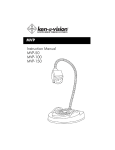
Thank you for purchasing the Megapixel Auto Focus Vision ViewerTM. You
have acquired a state of the art, high resolution solution to any presentation
need, be it for the classroom or conference room. With the autofocus lens
system, any object or document placed under the camera lens will come into
focus in less than a second. Images captured by your camera will be
transmitted directly to your computer then displayed on a Projector, DVR,
HDTV or other display via the output connection on your computer. Using the
enclosed Applied Vision software, single images may be captured, marked up
for emphasis purposes, and saved to the computer directly or to any third party
software (Word, PowerPoint, etc.). Additionally digital time lapse movies and
videos can be saved at any time. All images can be shown at full screen!
The attached USB cable not only connects the camera to your computer, but
also provides the power to the camera, eliminating the need for separate
power cords.
Connecting the Megapixel Auto Focus Vision Viewer™
to Output Device
Prior to connecting the USB cable, you should first install the enclosed
software. Please see the Applied Vision Software booklet provided with the
enclosed software CD. Once the software is loaded onto your computer, connect the USB cable to the computer. Click on the Applied Vision desktop icon
to launch the software. Follow the simple instructions and the camera should
show an image on your computer screen. See Applied Vision Software Manual if there are any problems with the image. You are ready to go!
Images from the camera can be transmitted to a projector, interactive whiteboards, HDTV, monitor, VCR, DVR, etc. via the computer’s display output
ports. See the owner's manual of the computer for the operating procedures.
Note: The USB provides ample power to the camera, no separate power
supply needed
FOCUSING:
Your Megapixel Auto Focus Vision Viewer™ will automatically bring into view
any object, picture, or document you have placed under the camera. If you
are writing on a document within view of the camera, you may get a small
amount of "wiggle" as the autofocus tries to adjust for the thickness of your
hand. As soon as your hand is still, the "wiggle” will stop.
You may also lock the autfocus feature to prevent the “wiggle” using options in
the Applied Vision software.
2