1
Open a template
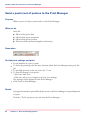
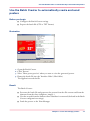
Select a template
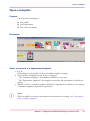
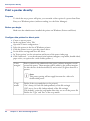
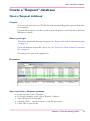
1. Select a poster template
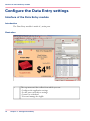
Templates are organized in folders. Only the first template in a folder is displayed as a
thumbnail.
2. Click on the template thumbnail to display the list of all templates in the folder
3. Select the relevant template
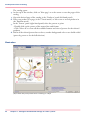
The template opens in the application. You can check it in the preview panel.
Note:
All the other associated templates are displayed in the top panel: they are posters with
same name, same content but different size or background color (for example)
You can select them in the application top panel and to send them for printing, along
with the main one.
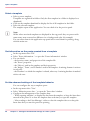
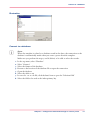
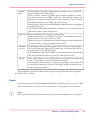
Get information on the poster created from a template
1. In the top menu select 'File'
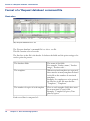
2. Select 'Poster information...' to open the 'Poster information' window
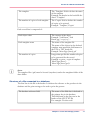
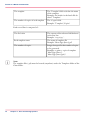
3. You can check:
- the location, name, and properties of the template file
- the 'Poster' properties
- the 'Objects' used in the template and their properties
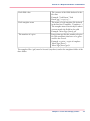
- the 'Images', 'Fonts', and 'Formulas' used in the template. A missing element is written
in red color.
- the 'Database' to which the template is related, when any. A missing database is marked
with a red cross.
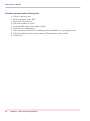
Set the advanced settings of the template behavior
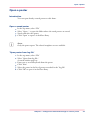
You can configure the way a template opens:
1. In the top menu select 'View'
2. Select 'Maintain poster data...' to open the 'Poster data' window
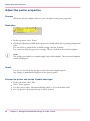
3. Configure the management of the template data:
- 'When opening template': to display the data from the template, to keep the latest data
entered in the poster or to clear the template data each time you open the template
- 'After sending to the Print Manager': either to clear the template data or to keep the
latest data after you sent the poster for printing
38
Chapter 5 - Configure the advanced settings to create a poster