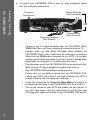
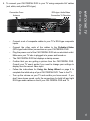
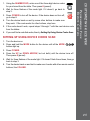
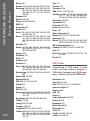
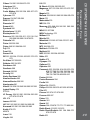
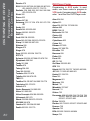
1
CM-7000PAL DVR Digital Video Recorder (DVR) & HDTV Over-the-Air Receiver USER guide This page intentionally left blank. This page intentionally left blank. Warning and Attention Symbols You must be aware of safety when you install and use this system. This User Guide provides various procedures. If you do some of these procedures carelessly, you could injure or kill yourself or damage equipment or property. Some other procedures require special attention. The lightning flash with arrowhead symbol, within an equilateral triangle, is intended to alert the user to the presence of uninsulated “dangerous voltage” within the product’s enclosure that may be of sufficient magnitude to constitute a risk of electric shock to persons. The exclamation point within an equilateral triangle is intended to alert the user to the presence of important operating and maintenance (servicing) instructions in the literature accompanying the apparatus. For Your Safety Do not try to open the case. There is risk of electrical shock, which may cause damage to the apparatus and/or personal injury or death to you. There are no userserviceable parts inside. Opening the case or making unauthorized changes will void the warranty. Warning: To reduce the risk of fire or electric shock, do not expose this apparatus to rain or moisture. Important Software Notice As with all software controlled products, unexpected behavior could arise if the user tries to perform operations in a non-routine manner. This product, like almost any other high tech product, is subject to bugs and hence Channel Master CANNOT AND DOES NOT GUARANTEE OR WARRANT THAT ALL FEATURES, SUCH AS PARENTAL CONTROL, WILL WORK AS INTENDED UNDER ALL CIRCUMSTANCES. In compliance with the terms of the GNU Public License (GPL), Channel Master is making some source code available to the public to download from www.channelmaster.com. Equipment and Software Covered by this Guide This User Guide covers the CM-7000PAL DVR with HDTV Receiver. This guide may cover other devices, not listed here. The information in this User Guide may change without notice. We may issue revisions to tell you about such changes. Copyright Notice Part Number: CM-7000PAL DVR. Copyright © 2010 Channel Master, Mesa, AZ 85202. All rights reserved. The software embedded in this product includes code that is copyright © 2005 the FreeType Project (www.freetype.org) and which is licensed under the FreeType Project Licence of January 27, 2006. Manufactured under license from Dolby Laboratories. “Dolby” and the double-D symbol are trademarks of Dolby Laboratories. HDMI®, the HDMI Logo, and High-Definition Multimedia Interface are trademarks or registered trademarks of HDMI Licensing LLC in the United States and other countries. i • IMPORTANT SAFET Y INSTRUCTIONS ii • proper care of your equipment iv SAFETY SAFET Y CM-7000PAL DVR i Important Safety Instructions SAFETY I mportant S afety I nstructions 1. Read these instructions. 2. Keep these instructions. 3. Heed all warnings. 4. Follow all instructions. 5. Do not use this apparatus near water. 6. Clean only with a dry cloth. 7. Do not block any ventilation openings. Install in accordance with the manufacturer’s instructions. 8. Do not install near any heat sources such as radiators, heat registers, stoves, or other apparatus (including amplifiers) that produce heat. 9. Do not defeat the safety purpose of the polarized or grounding-type plug. A polarized plug has two blades with one wider than the other. A grounding-type plug has two blades and a third grounding prong. The wide blade or the third prong are provided for your safety. If the provided plug does not fit into your outlet, consult an electrician for replacement of the obsolete outlet. 10.Protect the power cord from being walked on or pinched, particularly at plugs, convenience receptacles, and the point where they exit from the apparatus. 11.Use only attachments/accessories specified by the manufacturer. 12.Unplug this apparatus during lightning storms or when unused for long periods of time. 13.Refer all servicing to qualified service personnel. Servicing is required when the apparatus has been damaged in any way, such as the power supply cord or plug is damaged, liquid has been spilled or objects have fallen into the apparatus, the apparatus has been exposed to rain or moisture, does not operate normally, or has been dropped. Warning: >> Apparatus shall not be exposed to dripping or splashing and no objects filled with liquids, such as vases, shall be placed on the apparatus. ii • Locate the CM-7000PAL DVR in an open, well-ventilated area. Do not place the CM-7000PAL DVR in an enclosure (such as a cabinet) without proper ventilation. • Do not impede ventilation by covering the ventilation slots (such as with magazines, curtains, tablecloth, etc.), or the CM-7000PAL DVR will overheat. • Do not stack the CM-7000PAL DVR on top of or below other electronic devices as this can cause heat build-up and vibration. • Do not install the CM-7000PAL DVR in any area where the temperature can be less than 40 °F or more than 113 °F, and do not cover it. Connect the power plug to an outlet having a safety ground connection. The power plug must be readily accessible so that the equipment can be easily disconnected from the AC power. • Operate the CM-7000PAL DVR using only the type of power source indicated on the marking label. Unplug the CM-7000PAL DVR power cord by gripping the power plug, not the cord. • Do not overload wall outlets or extension cords — this can result in a risk of fire or electrical shock. • Never insert objects of any kind through openings into the CM-7000PAL DVR, as the objects may touch dangerous voltage points or short out parts. This could cause fire or electrical shock. • Do not attempt to service the CM-7000PAL DVR yourself, as opening or removing covers may expose you to dangerous voltage, and will void the Limited Warranty. Refer all servicing to authorized service personnel. • Unplug the CM-7000PAL DVR from the AC power outlet before cleaning. The CM-7000PAL DVR is still connected to the AC power whenever it is plugged in to a live power outlet, even if the CM-7000PAL DVR is turned off using the remote control. • Do not place naked flame sources such as lighted candles on or near the CM-7000PAL DVR. • Do not expose the remote control batteries to excessive heat or fire. SAFETY I mportant S afety I nstructions • Note to Installer: >> This reminder is provided to call the installer’s attention to Article 810 section II of the National Electrical Code (NEC) that provides guidelines for proper grounding and, in particular, specifies that the cable ground shall be connected to the grounding system of the building as close to the point of cable entry as practical. Do not locate the antenna near overhead light or power circuits, or where it can fall into such power lines or circuits. When installing the antenna, take extreme care to avoid touching such power lines or circuits, as contact with them can be fatal. iii SAFETY P roper C are of Y our E quipment Proper Care of Your Equipment iv • Always handle the CM-7000PAL DVR carefully. Excessive shock and vibration can damage the hard drive. • Always turn the CM-7000PAL DVR off, unplug it, and then let it sit idle for at least 30 seconds before moving it. • If the CM-7000PAL DVR is cold to the touch, do not plug it in immediately. Let it sit unplugged at room temperature for at least 45 minutes before plugging it in. • The use of accessories or attachments not recommended by the CM-7000PAL DVR manufacturer will void the Limited Warranty. • Use an outlet that contains surge suppression or ground fault protection. During an electrical storm or when the CM-7000PAL DVR is left unattended and unused for long periods of time, unplug the power cord from the wall outlet, and disconnect the lines between the CM-7000PAL DVR and the antenna. This will provide additional protection against damage caused by lightning or power line surges. • In some TV’s, the presence of fixed images for extended periods of time may cause permanent imprints on the screen. Consult your TV’s manufacturer and user manual to determine if this is an issue for your TV. 1 • Getting Started 2 -- Connecting CM-7000PAL DVR to Your TV -- Using the Setup Wizard -- Using the Remote Control Buttons -- Navigating the Menus -- Understanding SD & HD 2 6 9 10 10 • Options for Viewing T V 10 • Setup Menu 12 • DVR Menu 13 • controlling live tv 13 • Recording My Programs 14 • Preferences menu 16 • timers menu 16 • Using Dolby® Digital Surround Sound 17 -- Finding a Program: Overview -- Program Guide -- Browse Banner -- Event Search -- My Recordings -- Daily Schedule -- Recording What You’re Watching Now -- Setting Up Timers -- Finding and Watching Recorded Programs WATCHING TV Watching T V 10 11 11 12 13 13 14 14 15 CM-7000PAL DVR 1 G etting S tarted WATCHING TV Getting Started Welcome! Your new high-definition, digital video recording, over-the-air receiver is a powerful, yet easy-to-use device you'll enjoy! Connecting CM-7000PAL DVR to Your TV Important Safety Note: >> Do not connect your TV or your CM-7000PAL DVR to a power supply until after you have properly connected all of the cables using the following instructions. To connect your CM-7000PAL DVR, start with the antenna: 1. On the back of your TV, locate the Antenna In connection, which connects your TV to your over-the-air antenna. This connection may be labeled Over-The-Air Antenna In, Cable In, Coax In or another name. Refer to your TV’s user guide for help locating this connection. 2. Disconnect the coaxial cable from your TV’s Antenna In connection. Note: >> If your TV uses twin-lead (300 ohm) connections, you will need to obtain and install a 75 ohm to 300 ohm converter on your TV. This converter can be found at most consumer electronics stores. 3. Look at the back of your CM-7000PAL DVR, and locate the Over-TheAir Antenna In connection. Connect the coaxial cable from step 2 to the Over-The-Air Antenna In connection on the CM-7000PAL DVR. Important: >> Do not use a wrench to tighten this connection. Determine the connection type you’ll use to connect your CM-7000PAL DVR to your TV. If your TV has: 2 • An HDMI® connection, you can use a HDMI cable to provide both high-definition video and stereo audio to your TV’s compatible input (go to step 4). • Component connectors (Y/Pb/Pr) for video, you can use a set of component cables for video and either a Dolby Digital optical audio cable, or a pair of RCAtype audio cables (one right and one left), to connect to your TV’s corresponding audio input (go to step 5). • RCA connectors for both stereo audio and video, you can use RCA cables to connect from the R-Audio-L-Video connection (RCA-type) on your CM7000PAL DVR to your TV’s video input (go to step 6). • An Antenna In connection that uses a coaxial cable, you can connect it to the TV Set Out connection on the CM-7000PAL DVR, and it will provide both standard video and mono audio on RF channel 3 or channel 4 (go to step 7). 4. To connect your CM-7000PAL DVR to your TV using an HDMI cable: -- Optional RCA-type Audio Connection HDMI Connection To Television -- Plug the power cord of the CM-7000PAL DVR into an electrical outlet. Make sure your TV is also plugged in to power and turned on. -- The CM-7000PAL DVR first displays a startup screen. -- Confirm that you are getting a picture from the CM-7000PAL DVR. Consult your HDTV user’s guide if you need to change your HDTV’s settings to display from the HDMI input. WATCHING TV Connection From Antenna G etting S tarted Connect an HDMI cable between the HDMI connection on the CM-7000PAL DVR and the HDMI connection on your HDTV or monitor. Note: >> In most cases, connecting the HDMI cable provides > plug-and-play control of the monitor’s display resolution > and other settings. However, your HDTV may require selecting > a different format to display video from the CM-7000PAL DVR during system setup. -- Follow the instructions for Using the Setup Wizard on page 6 to complete the initial setup of your CM-7000PAL DVR. Tune to live TV. -- Turn up the volume on your HDTV and confirm you have sound. -- OPTIONAL: If you don’t have sound, your system may require you to connect a pair of RCA-type audio cables (one red and one white) between the CM-7000PAL DVR’s audio outputs and your TV’s audio input connections. 3 G etting S tarted WATCHING TV 5. To connect your CM-7000PAL DVR to your TV using component cables (red, blue, and green connections): Optional RCA-type Audio Connection Connection From Antenna OR Component Connection From Television 4 Optional Optical Audio Connection -- Connect a set of component cables from the CM-7000PAL DVR’s YPrPb (Red, Blue, and Green) component connections to your TV. -- Connect audio (red and white) RCA-type cables between the CM-7000PAL DVR’s audio outputs and the audio input connections that go with the YPrPb video connectors on your HDTV. You can also use the optional optical connection if you use a device to decode Dolby Digital audio, for example for 5.1-channel surround sound. -- Plug the power cord of the CM-7000PAL DVR into an electrical outlet. Make sure your TV also is plugged in to power and turned on. -- The CM-7000PAL DVR first displays a startup screen. -- Confirm that you are getting a picture from the CM-7000PAL DVR. Consult your HDTV user’s guide if you need to change your HDTV’s settings to display from the component video input. -- Follow the instructions for Using the Setup Wizard on page 6 to complete the initial setup of your CM-7000PAL DVR. Tune to live TV. -- Turn up the volume on your HDTV and confirm you have sound. If you don’t have sound, verify the connections for both left and right RCA-type audio cables on the back of your CM-7000PAL DVR and TV. 6. To connect your CM-7000PAL DVR to your TV using composite A/V cables (red, white, and yellow RCA-type): -- Connect a set of composite cables to your TV’s RCA-type composite inputs. -- Connect the other ends of the cables to the R-Audio-L-Video (RCA-type Audio/Video) connections on your CM-7000PAL DVR. -- Plug the power cord of the CM-7000PAL DVR into an electrical outlet. Make sure your TV also is plugged in to power and turned on. -- The CM-7000PAL DVR first displays a startup screen. -- Confirm that you are getting a picture from the CM-7000PAL DVR. Consult your TV user’s guide if you need to change your settings to display from the correct video input. -- Follow the instructions for Using the Setup Wizard on page 6 to complete the initial setup of your CM-7000PAL DVR. Tune to live TV. -- Turn up the volume on your TV and confirm you have sound. If you don’t have stereo sound, verify the connections for both left and right RCA-type audio cables on the of your CM-7000PAL DVR and TV. WATCHING TV RCA-type Audio/Video Connection To Television G etting S tarted Connection From Antenna 5 Connection From Antenna G etting S tarted WATCHING TV 7. To connect your CM-7000PAL DVR to your TV using a coaxial cable: Coaxial Cable Connection To Television -- Connect one end of coax to the TV’s Antenna In (or Cable In, Coax In or another name) connection. -- Connect the other end of the coax cable to the TV Set Out connection on your CM-7000PAL DVR. -- Plug the power cord of the CM-7000PAL DVR into an electrical outlet. Make sure your TV also is plugged in to power and turned on. -- The CM-7000PAL DVR first displays a startup screen. -- Confirm that you are getting a picture from the CM-7000PAL DVR. You may need to select a different channel or input source on your TV. If you do not see the CM-7000PAL DVR screen on the default output Channel 3, try tuning your TV to Channel 4. You can change this default for CM-7000PAL DVR in Setup Wizard, on page 6. -- Follow the instructions for Using the Setup Wizard on page 6 to complete the initial setup of your CM-7000PAL DVR. Tune to live TV. -- Turn up the volume on your TV and confirm you have sound. If you do not have sound, check both ends of your coax connection. Using the Setup Wizard To finish installing your CM-7000PAL DVR: 1. If you have not already done so, turn on your TV and change to the correct channel or input to view your CM-7000PAL DVR. -- 6 If your TV is connected to your CM-7000PAL DVR using the coaxial connection (step 7), set the TV to channel 3, which is the default output channel for the CM-7000PAL DVR. Note: If your TV is connected to your CM-7000PAL DVR using any other type of connection (steps 4-6), you will need to set the TV to the correct video input or source. Most TV remote controls have an INPUT, SOURCE, or TV/VIDEO button that you can use to change the TV’s video input or source. Refer to your TV’s user guide for additional help changing the TV’s input or source for the CM-7000PAL DVR. 1. Ensure that your over-the-air antenna is connected to your CM-7000PAL DVR and the antenna is positioned where it can receive local digital broadcasts. If you need help choosing or installing an over-the-air antenna, refer to www.antennaweb.org or call Channel Master at 1-877-746-7261. WATCHING TV -- G etting S tarted >> If you have a local channel that broadcasts on channel 3, you can change the modulator output setting for your > CM-7000PAL DVR to channel 4 during this Setup Wizard, described below. 2. Install the included AAA batteries in the CM-7000PAL DVR remote control. Be sure to follow the battery installation diagram printed inside the remote control’s battery compartment. 3. The first time your CM-7000PAL DVR turns on, a Setup Wizard screen appears and guides you through the system setup process. The wizard scans for local digital over-the-air channels, and helps you set up the settings for your local area and TV display. 4. To navigate through the Setup Wizard, use the SELECT button on your remote control to confirm the highlighted on screen option. To highlight other options, use the ARROW buttons. Tip: >> If there is a particular digital channel you would like to use to optimize the position of your antenna, you may select it by clicking Point Antenna instead of Continue on the first screen of the Setup Wizard. 5. Select Continue to begin the wizard. The Setup Wizard immediately begins trying to find channels and add them to your system. (If you have previously run the wizard, then any currently stored channels will be removed.) 6. After the channel scan is complete, you are prompted for information; use the UP and DOWN ARROWS and SELECT buttons to complete the setup of the CM-7000PAL DVR. (Select Next to go to the next setting or Back to go to the previous setting. Select Help to view on-screen help for the setting.) -- Select your local time zone from the list, and indicate whether your area observes Daylight Savings Time (DST). 7 G etting S tarted WATCHING TV -- Choose the resolution your HDTV supports (480p, 720p, or 1080i) and its aspect ratio (traditional 4 x 3, or “widescreen” 16 x 9). If you choose a resolution your TV does not support, you may lose video. -- On the next screen, choose the SD output type if you do not have a TV that supports any of the HD resolutions on the previous screen. -- Set the channel 3 or 4 output setting (if you’re using the coaxial connection to your TV). If you have a local or cable channel that broadcasts on channel 3, be sure to change this setting to channel 4. If you do this, you will also need to set your TV’s channel to 4. -- Use the NUMBER PAD to enter your complete ZIP Code, which is required to retrieve the proper TV Guide On Screen program data for your area. IMPORTANT: >> If you enter the wrong ZIP Code, then the information in your guide will be Program and System Information Protocol (PSIP) data only. 1. The Setup Wizard will ask you to wait until it finishes downloading the Program Guide’s PSIP data, and then will exit to display live digital TV. 2. Congratulations! Your CM-7000PAL DVR is now installed and ready to use! To start watching TV, press the UP or DOWN ARROW buttons on the remote to change channels, or enter a channel number using the NUMBER PAD. Note: >> Some broadcasters choose to send several digital channels in their broadcast range rather than just one channel. These additional channels are called sub-channels, and are identified by a dash, followed by a number (for example, channel 9-2 is a sub-channel of channel 9). On the NUMBER PAD, enter “00902” to change directly to channel 9-2, for example. 8 Using the Remote Control Buttons WATCHING TV G etting S tarted 9 2. Use the UP or DOWN ARROWS to move through the menu options. Or, enter the option number using the NUMBER PAD. 3. Press SELECT to choose a highlighted menu option. for V iewing TV 1. Press MENU to see the CM-7000PAL DVR Main Menu. You can access most features from here. We’ll show you other short cuts later. 4. Exit a menu by choosing Cancel from the on-screen options, or press CANCEL on the remote control. O ptions WATCHING TV Navigating the Menus 5. Press VIEW LIVE TV to exit all menus and view current programming. Note: >> In this Guide, we’ll say “select” to mean move the highlight to the item and press SELECT on the remote control. Understanding SD & HD • Using this HDTV over-the-air receiver, you can view and record both standard-definition (SD) and high-definition (HD) digital programming. • You can view up-converted SD and native HD over-the-air digital broadcasts on a connected HDTV. • You can view both native SD and down-converted HD programming on a connected SDTV. Options for Viewing T V Finding a Program: Overview Channel Up/Down While watching live TV, use the UP and DOWN ARROWS to change channels one at a time. Direct Entry Tune to a specific channel number by entering it using the NUMBER PAD. If the number you entered is invalid, the CM-7000PAL DVR tunes to the nearest valid channel number. To change directly to a sub-channel number, for example 8-3, enter a zero before each number, for example “00803”. 10 • >> Last-minute changes made to programming information and schedules may not always be reflected in Program Guide data. Highlight a program to see information, or press INFO for more details. • Change channels by highlighting a current program and pressing SELECT. • Set up recordings for future events by highlighting a future program and pressing SELECT or RECORD. See Recording My Programs on page 14 for more information. • Press PAGE UP/PAGE DOWN to view a set of channels one page at a time. • Move forward, then back in time through the guide by: -- Press the SKIP FORWARD button to move ahead 24 hours; press SKIP BACK to move back 24 hours. -- Use the NUMBER PAD to enter a number of hours to move ahead, and then press the RIGHT ARROW. Once you’ve moved forward, then you can use the NUMBER PAD to enter the number of hours to move back, and press the LEFT ARROW. V iewing TV • for Note: WATCHING TV Press GUIDE to open the Program Guide and view the listing of current programs and programs scheduled to air over the next seven days. O ptions Program Guide Note: >> You cannot move backward in the Guide into the past, or forward more than a maximum of 7 days into the future. -- If you entered the Guide from the Main Menu, press CANCEL to return to the Main Menu, or VIEW LIVE TV. Browse Banner The Browse Banner allows you to watch a program while looking at program information on other channels. • While watching a program, press the RIGHT ARROW to open the Browse Banner. • The current program’s information is displayed at the top of the screen. • The bottom left of the Browse Banner displays information about the current program on each channel you change to. 11 WATCHING TV S et U p M enu • Use the UP or DOWN ARROWS or the NUMBER PAD to view other channels’ information, and then the SELECT button to change to channels. • On the bottom right, move the highlight using the RIGHT ARROW to see what shows are coming on in the future on that channel. Event Search Event Search allows you to find programs in the Program Guide by a keyword within the Title, the Description, or either one. While watching a program, press the LEFT ARROW to open the Event Search screen. You can also press MENU and then select Event Search from the Main Menu. REMOTE CONTROL SHORTCUT: >> Press SEARCH (#) to open the Keyword search screen. Press (#) when highlighting an event in the Guide to perform a search for all occurrences of that event. Searching for Specific Keywords 1. Enter a search term by using the on-screen keyboard, or entering letters using the remote control NUMBER PAD. 2. Select Done and then results matching your keyword are displayed. 3. If you want to use different options for this search then previous searches, select Options and then choose: • Title to search by program title, Description to search in the Program Guide descriptions, or Title/Description to search both. • Exact Match for a very specific search just on your keyword(s). 4. If you chose different search options, the results update automatically. History Choose History to perform new searches using keywords or other criteria you have previously used and saved on the Event Search screen. Note that you must select “Save” after a search to see that search in the History list. Setup Menu Press MENU, and then select Setup to use the Setup Menu to: 12 • Set and reset password-protected locks, either based on programming ratings or on a channel-by-channel basis. • Run the Setup Wizard again, or change any of the individual settings you selected when the wizard ran previously. You can even restore the system to the factory DVR defaults from before the wizard was run. Change the default audio language and audio output settings. • Edit the broadband network setup options, or perform a system update. Press DVR or press MENU and select DVR to access many digital video recording features. My Recordings Displays all of the programs you have recorded on the CM-7000PAL DVR. See Recording My Programs on page 13 for more details. Select Options to change the way the list of recordings is sorted. REMOTE CONTROL SHORTCUT: WATCHING TV DVR Menu DVR M enu , C ontrolling L ive TV • >> Press DVR once to open the DVR Main Menu. Press DVR twice to open the My Recordings list. Daily Schedule Displays all the timers you have set, for today or the future. Select Timers to go Create a new timer, or to Edit or Delete an existing timer. See Setting Up Timers on page 14 for more details. Controlling Live T V You can use the DVR buttons on your remote control to control live TV. While watching live TV: • Press PAUSE to pause a live program for up to one hour. Press PLAY to continue watching the program or press VIEW LIVE TV to catch up to real time. • Press SKIP BACK to jump back in the program by 10 seconds. • Press SKIP FORWARD to jump ahead by 30 seconds if you’ve paused or reversed the program. • Press BACK one to four times to fast reverse, or FWD one to four times to fast forward, at one of four different speeds: 4x, 15x, 60x, or 300x. Press PLAY to continue watching the program from any point. • Press PAUSE, then BACK or FWD for slow motion at 1/15th normal speed, and BACK or FWD a second time for 1/4th normal speed. Press BACK or FWD a third time to return to normal speed. • Press PAUSE, then SKIP BACK or SKIP FWD to move frame-by-frame. • At any time, you can press VIEW LIVE TV to catch up to real time in the programming. 13 R ecording M y P rogra ms WATCHING TV See also Finding and Watching Recorded Programs on page 15 for DVR functionality with recorded events. Recording My Programs Recording What You’re Watching Now To record a program you are currently watching, press RECORD. Select OK to start recording the current program now until it ends. The program will be stored on the CM-7000PAL DVR. To stop recording a program that you are watching, press STOP, and then select OK. Setting Up Timers Use a timer when you want to view or record a future program. Timer Types There are two types of timers: • Auto Tune – Shows a pop-up notice that a timer event is about to begin, and then changes the channel to view it unless you stop it. • DVR – Records a program or event to the hard-disk drive of your CM-7000PAL DVR. Tip: >> Your CM-7000PAL DVR records programming whenever it is plugged in. The green front-panel light can be on or off when recordings are being made. The CM-7000PAL DVR must receive a signal adequately strong to initialize recording. The red front-panel light will indicate that a recording is in progress. Note: >> HD programs require up to six times more space than SD programs, and will fill up the capacity of the CM-7000PAL DVR faster. Recording from the Guide To create a new timer from the Program Guide, highlight a future event and press SELECT. On the Create Timer screen, you can change the timer type, the frequency it repeats, channel, and other options (for DVR event timers). Recording by Creating a Manual Timer 14 To create a new timer from the Timers screen, press MENU and then select Timers from the MAIN MENU screen. Select Create for a new timer, or you may also SELECT an existing Timer in the list on the left To create a new timer from the Search screen, highlight an program or event in the results list on the left and press the SELECT button. On the Create Timer screen, you can change the timer type (which defaults to DVR), repetition frequency, channel, and other options (for DVR event timers). Recording from the Browse Banner To create a new timer from the Browse Banner, highlight a future event and press SELECT. On the Create Timer screen, you can change the timer type, repetition frequency, channel, and other options (for DVR event timers). Finding and Watching Recorded Programs My Recordings List WATCHING TV Recording from the Search Menu R ecording M y P rogra ms to Edit or Delete that timer. If you highlight and SELECT more than one Timer in the list, then you may Delete (but not Edit) multiple timers at once. Press DVR and select My Recordings to view your list of recorded programs. REMOTE CONTROL SHORTCUT: >> Press the DVR button twice. While watching a program from the My Recordings list: • Press PAUSE to pause the program. Press PLAY to continue watching the program. • Press SKIP BACK to reverse by 10 seconds. • Press SKIP FORWARD to jump ahead by 30 seconds in the program. • Press BACK one to four times to fast reverse, or FWD one to four times to fast forward, at one of four different speeds: 4x, 15x, 60x, or 300x. Press PLAY to continue watching the program from any point. • Press PAUSE, then either BACK or FWD for slow motion. • Press PAUSE, then either SKIP BACK or SKIP FWD one or more times to move frame-by-frame. • At any time, you can press VIEW LIVE TV to catch up to real time in the programming. CAUTION: >> On some TV’s, the presence of fixed images for extended periods of time may cause permanent imprints on the screen. 15 WATCHING TV P reference M enu , T imers M enu Preferences Menu Press MENU, and then select Preferences to use the Preferences Menu to change user settings for: • How the on-screen Program Guide displays (see Customizing the Guide and Channel Lists on page 22) • Showing or hiding Closed Captions for programming (see Closed Captioning on page 23) • Adjusting the duration of, or disabling, Inactivity Standby (see Inactivity Standby on page 23) • Disabling (or reactivating) the Mode Reminder message. Timers Menu Press MENU, and then select Timers to use the Timers Menu to: • View all existing timers for events. • Create a new timer, or Edit or Delete an existing timer. You may also delete several selected timers at once from the Timers Menu. Timers can be either of two types: • DVR – records an event automatically, even if the receiver is in standby (green front-panel light is out) at the time the event begins. Note that the receiver must be connected to a power source. • Auto Tune – pops up a notice when an event is about to begin, and changes the channel to the new event unless you stop it. Several options may be highlighted with the UP or DOWN ARROW keys, depending on whether a timer is intended for one single event, or should repeat periodically for a program. You can select the timer to operate: • Once • Daily • Weekly • Mon. - Fri. Note: >> Events that are recorded by timers that you set to repeat will be displayed in the list using the name of the first event recorded by the timer. 16 Using Dolby® Digital Surround Sound CM-7000PAL DVR uses a HDMI port to output digital audio and video, or an optical port to output digital audio only. The HDMI or optical connections can provide two audio data types: Dolby Digital and Linear PCM (only Dolby Digital audio through these connections can then be decoded to provide full, 5.1-channel surround sound). Select one of the following, depending on your Audio mode: • Dolby: Select this option if the stereo system or audio amplifier can decode only Dolby Digital and will not process Linear PCM signals. See your stereo equipment’s owner’s manual for more details on the amplifier or decoder. • PCM Only: Select this option only if the stereo system or audio amplifier cannot decode Dolby Digital signals. WATCHING TV U sing D olby D igital ... Press MENU and select Setup, then Dolby Digital, to access the Dolby Digital Menu. Dolby Digital gives you the capability to enjoy programs with surround sound. In order to enjoy full, 5.1-channel surround sound, you will require an external Dolby Digital decoder. Refer to the user’s guide for your own system’s decoder device for more information. You can also choose from two different sound settings on this screen: • Standard: When you use this setting, the dynamic range is wider, which makes music and loud noises louder, but voices quieter. This setting is good if you don’t mind turning the volume up louder to hear the speaking portions of programs. • Night: When you use this setting, the dynamic range is narrower, which makes music and loud noises quieter, but voices louder. This setting is good if you need to keep the volume lower. 17 This page intentionally left blank. 18 19 • Setting up key features 20 • Resetting Factory Defaults 24 • Diagnostics Menu 24 • Programming Your Remote Control 24 • Software Update Options 33 • T V Guide 34 -- Locks -- Customizing the Guide and Channel Lists -- Changing Display Formats -- Changing Languages -- Closed Captioning -- Inactivity Standby -- Setting Up Devices by Entering Codes -- Setting Up Using Device Codes Scan -- Remote Control Device Codes -- Updating via USB -- Updating via Ethernet -- TV Guide On Screen or Guide Plus Setup 20 22 23 23 23 23 CUSTOMIZING RECEIVER CUSTOMIZING RECEIVER 24 25 26 33 34 34 CM-7000PAL DVR 19 S etting U p K ey F eatures CUSTOMIZING RECEIVER Setting Up Key Features Locks Locks allow you to block channels or programs by requiring a password to be entered before they can be viewed. Access the Locks menu by pressing MENU on the remote control, selecting Setup, then selecting Locks, then following the steps below. If you previously set a password, you’ll need to enter the password to access the Locks menu. After you choose your Locks settings, you’ll need to create a password and lock the system for the Locks to take effect. Locking specific channels To require a password to be entered to view specific channels: 1. Select Channel Locks menu. Locks from the 2. Use the UP and DOWN ARROWS to find the channels you want to block. Press SELECT to include the channel in the list of locked channels. A channel is selected when it has a filled-in box next to it. 3. If you want to hide the selected channels from being displayed in the Program Guide and other channel lists, select Yes under Hide Locked Channels. Select Done to save your changes. 4. Follow the steps in Locking your CM-7000PAL DVR to apply the channel locks. Locking Programs Based on Ratings Your Channel Master CM-7000PAL DVR supports a variety of ratings categories. These ratings depend on information about the program included by the broadcaster. Broadcasters may use the Age and Content Guidelines, or the MPAA (Motion Picture Association of America) Guidelines. 20 • Entire Audience—Includes rating categories None, TV-G, TV-PG, TV-14, and TV-MA. • Children—Includes rating categories TV-Y and TV-Y7. • MPAA (Motion Picture Association of America)—Includes rating categories N/A, G, PG, PG-13, R, and NC-17. • Extended—Includes rating categories Dialog, Language, Sex, Violence, and Fantasy Violence. 2. To easily select all categories for locking or unlocking, select Block All or Unblock All. 3. To edit a specific category, highlight the category. 4. For that category, press SELECT on the highest Rating you want to be viewed without a password. Anything with a rating higher than that will require entering your password before viewing. For example, if you select TV-G, programs with None or TV-G can be viewed without a password. 5. Select Done to save your changes. 6. Follow the steps in Locking your Channel Master CM-7000PAL DVR to apply the ratings locks that you have selected. CUSTOMIZING RECEIVER 1. Select Ratings Settings from the Locks menu. S etting U p K ey F eatures To block programs based on rating, use the following steps: Locking Your Channel Master CM-7000PAL DVR After you set the channel locks and the ratings locks, you must lock the CM-7000PAL DVR for the settings to take effect. Locking the CM-7000PAL DVR will also prevent anyone from deleting protected recordings, formatting the hard-disk drive, or re-running Channel Setup or the Installation Setup Wizard. To lock your receiver, select Lock System on the Locks menu. • If you already have a password, enter it using your remote control’s NUMBER PAD. • Enter a password using the NUMBER PAD on the remote control in the Password field. • Enter the new password again when prompted. Your Channel Master CM-7000PAL DVR is now locked. 21 S etting U p K ey F eatures CUSTOMIZING RECEIVER Note the following when using the Locks menu after locking your system: >> If you try to access a locked item or open the Locks menu, the Channel Master CM-7000PAL DVR displays a message asking you to enter the password. Enter the correct password to continue. >> The Channel Master CM-7000PAL DVR permits three attempts to enter the correct password. If you fail all three attempts at entering the correct password, then the Channel Master CM-7000PAL DVR does not allow you to try again for several minutes. >> If you exit a locked item or close the Locks menu, you must > re-enter the password to access the item. Customizing the Guide and Channel Lists Changing the Order of the Channels Press MENU, select Preferences, and then Guide Display. Under Direction, you can set up the on-screen Program Guide to list channels in descending order, with the highest channel number at the bottom of the screen, or in ascending order, with the highest channel number at the top of the screen. The default setting is to list channels in descending order. Changing the Type of Guide Display The Channel Master CM-7000PAL DVR comes set to display the standard-size Program Guide with descriptions for the highlighted program or event. However, you can choose the style of Guide Display that you like in the EPG Preferences menu. 22 • Medium Text - This is the default option. • Large Text - Choose this option if you’d like to see larger text and fewer hours of schedule per page on the Program Guide. Changing Display Formats When viewing live TV or playing back a recording, you can press PAGE UP (to format the SD video outputs) or PAGE DOWN (for the HD outputs) or the FORMAT/* button (for both SD and HD outputs) to cycle through the options for screen display format: Auto (the default, based on data about the displayed content), Normal (as on Installation screens under System Setup), Stretch, Partial Zoom, and Zoom. CUSTOMIZING RECEIVER Small Text - Choose this option if you’d like to see more channels and three hours of schedule in smaller text per page on the Program Guide. R esetting F actory D efaults • Changing Languages You may be able to change the audio language of some programs. Press MENU, select Setup, Audio Setup, then select to use your primary or alternative language. Also, when viewing live TV or playing back a recording, you can press the SAP button to hear the Secondary Audio Program for programming with SAP. Press SAP again to turn the feature off. Closed Captioning Your Channel Master CM-7000PAL DVR has many options for Closed Captioning (CC), including font size, colors, edge style, service and opacity. To enable Closed Captioning for when viewing programming with captions, press CC, or you can press MENU, select Preferences, and select Closed Captions, then Captions On. Select either off or on, and then Done. When viewing live TV or playing back a recording with closed captions turned on, you can press CC again to turn the feature off. Inactivity Standby You can set up a period of time after which, if there has been no activity (such as changing channels or using the DVR buttons), the Channel Master CM-7000PAL DVR will go into standby mode (the green front-panel light will go out). This does not affect any event timers you have set, since the Channel Master CM-7000PAL DVR records even when in standby. To disable this feature or change its duration, press MENU, select Preferences, Inactivity Standby, make your settings and then select Done. 23 CUSTOMIZING RECEIVER R esetting F actory D efaults , diagnostics , P rogra mming ... Resetting Factory Defaults Press MENU, select Setup, System Setup, and then Restore Factory Defaults. A warning message will display on the screen. Select Yes to reset preferences and user settings. This will not affect your remote control address or any recordings you have saved, whether they are protected or not. Diagnostics Menu Press MENU, select Setup, System Setup, and then Diagnostics. You can use options on this menu to help diagnose and troubleshoot issues you may be having with your Channel Master CM-7000PAL DVR. The options include: • Video Mem - Tests the VRAM in your Channel Master CM-7000PAL DVR for corruption. • HDMI - Tests the HDMI connection to your TV, if one is present. • HDD - Tests for problems with the hard-disk drive in the Channel Master CM-7000PAL DVR. • USB Test - Tests the connection to a USB device, if one is present. • Ethernet - Tests the Channel Master CM-7000PAL DVR’s network connection, if you use it. • Counters - Allows you to view and reset a number of system counters. Programming Your Remote Control The remote control gives you access to all the features of your Channel Master CM-7000PAL DVR. You can set up the remote to control as many as three additional devices. These devices can be your TV, VCR or DVD player, and a third device (such as a VCR or DVD player, audio receiver, tuner or amplifier, or another TV or satellite receiver). To use your Channel Master CM-7000PAL DVR remote control to operate these other devices, you must program your remote control for these other devices. You can enter codes directly to control your devices, or you can scan the remote control’s database of device codes to find the right one. Setting Up Devices by Entering Codes You can set up the remote to control other devices using the device codes listed on page 26. 1. Turn the device on. 2. Find the brand name in the tables. 3. Press and hold the MODE button for the device until all the MODE buttons light up. 24 4. For AUX mode, press 0 for a TV, 1 for a VCR, or 2 for an audio tuner/amplifier. 2. Wait for three flashes of the mode light. If it doesn’t, go back to step 3. 3. Press POWER to turn off the device. If the device does not turn off, go to step 8. 4. Turn the device back on and try some other buttons to make sure they work. If the code works for other buttons, stop here. 5. If the code doesn’t work, repeat steps 3 through 7 with the next device code from the tables. 6. If you can’t find a code that works, then try Setting Up Using Device Codes Scan. Setting Up Using Device Codes Scan 1. Turn the device on. 2. Press and hold the MODE button for the device until all the MODE buttons light up. CUSTOMIZING RECEIVER P rogra mming Y our R emote C ontrol 1. Using the NUMBER PAD, enter one of the three-digit device codes for your brand from the table. Then press # (pound). 3. Press POWER. 4. Press the UP (or DOWN ARROW, but not both) until the device turns off. Then press # (pound). 5. Wait for three flashes of the mode light. If it doesn’t flash three times, then go back to step 3. 6. Turn the device back on and test to make sure it works with other remote-control buttons, like VOLUME. 25 CUSTOMIZING RECEIVER P rogra mming Y our R emote C ontrol 26 Remote Control Device Codes The following tables contain the manufacturer codes for programming the remote to control your TV, a VCR, DVD player, or audio amplifier. Every attempt has been made to include all codes. If your equipment brand is not listed or if the codes do not work, the remote may not control your equipment. In some cases codes may operate some but not all buttons shown in this guide. TV Codes Programming in AUX mode: In most cases, use these codes to program in TV mode; however, if programming in AUX mode, press 0 before entering the TV code. Abex 230 Action 662 Admiral 521 605 675 Aiko 727 Akai 570 573 Alleron 682 A-Mark 620 Amtron 657 Anam National 509 541 620 651 657 698 AOC 505 506 519 520 573 620 627 652 653 654 Apex 743 744 745 757 814 815 Archer 620 Audiovox 620 657 662 Baycraft 536 Belcor 652 Bell & Howell 590 675 683 Bradford 657 Brockwood 627 652 Broksonic 562 748 752 Candle 506 523 525 536 627 652 654 Candle/Citizen 573 Capehart 519 627 Circuit City 627 Citizen 506 516 523 524 525 526 590 652 654 657 658 680 727 Colortyme 573 627 652 654 Concerto 523 652 654 Contec Cony 662 Contec/Cony 541 655 657 726 Craig 536 541 657 662 694 Crown 526 536 657 Curtis Mathes 506 516 526 573 590 641 645 650 652 654 658 680 683 703 708 CXC 541 657 662 Cytron 903 904 Daewoo 505 524 526 529 530 531 573 630 652 653 654 658 684 698 719 727 816 Daytron 526 627 652 654 658 Dell 772 773 774 Dimensia 645 650 Dixi 566 620 Dumont 501 627 652 EchoStar 722 Electrohome 526 573 651 652 654 656 709 728 Emerson 526 534 536 541 573 590 627 636 642 648 652 654 655 657 658 662 682 683 692 696 699 720 816 Envision 506 573 652 654 Fisher 542 590 683 Fortress 573 Fujitsu 534 682 694 Funai 534 541 657 662 682 694 Futuretech 541 657 694 GE 508 509 543 544 630 645 646 650 651 652 654 676 690 691 698 701 715 716 725 728 742 779 809 859 General Electric 627 Gibralter 501 652 Goldstar 505 523 526 545 546 566 573 652 653 654 655 656 658 693 730 Granada 627 Grand 627 Grunpy 657 682 Hallmark 627 652 654 Harmon/Kardon 561 Harvard 657 Hinari 534 Hisense 759 National 509 NEC 505 506 507 517 523 573 627 651 652 653 654 731 732 Nikkai 612 Nikko 654 727 Normandic 717 Novabeam 561 NTC 727 Nyon 701 Olevia 766 773 Onwa 541 657 Optimus 637 Optonica 521 605 607 Orion 694 Osaki 612 Panasonic 508 509 512 566 644 651 662 676 685 689 698 700 716 734 761 765 780 784 811 819 820 821 822 823 867 868 869 870 871 872 873 874 875 876 877 878 879 880 881 882 883 884 885 886 889 890 900 Philco 505 506 525 536 568 573 610 651 652 653 654 655 656 723 724 729 Philips 525 566 651 652 655 656 690 723 724 729 770 782 824 825 826 827 828 891 892 893 894 Philips Magnavox 782 826 827 828 829 Pilot 652 658 Pioneer 502 548 576 636 637 648 652 654 708 Portland 505 526 573 652 653 654 658 727 Price Club 680 Prism 676 Proscan 645 646 650 691 725 742 857 Proton 513 519 526 536 585 627 652 654 655 Pro View 902 Pulsar 501 652 Quasar 508 509 651 676 698 700 860 861 862 895 896 Radio Shack 526 541 590 607 612 645 662 683 698 Radio Shack/Realistic 590 607 650 652 654 655 657 658 683 730 RCA 503 505 548 630 633 634 636 641 645 646 648 650 651 652 653 654 656 691 698 701 708 715 716 725 742 749 763 776 805 830 831 832 863 864 Realistic 590 645 683 CUSTOMIZING RECEIVER P rogra mming Y our R emote C ontrol Hitachi 523 526 548 549 553 554 555 585 597 626 636 638 643 648 652 654 655 702 718 726 786 788 789 790 791 792 801 802 IMA 657 Infinity 566 JBL 566 JC Penney 505 506 516 525 526 543 546 631 645 646 650 652 653 654 658 676 680 690 691 701 725 726 728 730 Jensen 556 573 652 654 JVC 508 557 559 642 649 655 676 726 735 736 737 812 817 Kawasho 548 561 573 652 654 Kenwood 506 573 652 654 656 Kloss 561 610 Kloss Novabeam 657 698 723 724 KTV 526 541 573 657 658 662 696 LG 653 766 Lloyds 627 Lloytron 526 Loewe 566 Logik 675 Luxman 523 652 654 LXI 563 566 590 595 617 631 635 645 646 650 654 683 691 701 725 M. Wards 500 505 506 534 543 567 568 Magnasonic 573 Magnavox 506 520 525 536 566 567 568 573 610 652 654 656 723 724 729 762 818 887 888 Majestic 675 Marantz 506 566 573 652 654 Megatron 627 654 Memorex 590 627 653 654 675 683 720 MGA 504 505 506 542 571 573 627 652 653 654 656 728 Midland 501 646 658 676 725 730 Mitsubishi 504 505 542 570 571 572 573 597 623 627 652 653 654 656 705 728 787 799 804 Mitsui 769 Montgomery Ward 675 Motorola 521 605 651 MTC 505 506 516 523 573 627 652 653 654 680 Multitech 657 NAD 502 617 627 631 635 637 654 27 G etting S tarted CUSTOMIZING RECEIVER 28 Runco 501 Sampo 506 519 652 654 658 698 730 746 Samsung 505 506 516 523 526 566 573 612 627 647 652 653 654 655 656 658 680 704 717 730 738 755 833 858 897 Samwon 620 Sansui 754 834 Sanyo 542 590 652 683 SBR 566 Schneider 566 Scotch 654 Scott 526 534 541 600 652 654 655 657 662 682 696 701 Sears 523 534 542 563 590 595 601 604 617 627 631 635 645 646 650 652 654 656 682 683 688 691 703 725 726 Seimitsu 627 Sharp 521 526 585 605 607 628 629 652 654 655 658 739 740 741 777 794 803 835 836 898 Shogun 652 Signature 675 Silver 573 Simpson 525 Solavox 612 Sony 500 640 690 758 781 783 795 796 797 798 806 807 808 810 837 838 839 840 841 842 843 844 845 Soundesign 525 536 541 627 652 654 657 682 Spectricon 520 620 Squareview 694 SSS 505 541 573 652 657 Starlite 657 Supra 523 SVA 901 905 Sylvania 506 525 536 566 568 569 573 600 610 652 654 656 723 724 729 733 756 764 Symphonic 632 657 662 692 694 846 Tandy 521 605 Tatung 509 651 698 Technics 508 676 Techwood 523 573 652 654 676 Teknika 504 505 512 516 523 524 525 526 534 536 541 573 644 652 653 654 655 657 658 662 675 680 682 685 726 727 Tera 513 Thomas 627 Thompson 709 TMK 523 573 627 652 654 Toshiba 516 590 617 631 635 680 683 688 750 771 785 793 847 848 849 850 851 852 853 854 855 856 865 866 Totevision 526 658 Toyomenko 627 Universal 543 690 Vector Research 506 Victor 557 Video Concepts 570 Vidtech 505 573 627 652 653 654 Viewsonic 760 Wards 536 573 607 645 650 652 653 654 656 675 682 690 715 723 724 729 White Westinghouse 816 Yamaha 505 506 573 652 653 654 656 York 627 Zenith 501 520 639 652 675 693 775 778 813 899 Zonda 620 VCR Codes Programming in AUX mode: In most cases, use these codes to program in VCR mode; if programming in AUX mode, press 1 before entering the VCR code. Adventura 588 Aiwa 588 622 623 Akai 513 515 516 517 518 568 682 American High 678 Amstrad 588 ASA 556 Asha 675 Audio Dynamics 592 600 Audiovox 676 Beaumark 675 Bell & Howell 581 Broksonic 559 Calix 676 Candle 534 594 675 676 Canon 554 678 679 LXI 676 M. Wards 512 554 585 590 591 Magnavox 527 533 554 556 678 679 797 798 Magnin 676 Marantz 554 556 581 585 592 594 600 678 Marta 676 Matsushita 678 MEI 554 678 Memorex 533 549 554 566 581 585 588 675 676 678 MGA 512 567 568 MGN Technology 675 Midland 579 Minolta 595 Mitsubishi 512 562 567 568 570 571 595 Motorola 678 MTC 544 588 675 Multitech 579 588 675 Mutitech 591 NEC 562 581 592 594 600 682 Nikko 676 Noblex 675 Olympus 678 Optimus 676 Optonica 585 Panasonic 523 554 598 614 628 633 678 679 777 780 781 782 783 784 785 786 787 788 789 790 791 792 793 794 795 796 799 808 809 810 Pentax 592 595 Pentex Research 594 Perdio 588 Philco 554 678 679 Philips 554 556 585 678 801 802 803 804 Pilot 676 Pioneer 562 574 575 576 600 Proscan 605 607 Pulsar 533 Quarter 581 Quartz 581 Quasar 554 678 679 770 771 772 805 806 Radio Shack 512 607 610 676 Radio Shack/Realistic 581 584 588 675 676 678 679 Radix 676 CUSTOMIZING RECEIVER P rogra mming Y our R emote C ontrol Citizen 534 591 592 594 675 676 Colortyme 592 Craig 591 675 676 Curtis Mathes 554 592 594 605 607 675 678 679 Cybernex 675 Daewoo 534 547 559 588 DBX 592 600 Dimensia 607 Dumont 549 Dynatech 588 Electrohome 512 676 Electrophonic 676 Emerson 505 508 509 511 512 518 534 559 568 588 590 618 676 678 Finlandia 549 Finlux 549 556 588 Fisher 549 581 584 588 610 Fuji 678 Funai 588 Garrard 588 GE 551 552 554 572 591 605 607 675 678 679 Go Video 557 558 620 Goldstar 592 594 676 Goodmans 585 Gradiente 588 Granada 549 581 Grundig 556 Harley Davidson 588 Harman Kardon 592 Harmon/Kardon 568 592 Headquarter 581 Hitachi 536 538 539 540 588 595 597 682 Instant Replay 678 ITT 518 JC Penney 554 581 591 592 594 595 600 675 676 678 679 JCL 678 Jensen 595 682 JVC 561 562 563 581 592 594 600 682 Kenwood 562 581 592 594 600 682 Kodak 676 678 LG 676 Luxor 518 Lloyd’s 588 29 CUSTOMIZING RECEIVER P rogra mming Y our R emote C ontrol 30 Randex 676 RCA 518 525 527 528 591 595 605 607 615 631 649 675 678 773 774 775 Realistic 534 549 554 581 584 585 588 675 676 678 679 Ricoh 502 Runco 533 Salora 567 581 Samsung 515 517 534 579 591 675 755 807 Sanky 533 Sansui 544 562 600 682 Sanyo 549 581 583 675 SBR 556 Scott 508 534 559 590 Sears 549 581 584 595 610 676 678 Sharp 512 585 595 607 625 Shintom 595 Shogun 675 Singer 678 Sony 500 501 502 504 768 778 STS 678 Sylvania 554 556 567 588 678 679 756 Symphonic 588 594 Tandy 581 588 Tashiko 676 Tatung 594 682 Teac 588 594 682 Technics 554 633 678 Teknika 554 588 676 678 TMK 675 Toshiba 534 535 567 584 590 769 776 Totevision 591 675 676 Unitech 675 Vector Research 534 592 600 Victor 561 562 600 Video Concepts 534 568 592 600 Videosonic 591 675 Wards 534 588 595 675 676 678 XR-1000 588 678 Yamaha 581 592 594 600 682 Zenith 500 501 533 779 DVD Player Codes Programming in AUX mode: In most cases, use these codes to program in VCR mode; if programming in AUX mode, enter 1 and then the DVD Player code. Aiwa 634 694 Alpine 653 Apex 654 655 744 757 835 839 Archos 885 BOSE 758 811 Broksonic 656 752 Clarion 696 Classic 695 CyberHome 833 Cytron 904 Daewoo 657 859 Denon 697 699 700 EchoStar 722 Emerson 658 Fisher 659 Funai 658 GE 702 703 Go Video 692 693 822 GPX 704 Hitachi 660 705 706 707 740 823 860 668 JVC 689 711 850 861 862 863 Konka 637 638 753 Koss 745 Magnavox 661 Memorex 709 Mintek 710 Mitsubishi 767 867 Norcent 711 Oritron 723 Panasonic 639 663 699 714 715 716 734 765 813 840 841 855 856 868 869 870 871 872 873 882 Philips 766 874 Pioneer 665 719 812 876 877 878 879 880 Proscan 720 Qwestar 723 RCA 666 690 749 816 842 854 Sampo 724 Tuner/Amplifier Codes Programming in AUX mode: Press 2 before entering the tuner/amplifier code. Aiwa 636 641 656 687 718 720 724 726 BOSE 761 780 Carver 653 Citizen 709 Denon 647 674 759 760 762 807 809 835 Fisher 653 GE 711 Goldstar 677 690 Harman Kardon 640 751 Harmon/Kardon 672 Hitachi 717 JBL 640 JVC 637 683 703 725 786 827 Kenwood 676 691 726 728 774 795 829 830 831 832 840 842 Magnavox 654 705 Marantz 651 764 Nakamichi 671 NEC 716 Onkyo 642 660 662 678 785 788 790 792 796 801 Optimus 648 664 725 814 Panasonic 643 644 652 783 797 798 799 808 810 815 816 817 818 819 820 821 822 824 825 826 833 836 837 838 839 Pioneer 658 667 668 679 702 767 770 772 779 802 806 844 Proton 654 705 Quasar 652 RCA 635 638 704 727 Sharp 712 713 714 715 Sherwood 646 670 Sony 639 645 687 728 729 730 765 766 769 771 773 775 776 777 778 781 782 784 787 789 793 794 803 811 812 813 Soundmatters 763 Teac 684 Technic 652 Technics 643 644 652 768 804 805 843 Toshiba 710 Victor 703 Yamaha 663 730 731 732 733 823 834 841 TV/VCR Combo Codes Programming for combination equipment: Program the remote control in TV mode using the TV code and then in VCR mode using the VCR code. 828 791 CUSTOMIZING RECEIVER P rogra mming Y our R emote C ontrol Samsung 652 667 668 691 740 741 820 821 844 845 866 875 881 705 Sansui 725 754 Sanyo 643 Sharp 669 727 865 Sony 617 645 670 671 729 730 731 768 817 818 830 831 832 836 837 838 843 847 848 849 851 852 853 857 858 864 883 884 Sylvania 658 764 829 Teac 732 Technics 733 Techwood 664 Toshiba 616 646 672 735 736 814 815 819 825 826 827 828 834 846 Yamaha 737 739 Zenith 673 824 Magnavox Philips Quasar RCA Samsung Sylvania TV Code VCR Code 887 888 891 892 893 894 860 861 862 895 896 863 864 755 897 756 797 798 801 802 803 804 770 771 772 805 806 773 774 755 807 756 31 CUSTOMIZING RECEIVER P rogra mming Y our R emote C ontrol TV/DVD Combo Codes TV/VCR/Tuner Combo Codes Programming for combination equipment: Program the remote control in TV mode using the TV code and then in VCR mode (or AUX – press 1 before entering the DVD code) using the DVD code. Programming for combination equipment: Program the remote control in TV mode using the TV code, then in VCR mode using the VCR code, and then tuner in AUX mode (press 2 before entering the tuner code) using the tuner code. Apex Broksonic Cytron Panasonic RCA Sansui Sylvania Toshiba TV Code DVD Code 757 752 904 734 765 749 754 764 865 866 757 752 904 734 765 749 754 764 814 815 TV/DVD/VCR Combo Codes Programming for combination equipment: Program the remote control in TV mode using the TV code, then in VCR mode using the VCR code, and then DVD in AUX mode (press 1 before entering the DVD code) using the DVD code. 32 TV DVD VCR Panasonic 900 882 810 TV VCR Tuner Panasonic 867 868 869 870 871 872 873 874 875 876 877 878 879 880 881 882 883 884 885 889 796 799 808 780 781 782 783 784 785 786 787 788 789 790 791 792 793 794 795 809 797 798 799 839 838 837 836 833 826 825 824 822 821 820 819 818 817 816 815 808 Follow the on-screen instructions and never turn your CM-7000PAL DVR off while a software download or update is taking place. This process can take as long as 5 minutes to complete, after which the CM-7000PAL DVR will restart and refresh its Program Guide information. Updating via USB Go to www.channelmaster.com to get the latest version of Channel Master CM-7000PAL DVR software and for more details on how to use the update feature. Completing an Update via USB CUSTOMIZING RECEIVER Software updates may be made available to users of the Channel Master CM-7000PAL DVR, either to add new features or fix issues with existing ones. It is possible to update the software in your CM-7000PAL DVR using the USB 2.0 or Ethernet connections on the rear panel. A software upgrade does not affect existing recordings and cannot be performed when recording is active. S oftware U pdate O ptions Software Update Options Please remove or back up any files on your USB stick before downloading the software update. Channel Master cannot be held responsible for the loss of any data on your USB stick. 1. Insert a USB stick into a free USB port on your computer. Open the USB network drive, if it doesn’t automatically. Right click inside this window and select New – Folder. Name this folder “update.” If a previous update has been saved on the USB stick and an existing “update” folder exists, then ensure you either permanently delete the previous folder or rename it. 2. Open your Internet browser and go to www.channelmaster.com. Select the Downloads link from the CM-7000PAL DVR web page and then “Download Software Update.” When the File Download window pops up, select “Save.” Save the file in the “update” folder that you created on the USB stick. 3. When the file has finished saving, use Windows’ Safely Remove Hardware function in the lower right of your desktop screen and remove the USB stick from your computer. Using your remote control, turn on your Channel Master CM-7000PAL DVR, and then insert the USB stick in the USB port on the back of the receiver. When a window pops up acknowledging that a USB software update is available, press OK or wait 30 seconds for the download process to begin automatically. 4. The “USB Download Available” message is displayed, listing the current software version and the new software version. Select Download with your remote control to continue, or wait 30 seconds for the download to continue automatically. 5. Once the file has been downloaded, the Channel Master CM-7000PAL DVR will verify the download. DO NOT press Select. Pressing Select on the remote control will cancel the update. After the download is verified, remove the USB stick from the back of your Channel Master CM-7000PAL DVR to continue the update. 33 You are advised not to power off your Channel Master CM-7000PAL DVR. Once the software update is complete, the receiver automatically restarts and displays the New Software pop-up window to confirm the update was successful. Updating via Ethernet TV G uide CUSTOMIZING RECEIVER • Simply connect your Channel Master CM-7000PAL DVR to your broadband home network using an Ethernet connection and once your Channel Master CM-7000PAL DVR is in standby (turned off using the remote control, with the green front-panel light out), it will automatically download the latest compatible software within an hour. An immediate download can be forced by pressing the MENU button, selecting Setup, Broadband, and then Software Update. For more information and detailed software update instructions, please go to www.channelmaster.com Completing an Update via Ethernet 1. Connect the Ethernet port on the back of your Channel Master CM-7000PAL DVR to your broadband modem/router using a standard network cable. 2. Access the Broadband Setup menu by pressing the MENU button, selecting Setup, and then Broadband. Then select option 1, Network Setup. 3. If a Network Connection has been detected, select Done to return to the Broadband Setup menu. If not, see Troubleshooting on page 42. 4. Select option 2, Software Update, from the Broadband Setup menu. A window pops up, saying “Checking for IP update, please wait...” 5. “IP Download Available” should appear with the Download option highlighted. The current software version and the new software version are displayed. Press SELECT to start the software update; progress is displayed on the “IP Update” screen. 6. The update should be completed automatically. You are advised not to power off your Channel Master CM-7000PAL DVR. Once the software update is complete, the receiver automatically restarts and displays the New Software pop-up window to confirm the update was successful. T V Guide TV Guide On Screen or Guide Plus Setup You only need to perform the following steps if you have a TV, DVD recorder, or VCR that includes TV Guide On Screen or Guide Plus. If you do not have a TV Guide On Screen or Guide Plus device, you will be able to use the built-in Program Guide in your Channel Master CM-7000PAL DVR. 34 If you are currently using TV Guide On Screen or Guide Plus in your analog TV, DVD recorder, or VCR for over-the-air TV reception (not cable or satellite service), you will need to change your TV Guide On Screen/Guide Plus setup option to continue receiving your TV Guide On Screen/Guide Plus listings. For more detailed instructions or updated support information, refer to www.tvgos. com/support. To set up the TV Guide On Screen to communicate with your Channel Master CM-7000PAL DVR, you’ll need: • G-LINK Cable - this cable is required to continue receiving TV Guide On Screen/Guide Plus listings in your Guide-enabled product. The G-LINK cable was shipped with your original TV Guide On Screen/Guide Plus-enabled TV, DVD recorder, or VCR. If you no longer have the G-LINK cable, visit www.tvgos.com/support. • Substitute ZIP Code - you will need the five-digit code associated with your broadcast area. During setup, you will enter the Substitute ZIP Code in place of your actual ZIP code. These codes are provided on page 39 of this User Guide. TV G uide Getting Started CUSTOMIZING RECEIVER The steps provided walk you through the changes you need to make to continue receiving show listings when your Channel Master CM-7000PAL DVR is connected to your Guide-enabled product. Setting Up Your Channel Master CM-7000PAL DVR 1. Connect your Channel Master CM-7000PAL DVR using the instructions on page 2. You should have connected the TV Set Out or Audio/Video output to the corresponding input on your Guideenabled TV, DVD recorder, or VCR. 2. Using your CM-7000PAL DVR remote control, press MENU, select Setup, then System Setup, then TV Guide & Guide +. Connecting the G-LINK Cable 1. Connect the G-LINK cable to the G-LINK jack on the back of your TV Guideenabled TV, DVR recorder, or VCR. G-LINK Wand IR Sensor 2. Place the G-LINK wand approximately one inch in front of the remote control sensor on your CM-7000PAL DVR. 1 Inch G-LINK Wand 35 Note >> The remote control sensor is located in the middle of the front panel of your CM-7000PAL DVR. TV G uide CUSTOMIZING RECEIVER 1. Use tape to secure the G-LINK wand to the CM-7000PAL DVR front panel. Updating TV Guide On Screen and Guide Plus Setup After connecting your Channel Master CM-7000PAL DVR to your TV Guide On Screen or Guide Plus-enabled device, use these steps to complete the setup. Note >> The menu options on your Guide-enabled device may differ from the ones described here. 1. Using the remote control for your Guide-enabled TV, DVD recorder, or VCR, press GUIDE to open your Guide Listings screen. 2. On the Service Bar, select Setup, then Change System Settings. 3. If available, select No, repeat setup. Otherwise, follow the on-screen prompts. Entering Your Location The Guide uses setup information to provide TV show listings and channel lineups for your area. 1. Select USA as the country. 2. Use the remote control NUMBER PAD or the UP and DOWN ARROWS to enter the Substitute ZIP Code for your area. See 37 for the ZIP code listing. Set Up Your Channel Master CM-7000PAL DVR For your Guide to communicate with your Channel Master CM-7000PAL DVR, the Guide must be set up as though the CM-7000PAL DVR is a cable box, even though you do not have cable service. Use these steps to finish setting up the CM-7000PAL DVR. 36 1. Select Cable with a Cable Box or Yes I have cable. 2. If asked, select the type of audio/video input you used to connect your CM-7000PAL DVR to your Guide-enabled device, then follow the on-screen prompts. 3. If a connection diagram displays, verify the G-LINK cable is connected as shown. 4. For brand of cable box, select Scientific Atlanta. 5. Follow the on-screen instructions and verify that your CM-7000PAL DVR changed channels. 6. When asked if the device has tuned to Channel 9, select Yes. 7. On the confirmation screen, select Yes, continue/finish setup process. If you are asked about setting up a VCR, select the appropriate answer for your installation. After setup is complete, exit the Guide setup screen. To begin receiving listings, be sure to turn off the Guide-enabled device when not in use. • Within 24 hours, you will begin receiving TV show listings. It may take up to six days to receive the full eight days of initial show listings. • Show listings are updated several times per day. Be sure to leave your CM-7000PAL DVR powered on to have the most updated listings information. It is normal for your CM-7000PAL DVR to change channels while the Guide-enabled device is powered off and is setting up or receiving new data. Note >> When you receive your new Guide listings, you will notice that your channel numbers have changed. Refer to Tuning to Your New Channel Numbers, below, or visit www.tvgos.com/support for more details. Tuning to Your New Channel Numbers TV G uide • CUSTOMIZING RECEIVER Completing Setup After connecting your Guide-enabled TV or DVD recorder to your CM-7000PAL DVR or VCR, the channel numbers used in your Guide Listings will change. Understanding Your New Channel Numbers Your analog TV, DVD recorder, or VCR does not know how to tune to digital channels. The channel number assigned to your channel lineup allows your CM-7000PAL DVR to find the correct digital channels. Finding Channel Numbers In any Guide version, you can identify the channel number using the Channel Editor. 1. On the Service Bar, highlight Listings. Press MENU on the Guide-enabled device’s remote control, then select Edit Channel. 2. The Channel Editor displays. Note the Guide channel number for each channel. Note >> You need this channel number to go to a specific channel in the Listings screen or if you are scheduling a manual reminder or recording. Visit www.tvgos.com/support for more information. 37 Your Guide version may or may not have the ability to display channel numbers in the Listings grid. TV G uide CUSTOMIZING RECEIVER Displaying Channel Numbers in Listings To determine if you can display the new channel numbers: 1. Highlight Listings (or any channel’s logo), then press MENU on the Guide-enabled device’s remote control. 2. The Listings Options (or Channel Options) menu appears. If there is a Channel ID field, you can press the LEFT or RIGHT ARROW to select a channel display option: • Both - displays both the channel logo and number. • Logo - displays only the channel logo. • Number - displays only the channel number. Substitute ZIP Codes Locate the major broadcast area closest to your location. Note the substitute ZIP code associated with this area and enter it as your ZIP code during the TV Guide On Screen/Guide Plus Setup. 38 Broadcast Area ALASKA Anchorage Fairbanks Juneau Sitka ALABAMA Anniston Birmingham Dothan Dothan Huntsville-Decatur-Florence Mobile-Pensacola-Ft Walt Montgomery-Selma Phenix City Tuscaloosa ARKANSAS Ft. Smith-Fayetteville-Springdale -Rogers Jonesboro Little Rock-Pine Bluff ARIZONA Phoenix Tucson-Sierra Vista Yuma-El Centro CALIFORNIA Bakersfield Chico-Redding El Centro Eureka ZIP Code 00218 00224 00223 00211 00195 00050 00165 00207 00081 00058 00111 00219 00186 00117 00177 00056 00021 00079 00178 00130 00125 00192 00187 Fresno-Visalia Los Angeles Palm Springs Sacramento-Stockton-Modesto Salinas-Monterey San Diego San Francisco-Oakland -San Jose Santa Barbara -Santa Maria-San Luis Obispo COLORADO Colorado Springs-Pueblo Denver Grand Junction-Montrose CONNECTICUT Hartford-New Haven DISTRICT OF COLUMBIA Washington FLORIDA Ft. Myers-Naples Gainesville Jacksonville Miami-Fort Lauderdale Orlando-Daytona Beach-Melbourne Panama City Tallahassee-Thomasville Tampa-St. Petersburg-Sarasota West Palm Beach-Ft. Pierce Albany Atlanta 00057 00002 00162 00019 00103 00024 00005 00112 00097 00020 00188 00025 00007 00087 00166 00054 00015 00023 00164 00115 00016 00046 00154 00011 00119 00101 00210 00082 00068 00200 00140 00132 00158 00201 00075 00003 00084 00217 00107 00159 00134 00215 00094 00102 00026 00213 00083 00138 00139 00062 00181 00070 00047 00169 00095 00120 00174 00131 00039 00071 00006 00098 00022 00163 00155 00076 Presque Isle 00205 MICHIGAN Detroit 00009 Flint-Saginaw-Bay City 00060 Grand Rapids-Kalamazoo-Battle Creek00037 Ironwood 00222 Lansing 00105 Marquette-Escanaba 00175 Traverse City-Cadillac 00121 MINNESOTA Duluth-Superior 00126 Minneapolis-St. Paul 00014 Rochester-Mason City 00148 MISSOURI Columbia-Jefferson City 00151 Joplin-Pittsburg 00146 Kansas City 00029 Paducah-Cape Girardeau-Harrisonburg00077 Springfield 00080 St. Joseph 00193 St. Louis 00018 MISSISSIPPI Biloxi-Gulfport-Pascagoula 00180 Columbus-Tupelo-West Point 00127 Greenwood-Greenville 00179 Hattiesburg-Laurel 00167 Jackson 00088 Meridian 00183 MONTANA Billings 00171 Butte-Bozeman 00189 Glendive 00221 Great Falls 00182 Missoula 00176 NORTH CAROLINA Charlotte 00030 Greensboro-High Point 00049 -Winston Salem Greenville-New Bern-Washington 00104 Raleigh-Durham-Fayetteville 00032 Wilmington 00143 NORTH DAKOTA Fargo-Valley City 00109 Minot-Bismarck-Dickinson-Williston 00152 NEBRASKA Lincoln-Hastings-Kearney 00099 Omaha 00073 NEW MEXICO Albuquerque-Santa Fe 00048 Clovis 00220 NEVADA Las Vegas 00074 Reno 00118 NEW YORK Albany-Schenectady-Troy 00053 Binghamton 00135 Buffalo 00038 CUSTOMIZING RECEIVER 00110 00122 TV G uide Augusta Columbus GEORGIA Macon Savannah HAWAII Honolulu IOWA Cedar Rapids-Waterloo-Iowa City -Dubuque Des Moines-Ames Ottumwa-Kirksville Sioux City IDAHO Boise Idaho Falls-Pocatello Twin Falls ILLINOIS Champaign-Springfield-Decatur Chicago Davenport-Rock Island-Moline Marshall-Robinson Peoria-Bloomington Quincy-Hannibal-Keokuk Rockford INDIANA Evansville (no DST) Evansville (with DST) Ft. Wayne Indianapolis Scottsburg-Madison South Bend-Elkhart Terre Haute KANSAS Topeka Wichita-Hutchinson KENTUCKY Bowling Green Lexington Louisville LOUISIANA Alexandria Baton Rouge Lafayette Lake Charles Monroe-El Dorado New Orleans Shreveport MASSACHUSETTS Boston-Manchester Springfield-Holyoke MARYLAND Baltimore Salisbury MAINE Bangor Portland-Auburn 39 TV G uide CUSTOMIZING RECEIVER 40 Elmira New York Rochester Syracuse Utica Watertown OHIO Cincinnati Cleveland-Akron-Canton Columbus Dayton Toledo Youngstown OKLAHOMA Oklahoma City Tulsa OREGON Bend Eugene Medford-Klamath Falls Portland PENNSYLVANIA Erie Harrisburg-Lancaster-Lebanon-York Johnstown-Altoona Philadelphia Pittsburgh Wilkes Barre-Scranton RHODE ISLAND Providence SOUTH CAROLINA Charleston Columbia Florence-Myrtle Beach Greenville-Spartanburg -Asheville-Anderson SOUTH DAKOTA Rapid City Sioux Falls-Mitchell TENNESSEE Chattanooga (CT) Chattanooga (ET) Jackson Knoxville Memphis Nashville Tri-Cities Tn-Va TEXAS Abilene-Sweetwater Amarillo Austin Beaumont-Port Arthur Corpus Christi Dallas-Ft. Worth El Paso Houston Laredo 00172 00001 00069 00067 00161 00170 00031 00012 00034 00052 00064 00092 00043 00059 00202 00116 00145 00027 00142 00044 00089 00004 00017 00051 00045 00106 00086 00136 00035 00168 00108 00208 00085 00185 00063 00042 00033 00091 00157 00129 00065 00137 00123 00008 00100 00010 00198 Lubbock McAllen-Harlingen-Weslaco -Brownsville Odessa-Midland San Antonio Sherman-Ada Tyler-Longview-Lufkin -Nacogdoches Waco-Temple-Bryan Wichita Falls UTAH Salt Lake City VIRGINIA Charlottesville Harrisonburg Norfolk-Portsmouth-Newport News Richmond-Petersburg Roanoke-Lynchburg VERMONT Burlngton-Plattsburg WASHINGTON Seattle-Tacoma Spokane Yakima-Pasco-Richland-Kennewick WISCONSIN Green Bay-Appleton La Crosse-Eau Claire Madison Milwaukee Wausau-Rhinelander WEST VIRGINIA Bluefield-Beckley-Oak Hill Charleston-Huntington Clarksburg-Weston Wheeling WYOMING Casper-Riverton Cheyenne-Scottsbluf 00149 00113 00150 00036 00156 00114 00096 00141 00041 00197 00173 00040 00061 00066 00093 00013 00078 00124 00072 00128 00090 00028 00133 00147 00055 00160 00144 00194 00196 41 • FINDING MORE INFORMATION 42 • troubleshooting 42 -- Missing Specific Channels -- Signal Loss on All Channels -- Signal Loss on One or Some Channels -- Remote Is Not Working -- Forgot Password for Locks -- Program Guide Issues -- Timer Issues -- Events Not Recording -- Events Disappearing from DVR List 42 42 43 43 43 44 44 45 45 GETTING HELP GETTING HELP CM-7000PAL DVR 41 GETTING HELP F inding M ore information , T roubleshooting Finding More Information How to get help: • You can find more information on the www.channelmaster.com website. Troubleshooting Missing specific channels 1. Your Channel Master CM-7000PAL DVR is only able to tune digital over-the-air channels. It is possible that some of the channels you are missing are channels that are still broadcasting in analog. 2. You can go to the website www.antennaweb.org to find out which channels in your area are currently broadcasting a digital signal. If the channel you are missing is still broadcasting in analog, you can view the channel using the TV’s tuner. To view analog channels, press the ANALOG PASS-THRU button on the CM-7000PAL DVR remote control, then change channels on your TV using your TV’s remote control. When you want to return to watching digital channels using your CM-7000PAL DVR, change back to the correct TV channel (3 or 4) or input/source, and press the ANALOG PASS-THRU button again. Signal loss on all channels 1. Try a different channel. Sometimes, just one channel may be experiencing a problem, while other channels are fine. If just one channel seems have the problem, go to the next section, Signal loss on one or some channels. If all channels are experiencing the problem, then continue with Step 2. 2. Verify that the coax cable connecting to the Over-The-Air Antenna In connection is hand tight, and is connected to your over-the-air antenna. 3. Verify that your over-the-air antenna is still in place, and does not appear to have moved. If the antenna is moved out of proper alignment, then you may receive signal loss messages on some or all of your channels. 4. Try resetting your CM-7000PAL DVR. Press the POWER button on the CM-7000PAL DVR remote control to turn it off (in standby mode), then unplug the CM-7000PAL DVR from the power outlet for 15 seconds, plug it back in, and POWER it back on. 5. Check the signal strength on your over-the-air channels. Using your CM-7000PAL DVR remote control, press MENU, select Setup, System Setup, Channel Setup, then Add a New Channel. Find a channel that is experiencing problems, and verify that it has a strong signal. Channels with an indicated signal strength below approximately 60 are likely to experience loss of video. 6. Your over-the-air antenna may need to be adjusted. Contact your local retailer for assistance. If you want to try adjusting the antenna yourself, refer to any instructions accompanying the antenna, or to www.antennaweb.org for antenna recommendations and general information on antenna alignment. 42 Signal loss on one or some channels 3. You can refer to the website www.antennaweb.org for lists of which channels in your area are currently broadcasting digital signals. If the channel or channels you are missing is/are still in analog, you can view the channel(s) using the TV’s built-in tuner. To view analog channels, press the ANALOG PASS-THRU button on the CM-7000PAL DVR remote control, then change channels on your TV using your TV’s remote control. When you want to return to watching digital channels using your CM-7000PAL DVR, change back to the correct TV channel (3 or 4) or input/source, and press the ANALOG PASS-THRU button on your CM-7000PAL DVR remote control again. GETTING HELP 2. Your CM-7000PAL DVR is only able to tune in digital over-the-air channels. If you are missing some channels, it is possible that some of them are channels that are still broadcasting analog signals. T roubleshooting 1. Try a different channel. Sometimes, just one channel may be experiencing a problem, while other channels are fine. If all channels are experiencing the problem, go to the previous section, Signal loss on all channels. If just one channel or a few channels seem to have a problem, then continue with Step 2. Remote is not working 1. Verify the batteries are installed according to the battery diagram in the remote control. 2. Try changing the batteries in the CM-7000PAL DVR remote control. Batteries should all be of the same type and size. 3. Make sure you are pointing the remote control directly at the front panel of the CM-7000PAL DVR. The remote uses infrared (IR) signals to operate the CM-7000PAL DVR (and any other equipment you have programmed in the other device modes), and therefore must have line of sight to the front of the CM-7000PAL DVR (or other equipment). Forgot password for locks 1. Locate the Receiver ID number by pressing MENU on the CM-7000PAL DVR remote control, selecting Setup, System Setup, then System Information. Write down the Receiver ID number (before the dash). 2. To reset your password, press MENU on the CM-7000PAL DVR remote control, select Setup, then Locks. Enter the last four digits of your Receiver ID number (before the dash) as a temporary password, then select Change Password to choose a new password. When prompted for your old password, you must re-enter your temporary password before you can enter and then confirm a new password. 43 T roubleshooting GETTING HELP Program Guide issues 1. If you try to display future programs in the Program Guide or Browse Banner, but are unable to find the schedule you are looking for, you may try displaying the Program Guide again later. By that time, updates may show programs for the times you want. 2. The Program Guide and Browse Banner can display only programs that have not yet ended. They cannot display a time earlier than the present. 3. If some channels are missing when you are using the Program Guide or Browse Banner, you may have locked the CM-7000PAL DVR to hide channels. Unlock the CM-7000PAL DVR (see Locks on page 19), or choose a different Favorites List, respectively, to show the channels you are missing in the guide. 4. For the full guide to be displayed, TV Guide data must be transmitted in your area. You have access to the TV Guide data if you see the TV Guide logo in the top right corner of the program guide. If the TV Guide logo is not showing, then please check that your ZIP Code has been entered correctly and TV Guide is enabled in your Guide Display preferences. Once the ZIP Code is verified to be correct, wait until the following day to recheck the Program Guide screen. If the TV Guide logo is still not present on the right, then unfortunately the extended Program Guide data may not be available in your area. Timer issues 1. If you have set up the maximum number of event timers, the CM-7000PAL DVR displays an error message if you try to set up another, giving you the option to delete an existing event timer. 2. If you try to set up a manual timer with invalid start or stop times (for example, an event stop time that occurs before its start time), you will see an error message. 3. If you stop or skip a timer that is repeated, the next showing of the event is not affected. To stop all occurrences, you must delete the event timer. (A timer with a frequency of Once is deleted when it has occurred.) 4. If you set a timer that misses the beginning or end of a program, you may want to use or change the Start Early or End Late options for the timer, or set a manual timer to begin and end at times you specify. 44 Events not recording 1. Ensure any event timers you have set that you want to record programs are set as DVR timers, and not as Auto-Tune timers. 1. If you run out of space on your CM-7000PAL DVR, recordings that are not protected will begin to be erased, starting with the oldest unprotected one, as needed to make room for new recordings, as they occur. 2. If you do not want a recording to be deleted, select Protect on the screen for that recording. GETTING HELP Events disappearing from DVR list T roubleshooting 2. If you set up a repeating event timer, but it does not record a showing of the program, double-check that you set the correct repeat frequency for that program (Weekly, Daily, Mon-Fri.). 45 G etting S tarted CUSTOMIZING RECEIVER 46 This page intentionally left blank. 47 • LIMITED WARR ANT Y 48 • FCC COMPLIANCE 50 -- What the Warranty Covers -- What the Warranty Does Not Cover -- If You Need Assistance -- Legal Limitations -- Compliance Information Statement 48 48 49 49 APPENDIX APPENDIX 50 CM-7000PAL DVR 47 APPENDIX L imited W arranty Limited Warranty This Limited Warranty is a legal document. Keep it in a safe place. Remember to retain your Bill of Sale for warranty service! Any items returned without a copy of the Proof of Purchase will be considered out of warranty. What the Warranty Covers This warranty extends only to the original user of the equipment and is limited to the purchase price of each part. Channel Master warrants this system against defects in materials or workmanship as follows: • Labor: For a period of one year from the original date of purchase, if Channel Master determines that the equipment is defective subject to the limitations of this warranty, it will be repaired or replaced at no charge for labor as your sole and exclusive remedy. Channel Master warrants any such work done against defects in materials or workmanship for the remaining portion of the original warranty period, with repair or replacement in accordance with the foregoing as your sole and exclusive remedy. • Parts: For a period of one year from the original date of purchase, Channel Master will supply, as your sole and exclusive remedy and at no charge, new or re-manufactured parts in exchange for parts determined to be defective subject to the limitations of this warranty. Channel Master warrants any such replacement parts against defects in materials or workmanship for the remaining part of the original warranty period, with the exchange of such parts in accordance with the foregoing as your sole and exclusive remedy. Note >> “Parts” means items included in this package, which may include the receiver and remote control. It does not include other parts purchased separately. What the Warranty Does Not Cover 48 • This warranty does not cover installation of the system. If applicable, such installation will be warranted under a separate installation agreement. • This warranty does not cover consumer instruction, physical setup or adjustment of any consumer electronic devices, remote control batteries, cables, signal reception problems, loss of use of the system, or unused programming charges due to system malfunction. • This warranty does not cover cosmetic damage, damage due to lightning, electrical or telephone line surges, battery leakage, fire, flood, or other acts of Nature, accident, misuse, abuse, repair or alteration by other than authorized factory service, use of accessories not recommended by the receiver manufacturer, negligence, commercial or institutional use, or improper or neglected maintenance. • If You Need Assistance 1. Call the customer support number at 1.877.746.7261 between the hours of 7 a.m. and 5 p.m. Pacific Time, Monday-Friday, or visit our website at www.channelmaster.com. Have the date of purchase and your receiver ID number available. Press the SYS INFO button on your remote control to display the receiver ID number. 2. A Customer Service Representative will assist you. If the Representative determines you should return any equipment, you will be given instructions on how to return your equipment. You will be responsible for the cost of shipping back the defective equipment, whether under warranty or not. APPENDIX L imited W arranty This warranty does not cover equipment sold AS IS or WITH ALL FAULTS, shipping and handling, removal or reinstallation, shipping damage if the equipment was not packed and shipped in the manner prescribed, nor equipment purchased, serviced, or operated outside the continental United States of America. 3. Returned equipment must be packaged properly, using either the original shipping materials or other appropriate packaging. Include a copy of the Bill of Sale. Any items returned without a copy of the Proof of Purchase will be considered out of warranty. 4. Follow the instructions given to you by the Customer Service Representative when returning your equipment for service. Legal Limitations REPAIR OR REPLACEMENT AS PROVIDED UNDER THIS WARRANTY IS YOUR EXCLUSIVE REMEDY. CHANNEL MASTER AND ITS AFFILIATES SHALL NOT BE HELD LIABLE FOR ANY INCIDENTAL OR CONSEQUENTIAL DAMAGES FOR BREACH OF ANY EXPRESSED OR IMPLIED WARRANTY ON THIS SYSTEM, NOR FOR ANY INCIDENTAL OR CONSEQUENTIAL DAMAGES RESULTING FROM THE USE OF, OR INABILITY TO USE, THIS SYSTEM OR OTHERWISE. UNDER NO CIRCUMSTANCES SHALL CHANNEL MASTER OR ITS AFFILIATES’ LIABILITY, IF ANY, EXCEED THE PURCHASE PRICE PAID FOR THIS SYSTEM. EXCEPT AS OTHERWISE EXPRESSLY SET FORTH IN THIS LIMITED WARRANTY, CHANNEL MASTER DOES NOT MAKE (AND CHANNEL MASTER EXPRESSLY DISCLAIMS) ANY OTHER REPRESENTATIONS OR WARRANTIES, WHETHER EXPRESS OR IMPLIED, INCLUDING WITHOUT LIMITATION, ANY IMPLIED WARRANTY OF MERCHANTABILITY, NON-INFINGEMENT OR FITNESS FOR A PARTICULAR PURPOSE, AND ANY WARRANTIES THAT MAY ARISE FROM COURSE OF PERFORMANCE, COURSE OF DEALING OR USAGE OF TRADE. TO THE EXTENT THAT ANY SUCH WARRANTIES ARE CONSIDERED TO APPLY FOR ANY REASON BY OPERATION OF LAW OR OTHERWISE, SUCH WARRANTIES SHALL BE LIMITED IN DURATION TO THE PERIOD OF THIS WARRANTY IF PERMITTED UNDER APPLICABLE LAW. CHANNEL MASTER RESERVES THE RIGHT TO REFUSE TO HONOR THIS WARRANTY IF CHANNEL MASTER DETERMINES ANY OF THE ABOVE EXCEPTIONS TO HAVE CAUSED THIS SYSTEM NOT TO HAVE PERFORMED PROPERLY. THIS WARRANTY SHALL BE VOID IF ANY FACTORY-APPLIED IDENTIFICATION MARK, INCLUDING BUT NOT LIMITED TO SERIAL OR CONDITIONAL ACCESS NUMBERS, HAS BEEN ALTERED OR REMOVED. THIS WARRANTY SHALL ALSO BE VOID IF THE RECEIVER CHASSIS HAS BEEN OPENED BY AN UNAUTHORIZED PERSON. 49 APPENDIX FCC C ompliance FCC Compliance The following text is extracted from Federal Communications Commission (FCC) regulations, as of the publication date of this Guide. Contact the FCC (see following) or your library for the complete text of the regulations. Compliance Information Statement Channel Master, 2260 W. Broadway Rd, Suite 101, Mesa, Arizona 85202, (1.877.746.7261), declares that: This device complies with Part 15 of the FCC Rules. Operation is subject to the following two conditions: (1) this device may not cause harmful interference, and (2) this device must accept any interference received, including interference that may cause undesired operation. This equipment has been tested and found to comply with the limits for a Class B digital device, pursuant to Part 15 of the FCC Rules. These limits are designed to provide reasonable protection against harmful interference in a residential installation. This equipment generates, uses and can radiate radio frequency energy and, if not installed and used in accordance with the instructions, may cause harmful interference to radio communications. However, there is no guarantee that interference will not occur in a particular installation. If this equipment does cause harmful interference to radio or television reception, which can be determined by turning the equipment off and on, the user is encouraged to try to correct the interference by one or more of the following measures: • Reorient or relocate the receiving antenna. • Increase the separation between the equipment and receiver. • Connect the equipment into an outlet on a circuit different from that to which the receiver is connected. • Consult the dealer or an experienced radio/TV technician for help. Do not make changes or modifications to this equipment. This could void the user’s authority to operate the equipment. There are many devices that allow you to connect your antenna to your in-home distribution system such as splitters, and amplifiers. The FCC requires that the isolation between the antenna port and the network port of your system meet the following: • 80 dB from 54 MHz to 216 MHz, at least • 60 dB from 216 MHz to 550 MHz, and at least • 55 dB from 550 MHz to 806 MHz Measuring the isolation of a device requires specialized equipment. In most cases, it is easier to purchase a splitter or amplifier with the correctly specified isolation from your local television retailer. The above requirements are extracted from 47CFR15.115. For the complete text please visit WWW.FCC.GOV. 50 Printed in China A B BACK Button .................................... 11, 13, 15 Browse Banner ................................. 11, 15, 44 C CANCEL Button . ..................................... 10,11 Captions On .................................................23 Care of Your Equipment................................. iv Changing Closed Captioning ............................. 23 Display Formats . ............................... 23 Inactivity Standby .............................. 23 Languages .........................................23 Channel Numbers, Displaying................. 37, 38 Channel Order...............................................22 Closed Captioning (CC) ............................... 23 Coaxial Cable .............................................2, 6 Component Cables . ...................................2, 4 Composite (RCA-type) Cables............ 2, 3, 4, 5 Connecting CM-7000PAL................................ 2 DVR to Your TV Connection Type Coax ....................................................2 Component...........................................2 HDMI.....................................................2 RCA (composite) ................................. 2 Controlling Live TV .......................................13 D Daily Schedule..............................................13 Descending Order, Channel List .................. 22 Description, Event Search............................. 12 Device Code Tables .....................................26 DVD Player Codes ............................ 30 Tuner/Amplifier Codes ....................... 31 TV Codes . .........................................26 TV/DVD Combo Codes ..................... 32 TV/DVD/VCR Combo Codes.............. 32 TV/VCR Combo Codes ..................... 31 TV/VCR/Tuner Combo Codes............ 32 VCR Codes.........................................28 Digital Channels........................................8, 37 Digital Sub-Channels.......................................8 Direction of Channel Lists............................. 22 Display Format Options................................. 23 Dolby Digital Audio........................................17 Dolby Digital Surround Sound Decoding....................................................17 DVR Menu ....................................................13 Daily Schedule . .................................13 My Recordings . ...........................13, 15 E EPG Preferences Screen ............................. 22 Event Search ................................................12 History ...............................................12 Specific Keyword Search ............................. 12 F Finding a Program Channel Up/Down ............................. 10 Direct Entry ........................................10 Finding More Information ............................. 42 Fixed Images, Caution ................................. 15 FWD Button ........................................9, 13, 15 INDEX ANTENNA IN Connection...................... 2, 6, 42 Ascending Order, Channel List . ................... 22 Audio Night Mode ........................................17 Standard Mode .................................. 17 Audio Language ...........................................23 Audio Setup ..................................................23 Auto . ..........................................................22 G Getting Started Connecting CM-7000PAL DVR............. 2 To Your TV Navigating the Menus ........................ 10 Using the Setup Wizard ....................... 6 GUIDE Button . ....................................... 11, 36 Guide Display ...............................................22 Guide Display, Preferences for EPG............. 22 H HD . ..........................................8, 10, 14, 23 HDMI cable . ...............................................2, 3 HDMI connection type .............................. 3, 24 HDTV . ..............................................3, 4, 8, 10 Hide Channels ........................................20, 44 High-Definition (HD) .....................8, 10, 14, 23 History ..........................................................12 I Important Safety Instructions . .................... ii, iii Important Safety Note .................................... 2 Inactivity Standby .........................................23 Input, TV’s video . .......................................2, 7 K Keyword Search ...........................................12 L Linear PCM audio . .......................................17 Limited Warranty...........................................48 Live TV..........................................................13 Locks . .........................................................20 Hide Locked Channels ................................. 20 M Manual Timer...........................................14, 44 Menus, Navigating.........................................10 My Recordings........................................13, 15 N Normal...........................................................23 51 O Options, My Recordings List .................. 13, 15 Options, Search . ..........................................12 INDEX P PAGE DOWN button .............................. 11, 23 PAGE UP button . ................................... 11, 23 Partial Zoom .................................................23 PAUSE button ........................................13, 15 PLAY button . ..........................................13, 15 POUND (#) button ..................................13, 25 Preferences Channel Order ...................................22 Resetting ...........................................24 Menu . ................................................16 Closed Captions................................. 22 Guide Display ....................................22 Inactivity Standby............................... 23 Program Guide ............................................. 11 Issues.................................................44 Channel Order ..............................................22 Programming Your Remote Control.............. 24 Setting Up Devices by Entering Codes...................................24 Setting Up Using Device Codes Scan........................................25 R RCA cables . ...............................................2, 5 RCA connectors .............................................2 Recording My Programs Finding and Watching ........................ 15 Recorded Programs Recording What You’re....................... 14 Watching Now Setting Up Timers .............................. 14 Remote Control Programming....................... 24 Device Codes.....................................26 Restore Factory Defaults............................... 24 S SAFETY Important Safety Instructions..........i, ii, 2 Proper Care of Your Equipment........... iv SD . ..........................................8, 10, 14, 23 SDTV............................................................10 SEARCH (#) button ................................13, 25 Setup menu ..................................................12 52 Setup Wizard...................................................6 Shortcut.............................................12, 13, 15 Signal Loss....................................................42 All Channels.......................................42 One or More Channels....................... 43 SKIP BACK button ........................... 11, 13, 15 SKIP FORWARD button ................... 11, 13, 15 Software Update Options Updating via Ethernet ........................ 34 Updating via USB .............................. 33 Source, TV’s input...........................6, 7, 42, 43 Standard-definition (SD) ............................... 10 Stretch ..........................................................23 Sub-channels .................................................8 T Timers............................................................14 Event............................................44, 45 Menu...................................................16 Title/Description . ..........................................12 Troubleshooting.............................................42 TV Guide.......................................................34 TV SET OUT connection....................... 2, 6, 35 U Updating Your Receiver Via Ethernet........................................34 Via USB..............................................33 Using Dolby® Digital Surround Sound........... 17 Using Set Up Wizard.......................................6 V VIEW LIVE TV button ................. 10, 11, 13, 15 Viewing Options.............................................10 Browse Banner .................................. 11 Event Search .....................................12 Finding a Program ............................. 10 Program Guide................................... 11 VOLUME+/VOLUME- buttons....................... 25 Y YPrPb connectors ..........................................4 Z Zoom ............................................................23 Zip Codes......................................................38 INDEX This page intentionally left blank. 53 This page intentionally left blank. This page intentionally left blank. 1.877.746.7261 www.channelmaster.com CM.PUB.CM7000PALDVR.UG.201001 178241