1
Tutorial to Overture/VDM-SL
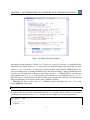
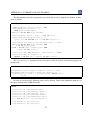
In this case, this is the location of the imported AlarmSL project in the workspace directory selected
when Overture first started up. This will perform a syntax and type check of all the VDM-SL model
files in the AlarmSL directory, producing any errors and warning messages on the console, before
terminating:
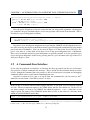
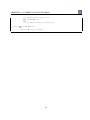
Parsed 1 module in 0.11 secs. No syntax errors
Type checked 1 module in 0.093 secs. No type errors
In the case of our alarm example, there are no syntax or type errors. Any warnings can be suppressed using the -w option.
If a VDM-SL model has no type errors, it can either be given an expression to evaluate as an
option on the command line, or the user can enter an interactive mode to evaluate expressions and
debug their execution.
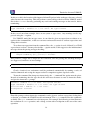
To evaluate an expression from the command line, the -e option is used, followed by a VDM
expression to evaluate. You may also find the -q option useful, as this suppresses the informational
messages about the parsing and type checking:
java -jar Overture-2.3.0.jar -vdmsl -q -e
"ExpertIsOnDuty(e1, plant1)" AlarmSL
This produces a single line of output for the evaluation, since the parsing and checking messages
are suppressed, and there are no warnings:
{mk_token("Monday day"), mk_token("Tuesday day")}
Clearly a batch of test evaluations could be performed automatically by running a series of
similar commands and saving the output results for comparison against expected results.
To run the command line interpreter interactively, the -i command line option must be given.
Instead of terminating after the type check, this will cause Overture to enter its interactive mode,
and give the interactive > prompt:
Parsed 1 module in 0.14 secs. No syntax errors
Type checked 1 module in 0.11 secs. No type errors
Initialized 1 module in 0.094 secs.
Interpreter started
>
From this prompt, various interactive commands can be given to evaluate expressions, debug their
evaluation, or examine the VDM-SL model environment. The help command lists the commands
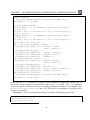
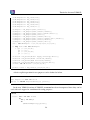
available. The quit command leaves the interpreter. For example, the following session illustrates
the evaluation of a Run operation, and a debug session with a breakpoint at the start of the same
operation:
18