1
Section 2: Operation
WilComm CSV
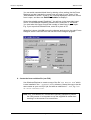
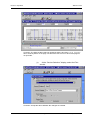
You can avoid unwanted blank lines by altering a form setting (via the Forms
Designer) so that it equals the correct lines per page for your report. If the
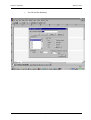
“Edit variables for a form” screen is not currently displayed, ensure the correct
form is open, and then use Edit/Edit Variables to display it.
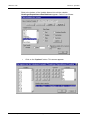
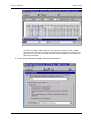
Select the variable named “DetailLine”. You will see in the lower right hand
corner, a field labelled “Repeating variable with a maximum of 55 values”.
You must alter this figure to equal the number of detail lines in your report.
E.g. if your report has 50 detail lines, enter 50 in place of 55.
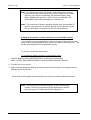
When this is done, click OK to save the changes and revert to the main Forms
Designer screen. Save the form and exit the Forms Designer program.
6. Create the form variables file (xxx.F3X)
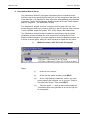
Use Windows Explorer to create a copy of the file “CSV Master.F3X” which
is also installed in the …\F3Forms\Forms directory. Name the copy to be the
same name as your new CSV job, but with an extension of “.F3X”, eg: “CSV
CD Trial Balance.f3x”.
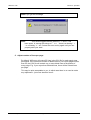
Note:This “CSV Master.f3x” file has been specially prepared to perform
the CSV process. It is important to use the supplied file rather than
creating it in the manner of a normal form.
Page 2-9
Wilkinson Computer Services