1
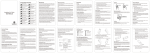
2. Connect the charger to a standard AC wall outlet.
3. Disconnect the charger when the battery is fully
charged.
3. Install the microSD card.
Powering On/Off
NOTE: microSD logo
Card Association.
4. Install the battery.
is a trademark of the SD
Make sure the SIM card is in your phone and the
battery is charged.
• Press and hold the Power Key to turn on your
phone.
• To turn it off, press and hold the Power Key to
open the options menu. Touch Power off and then
touch OK.
•
•
•
Waking Up Your Phone
Your phone automatically goes into sleep mode when
it is not in use for some time. The display is turned
off to save power and the keys are locked to prevent
accidental operations.
You can wake up your phone by turning on the display
and unlocking the keys.
1. Press the Power Key to turn the screen on.
Charging the Battery
When you first get your new phone you’ll need to
charge the battery.
1. Connect the adapter to the charger jack.
2. Touch and hold
at the center of the screen.
NOTE: If you have set an unlock pattern, PIN or
password for your phone, you’ll need to draw the
pattern or enter the PIN/password to unlock.
Using the Touch Screen
Your phone’s touch screen lets you control actions
through a variety of touch gestures.
• Touch
When you want to type using the onscreen
keyboard, select items onscreen such as
application and settings icons, or press onscreen
buttons, simply touch them with your finger.
• Touch and Hold
To open the available options for an item (for
example, a message or link in a Web page), touch
-4-
Blade III 快速指南(Virgin).indd
-5-
2
•
and hold the item.
Swipe or Slide
To swipe or slide means to quickly drag your finger
vertically or horizontally across the screen.
Drag
To drag, press and hold your finger with some
pressure before you start to move your finger.
While dragging, do not release your finger until you
have reached the target position.
Pinch
In some apps (such as Maps, Browser, and
Gallery), you can zoom in and out by placing two
fingers on the screen at once and pinching them
together (to zoom out) or spreading them apart (to
zoom in).
Rotate the screen
For most screens, you can automatically change
the screen orientation from portrait to landscape by
turning the phone sideways.
This declaration applies to all specimens manufactured
identical to the samples submitted for testing/
evaluation.
This declaration is the responsibility of the
manufacturer:
Assessment of compliance of the product with
the requirements relating to the Radio and
Telecommunication Terminal Equipment Directive (EC
Directive 1999/5/EC) was performed by American
TCB (Notified Body No.1588), based on the following
standards:
ZTE Plaza, Keji Road South, Hi-Tech, Industrial
Park, Nanshan District, Shenzhen, Guangdong,
518057, P.R.China
Safety
EN 60950-1:2006/A11:2009
EMC
EN 301 489-1 V1.8.1;
EN 301 489-3 V1.4.1;
EN 301 489-7 V1.3.1;
EN 301 489-17 V2.1.1;
EN 301 489-24 V1.5.1;
EN 55013:2001+A2:2006;
EN 55020:2007;
EC DECLARATION OF
CONFORMITY
Radio
It is hereby declared that following designated product:
Product Type: WCDMA/GSM (GPRS) Dual-Mode
Digital Mobile Phone
Model No: BLADE III
Complies with the essential protection requirements
o f t h e R a d i o a n d Te l e c o m m u n i c a t i o n Te r m i n a l
Equipment Directive (EC Directive 1999/5/EC) and the
Electromagnetic Compatibility Directive (2004/108/EC).
-6-
Health
EN 301 511 V9.0.2;
EN 301 908-1 V4.2.1;
EN 301 908-2 V4.2.1;
EN 300 328 V1.7.1;
EN 300 440-1 V1.6.1;
EN 300 440-2 V1.4.1;
ZTE Corporation
Authorised person signing for the company:
Xu Feng
Quality Director Of ZTE Corporation
Name in block letters & position in the company
Shenzhen, 20th July 2012
Place & date
Legally valid signature
This equipment may be
operated in:
HR
AT
BE
FR
CY
CZ
DK
EE
FI
DE
GR
HU
IE
IT
LV
LT
LU
MT
NL
PL
PT
SK
SI
ES
SE
GB
IS
LI
NO
CH
BG
RO
TR
EN 50360:2001; EN 62311: 2008
EN 62209-1:2006;
EN 62209-2:2010;
EN 50332-1:2000; EN 50332-2:2003
-7-
-8-
2012-12-3 星期一
17:14:13