1
APPENDIX A
A.1
Fine Tuning Warps
Projector Control
Access the projector menu via the control buttons on the projector, or via the
remote control. The menus display on the projected screen. All menu options
are numbered. You can select menu items either by selecting the option
using the up and down arrow buttons and then pressing Enter, or by pressing
the option number on the number pad.
A.2
Disable Effects
If a warp, blend, or mask makes it difficult to read the menus or source on
the projected screen, you can temporarily disable effects from within the
TWIST™ Software.
•
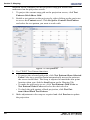
To temporarily disable warping and masking, click the projector menu
and check the Disable Warp option.
• To temporarily disable blending, click the projector menu and check the
Disable Blend option.
• To temporarily disable brightness uniformity, click the projector menu
and check the Disable Brightness Uniformity option.
NOTES: 1) Uncheck a disabled option to enable it. 2) Enabling an option
causes the projector to apply the last saved definition(s) at the memory
location(s) specified in the current configuration file.
TWIST 1.6 User Manual
020-100143-07 Rev. 1 (06-2010)
A-1