1
1
4
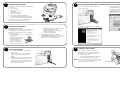
Unpacking Your Printer
The following items are contained inside the box:
• Printer
• Power Adapter
• Separate Power Cord
• USB Cable
• Software Installer CD
• Black Ink Cartridge
• Starter roll of high gloss label stock
• Warranty Statement and Registration Card
• This manual and other printed information
Save the carton and packing materials. They will
come in handy when transporting the printer.
2
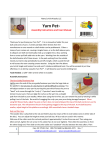
Connect the printer to your PC with your
beige USB 2.0 Cable.
Installing the PC Software
1.
3
Place the Installer CD in your CDRom Drive.
The Installer
application should automatically launch in a few
moments. If it does,
proceed to Step 2. If it
does not automatically
launch, follow these steps:
Connecting Power
1.
Locate the power adapter supplied with
your printer.
2.
Place one end of the adapter cord into
the power port on the rear panel of the
printer.
3.
Plug the power cord of the adapter into an
available wall outlet or surge protecting
power strip. Once the power cord is connected, the printer can be switched on and
off using the power switch.
Double-click the My Computer Icon, then
double-click the icon of the
appropriate CD drive containing the
Software Installer disc.
• Double-click Installer.exe
In the Installer Application, click the
Standard Install button. Steps 3-6 are shown
below as well as on the monitor. You may
follow either to complete the setup.
•
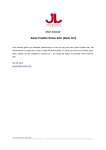
2.
Select "Install the software automatically"
and click Next. You may see a notice like the
one shown here stating that the Printer has
not passed Windows Logo Testing. Click
Continue Anyway to continue installing the
printer driver for your Publisher.
After a few moments, Windows will tell you
it has found new hardware and is looking for
software to install it.
Installing the Software
The Installer Disc has a menu that will guide you
through the process of setting up your printer.
Please refer to the following for more information on each step:
Connecting the USB Cable / Installing the Printer Driver
5
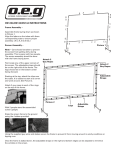
Installing Label Stock
Your printer will utilize a wide variety of
paper label stock. See Section 5 in the Users
Manual for label and roll specifications.
1.
Open the Top Cover.
2.
Pull the spring loaded label stock guide
out far enough to fit the label roll.
Note: Remove any shipping tape from your label stock roll
to ensure that it can unroll freely, making certain
that no adhesive portion is exposed.
Label Stock Guide