1
GETTING STARTED MODULE 2 THE INTERNET AND EMAIL
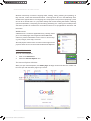
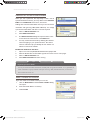
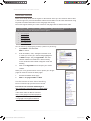
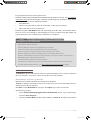
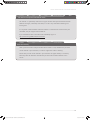
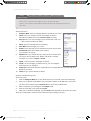
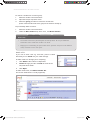
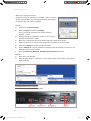
To open a new website
If you know the address of the website you may enter it.
1.
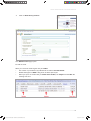
Click in the Address Bar and select the address there
2.
Type www.scoilnet.ie to open the Scoilnet Website
3.
Press Enter or Click on the Go button to the right of the address bar.
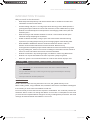
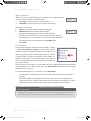
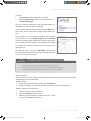
If you do not know the address of the website you may use a Search Engine e.g. Google as
described later.
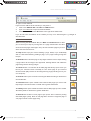
USING THE BROWSER
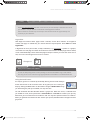
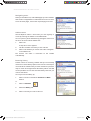
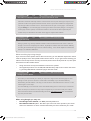
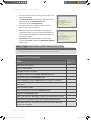
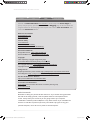
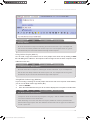
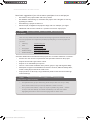
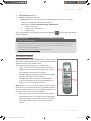
While browsing the World Wide Web, the Back and Forward buttons allow
you to retrace your steps by moving back to a page visited earlier and then
move forward to pages visited again. They will not remember pages if you shut
down and restart the browser.
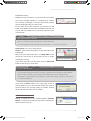
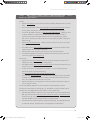
The Stop button stops your browser loading a page. Useful, if you accidentally
click on a link before finishing reading a page, or, if a page is taking a long time
to open.
The Refresh button reloads a page. It may happen that the browser stops loading
a page before all the images have appeared. Clicking Refresh will reload the
page along with the missing images.
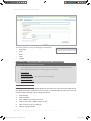
The Home button is a Link back to the Web page that always opens when you
launch your Internet browser. Normally it is the home page of your Internet
Service Provider (ISP), but this can be changed to any page (including one on your
own computer).
The Search button opens a tool for searching the Web. Searching is dealt with in
more detail later.
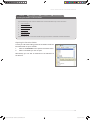
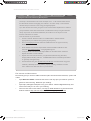
The Favorites button opens a folder where links to Web pages you want to visit
frequently are stored. Favorites are dealt with in greater detail later.
The History button opens a folder that stores links to Web pages you have visited.
The History folder is dealt with in greater detail later.
The Print Button sends the current page to your printer. This is useful for printing
short Web pages quickly. Note: A web page does not mean a single A4 page. A
web page could be several pages long.
8
Getting Started Module 2 the Internet and Email.indd P8
15/03/2012 14:14:34