1
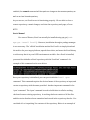
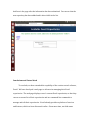
the fossil open command.
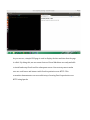
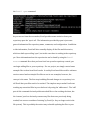
As you can see from the screenshot, Fossil provides some statistics about your
repository upon the ‘open’ call. The information provided by open is just some
general information like repository name, comments, and configuration. In addition
to this information, Fossil will also normally display all the files and directories,
which are built upon calling ‘open’, but in this case there is nothing in the repository
yet. More information about the repositories can be found by using the fossil
status command. Now that you have fossil set up and a repository created, you
can begin adding files to your repository. For our project, we simply created some
example files to show how Fossil works. In reality Fossil would be used for software
version control and not simple files like we use in our examples, however, the
concept is the same. The first step in adding files and changes to a repository is to
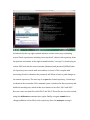
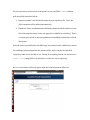
tell Fossil that your files need to be tracked. The simplest way to make Fossil start
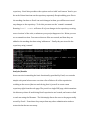
tracking any untracked files in your checkout is by using the ‘addremove’. The ‘add’
part of this command obviously adds untracked files to the working checkout, but
the ‘remove’ part less obviously removes any files that were previously being
tracked, but are now considered ‘missing’ by Fossil (i.e. they no longer exist in the
file system). This is probably the easiest way to handle updating the files to your