1
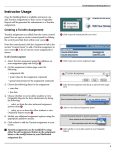
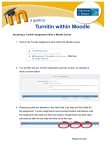
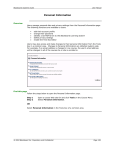
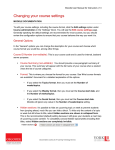
Turnitin Moodle Plugin User Guide 1.0 Submitting Papers Instructors can submit papers to a Turnitin assignment the the submission forme. To open the assignment submission form, click the link to the assignment on the course home page . Click to open the assignment inbox Click submit below the assignment dates and the submission form will open. For instructors, there are four ways to submit papers to a Turnitin assignment: • file upload (used to submit a single paper in file format; we accept submissions in Microsoft Word, WordPerfect, RTF, PDF, PostScript, plain text, and HTML formats) 2 Click to start submitting papers • bulk upload (used to submit multiple papers in file format, just like adding attachments to an e-mail) • cut and paste (used to submit a paper in a file format we do not accept, by cutting and pasting the text into a text box) 3 Select file upload • zip file (used to submit multiple papers as a single zip file) To submit a paper by file upload: 1. Select file upload from the submission pull down menu 3. 4 Select student from the list 2. Select an enrolled student using the pull down menu. Papers that you submit on behalf of a student will appear in the student’s portfolio, just as if the student submitted the paper to your class 4. or If you are submitting a paper for a non-enrolled student, enter the student’s first and last name. 5 Click to find the file on your computer ! Papers you submit for non-enrolled students cannot be graded or used for GradeMark. 3. Enter a title for the submission. 4. Click the Browse button and locate the paper you would like to submit 5. 6 Click to finalize the submission 5. Click submit. On the following page you will be asked to confirm the text of the submission. If the text is correct, click yes, submit to finalize the submission 6.