1
3.
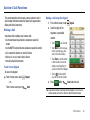
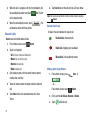
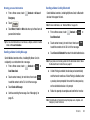
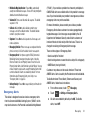
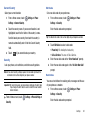
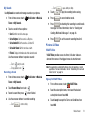
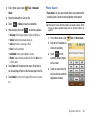
Touch Add text ➔
More
➔ Insert Quick Text.
More
➔ Insert Quick Text ➔ New.
– or –
Touch Add text ➔
• Compose the new Quick Text message, then touch Save .
4. Touch one of the pre-defined messages or the new Quick
Text, then touch
5.
Touch
Send
Done
.
to send the Quick Text message.
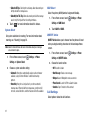
Copy to Card
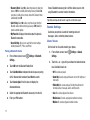
You can copy contact information to a VCard. For more
information, refer to “Copy To Card” on page 38.
Quick Reply
Use Quick Reply to send a simple text message when viewing
messages in landscape mode. Just begin entering characters,
and the text field will appear.
For more information about setting up and checking Voicemail,
see “Voicemail” on page 10.
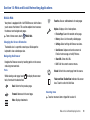
Message Folders
Messages are stored in the message folders, depending on your
selections for Inbox View in Message Settings.
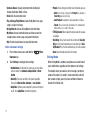
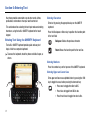
Viewing Messages by Contact
When the Inbox View setting is set to Contact, all incoming and
sent messages are stored in the Messages folder, grouped by
contact (the sender/recipient of the message), to provide a
threaded view of the message exchange.
Note: For more information about the Inbox View setting, see “Message
Settings” on page 53.
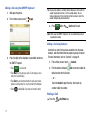
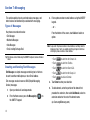
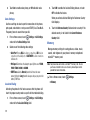
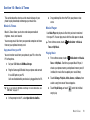
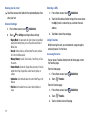
1.
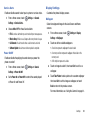
From a Home screen, touch
2.
The most recent message from each contact displays.
Messaging.
Touch a contact to view the message thread.
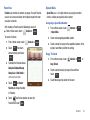
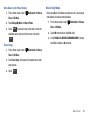
Voicemail
Note: Standard Text Messaging charges do not apply when checking
voicemail.
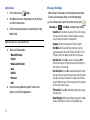
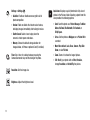
➔ Sort by and select Alphabetically.
3.
Touch
4.
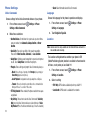
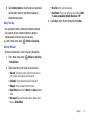
To mark messages for deletion, touch
More
Erase
to erase the
selected message.
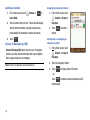
1.
From a Home screen, touch
.
5.
– or –
Touch
51
Keypad. and touch
.
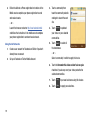
While viewing a thread, touch a message to view the
message detail.