1
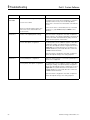
9 Troubleshooting
Part II: Custom Software
Problem
Possible Cause
Action
Mouse Control
Unavailable
Mouse driver stored in high memory
Incorrect mouse driver
All SAMMS Custom Software menu commands can be
used with a mouse if the mouse hardware or software is
properly installed. For any mouse-related problems,
please refer to the instruction manual that came with the
mouse.
Mouse not loaded in DOS (no path statement for the mouse under DOS in the
autoexecute file)
Run mouse from the command line, that is, at the DOS
prompt (C:\>), type: mouse and press Enter. Follow
directions.
Incorrect or incomplete plotter settings.
Open the OrCAD configuration sheet and compare the
plotter settings to the settings required by your plotter. Be
sure that the serial channel, baud rate, parity, and word
length match the plotter characteristic.
Incorrect driver prefix configuration.
The driver prefix sets the subdirectory path or disk drive,
enabling the loading of the printer, plotter, and graphics
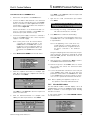
drivers. The driver prefix must be configured as shown in
Figure 5.3. The system will search for the driver in the
DRIVER subdirectory of the hard drive that contains the
SAMMS Premium Software.
Plotter Error
Open the OrCAD configuration sheet and compare the
plotter driver prefix setting to the setting required.
Printer Error
Incorrect parallel port configuration.
Make sure that the printer is connected to parallel port 1,
others are not supported.
Incorrect printer driver prefix configuration.
The driver prefix sets the subdirectory path or disk drive,
enabling the loading of the printer, plotter, and graphics
drivers. The driver prefix must be configured as shown in
Figure 5.3. The system will search for the driver in the
DRIVER subdirectory of the hard drive that contains the
SAMMS Premium Software.
Open the OrCAD configuration sheet and compare the
printer driver prefix setting to the setting required.
58
Siemens Energy & Automation, Inc.