1
D. Access your IP KVM Module and Remote Control the Host computer(s)
As soon as you finish the above initial settings and connections, congratulations! You are ready to
remote control the host computer(s) from any corner around the world! Simply open up the web
browser and type the IP you already setup in the Quick Start Guide and then type the right username
and password. That’s it! You’re able to successfully to access your IP KVM Module! As you login the
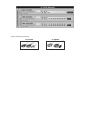
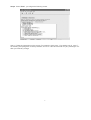
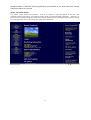
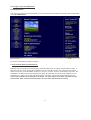
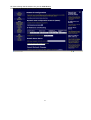
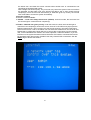
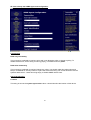
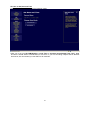
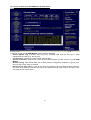
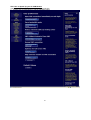
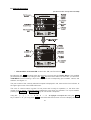
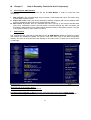
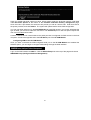
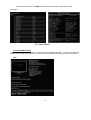
IP KVM Module with the right username and password, you will get the following screen:
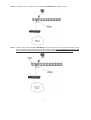
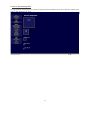
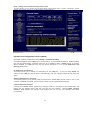
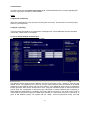
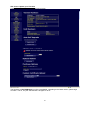
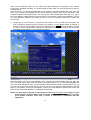
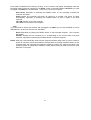
Please simply double click on the small square window in the middle of the screen. You’ll get the VNC
screen.( You may need to upgrade or download your Java support in your browser before using
the VNC screen to remote control the host computer(s); however, most modern browsers come
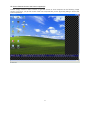
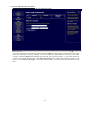
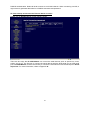
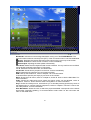
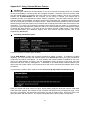
with a version of Java that is compatible with this application.) That is, you will see the screen of the
host computer(s). Now, you can fully control the host computer(s) remotely like you present at the host
computer(s) location physically, sitting in front of the host computer(s)! Certainly, if you would like to
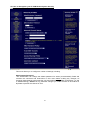
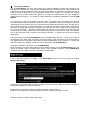
log out your IP KVM Module, please simply click on the icon of “Logout” on the top of screen!
11