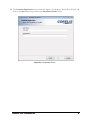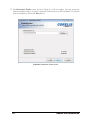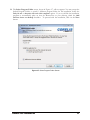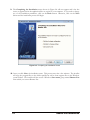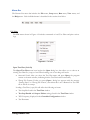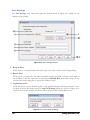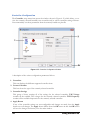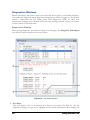
1
CORELIS Runner-Lite Runner-Lite ™ Boundary-Scan Test Executive User’s Manual Document Part Number 70655 Rev B Copyright 2010-2012, Corelis Inc. Corelis, Inc. 13100 Alondra Blvd. Cerritos, CA 90703 Telephone: (562) 926-6727 • Fax: (562) 404-6196 Preface PRINTING HISTORY Edition 1, July 2010 Edition 2, April 2012 GENERAL NOTICE Information contained in this document is subject to change without notice. CORELIS shall not be liable for errors contained herein for incidental or consequential damages in connection with the furnishing, performance, or use of material contained in this manual. This document contains proprietary information that is protected by copyright. All rights reserved. No part of this document may be reproduced or translated to other languages without the prior written consent of CORELIS. This manual is a CORELIS proprietary document and may not be transferred to another party without the prior written permission of CORELIS. CORELIS assumes no responsibility for the use of or reliability of its software on equipment that is not furnished by CORELIS. ENVIRONMENTAL NOTICE This product must be disposed of in accordance with the WEEE directive. TRADEMARK NOTICE Pentium is a registered trademark of Intel Corporation. Windows is a registered trademark of Microsoft Corporation. Other products and services named in this manual are trademarks or registered trademarks of their respective companies. All trademarks and registered trademarks in this manual are the property of their respective holders. i PRODUCT WARRANTY AND SOFTWARE MAINTENANCE For product warranty and software maintenance information, see the PRODUCT WARRANTY AND SOFTWARE MAINTENANCE POLICY statement included with your product shipment. EXCLUSIVE REMEDIES THE REMEDIES CONTAINED HEREIN ARE THE CUSTOMER'S SOLE AND EXCLUSIVE REMEDIES. CORELIS SHALL NOT BE LIABLE FOR ANY DIRECT, INDIRECT, SPECIAL, INCIDENTAL, OR CONSEQUENTIAL DAMAGES, WHETHER BASED ON CONTRACT, TORT, OR ANY OTHER LEGAL THEORY. Product maintenance agreements and other customer assistance agreements are available for Corelis products. For assistance, contact your nearest Corelis Sales and Service Office. RETURN POLICY No items returned to CORELIS for warranty, service, or any other reason shall be accepted unless first authorized by CORELIS, either direct or through its authorized sales representatives. All returned items must be shipped pre-paid and clearly display a Return Merchandise Authorization (RMA) number on the shipping carton. Freight collect items will NOT be accepted. Customers or authorized sales representatives must first contact CORELIS with notice of request for return of merchandise. RMA's can only originate from CORELIS. If authorization is granted, an RMA number will be forwarded to the customer either directly or through its authorized sales representative. CONTACT INFORMATION For sales inquiries, please contact [email protected]. For any support related questions, please enter http://www.corelis.com/support or email [email protected]. a support request at For more information about other products and services that Corelis offers, please visit http://www.corelis.com. ii Table of Contents Chapter 1: Product Overview..................................................................................................... 1 Introduction ..................................................................................................................................................... 1 ScanExpressTPG ............................................................................................................................................. 2 Runner-Lite Test Plan...................................................................................................................................... 2 Runner-Lite Features ....................................................................................................................................... 2 Chapter 2: Runner-Lite Installation ..........................................................................................4 System Requirements....................................................................................................................................... 4 Software Installation......................................................................................................................................... 5 Test Plan Installation ......................................................................................................................................15 Hardware Installation .....................................................................................................................................16 Hardware Setup...............................................................................................................................................17 Chapter 3: Getting Started ....................................................................................................... 18 Chapter 4: Using Runner-Lite ................................................................................................. 19 Introduction ....................................................................................................................................................19 Main Window ................................................................................................................................................. 20 Menu Bar ......................................................................................................................................................................................23 Test Steps List..............................................................................................................................................................................29 Pop-up Menu ...............................................................................................................................................................................31 Flash Programming Test Step Options...................................................................................................................................33 Configuration Window ................................................................................................................................... 34 Test Plan .......................................................................................................................................................................................34 User Settings.................................................................................................................................................................................36 Controller Configuration ...........................................................................................................................................................38 Diagnostics Windows..................................................................................................................................... 40 Diagnostics Display ....................................................................................................................................................................40 Truth Table Display (TTD).......................................................................................................................................................43 Chapter 5: Individual Test Step Types....................................................................................48 Introduction ................................................................................................................................................... 48 Infrastructure Test Step ................................................................................................................................. 48 Interconnect Test Step ................................................................................................................................... 50 Buswire Test Step........................................................................................................................................... 50 Pull-up/Pull-down Resistor Test Step ............................................................................................................51 Cluster Test Step .............................................................................................................................................51 Memory Cluster Test...................................................................................................................................... 52 Script Test ...................................................................................................................................................... 52 Flash Programming Test Step ....................................................................................................................... 52 CPLD Programming Test Step ...................................................................................................................... 52 iii JET Test Step ................................................................................................................................................. 53 ETF Test Step ................................................................................................................................................ 53 Chapter 6: In-System Programming (ISP) ..............................................................................55 Introduction ................................................................................................................................................... 55 Devices Supported by SVF ............................................................................................................................. 56 Devices Supported by JAM ............................................................................................................................ 56 Devices Supported by STAPL ........................................................................................................................ 56 Devices Supported by FPI.............................................................................................................................. 56 Using ISP ....................................................................................................................................................... 57 Appendix A List of Terms .........................................................................................................1 List of Terms .................................................................................................................................................... 1 iv List of Figures Figure 1-1. ScanExpress System Environment ............................................................................................1 Figure 2-1. User Account Control Dialog Box .............................................................................................5 Figure 2-2. Windows Run Dialog...................................................................................................................6 Figure 2-3. Welcome Screen of the Runner-Lite Installer ..........................................................................7 Figure 2-4. License Agreement Screen ..........................................................................................................8 Figure 2-5. Registration Screen.......................................................................................................................9 Figure 2-6. Destination Folder Screen..........................................................................................................10 Figure 2-7. Select Program Folder Screen....................................................................................................11 Figure 2-8. Completing the Installation Screen..........................................................................................12 Figure 2-9. Windows XP Logo Test Warning Pop-up Window .............................................................13 Figure 2-10. Windows Security Warning Pop-up Window ......................................................................13 Figure 2-11. Completing the Installation Success Screen .........................................................................14 Figure 2-12. Register and Download Test Procedures Popup.................................................................15 Figure 2-13. Controller Configuration Screen............................................................................................17 Figure 4-1. Runner-Lite Main Window .......................................................................................................20 Figure 4-2. File Menu.....................................................................................................................................23 Figure 4-3. Setup Menu..................................................................................................................................25 Figure 4-4. Run Menu ....................................................................................................................................26 Figure 4-5. Multiple Runs Dialog .................................................................................................................26 Figure 4-6. View Menu ..................................................................................................................................27 Figure 4-7. Help Menu...................................................................................................................................28 Figure 4-8. About Dialog...............................................................................................................................28 Figure 4-9. Test Steps List Area ...................................................................................................................29 Figure 4-10. Main Window Pop-up Menu..................................................................................................31 Figure 4-11. Flash Programming Options ..................................................................................................33 Figure 4-12. Test Plan Window ....................................................................................................................34 Figure 4-13. User Settings Window .............................................................................................................36 Figure 4-14. Log File Warning Dialog.........................................................................................................36 Figure 4-15. Controller Configuration Window.........................................................................................38 Figure 4-16. Test Results Window ...............................................................................................................40 Figure 4-17. Truth Table Display - Patterns Mode....................................................................................43 Figure 4-18. Truth Table Display - Waveforms Mode..............................................................................46 Figure 4-19. Truth Table Display Pop-up Menu .......................................................................................47 Figure 6-1. Main Window after successful ISP and Board Test Execution...........................................57 v List of Tables Table 5-1. Test Step Types ............................................................................................................................48 Table 6-1. ISP File Type and Extensions....................................................................................................55 Table 6-2. ISP Manufacturer Filename Suffixes.........................................................................................56 vi Chapter 1: Product Overview Introduction Runner-Lite™ is a test executive tool for performing boundary-scan (JTAG) tests and in-system device programming using a pre-generated test plan file that is custom designed for a specific reference board. Runner-Lite is a custom version of Corelis ScanExpress Runner™, the executive member of the ScanExpress software suite, which has the same look and feel as the standard ScanExpress Runner tool, but has been customized to only execute pre-generated Runner-Lite test plan files that are designed and delivered by Corelis for each specific Unit Under Test (UUT). Runner-Lite can execute all of the tests that ScanExpress Runner can execute and by using Corelis designed and supplied test plan files, no investment is required to purchase test generation tools or to learn how to use these tools. Each Runner-Lite test plan file is custom built for a particular target board and includes the relevant test steps to perform structural testing, In-System Programming (ISP), and functional testing for that specific target board. Runner-Lite is compatible with selected Corelis boundary-scan controllers which connect to the UUT via one or more standard Test Access Ports (TAP) and optionally via a Serial Peripheral Interface (SPI) or an I²C interface. Runner-Lite applies boundary-scan test patterns to the UUT, reads back the responses, and provides comprehensive fault detection and isolation of boundary-scan chain infrastructure, board interconnect, buswire, pull-up/pull-down resistors, and clusters such as CPLDs, memories, and FIFOs, as well as other types of failures. Runner-Lite also supports InSystem-Programming (ISP) of CPLDs, Flash memories and serial EEPROM devices. Figure 1-1 depicts a simplified block diagram of the ScanExpress Runner/Runner-Lite system environment. Figure 1-1. ScanExpress System Environment Product Overview 1 ScanExpressTPG The boundary-scan test files used by Runner-Lite are generated by the Corelis ScanExpressTPG application which is part of the Corelis ScanExpress suite of tools. The ScanExpressTPG test program generator creates test vector files in a proprietary CVF format. ScanExpressTPG uses proprietary algorithms to generate efficient interconnect test patterns that provide 100% fault coverage of scannable nets. These generated test patterns allow pin-level fault detection and isolation for all boundary-scan-testable nets of a printed circuit board (PCB). ScanExpressTPG also creates test vectors to detect faults on the pins of non-scannable components such as clusters and memories that are surrounded by scannable devices. ScanExpressTPG can also generate a Flash Programming File (FPI) that is used by Runner-Lite along with standard hex or binary data content files to perform in-system programming of flash devices via boundary-scan. Once the test files are generated for a specific target board, they are compiled into a Runner-Lite compatible test plan file. Runner-Lite Test Plan The Runner-Lite test plan is a precompiled test plan file (.tspx) prepared by Corelis, that is customized for a particular target board. A set of test steps that are relevant to a particular target board are designed and generated by Corelis and then compiled into a Runner-Lite test plan that is customized to perform structural test, in-system programming, and functional test for the specific target board. These test plans cannot be modified by the user, but can only be executed using the Runner-Lite software application. Runner-Lite test plan files for select reference boards are provided on the Corelis Runner-Lite web site at: http://www.corelis.com/runner-lite Runner-Lite Features Runner-Lite provides a solution for testing and bringing up your target board that is customized for the specific evaluation board or reference design board you are using. Runner-Lite supports select boundary-scan controllers, including a variety of USB controllers from Blackhawk, Corelis, and Freescale. The controller used depends on the specific Runner-Lite test plan. Runner-Lite includes a Test Executive that allows you to run a Runner-Lite compatible test sequence (Test Plan) consisting of various independent tests (Test Steps) that you may execute continuously as many times as you specify. 2 Product Overview The main features of the Test Executive are as follows: Enables test sequence debugging by forcing selected Test Steps to skip, stop on failure, or continue on failure Logs test results and reports (details and summary) to file Prints test results Allows the operator to enter their name, UUT name, model number, serial number, etc.; this information is used for logging and reporting Allows running the configured test sequence a chosen number of times or continuously Runner-Lite also provides the following features: Intelligent diagnostics – the program detects and isolates stuck at pin faults and shorts/opens for all testable boundary-scan nodes. Refer to the Diagnostics Display topic in chapter 4 for more details. Truth Table Diagnostics (TTD) – vectors executed from a failed non-infrastructure CVF Test Step file can be viewed in Patterns or Waveforms mode. Refer to the Truth Table Display (TTD) topic in chapter 4 for more details. TTD information saving – TTD information can be saved to a comma delimited file (.CSV) that can be imported by another application, such as Microsoft Excel. Refer to the Truth Table Display (TTD) topic in chapter 4 for more details. Individual Test Step options – each test step can be independently enabled or disabled to run during test plan execution. Refer to chapter 4, Using Runner-Lite for more details. ISP file execution – the program supports execution of SVF, JAM, STAPL, Byte-code, and Flash memory programming steps in the pre-configured test plan. Refer to chapter 6, In-System Programming (ISP) for more details. Execution of external programs – the program supports the execution of external programs from pre-configured test steps that use the Extensible Test Format (ETF). The Extensible Test Format is a scripting language that allows the execution of commands outside the normal Runner-Lite boundary-scan environment. ETF makes it possible to control external test equipment such as relay controllers, and digital multi meters. The status returned from the external program may be used to generate a pass/fail condition for the current test step. Refer to the ETF Test Step topic in chapter 5 for more details. Support for direct programming steps in the pre-configured test plan – most Corelis boundaryscan controllers now support direct SPI and/or I²C serial interfaces (in addition to the standard TAPs) for ultra fast programming of serial EEPROMs using a direct connection rather than through boundary-scan. Product Overview 3 Chapter 2: Runner-Lite Installation Installing and setting up the Runner-Lite software This package consists of the user’s manual, which you are currently reading, and the following other components: Runner-Lite Installation CD ROM System Requirements Runner-Lite is a 32-bit application designed for the Microsoft Windows XP, Windows Vista, or Windows 7 operating systems. The computer on which it will be installed should meet the following minimum requirements: Microsoft Windows XP/Vista/7 CD-ROM drive Pentium III 1GHz processor or higher 512 megabytes (MB) of RAM 150 MB of free hard disk space One of the following supported boundary-scan controllers: o Corelis C100 o Blackhawk USB560m, USB560BP, PCI560, LAN560 o Freescale CodeWarrior USB TAP 4 Runner-Lite Installation Software Installation If Runner-Lite is already installed on your system, you may skip ahead to Chapter 3. The Runner-Lite software is shipped on the Runner-Lite Installation CD-ROM. The installation program will copy the necessary files to your hard disk. You must have Administrator access rights to install this software. Please note that, on Windows Vista or Windows 7 with User Account Control (UAC) enabled, you will encounter the User Account Control dialog box shown in Figure 2-1 below during the installation process. Figure 2-1. User Account Control Dialog Box Runner-Lite Installation 5 To install the software: 1. Close any other Window applications that may be running. You should also disable any memory resident virus checking software, which can sometimes interfere with the installation process. 2. Insert the Runner-Lite CD-ROM into your CD drive. 3. The installation program should start up automatically, in which case you may skip to step 4. In Windows Vista, type in “D:\Setup.exe” in the Search text box (where D:\ is the CD-ROM drive) as shown in Figure 2-2. Otherwise, select Run from the Start menu. In the Run dialog box, type “D:\Setup.exe” (where D:\ is the CD-ROM drive). Click on the OK button to run the installation program. Figure 2-2. Windows Run Dialog 6 Runner-Lite Installation 4. The Runner-Lite installer Welcome screen shown in Figure 2-3 will appear. Click the Next button to continue to the License Agreement screen. Figure 2-3. Welcome Screen of the Runner-Lite Installer Runner-Lite Installation 7 5. The License Agreement screen shown in Figure 2-4 will appear. Review the entire agreement, and if you agree to it, check the “I accept the terms of the license agreement” checkbox. Click on the Next button to proceed to the Customer Registration screen. If you do not accept the license agreement, click Cancel to cancel the installation. Figure 2-4. License Agreement Screen 8 Runner-Lite Installation 6. The Customer Registration screen shown in Figure 2-5 will appear. Please fill in all fields and click on the Next button to proceed to the Destination Folder screen. Figure 2-5. Registration Screen Runner-Lite Installation 9 7. The Destination Folder screen, shown in Figure 2-6, will now appear. You may accept the default installation folder, or specify a different folder location for the installation. To proceed with the installation, click on the Next button. Figure 2-6. Destination Folder Screen 10 Runner-Lite Installation 8. The Select Program Folder screen, shown in Figure 2-7, will now appear. You may accept the default Program Folder, or specify a different program folder for the installation. Select the Only for me or Anyone who uses this computer option. If you would like the installation program to automatically place an icon for Runner-Lite on your desktop, check the Add shortcut icons on desktop checkbox. To proceed with the installation, click on the Next button. Figure 2-7. Select Program Folder Screen Runner-Lite Installation 11 9. The Completing the Installation screen shown in Figure 2-8 will now appear and is the last screen to appear before the application files are copied to your computer. If you need to change any of the installation parameters, click on the Back button. Otherwise, click on the Next button and the installation process will begin. Figure 2-8. Completing the Installation Screen 10. Once you click Next, the installation starts. This process may take a few minutes. The installer will copy the program files to the folder specified as well as some support files to the Windows system folders. The installer will also create a Windows Start menu group named Runner-Lite from which you can run Runner-Lite. 12 Runner-Lite Installation If you are running Windows XP, the software installation may be interrupted by the operating system by displaying one or more warning pop-up windows as shown in Figure 2-9. If this occurs, click on the Continue Anyway button to safely ignore the warnings and proceed with the installation. Figure 2-9. Windows XP Logo Test Warning Pop-up Window If you are running Windows Vista or Windows 7, the dialog box would look like Figure 2-10 below. Click on the Install button to safely ignore the warnings and proceed with the installation. Note that you may check the “Always trust software from Corelis, Inc.” check box to avoid seeing these messages in the future. Figure 2-10. Windows Security Warning Pop-up Window Runner-Lite Installation 13 11. The Runner-Lite installer Completed screen, as shown in Figure 2-11, will now appear to indicate that the installation is done. Click on the Finish button to exit from the installation program. You may be prompted to reboot your computer to complete the installation. If you choose not to reboot your computer now, you must reboot before launching Runner-Lite. Figure 2-11. Completing the Installation Success Screen 14 Runner-Lite Installation Test Plan Installation When the Runner-Lite application is launched for the first time, and subsequently until a test plan is installed and opened, the popup window shown in Figure 2-12 will be displayed. Figure 2-12. Register and Download Test Procedures Popup You may click on the Register and Download Test Procesdures link to visit the Corelis Runner-Lite web page (http://www.corelis.com/runner-lite) in your web browser. Once you have registered for your free account, you can login and download a test plan installer for any of the available targets. The test plan installation procedure is very similar to that of the Runner-Lite application installation as described in the beginning of this chapter. At the end of the test plan installation, you will be given the option to open the test plan in Runner-Lite immediately. You may also open the test plan later by using the Start menu shortcut that is created under the Runner-Lite program group, or by browsing to the test plan installation location in Windows explorer and double-clicking on the .tspx file. Runner-Lite Installation 15 Hardware Installation Runner-Lite can be used with select Corelis boundary-scan controllers. The hardware installation procedure for the C100 boundary-scan controller is provided below. If you are using a different boundary-scan controller or for a step-by-step detailed hardware installation procedure, please refer to the user’s manual of the specific controller that you are using. The C100 controller is packaged in anti-static protective material and should be carefully removed to avoid destroying the packaging material. Retain this along with the other packaging materials for possible future transport. Make sure to install the software first. The Runner-Lite software must be installed on your computer before connecting the C100 to your computer. The C100 is a Plug and Play device, and its drivers are installed with the Runner-Lite software installation. Windows will automatically recognize and configure the C100 the first time it is detected by your computer. Follow the installation steps below (for more detailed installation instructions, please refer to the C100 User’s Manual): 1. Connect the USB cable provided with the C100 boundary-scan controller into any available USB port on your computer, and then to the controller itself. 2. Windows will automatically detect the controller and start the Found New Hardware Wizard. 3. Follow the instruction on the screen to install the necessary device driver. Windows may warn you that the driver has not passed Windows Logo testing by Microsoft. This warning can be safely ignored. NOTE: In the event that you mistakenly connected the C100 controller to your computer prior to installing the Runner-Lite software, cancel the Found New Hardware Wizard. Then proceed by installing the Runner-Lite software as described in the beginning of this chapter. 16 Runner-Lite Installation Hardware Setup Once the software is installed from the CD, you can see the controller configuration from the setup menu. The controller selection information is loaded from the test plan file and is displayed here for informaional purpose only. To display the controller configuration: 1. Make sure that no other applications that use the boundary-scan controller are running. 2. Launch the Runner-Lite application. 3. Select the Controller menu entry on the Setup menu, or press F4, to display the Controller Configuration window as seen in Figure 2-13. Figure 2-13. Controller Configuration Screen 4. Note that you may see different controller settings depending on the test plan file loaded. Runner-Lite Installation 17 Chapter 3: Getting Started Quick operation overview and tutorial Refer to the Quick Start Guide that came with the CD for detailed instructions on how to get started using this software. 18 Getting Started Chapter 4: Using Runner-Lite Detailed description of the graphical user interface Introduction The Runner-Lite software includes an interactive Graphical User Interface (GUI) that assists the user with configuring and executing Test Plans for boundary-scan testing. The Runner-Lite application utilizes test vector files that were generated by the Corelis ScanExpressTPG application, and enables the user to apply these vectors to the Unit Under Test (UUT). RunnerLite also supports In-System Programming (ISP) of CPLDs and Flash memories. This chapter discusses the following Runner-Lite features: Menus, windows, and user selection options. Truth Table Diagnostics (TTD) - display TTD for a failed non-infrastructure Compact Vector Format (CVF) Test Step file. The executed vectors can be viewed in Patterns or Waveforms mode. TTD Information saving - save TTD information to a comma delimited file (.CSV) that can be imported by another application such as Microsoft Excel. Extensible Test Format – provides the ability to read values from an external digital multi-meter, run external programs, capture results into program variables, and make pass/fail decisions on user selected criteria. The following features provided by Runner-Lite will be discussed in other chapters in this manual: Intelligent diagnostics - Runner-Lite detects and isolates stuck-at pin faults and shorts/opens for all testable boundary-scan nodes. In-System Programming (ISP) file execution – Runner-Lite supports various files, including Serial Vector Format (SVF), JAM, Standard Test and Programming Language (STAPL), Bytecode, and Flash memories. Refer to the In-System Programming (ISP) chapter for more details. Using Runner-Lite 19 Main Window When you start Runner-Lite, the main window is displayed as shown in Figure 4-1. The functions and information contained in this window are numbered and described in the paragraphs that follow. Figure 4-1. Runner-Lite Main Window 1. Menu Bar –The File menu includes commands to load Test Plans and print various logs. The Setup menu includes commands to set up a JTAG controller, program settings, and Test Plan settings (including the individual Test Step files). The Run menu includes commands used in running the test, such as how many runs to perform. The View menu includes access to test diagnostic information, and the test logs. The Menu Bar section on page 23 discusses each menu item in more detail. 2. Tool Bar – The tool bar provides quick single-click access to commonly used menu commands. 3. Test Steps List – The list shows both the names of the Test Steps being performed, as well as the progress and results for each of the test runs. The Test Step List section on page 29 discusses the different modes and displays on the list in more detail. 20 Using Runner-Lite 4. Test Status - The test status indicator displays the current test program state. The program can be in three different states: Ready The ready state indicates that a controller is selected and that a Test Plan was loaded. You can run a test only when the program is in the ready state. Not Ready A not ready state indicates that one of the items needed to run a test is not present. To run the test, a valid boundary-scan controller must be selected and at least one Test Step file must be loaded in the active Test Plan. Running When the status indicates running, it means that a test is currently executing. 5. Test Status Results - The test results box shows the global results for the last run of the Test Steps as follows: Failed At least one test either failed or terminated due to a “Run Error”. Passed All tests ended in a “passed” or “skipped” status with at least one test having a “passed” result. No Data When “No Data” is displayed it indicates that either the tests have not been run, or that the tests have been run, but they were all disabled. For more information on the meaning of the different results, consult the Test Steps List section on page 29. 6. Run Test Button - Use this button to run the Test Steps in the Test Steps List. The button is enabled only when the program is in the Ready state. When you click the Run Test button, the program will run the enabled tests for the configured number of times. While the tests are running, the program will show the progress of the runs through a pop-up Test Status dialog box. 7. Progress Bar – This progress bar indicates the overall completion progress of a test plan. It is updated while the test plan is running as each test step finishes. The progress percentage is based on the total number of steps in the test plan, including repeated steps and disabled or skipped steps. As Runner-Lite reaches disabled or skipped test steps, it will increment the progress percentage just as if those steps had been executed successfully. 8. Test Statistics Numbers - These boxes hold the global test run results. For example, if you are running with three Test Steps and you have selected Multiple Run mode with five runs, the total run count will increase by five after you run the tests. If the second step fails on one of the test runs, and Stop on Failure is disabled, the Passed Runs will increase by four and the Failed Runs will increase by one after the tests complete. If all of the tests are disabled, then the statistics will not change. The numbers in these boxes are accumulated across different run instances. To reset the test statistics, right-click the mouse on the main window and select the Clear Statistics menu item. Using Runner-Lite 21 9. Test Statistics Graph - This is a graphical representation of the data in the Test Statistics boxes. When there is no data, the display is an empty circle. When test data exists, the pie chart will show passed runs in the color green, and failed runs in red. 10. Close Button - This button will close the Runner-Lite program. 11. Execution Time – This timer tracks the amount of elapsed time from the start to finish of test plan execution. 12. Window Sizing Grip - Clicking on this area and dragging the mouse allows you to resize the main window as desired. 22 Using Runner-Lite Menu Bar The Runner-Lite menu bar includes the File menu, Setup menu, Run menu, View menu, and the Help menu. Each individual menu is described in the sections that follow. File Menu The File menu shown in Figure 4-2 includes commands to load Test Plans and print various logs. Figure 4-2. File Menu Open Test Plan (Ctrl+O) The Open Test Plan menu item invokes the Open dialog box that allows you to choose an existing Test Plan file (*.tspx) to load. When loading, one of two things will occur: Successful Load: After you select the Test Plan name and press Open, the program returns to the main window, indicating that the Test Plan loaded successfully. Wrong File Format: If after you press Open a dialog box appears with the message “Parsing Error” or “Wrong File Format”, then either this is not a Runner-Lite Test Plan file or the file is corrupt. Loading a Test Plan (*.tspx) file will affect the following set items: Test Step files listed in the Test Plan window Test Step Enable and Stop on Failure settings, listed in the Test Plan window TCK Frequency, displayed in the Controller Configuration window Test Plan name Using Runner-Lite 23 Print Test Summary This menu item prints a copy of the summary test log. Print Test Log This menu item prints a copy of the currently selected test log. Print Diagnostics This menu item prints the diagnostics information of the last execution. Print Setup This menu item allows you to change the printer’s settings for use when printing with the print command. Recent File List The recent file list holds the names of up to the last four used Test Plans. When selected, they open the selected Test Plan. Exit (Alt+F4) This menu item terminates the Runner-Lite program. 24 Using Runner-Lite Setup Menu The Setup menu as shown in Figure 4-3 includes commands to set up the controller, the program settings, and the Test Plan settings. The menu items can also be activated from the main window by using the shortcut keys (F2, F3, or F4). Figure 4-3. Setup Menu Test Plan (F2) This menu item opens a window that allows you to change the settings of the Test Step files in the current Test Plan. See the Test Plan section on page 34 for more detailed information. User Settings (F3) This menu item opens a window that allows you to change the settings for running the tests. See the User Settings section on page 36 for more detailed information. Controller (F4) This menu item opens a window that allows you to configure a JTAG controller for testing. See the Controller Configuration section on page 38 for more detailed information. Using Runner-Lite 25 Run Menu The Run menu, shown in Figure 4-4, includes commands to run the tests. Figure 4-4. Run Menu Run Tests (F10 or ALT+R) This menu item runs the Test Steps in the Test Steps List. The item is enabled only when the program is in the Ready state. When the Run Tests menu item is selected, the program will run the enabled tests for the number of times configured. The overall Test Plan execution progress is displayed in the progress bar at the bottom of the main window. Single Run When Single Run is selected, Runner-Lite goes into “single run” mode. In this mode the Test Plan will execute only once per run. Multiple Run When Multiple Run is selected, Runner-Lite displays a dialog box as shown in Figure 4-5. Figure 4-5. Multiple Runs Dialog This dialog box specifies the number of times to execute the Test Plan. Click on the Cancel button to return to the main window with Runner-Lite in the previously selected mode. Click on the OK button to put the program into a multiple run mode where the Test Step List will include six columns. The additional three columns indicate how many times the test ran, passed, and/or failed, and is useful for detecting intermittent problems. Clicking on the Max button will set the number of runs to 2,147,483,647, which is the maximum allowable value. 26 Using Runner-Lite View Menu The View menu as shown in Figure 4-6 includes commands to view diagnostic messages (described further in the Diagnostics Display section on page 40) and log files. Figure 4-6. View Menu Diagnostics This menu item opens the Diagnostics Display dialog box showing the error information for the failed tests. Options This menu item opens the Individual Test Step Options dialog box showing the options for the selected test step. A Flash Programming FPI test step from the test step list must be selected for this item to be active. Test Log This menu item invokes the Windows based text editor with the contents of the current detailed log file. This type of log file keeps detailed information about each run, and is written every time a test is run if the Log Results to File box is selected on the User Settings window. Test Summary This menu item invokes the Windows based text editor with the contents of the current summary log file. This log file keeps a summary of the results of each run and is written every time a test is executed. Each time Runner-Lite is started, this log is erased. Tool Bar Selects whether or not the Tool Bar is displayed. By default the Tool Bar is positioned just below the Menu Bar. Status Bar Selects whether or not the Status Bar is displayed. By default the Status Bar is enabled, showing the Progress Bar and Execution Time controls at the bottom of the main window. Using Runner-Lite 27 Help Menu The Help menu shown in Figure 4-7 gives access to the help topics, and to the About box. Figure 4-7. Help Menu Help Topics This menu item opens the Runner-Lite help system. Boundary Scan Primer This menu item launches a Boundary-Scan primer PDF document. Download Test Plans This menu item opens a browser window to the Runner-Lite web page for acquiring test plans. Technical Support This menu item opens a browser window to the Corelis Support web page. Corelis on the Web This menu item opens a browser window to the Corelis web site. About Runner-Lite This menu item displays the About dialog window as shown in Figure 4-8. The About dialog window displays the name, version, and copyright information of the product. Figure 4-8. About Dialog 28 Using Runner-Lite Test Steps List The Test Steps List on the main window shows a list of the different Test Step files in the order that they will be executed and the current results of the tests. Items on the list can be enabled or disabled through the Test Plan window (see Test Plan on page 34). Alternately, you can select a test, or a group of tests, with the mouse and then right-click on the selection to enable or disable the selected tests. You can access the Test Plan window directly from the “mouse right-click” pop-up menu. For more detailed information on the functions of this pop-up menu, see page 31. Figure 4-9. Test Steps List Area A brief description of the various Test Step List columns follows: 1. # Column The # column shows the number of this Test Step. This is the order in which the Test Steps will execute. 2. Test Step Name Column The Test Step Name column contains the name of the Test Step file. Because Runner-Lite can work with long file names, the name may scroll off past the column edge. If this happens, resize the dialog box, or click on the column header boundary and drag it to the right to increase the size of the column. 3. Results Column The Results column shows the results from the last time the Run Test button was pressed. It can have five different values: Passed A passed result means that the test executed without failure. Failed A failed result means that the test executed and the expected results did not match the actual results returned from the test. Skipped A test that has been disabled will have a skipped status if that Test Step was not executed. If the Test Plan ended before this step was reached, then the test will read “Not Run” instead. Not Run A test that has not yet been executed will read “Not Run”. This differs from a skipped test, which has been reached but ignored because it was marked disabled. Using Runner-Lite 29 Run Error A Run Error indicates that a problem was encountered when running the test file. The reason for the error can be viewed by double-clicking on the Test Step. The Results column also shows a progress bar for each individual Test Step as the Test Plan executes. 4. Runs Column The Runs column shows the number of times this Test Step ran since the last time the Run Test button was pressed. Skipped tests are not executed and will not add to the total number of runs. 5. Passes Column The Passes column shows the number of times this Test Step passed since the last time the Run Test button was pressed. 6. Fails Column The Fails Column shows the number of times this Test Step failed since the last time the Run Test button was pressed. A Run Error is also counted as a failure. 30 Using Runner-Lite Pop-up Menu The pop-up menu for the main window is shown in Figure 4-10 and can be accessed by rightclicking anywhere within the main window. Figure 4-10. Main Window Pop-up Menu Enable All This menu item enables all of the tests, and is always visible while Test Step files are present in the Test Steps List. Disable All This menu item disables all of the tests, and is always visible while Test Step files are present in the Test Steps List. Enable Selected This menu item enables the selected Test Step files, and is visible when a Test Step file is selected. Disable Selected This menu item disables the selected Test Step files, and is visible when a Test Step file is selected. Edit Test Steps This menu item opens the Test Plan window, and is always visible. View Test Step This menu item opens the selected Test Step file in a text editor if the file uses an ASCII text file format. If the Test Step file uses a binary format, then this item will not be active. View Diagnostics This menu item opens the Diagnostics Display dialog box showing the error information for the failed tests. Print Diagnostics This menu item prints the diagnostics information of the last execution. Using Runner-Lite 31 Run Selected This menu item causes Runner-Lite to immediately execute the selected Test Step file. Clear Statistics This menu item clears the test statistics from the Test Step List and from the Test Statistics section of the main window. All of the test results are reset back to the “Not Run” state. This item is visible if the total runs count in the Test Statistics section of the main window is greater than 0. Options This menu item launches the Flash Programming Options dialog box. The selected Test Step must be a flash programming step for this item to be active. Please refer to the Flash Programming Test Step Options section for more information. Help This menu item opens the Runner-Lite help system with context-sensitive help. 32 Using Runner-Lite Flash Programming Test Step Options The Flash Programming Options dialog box allows the user to specify an external data file to be used with a Flash Programming test step. Figure 4-11 shows the Flash Programming Options dialog box. Figure 4-11. Flash Programming Options The Flash Programming Test Step Options dialog box has the following options: Use the Following Data File checkbox with an associated input field and a Browse button. Select this option to specify the data file to be programmed to the flash device. Address Offset (hex) selection with an associated input field. The value specified in the input field will be either added to or subtracted from each data address, depending upon the selection of the pull-down to the left of the edit box. The resulting address, whether added or subtracted, is used as the actual address of the flash device(s) where the data will be programmed. All addresses are considered “byte addresses”, meaning one address for every 8 bits of data. The offset should be converted into a byte address if your device is larger than 8 bits wide. If you wish to use the address values specified in the Data File without modification, enter “0” (which is also the default value) in the box. The value first shown here will be the one specified in the Board File. Changing that value will override what is specified in the Board File (for this session only), but will not permanently change the Board File itself. Click on the Defaults button of the Flash Programming Test Step Options dialog box to return all settings to their default values. Using Runner-Lite 33 Configuration Window This Configuration window includes controls that allow the user to set up the controller, the program settings, and the Test Plan settings. Test Plan Use the Test Plan window as shown in Figure 4-12 to configure the Test Plan. Figure 4-12. Test Plan Window The Test Steps are listed in order of execution. Each test step can have its individual Enable or Stop on Failure test execution modes set. The default values are to have test steps enabled, and stop-on-failure enabled. If the Enable box is unchecked, the associated Test Step will be skipped during the execution of a Test Plan. If Stop on Failure box is checked, the execution of a Test Plan will halt when a fault is detected during that step. Using the checkboxes in the column headings, the settings can be changed for all Test Steps. Apply Button The Apply button saves all changes to the Test Step List and leaves you on the Test Plan window, as opposed to the OK button that saves the changes and returns you to the main window. Cancel Button The Cancel button discards all changes made to the Test Step List since the last time the Apply button was pressed, and returns you to the main window. 34 Using Runner-Lite OK Button The OK button saves all changes to the Test Step List and returns you to the main window. Using Runner-Lite 35 User Settings The User Settings setup menu item opens the window shown in Figure 4-13, which lets you change test run settings. Figure 4-13. User Settings Window 1. Beep on Error When this box is checked, Runner-Lite will “beep” every time an error occurs during testing. 2. Repeat Tests Check this box to repeat the Test Plan the number of times specified in the box to the right of the checkbox. It has the same effect as selecting the Multiple Run menu item, except you are not presented with a dialog box to specify the number of runs. 3. Log Results to File Check this box to write a detailed log file to the specified filename following execution of the test plan. If the log file already exists, the Log File Warning dialog box, shown in Figure 4-14, opens when you press the Run Test button for the first time after starting Runner-Lite. Figure 4-14. Log File Warning Dialog 36 Using Runner-Lite Choose Append to append new log entries to the end of the specified log file. Choose Overwrite to erase the log file and to start a new log file. Choose Cancel to abort the testing procedure. All entries following the first one will be appended until the log file name is changed. 4. Operator Name When log files are written, they will include this text to identify the person who ran the test. 5. Part No./Comments When a log file is written, this field will also be included. Here you can place any comments you wish, such as product name, revision, part number and so on. 6. Serial Number When a log file is written, this field will also be included. Here you can place the serial number of the module under test. 7. Log Results to File Button To make it easier to choose a log file, a file browser has been added to the selection method and may be invoked by pressing this button. 8. Clear Statistics Select this item to clear the test statistics from the Test Step List and from the Test Statistics section of the main window. All of the test results are reset to the “Not Run” state. This item is visible if the total runs count in the Test Statistics section of the main window is greater than 0. 9. Clear Logs Select this item to erase the current summary and detailed log files. 10. OK Button The OK button saves all changes and returns you to the main window. 11. Cancel Button The Cancel button disregards all changes to the User Settings made since the last time the Apply button was pressed. 12. Apply Button The Apply button saves all changes. All of the settings in this dialog box are stored in the Windows system registry, and are not saved with the Test Plan. The Apply button differs from the OK button in that the OK button will save the changes and then return you to the main window. 13. Help This opens the Runner-Lite help system with context-sensitive help for this window. Using Runner-Lite 37 Controller Configuration The Controller setup menu item opens the window shown in Figure 4-15, which allows you to view the currently selected boundary-scan controller and its various controller settings. RunnerLite automatically sets these parameters from the currently loaded test plan file. Figure 4-15. Controller Configuration Window A description of the various configuration parameters follows: 1. Controllers This area displays the different supported controller icons. 2. Current Controller This box shows the type of the currently selected controller. 3. Controller Settings This group of boxes contains all of the settings for the selected controller. TAP Voltage contains all the available TAP voltages for the currently selected controller. TCK Frequency contains all the available frequencies for the currently selected controller. 4. Apply Button If any of the controller settings are user-configurable and changes are made, then the Apply button saves all changes. The Apply button differs from the OK button in that the OK button will save the changes and return you to the main window. 38 Using Runner-Lite 5. Cancel Button The Cancel button disregards any changes to the controller settings made since the last time the Apply button was pressed and returns you to the main window. 6. OK Button The OK button saves any changes and returns you to the main window. 7. Help This opens the Runner-Lite help system with context-sensitive help for this window. Using Runner-Lite 39 Diagnostics Windows Runner-Lite detects and isolates stuck-at pin faults and shorts/opens for all testable boundaryscan nodes and displays advanced diagnostics information for failed test steps in a Test Results window. Runner-Lite can also display Truth Table Diagnostics (TTD) for failed noninfrastructure Compact Vector Format (CVF) test steps, allowing executed vectors to be viewed in either Patterns or Waveforms mode. Diagnostics Display When viewing diagnostics, the window in Figure 4-16 will appear. The Diagnostic Fault Report area will only contain a diagnosis for the test failure. Figure 4-16. Test Results Window 1. Test Steps This area displays a list of the different Test Steps in the current Test Plan. To view the diagnostic messages for a given test, highlight the test and the information will be displayed in 40 Using Runner-Lite the Diagnostics list box below it. If there are TTD available for a given Test Step, then the Details button will be enabled. Click on the Details button or double-click on a Test Step to access the TTD. 2. Diagnostic Fault Report This area contains the diagnosed information found during a failed test. It will contain detailed information related to the possible cause of failure. If a test failed while in multiple run mode, the test run number and time of failure will also be displayed. The amount of diagnostic information available for a particular test depends on the format of the test file used. Runner-Lite currently supports the test file formats listed below: Compact Vector Format (.CVF) If the test that failed is CVF, Advanced Diagnostic information and TTD information are available for the test. You can access the TTD information through the Details button for any failure except infrastructure. If the test failed due to an infrastructure fault, an enhanced infrastructure test should be run. Serial Vector Format (.SVF) At this time, results from SVF files do not include any extended diagnostics or TTD information. The only thing that is reported is where in the scanning process an error occurred. JAM/STAPL Format (.J11/.JAM) Results from JAM/STAPL files do not contain any extended diagnostics or TTD information. Only a description of the failure is reported. JAM/STAPL Byte-code Format (.JB1/.JBC) Results from JAM/STAPL Byte-code files do not contain any extended diagnostics or TTD information. Only a description of the failure is reported. Flash Programming Format (.FPI) Results from FPI files do not contain any extended diagnostics or TTD information. Only a description of the failure is reported. Extensible Test Format (.ETF) If the test that failed is ETF, Advanced Diagnostic information and TTD information are available for the test. You can access the TTD information through the Details button for any failure. JTAG Embedded Test (.JET) For JET test steps, individual test results and error diagnostics information for the test step are displayed. 3. OK Button Pressing the OK button will close this window and return you to the main window. 4. Details Button Using Runner-Lite 41 If the highlighted Test Step contains TTD information, then this button will be enabled and clicking on it will display a truth table showing the scanned test vectors and the failed bits. Double-clicking on a Test Step will also bring you to this window. 5. Viewer Button Pressing the Viewer button will invoke Viewer-Lite to display the currently highlighted fault. 42 Using Runner-Lite Truth Table Display (TTD) When viewing TTD information in Patterns mode, the window shown in Figure 4-17 will appear. Figure 4-17. Truth Table Display - Patterns Mode By default, the truth table display only shows the Net name, Device Pin, and Test Vector columns that are sufficient for most users to diagnose common faults. Additional columns can be displayed which can help an advanced user further diagnose problems. Users who are familiar with boundary-scan and BSDL files can find this additional information very useful, especially if they are using self-generated BSDL files. 1. File Menu The File menu allows the user to save the contents of the truth table to a file. Save Results This item prompts the user for a filename into which to save the contents of the truth table display. A comma-delimited file (.csv) is created which contains all test vector values for the currently configured set of columns. This is a popular format that can easily be imported into any word processor, spreadsheet, or database program. 2. View Menu The View menu alters the information displayed in the truth table. You can alter which nets are displayed with the following options: All Nets Select this item to show all of the pins on all the nets. Failed Pins Select this item to show only the pins on which have failures occurred. Using Runner-Lite 43 Failed Nets Select this item to show all of pins on all of the nets that contain at least one failure. You can also select additional columns to display with the following options: Frame Cell Select this item to show a column containing the frame cell (position of a pin within the overall scan vector) of the current pin. Device Cell Select this item to show a column containing the device cell (position of a pin within the scan chain of the device) of the current pin. Device Type Select this item to show a column containing the device type name of the device to which the current pin belongs. I/O Select this item to show a column containing the pin type (input, output, or bidirectional) of the current pin. Pin Name Select this item to show a column containing the name of the pin as it appears in the device’s BSDL file. Or you can select a column configuration with the group commands: All Columns This will display all of the available columns. Default Columns This will display only the default Net, Device Pin, and Test Vector columns. Autosize Columns This will display columns automatically adjusted to the width of the widest entry in each column when the Truth Table Display is invoked. You can display the executed vectors in one of the following modes: Patterns Select this item to display the executed vectors as 1, 0, H, L, Z, or X. Waveforms - No Grid Select this item to display the executed vectors in color-coded square waveforms with no grid. Waveforms - 1-Bit Grid Select this item to display the executed vectors in color-coded square waveforms with a 1-Bit grid. Waveforms - 4-Bit Grid Select this item to display the executed vectors in color-coded square waveforms with a 4-Bit grid. 44 Using Runner-Lite 3. Pin Types Menu The Pin Types menu allows you to select the types of pins displayed in the TTD display. The choices are: All Select this item to display all pins, regardless of type. Input Select this item to display only pins that are inputs. Output Select this item to display only pins that are outputs. Bidirectional Select this item to display only pins that are bidirectional. 4. Truth Table This is a display of the test vectors for each pin on a specified net. The test vector information displayed is the actual information received with errors highlighted in red and yellow. In case of error, the actual detected state is shown, and is highlighted to indicate that the opposite value was expected. Input Vectors – The following symbols indicate a pin is in an input state and one of the following values was detected: H - Indicates a high state (1) was detected on the pin L - Indicates a low state (0) was detected on the pin X - Indicates a don’t-care condition on the pin Output Vectors – The following symbols indicate that a pin is in an output state and that it was driven to one of the following values: 1 - Indicates the pin was driven to a high (1) state 0 - Indicates the pin was driven to a low (0) state Z - Indicates the pin was tri-state (HI-Z) When the truth table display is saved in a file, lower case letters are used to identify faults as shown below: h - Indicates a high state (1) was received on the pin, but a low state (0) was expected l - Indicates a low state (0) was received on the pin, but a high state (1) was expected I - Indicates an internal read-back failure was detected on the driver which was driven to a high (1) state o - Indicates an internal read-back failure was detected on the driver which was driven to a low (0) state 5. OK Button Click this button to return to the Test Results window. Using Runner-Lite 45 6. Vector Scroll Bar If a vector is too long to be displayed in the final column you can offset its starting position, which is displayed in the column header, by using this scroll bar. By default, the truth table display shows the test vectors in Patterns mode. To view the test vectors in Waveforms mode, select Waveforms from the View menu and click on No Grid, 1-Bit Grid, or 4-Bit Grid. Pressing the F6 function key also toggles between Patterns and 4-Bit Grid Waveforms mode. Figure 4-18 shows the TTD Display with the test vectors displayed in 4-Bit Grid Waveforms mode. The input vectors are painted green, the output vectors are painted yellow, the don’t-care inputs are painted dark gray, and the tri-state outputs are painted light gray. Error bits are painted red. Figure 4-18. Truth Table Display - Waveforms Mode 46 Using Runner-Lite Pop-up Menu Right-click anywhere on the Truth Table Display to access the pop-up menu shown in Figure 4-19. This menu lets you select which columns are displayed in the truth table. Figure 4-19. Truth Table Display Pop-up Menu A brief description of each menu item follows: Frame Cell Select this item to display a column containing the frame cell (position of a pin within the overall scan vector) of the current pin. Device Cell Select this item to display a column containing the device cell (position of a pin within the scan chain of the device) of the current pin. Device Type Select this item to display a column containing the device type name of the device to which the current pin belongs. I/O Select this item to display a column containing the pin type (input, output, or bidirectional) of the current pin. Pin Name Select this item to display a column containing the name of the pin as it appears in the device’s BSDL file. All Columns Select this item to display all available columns. Default Columns Select this item to display only the default Net, Device Pin, and Test Vector. Using Runner-Lite 47 Chapter 5: Individual Test Step Types Description of Supported Test Step Types Introduction Runner-Lite supports all the test step types that ScanExpress Runner supports. Table 5-1 lists the currently supported Test Step types and their file name extensions: Test Step Type Infrastructure File Name Extension _inf.cvf Interconnect _ic.cvf Buswire _bus.cvf Pull-up/Pull-down _pull.cvf Cluster _ct.cvf Memory Cluster _mct.cvf Script _scr.cvf Flash Programming .fpi CPLD Programming .jam, .jbc, .j11, .jb1 CPLD Programming .svf Extensible Test Format .etf JTAG Embedded Test .jet Table 5-1. Test Step Types The sections that follow describe each of these test step types: Infrastructure Test Step The Infrastructure Test verifies that the Test Access Ports (TAPs) of all the boundary-scan devices in the scan chain are operating properly. This test also checks the netlist against the scanchain topology configuration to verify that there are no incorrectly connected TAP signals. It is important to always run the Infrastructure Test before any other boundary-scan test as this test verifies that the devices in the scan chain match the test design files and could prevent any possible damages to the UUT. For example, if the scan chain contains an extra device or a device that does not match its BSDL file description, the Infrastructure Test would be able to detect such an error and abort any further testing. 48 Individual Test Step Types Following is a list of the available subtests within the Infrastructure test. By default, the Expanded IR Capture Test, IDCODE Test, USERCODE Test, and Boundary-Scan Register test are executed. Expanded IR Capture Test When an Instruction Register (IR) scan is performed on an IEEE-1149.1-compliant component, a fixed value is scanned out of the component. This value is referred to as the IR Capture value. The Expanded IR Capture test performs an IR scan of all boundary-scan chains on the target and compares the values scanned out of the instruction registers of all components in the boundaryscan chain to the expected values. The scan length is extended by two bits to include testing of the TDI connection of the first component. IDCODE Test An IEEE-1149.1-compliant component can include an optional IDCODE register. If the component includes an IDCODE register, this register will be selected when the IDCODE instruction (the value of which is selected by the component designer) is loaded into the component's IR. The IDCODE test will load the IDCODE instruction into all components supporting an IDCODE register. It will load a BYPASS instruction into all other components, and perform a DR scan of all boundary-scan chains on the target. The values scanned out of all components in the boundary-scan chains will be compared to the expected values. USERCODE Test An IEEE-1149.1-compliant component can include an optional USERCODE register. If the component includes a USERCODE register, this register will be selected when the USERCODE instruction (the value of which is selected by the component designer) is loaded into the component's IR. The USERCODE test will load the USERCODE instruction into all components supporting a USERCODE register. It will load a BYPASS instruction into all other components, and perform a DR scan of all boundary-scan chains on the target. The values scanned out of all components in the boundary-scan chains will be compared to the expected values. Boundary-Scan Register Test In this test, a scan of the Boundary-Scan Register will be performed. The Boundary-Scan Register test serves two purposes. First, the integrity of the Boundary-Scan Register in each component is tested. The possibility of a faulty Boundary-Scan register is very small, but not impossible. Second, the actual length of the boundary-scan chain is tested against that computed from the BSDL and chain topology files. There is the possibility that the BSDL and/or chain topology files are incorrect or that the incorrect component could be installed. Implied IDCODE Test An IEEE-1149.1-compliant component can include an optional IDCODE register. If the component includes an IDCODE register, this register will be selected when a reset of the test logic in the component is performed. If the component does not include an IDCODE register, Individual Test Step Types 49 the BYPASS register will be selected when a reset of the test logic in the component is performed. The Implied IDCODE test will reset the test logic in the component and perform a Data Register (DR) scan of all boundary-scan chains on the target. The values scanned out of all components in the boundary-scan chain will be compared to the expected values. The Implied IDCODE test is performed before all other Infrastructure tests and will identify possible problems with TDI of a component being stuck high or low. The instruction registers will not be exercised by this test. BIST An IEEE-1149.1-compliant component can include an optional built-in self-test (BIST). If the component includes a BIST, the BIST register will be selected when the BIST instruction (the value of which is specified in the BSDL file) is loaded into the component's IR. The test will load the BIST instruction into all components which support the BIST feature. It will load a BYPASS instruction into all other components. A delay for the amount of time (or number of clocks) specified in the BSDL file will elapse after loading the BIST instruction. If multiple components on the chain support BIST, the delay will be the longest of those specified. Next, a DR scan of all boundary-scan chains on the target will be performed. The values scanned out of all components in the boundary-scan chains will be compared to the expected values. Interconnect Test Step The Interconnect Test consists of highly efficient test vectors for testing interconnects between boundary-scan devices. The Interconnect Test also includes special vectors and netlist information for accurately diagnosing test results and isolating the cause of failures. The Interconnect Test checks the I/O connections from one boundary-scan device to the other boundary-scan devices in the scan chain including shorts (stuck at level “0” or “1”) and bridging (two or more nets shorted together) faults. The Interconnect Test attempts to use only one driver in the case of bussed nets. This helps keep tests shorter, improves diagnostics, prevents bus conflicts, and minimizes the potential for device damage. The Interconnect Test fixes the direction that bi-directional cells are tested. Cells selected by the software as drivers are tested only as drivers and those not selected as drivers are only tested as receivers. Note: The Interconnect Test should only be run after the successful completion of the Infrastructure test. Buswire Test Step The Buswire Test complements the Interconnect Test by testing drive capable boundary-scan pins on bus-type nets that contain more than one drive capable boundary-scan pin. The Buswire Test is utilized for safety when bussed drivers are present on the board. The Interconnect and Buswire tests are intentionally divided into two steps to prevent circuit damage that could inadvertently be caused by a manufacturing defect. 50 Individual Test Step Types Additionally, under certain circumstances the Interconnect Test provides for multiple device outputs driving test patterns onto the same (bussed) net. If one of the drivers was disconnected from the net, it would go undetected. The Interconnect Test could also be executed with two or more drivers connected to one net, but with only one driver enabled. For these reasons, the Buswire Test activates boundary-scan compatible driver pins one at a time to check for opens, and tests the operation of all driver pins on a net. Multiple buses are tested in parallel. The Buswire Test verifies the operation of bi-directional pins by generating separate vectors to check their operation as drivers, then as receivers. Note: The Buswire Test should only be run after the successful completion of the Infrastructure and Interconnect tests. Pull-up/Pull-down Resistor Test Step The pull-up/pull-down test checks the pull-up and pull-down resistors on boundary-scan compatible nets. This test is fully automatic and augments the Interconnect and Buswire tests by testing pull-up and pull-down resistors that cannot be tested in any other digital way. Note that most series resistors are already being tested during Interconnect and Buswire tests. This test specifically targets pull-up and pull-down resistors. During the pull-up/pull-down test, every net which has a pull-up or pull-down resistor is driven to the opposite level of the pull-up/pull-down rail. The the net is then tri-stated and checked to see that it actually floats (pulls) back to the expected pull-up/pull-down level. Nets that cannot be driven (containing input type boundary-scan pins only) are sensed-only during the test to verify that the pull-up/pull-down resistor is pulling the net to the correct logical state. Note that pull-up/pull-down resistors on nets that are permanently driven (by output pins which cannot be tri-stated) cannot be tested in the pull-up/pull-down test. Once the test has passed, it verifies that the pull-up/pull-down resistors are present on the board and are properly connected to the nets. If a net fails, then the failing pull-up/pull-down resistors are either missing, defective, or have open pins. Note: The pull-up/pull-down test should only be run after the successful completion of the Infrastructure, Interconnect, and Buswire tests. This test is only a digital test and, therefore, does not include analog measurement of the pull-up/pull-down resistor values. Cluster Test Step A cluster test refers to the use of boundary-scan register cells to replace physical probes. The boundary-scan register cells act as drivers and receivers to test non-boundary-scan devices or clusters surrounded by boundary-scan components. You can also perform functional testing on device or clusters using a cluster test. At the time of test plan generation, industry standard TSSI parallel test vectors available from numerous simulators are used to generate serial test data patterns that can be applied to the UUT using the Corelis Runner-Lite test executive. A typical example of cluster test is nonboundary-scan ASIC testing. These test vectors can be used to test for interconnect problems on ASIC clusters. Note that Cluster Test is only used when none of the ASIC device(s) in the logic cluster are boundary-scan compatible. The only requirement is nodal visibility to the ASIC device(s) from the scan chain (i.e. the ASIC needs to be “surrounded” by boundary-scan pins of other devices that can drive and sense the desired logical levels on the ASIC I/O signals that will Individual Test Step Types 51 be tested). This is common for bus buffer devices or ASICs that connect to the address and data busses of a processor based system. Note: Cluster tests are typically run after the successful completion of the Infrastructure, Interconnect, Buswire, and Pull-up/Pull-down tests. Memory Cluster Test Testing of memory devices via boundary-scan is possible using a memory cluster test. Surrounding boundary-scan components are used to write patterns into the memory and then read them back in order to test the address, data, and control busses. For synchronous memories, the connection of the clock net is also verified because this signal is driven by the surrounding boundary-scan components during the test. Experience has shown that memories that pass the memory cluster test will pass functional testing as well. Memory device types that can be automatically tested include SDRAM, SSRAM, DDR, DRAM, SRAM, Dual-Port SRAM, FIFO, Synchronous FIFO, Register, Inverted Register, Buffer, and Inverted Buffer. Note: The Memory Cluster tests are typically run after the successful completion of the Infrastructure, Interconnect, Buswire, and Pull-up/Pull-down tests. Script Test A script test allows the execution of custom test sequences and diagnostics for any special needs not covered by the other standard boundary-scan tests. For example, script tests can turn LEDs on and off, write data to the screen, save test data to a file, loop and conditionally branch based on test results, etc. Flash Programming Test Step Programming of Flash memory devices via boundary-scan is possible using a Flash Programming information (FPI) file. The Flash Programming Information file, commonly called a “board file,” provides the JTAG scan chain information and flash device parameters. The flash content is provided by a flash data image imbedded in the board file, or may optionally be loaded from a user specified external data file. Surrounding boundary-scan components are used to write patterns into the flash memory and then read them back in order to program and verify the device. In addition to programming the device, a Device ID Check will read the flash device’s internal manufacturer and part code and compare it with the expected values. CPLD Programming Test Step Programming and verification of CPLD devices via boundary-scan is possible. A built-in SVF (Serial Vector Format) file parser is capable of executing SVF files created by manufacturers’ tools to program their devices. The tool also contains a JAM and STAPL language interpreter for executing ISP files of the vector-independent JAM and Bytecode formats. 52 Individual Test Step Types JET Test Step The JTAG Embedded Test (JET) testing method depends on the UUT having a JTAG-enabled CPU on-board. With the JET method, coverage is extended to virtually every signal of the UUT that is accessible by the on-board CPU(s). The target embedded CPU is used to assist in code download, device programming, and testing operations. Test and diagnostics routines are downloaded into the CPU’s cache memory and into the target memory where they execute at full processor speed. Results are then passed back to the test executive. ETF Test Step The Extensible Test Format (ETF) is a scripting language that allows the execution of commands outside the normal Runner-Lite boundary-scan environment. ETF makes it possible to control external test equipment such as relay controllers, and digital multi meters. ETF has the ability to execute external Windows and DOS programs from within Runner-Lite. An ETF test step can be used to add delays to allow time for external circuitry to initialize and settle, and can be used to capture the output of commands and display it in a pop-up window during execution. An ETF test step can contain multiple individual ETF commands. So, for example, if the test procedure is performing a variety of analog tests, it can place all of the setup initialization, test procedure, and post-test cleanup within a single ETF test step. An ETF test step may even contain an embedded CVF file. This provides the combined power of controlling external instruments, initializing circuitry, and then performing test or control methods using boundaryscan technology. Individual Test Step Types 53 Chapter 6: In-System Programming (ISP) Description of support for In-System Programming Introduction The Runner-Lite software is capable of executing various In-System Programming (ISP) files. Runner-Lite contains a SVF (Serial Vector Format) file parser that can execute SVF files created by a manufacturer’s tools to program its devices. Runner-Lite also contains a JAM, STAPL (Standard Test and Programming Language), and Byte-code language interpreter. JAM files are vendor independent, often have a smaller file size than other ISP file formats, and also often yield faster programming times than other methods. STAPL, a JEDEC JESD-71 standard, is a standard file format for in-system programmability (ISP) purposes. Byte-code files are compiled or binary versions of the text-formatted JAM and STAPL files. Runner-Lite also supports programming of Flash memory devices and serial EEPROMs through the use of FPI files. SVF, JAM, STAPL, Byte-code, and FPI files can be included in a Runner-Lite Test Plan just like any CVF file, providing the ability to program devices in-system as part of the boundary-scan test process. Runner-Lite simplifies the use of ISP since it can execute any of the above files produced by various manufacturers’ tools instead of having to use each manufacturer’s tool separately. Table 6-1 lists the supported ISP programming file types and their file extensions. File Type SVF File Extension .svf CVF .cvf JAM .j11 STAPL .jam JAM Byte-code .jb1 STAPL Byte-code .jbc FPI .fpi Table 6-1. ISP File Type and Extensions In-System Programming (ISP) 55 Devices Supported by SVF Runner-Lite currently supports programming of Altera, Lattice, Philips, Vantis, and Xilinx parts. The list of supported manufacturers is growing constantly. Please contact Corelis for a list of currently supported manufacturers. Because each vendor has a slightly different interpretation of SVF, each SVF file must have a string, as shown in Table 6-2, appended to the filename that identifies the manufacturer of the part being programmed. An SVF filename that does not have one of these strings appended to it will be treated as a Generic SVF (_bist). Manufacturer Altera Filename Suffix _altera Example Program_U18_altera.svf Generic _bist RunBIST_U19_bist.svf Lattice _lattice Program_U19_lattice.svf Philips _philips Program_U6_phillips.svf Vantis _vantis Verify_U2_vantis.svf Xilinx _xilinx U22_Config1_xilinx.svf Table 6-2. ISP Manufacturer Filename Suffixes Devices Supported by JAM JAM files (and their Byte-code versions) are vendor independent and Runner-Lite can execute any JAM file written for any device. For each JAM file added to the Test Plan, the ERASE, PROGRAM, and VERIFY methods are executed. Devices Supported by STAPL STAPL files (and associated Byte-code versions) are vendor independent and Runner-Lite can execute STAPL files written for any device. At the time of test plan generation, each STAPL file in the Test Plan is scanned to determine available actions, and a correct action is selected so that the device in the UUT will be properly programmed. Devices Supported by FPI Runner-Lite can program any FPI file generated by the Corelis ScanExpressTPG or ScanPlus Flash Generator tools. Users can specify their own data file to be used when programming the device. 56 In-System Programming (ISP) Using ISP As mentioned in the introduction of this chapter, SVF, JAM, STAPL, Byte-code, and FPI files can be included in a Test Plan just like any CVF file. Most ISP programming files have some sort of simple built-in infrastructure test, but they are usually very basic and offer no diagnostics capabilities. A Runner-Lite Test Plan typically includes an Infrastructure test as the first test step in the Test Plan. This will instruct Runner-Lite to verify the integrity of the target’s JTAG scan chain before programming any devices. A single Test Plan can be configured to perform an infrastructure test, program all of the ISP devices on a target, and then perform interconnect and buswire tests. Figure 6-1 displays the Runner-Lite main window after execution of such a Test Plan. Figure 6-1. Main Window after successful ISP and Board Test Execution In-System Programming (ISP) 57 Appendix A List of Terms List of Terms Term ADO Definition Advanced Diagnostics Option BDO Basic Diagnostics Option BSDL Boundary-Scan Description Language CPLD Complex Programmable Logic Device CSV Comma-separated value file (comma-delimited file) CVF Compact Vector Format FIFO First-In-First-Out FPI Flash Programming Information GUI Graphical User Interface ETF Extensible Test Format IC Integrated Circuit IEEE Institute of Electrical and Electronics Engineers, Inc. ISP In-System Programming JAM A device programming and test language JEDEC The JEDEC Solid State Technology Association (Once known as the Joint Electron Device Engineering Council) JTAG IEEE 1149.1 Standard Joint Test Action Group interface PCB Printed Circuit Board SOF Stop-on-failure STAPL Standard Test and Programming Language SVF Serial Vector Format TTD Truth Table Diagnostics UUT Unit Under Test List of Terms A-1