1
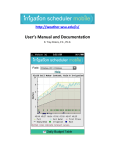
Logging in will bring up the screen in Figure 3. Click “Add New Field” to bring up the screen in Figure 4 where you can give the field a descriptive name, chose the growing year, select the nearest AgWeatherNet station to pull weather and rainfall data from for the model, and select the crop grown and the soil texture. Click “Add Field” and you’re done with the setup! Figure 4. Setup a new field. The screen in Figure 5 will come up which now shows the basic menu options below the main screen. The menu options that are highlighted in blue (Manage Fields, and Daily Budget Table) are for user inputs while the model outputs are in green. Additional fields can be added, existing fields deleted, or the field setting can be changed using the “Manage Fields” link. Add irrigation amounts or correct the model using soil moisture measurements