1
How To Use: T5-0, T5-5, & T7-0
How To Create My Workouts
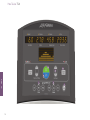
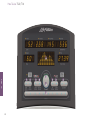
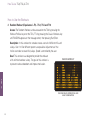
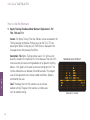
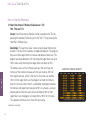
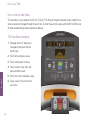
Step 1: Press the MY WORKOUTS key on the main display to enter and scroll through available My Workouts you want to create or edit.
Step 2: Press and hold the ENTER key for 3+ seconds on the desired My Workout to enter the editing mode.
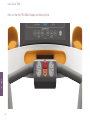
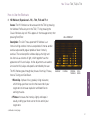
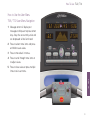
Step 3: Use the SPEED UP/DOWN or the INCLINE UP/DOWN arrow keys to scroll through one of the following editing options:
Edit Name, Edit Workout, View Statistics.
Edit Name
Edit Workout
Edit Name allows you to customize the name of
your My Workout using a 16 character alphanumeric name. For more information on what keys
to use to modify the name read the below section.
Edit Workout allows you to choose a workout and
save all setup steps so that it is quick and
convenient to access a workout.
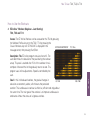
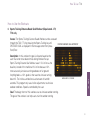
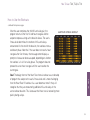
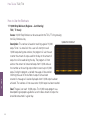
Step 4: After selecting Edit Name, the message
center will display PRESS ARROW KEYS TO
MODIFY CHARACTERS AND ENTER KEY TO
SELECT CHARACTERS. Enter the desired name
using the SPEED UP/DOWN arrows or the
INCLINE UP/DOWN arrows. To move back to
previous characters press the COOL DOWN
key.
NOTE: To quit the programming sequence and
return to the Select Workout Screen, press the
PAUSE/CLEAR key. The message center will
display REPROGRAMMING ABORTED.
NOTE: If a blank character is needed, scroll to the
blank character in the alpha-numeric character
list and press enter to select.
Note: If not logged into a My Tread Profile
please follow directions for Steps 5 and 6.
Step 5: The message center will display ENTER
WEIGHT. Enter weight using UP/DOWN arrow
keys and press ENTER to save.
View Statistics
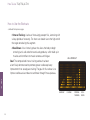
View Statistics allows you to view the number of
times the My Workout has been used.
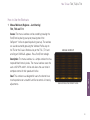
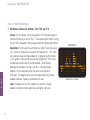
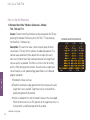
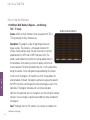
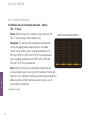
Step 4: After selecting View Statistics, the
message center will display the My Workout
name along with the number of times the My
Workout has been used.
HOW TO
Step 5: To save the name, press and hold the
ENTER key for 3+ seconds. The message
center will display NAME SAVED when
complete. Once the name is saved, the console
will return back to the Select Workout Screen.
To Edit Workout or View Statistics start at
Step 1.
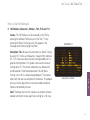
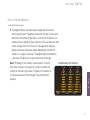
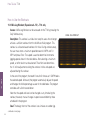
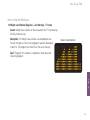
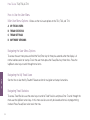
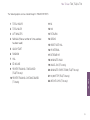
Step 4: After selecting Edit Workout, the
message center will display SELECT
WORKOUT NOW. The following keys can be
used to scroll through available workout
options: SPORTS TRAINING WORKOUTS,
DAILY WORKOUTS, CLASSIC WORKOUTS,
and HEART RATE WORKOUTS keys.
Repeatedly press these keys to scroll through
all workout options within the key. Press the
ENTER key to select the workout.
Step 8: The message center will display ENTER
SPEED. This is the speed at which the treadmill
wil begin the program. Enter speed using
UP/DOWN arrow keys and press ENTER to
save. The message center will display
WORKOUT SAVED and the console will return
to the select workout screen. To Edit Name or
View Statistics start at Step 1.
Step 6: The message center will display ENTER
TIME. Enter time using UP/DOWN arrow keys
and press ENTER to save.
Step 7: If in a non-heart rate training program, the
message center will display ENTER INCLINE or
ENTER LEVEL. If in a heart rate training
program, the message center will display
ENTER AGE and ENTER TARGET HEART RATE.
Make the adjustments using the UP/DOWN
arrow keys and press ENTER to save.
61