1
To Log In to a TrackRecord Database
1
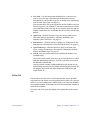
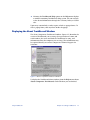
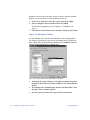
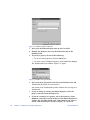
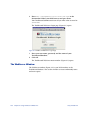
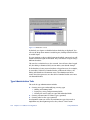
From the DevPartner menu, click Change Login.
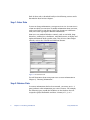
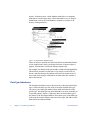
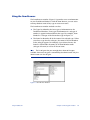
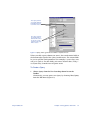
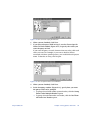
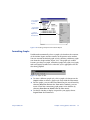
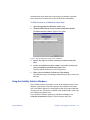
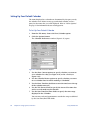
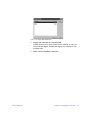
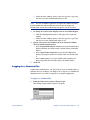
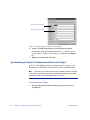
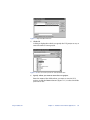
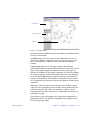
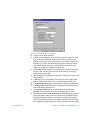
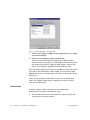
The TrackRecord Login window (Figure 9-1) opens.
Figure 9-1 TrackRecord Login Window
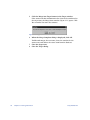
2
Enter your login name in the Name field.
3
Enter your login password in the Password field.
Passwords are case-sensitive.
4
Identify the database you want to use in the Database field.
The names of the databases you have used recently appear in the
Databases list. You can select the database you want to use from
this list or enter a different database name.
5
Click OK.
DevPartner Studio Integration with Visual Studio
Developers can access DevPartner Studio components, including
TrackRecord, from Microsoft Visual Studio.
Each DevPartner debug component treats Microsoft Visual Studio
integration differently. The Visual Basic and Visual C++ integration for
TrueTime and TrueCoverage simply launches those tools to allow you
to check your test application. Submitting defects to TrackRecord from
these tools works just as if you had launched TrueTime or TrueCoverage
from the Windows Start menu. SmartCheck integration in Visual Basic
works similarly, by launching a copy of the SmartCheck tool.
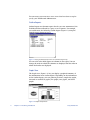
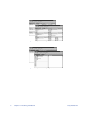
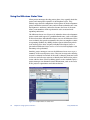
TrackRecord installation adds BoundsChecker to the integrated
development environment (IDE) of Visual C++ to provide integrated
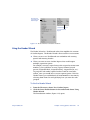
debugging. The TrackRecord Defect and Task buttons appear on the
BoundsChecker toolbar within Visual C. Menu selections for
submitting items to TrackRecord appear on the TrackRecord sub-menu
on the BoundsChecker menu. The TrackRecord Defect and Task
buttons become active only when you select a BoundsChecker event
while viewing the BoundsChecker Results window.
Using TrackRecord
Chapter 9: Using TrackRecord with DevPartner Studio
115