1
2.5.2
Adding a BP Server to the VistA Imaging System
Most sites will find that a single BP Server provides adequate performance; however, the product
does provide the capability for adding additional BP Servers. Adding additional BP Servers will
improve performance by allowing the distribution of tasks among the newly assigned BP
Servers.
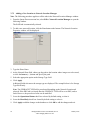
To set up a BP Server application:
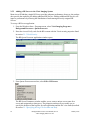
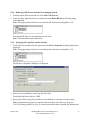
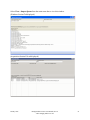
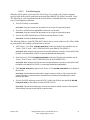
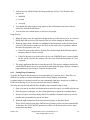
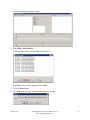
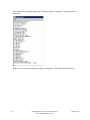
1. From the Windows Start > Programs menu, select VistA Imaging Programs >
Background Processor > Queue Processor.
2. Enter the Access/Verify code for the BP account with the VistA security properties listed
in section 2.3.2 VistA Security.
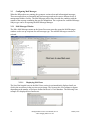
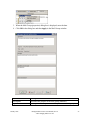
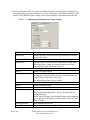
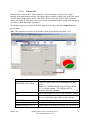
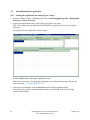
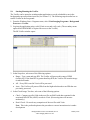
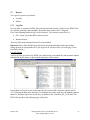
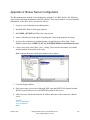
The BP Queue Processor application window opens.
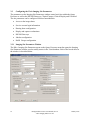
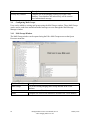
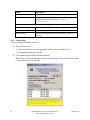
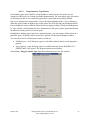
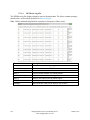
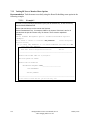
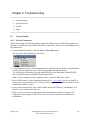
3. From Queue Processor menu bar, select Edit > BP Servers.
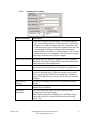
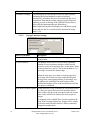
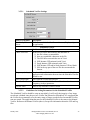
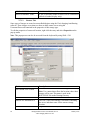
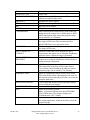
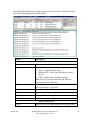
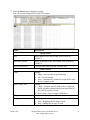
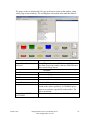
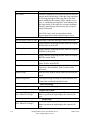
The BP Server Parameters window enables you to create a unique server name for a
server and assign tasks to that server. The properties on these servers enable you to
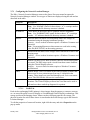
specify the location of the log files for each application and the file’s size limit (described
in section 2.5.5 Specifying the Log File Location and Size).
10
Background Processor User Manual, Rev 10
VistA Imaging MAG*3.0*121
January 2012