1
17
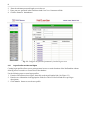
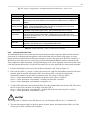
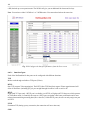
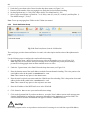
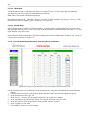
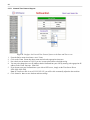
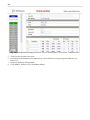
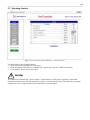
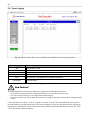
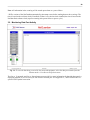
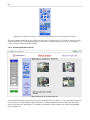
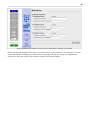
Fig. 2.12. Select SPS8 port type from the Edit > Ports, Data Ports screen
The SPS8 port type can be selected in the Type option when configuring data ports with NGEdit4 or the Web
Browser Interface. However, you may only edit SPS8 port descriptions in NGEdit4. The Web Browser Interface
will allow you to set SPS8 type, but not the port descriptions.
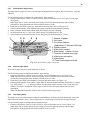
The Serial Port Switch 8 (SPS8) is an external device hub that allows the connection of up to eight serial port
devices to a single NetGuardian data port. When an SPS8 port is selected, the NetGuardian will negotiate the
connection for the user. To break the SPS8 connection and return to the normal NetGuardian interface, type @@@
and press Enter.
!
Hot Tip!
SPS8 ports do not support direct proxy. You must navigate via the TTY menu.
Use the following steps to select a SPS8 port:
1. From the Edit menu > Ports screen, scroll to the Data Ports section.
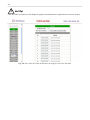
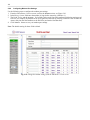
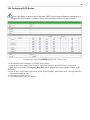
2. Enter a description and click on the TCP link, see Figure 2.11.
3. Under the Type column, click on the drop-down menu and select SPS8, see Figure 2.12.
4. Click Submit Data to save your configuration settings.
CAUTION: If you initialize the NVRAM, the NetGuardian will erase all SPS8 port descriptions.
!
Hot Tip!
If interfacing an IAM-5 to SPS8 through a NetGuardian set port type to TCP.
2.4.7.3
Direct and Indirect Proxy Connections
The NetGuardian supports two proxy connections, direct and indirect. In a direct proxy connection, the user
enters an IP address and port number to Telnet directly to a TCP serial port. In an indirect connection, the user
navigates the TTY menu to select a proxy port. Since the TTY interface is password protected, indirect
connections are preferred. Some users prefer to disable direct proxy for all connections in order to enforce the
password security provided by the TTY interface.
One way to disable proxy connections is to set the proxy port to an uncommon value. This restricts the access of
other users, but it is more convenient and secure to set the data ports to off in the Type field. When set to off
, the port is no longer associated with a TCP socket, which effectively disables the port from direct access.
Use the following steps to select proxy connections:
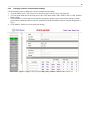
1. From the Edit menu > Ports screen, scroll down to the Data Ports section.
2. Enter a description and click on the TCP link, see Figure 2.11.
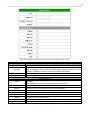
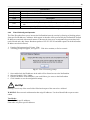
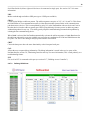
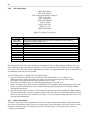
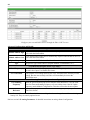
3. Under the Type column click on the drop-down menu and select the appropriate proxy connection, see
Figure 2.13.
4. Click the Submit Data button to save your configuration settings.