1
Start
Tips & tricks
Start
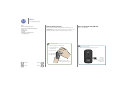
Remove the back cover
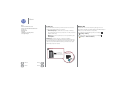
Put in an optional microSD card
Power on
Battery life
Sign in
Old phone to new phone
Google Play™
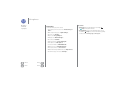
• Wi-Fi network: For faster Internet access, flick the status bar
down, touch
> WI-FI, then touch the Wi-Fi switch to turn
it ON . There’s more in “Wi-Fi Networks”.
• Accounts: To add, edit, or delete accounts, touch Apps
>
Settings. Go to the ACCOUNTS section, and touch
Add account. Or, touch an account > Menu > Remove
account to delete it from your phone, if allowed. To set up
email accounts, see “Email”.
For help with your Google account, visit
www.google.com/accounts.
• Contacts: To get your contacts from your old phone, you
have options. If your old phone was also Android™ and you
used the Android Backup and Restore feature, your contacts
automatically appear on your new phone. Otherwise, use
the Motorola Migrate app in “Old phone to new phone”.
Note: This phone supports apps and services that may use a lot
of data, so make sure your data plan meets your needs.
Contact your service provider for details.
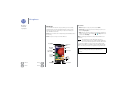
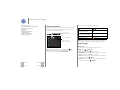
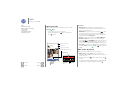
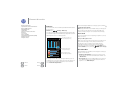
Old phone to new phone
Copying your personal stuff from your old to your new phone
with Migrate is easy.
• Android™: On your previous phone, download the
Motorola Migrate app on Google Play™ to get started.
Then on your new phone, touch Apps
>
Motorola
Migrate > Android to get started.
• iPhone: On your new phone, touch Apps
>
Motorola Migrate > iPhone to get started.
Note: Not all music can be copied.
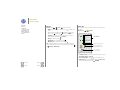
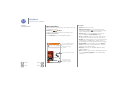
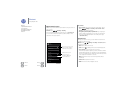
Motorola Migrate
Make the switch from old to new.
Copy your stuff from your old phone to
your new one in just a few minutes.
Which phone are you moving your
stuff from?
Android
Want to transfer from this phone instead?
Next
Menu
Help
Back
Next
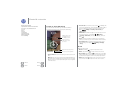
Tip: If you
don’t copy
your content
right after
setting up your
phone, you
can always do
it later.