1
11
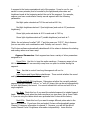
Step 4: Create a new session. Left-click the New File button, and enter 100 for
the number of segments in the session. Next, select Edit/Select/All (or Ctrl-A) to
select all the segments for randomization. Finally, choose Utilities/Random
Options/Randomize Selected Segments (or Ctrl-R). Notice what has happened to the
values entered into the various segments. Each time you Randomize Selected
Segments all (more precisely, nearly all) of the numbers will change to new values.
Step 5: Save the session. Finally, save the session in preparation for uploading to
the Proteus using the File/Save As (or Shift-F3) and save it into a folder, preferably a
subfolder of the Proteus Editor. Try randomizing these 100 segments again several
times, saving each with a new name; this way, you can collect them into an album
and upload a group of them to the Proteus for later experimentation.
Variations:
•
•
•
•
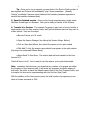
Open the Edit Random Preferences dialog box again and change the minimum
and maximum times—for example, to between 4 and 15 seconds.
Select the first 50 segments (by left-clicking in the “1” Segment Number box
and dragging downwards until the first 50 segments are highlighted) and
randomize them with one set of times, then change the times in the Edit
Random Preferences dialog, select the second 50 segments, and randomize
those.
Set the Channel 1 frequency range to a slightly different set of values than
Channel 2; for example, 8.5 to 12.5 hz.
Set Channel 2 (green or blue) to vary between brightness levels 9 and 12,
while Channel 1 varies between 0 and 15.
When running a visualization session created in this manner, notice when the visuals
are especially interesting, then take your glasses off and notice where you are in the
program time. You can then locate which segment was running by clicking through
the segments while watching the Time To End of Selected Segment box at the bottom
right of the Proteus Editor main window.
In this way you can begin constructing “libraries” of visual effects—segments which
are especially powerful or visually interesting.
Exercise 2: Varying frequencies within a target band
In this exercise we’ll create a program which varies only within a limited frequency
range—high alpha (in this case, 12-14 hz). This is a range which some researchers
have correlated with enhanced cognitive performance, so it is possible that increasing
the amplitude in this range could lead to enhanced cognitive performance.