1
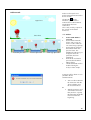
Start up NIOX MINO Data Manager
1. Double-click on the NIOX MINO Data Manager icon on the Windows desktop.
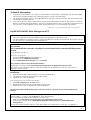
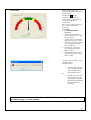
2. The Main tab is shown.
Main tab Overview
B
C
D
E
F
A
G
H
K
I
L
J
M
A. Main: Open/add Patients and Receive data from NIOX MINO®.
B. Options: Back up/restore database. Language and report settings (overview, page 12)
C. About: View software version and copyright information.
D. Patients: List of Patients in the database.
E.
Search for Patient: Enter the first letters of the Patient’s last name to search in the Patients list.
F.
Existing Patient names in the database, [Last name, First name, Patient ID].
G. Examiners: List of all Examiners in the database.
H. (all examiners): Click to view all Patients.
I.
(no examiner): Click to view all Patients not connected to a specific Examiner.
J.
Click to view all Patients that belong to the specific Examiner.
K. Open Patient: Open a Patient selected in the patient list.
L.
New Patient: Add a new Patient to the database.
M. Receive: Transfer data via the IR port from NIOX MINO (with or without NIOX MINO Test Card) to
your PC.
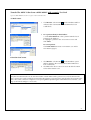
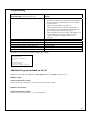
NIOX MINO Overview
NIOX MINO Test Card (blue)
IR Port
5