1
SmartNode 10100 Series User Manual
3 • Initial Setup and Web Management
Accessing and Navigating the Web Interface
This section describes how to login and navigate the SmartNode 10100 Web Portal.
Connecting to the Web Server and Logging on to the Web Portal
The first step involved in initially configuring any Smart Media system involves logging on to the Web Portal.
This can be divided into two distinct tasks: Connecting to the web server, and logging on to the Web Portal.
Connecting to the web server
Using a web browser, connect to the Web Portal by typing the following in your address bar:
– http://[DEVICE HOST NAME]:12358
or, alternately,
– http://[DEVICE IP ADDRESS]:12358
Logging on to the Web Portal
In order to log on to the Web Portal configuration tool, enter root as both the user ID and password. The default values
for these parameters are:
– User ID: root
– Default password: root
Navigating the Web Portal
Effective use of the Web Portal requires a basic understanding of the physical elements of the tool, how to
access its various components and knowing your current location in the Web Portal display. The following topics are covered: Navigation and Information Panels and Knowing Your Location.
Navigation and Information Panels
The Web Portal has been designed with a consistent streamlined approach for the presentation of Smart Media
configuration data. Information related to the hierarchy of data is displayed in the left-hand navigation panel,
while information related to a selected category is displayed in the information panel found on the right side of
the window.
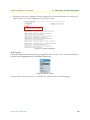
Selecting a category in the navigation panel causes related configuration and status information to be dynamically displayed. The navigation panel displays information in a tree-like structure enabling you to understand
how configuration parameters are contained by others.
Note
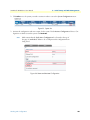
Figure 10 on page 31 shows the SmartNode 10100 Web Portal. The navigation panel is located to the left of the screen. The infomation panel is located
to the right.
Accessing and Navigating the Web Interface
30