1
158
Chapter 13: Optimizing Your Monitor for Photos
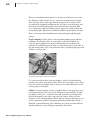
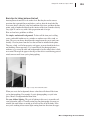
Preserving your
settings
If you share your
computer with other
people, you might want
cover your monitor’s
controls with tape to
keep them in place
after you’ve calibrated
the monitor. Tape might
help the settings from
being unintentionally
changed. Just don’t
make it impossible to
change them when you
need to.
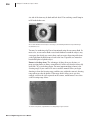
For greater color accuracy, you may want to invest in specialized calibration
instruments and software. Available in camera shops and on the Web, calibration tools help you get precise calibration for your monitor, so you can generate
pictures that look equally good on other systems.
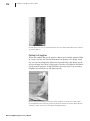
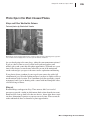
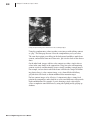
Controlling Ambient Light
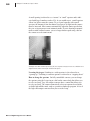
After you’ve gone through the trouble of calibrating your monitor, you can
also regulate the lighting in the room where you use your computer. Without a
consistent lighting system, the same picture on the same monitor looks different
in different lighting conditions. Sunlight, fluorescent light, and incandescent
light all affect how your eyes perceive the light coming from the monitor. To
get the most consistent results, ensure that you have the same amount and type
of ambient light in the room when you calibrate your monitor and use Digital
Image to adjust your pictures for brightness, contrast, and color.
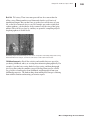
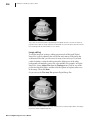
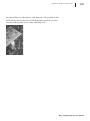
Decreasing light
for best results
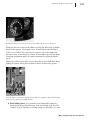
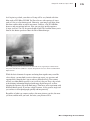
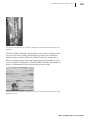
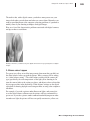
If you’re working in
a room with bright
ambient light, the photo
on your monitor seems
to be less vivid and
have less contrast,
especially on flat panel
monitors or laptop
computers.
Microsoft Digital Image Pro User’s Manual