1
69
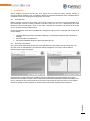
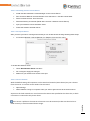
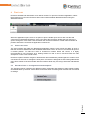
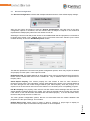
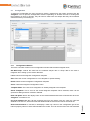
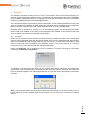
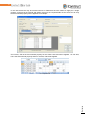
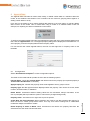
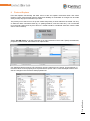
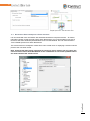
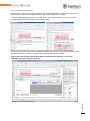
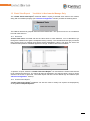
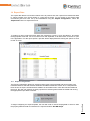
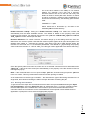
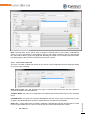
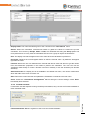
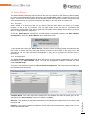
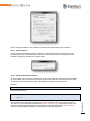
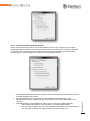
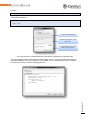
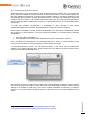
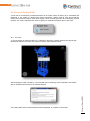
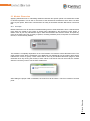
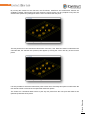
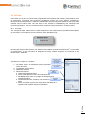
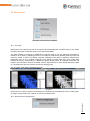
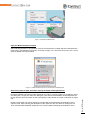
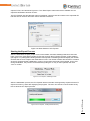
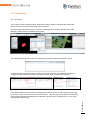
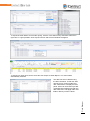
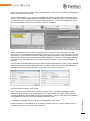
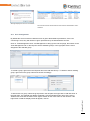
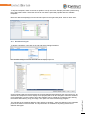
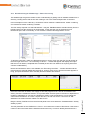
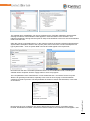
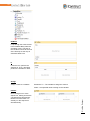
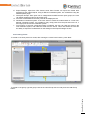
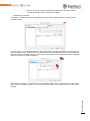
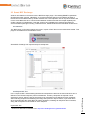
1) To add a new calculation command, type the name in the ‘Display Name’, e.g ‘Estimated
Mass’, then the objects to search on (Items, Groups, or both), and the unit to display.
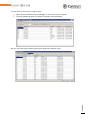
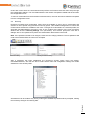
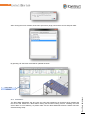
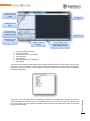
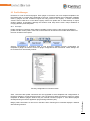
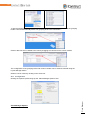
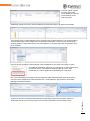
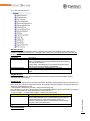
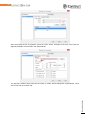
2) Then to build the formula, click ‘Get NW Props’ (make sure a correct sample is highlighted in
Navisworks) in the ‘Formula Helper’ box and then select an attribute. The properties box will
then populate.
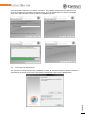
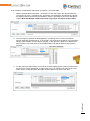
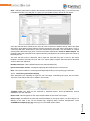
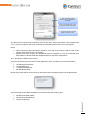
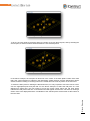
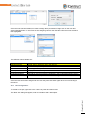
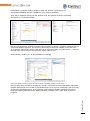
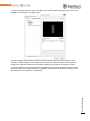
3) Then highlight the property that is to be added to the formula, and drag it to the formula box
(hold down the left mouse button on the property, move to the formula box and then release
the left mouse button).
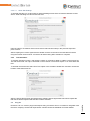
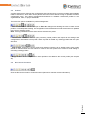
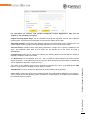
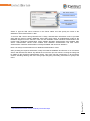
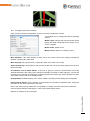
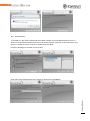
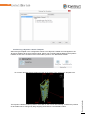
4) The formula will automatically add the Attribute name and the ‘SUM()’ keyword. Parts of the
formula inside the parenthesis will be evaluated for each object and added together. Outside
of the ‘SUM()’ statement other calculations can be placed to make use of the total result, but
no properties should be outside of the ‘SUM()’ statement.
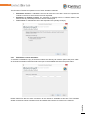
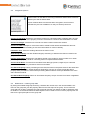
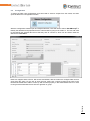
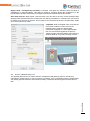
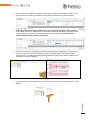
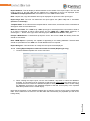
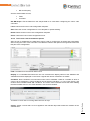
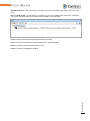
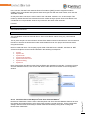
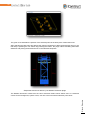
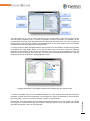
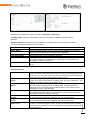
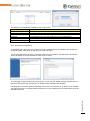
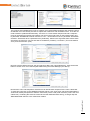
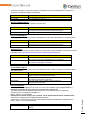
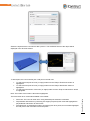
If the calculation needs to be more complex than a total sum of the values from selected items, the
‘Other Math Functions’ box can be used to assist or as a guide. Simply drag the required calculation
from the ‘Other Math Functions’ Menu into the ‘Formula’ section.
Note: The ‘SUM()’ still needs to be present to give a calculated figure based on a determined formula
and properties.
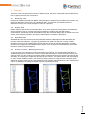
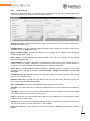
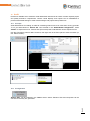
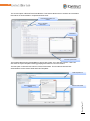
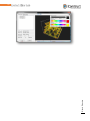
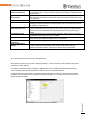
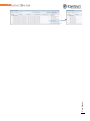
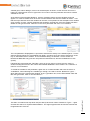
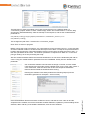
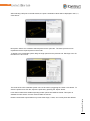
When using the Math Functions box, some understanding of the JavaScript maths family will be
required to complete the formula, a guide can easily be found on the internet. Properties can still be
dragged from the Properties list, and as the mouse hovers over the formula the caret will appear,
showing where the property will be inserted.
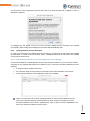
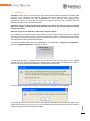
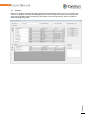
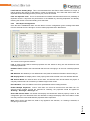
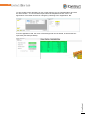
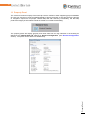
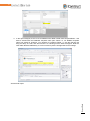
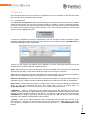
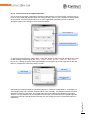
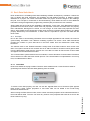
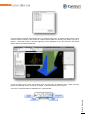
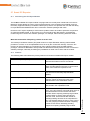
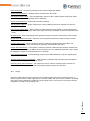
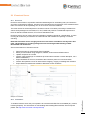
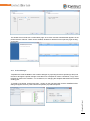
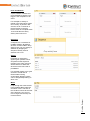
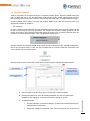
Calculations
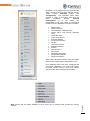
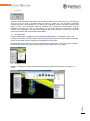
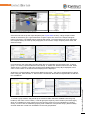
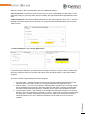
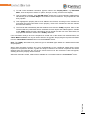
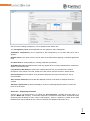
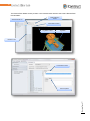
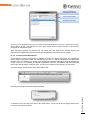
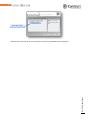
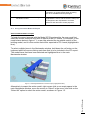
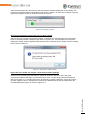
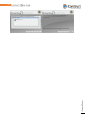
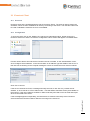
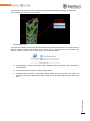
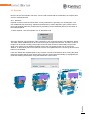
After each formula is saved, it will become available as a command under the ‘Calculations’ menu.