1
SJC Telephone System Upgrade to VoIP
Avaya Phone Model 9620L
QUICK START GUIDE
In addition to this Quick Start Guide, a variety of “how-to’s” are available at Tech Support Online (https://techsupport.sanjac.edu),
so feel free to check it out for additional telephone usage instructions not listed here.
Users can also request a copy of the full user manual for their telephone by contacting the Customer Care Office at
[email protected].
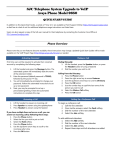
Phone Overview
Activating Voicemail
First time users will be required to activate their voicemail
account by completing the following steps:
1.
2.
3.
4.
Lift the handset and press the Message button. The
automated system will immediately state the name
of the extension holder.
Enter the password (default password is TEXAS),
followed by the pound “#” key.
You will immediately be prompted to change your
password. Follow the automated instructions to set
up a new password.
Next, you may be prompted to set up a
personalized greeting. Follow the automated
instructions to complete this step.
Answering a Call
1.
2.
3.
Lift the handset to answer an incoming call
Press Speaker to answer using the speakerphone
Press Headset to answer using the headset
If you have multiple lines and are already on a phone
call, you can answer a second incoming call by following
these instructions:
1. Select the Ans Hold softkey
2. Press the Phone button
3. Use the Up/Down arrow keys to scroll to the
incoming caller’s line
4. Press the OK button
Making a Call
Dialing Manually:
1. Lift the handset, press the Speaker button, or press
the Headset button (if using a headset)
2. Dial the number you wish to call
Calling From the Directory:
1. Press the Phone button
2. Press the right arrow key to access Features
3. Use the Up/Down arrow keys to scroll to Directory
4. Press the OK button
5. Use the number keys to spell the last name of the
person you wish to call
6. Select the Make a Call softkey
7. Press the OK button
Setting Up a Conference Call
To begin a conference call:
1. Call the first attendee
2. Once he/she answers, select the Conf softkey
3. Dial the number of the next attendee
4. Select the Join softkey
To add additional attendees:
1. Select the Add softkey
2. Dial the number of the next attendee
3. Select the Join softkey
4. Repeat these steps until all attendees are added
SJC Telephone System Upgrade to VoIP
Avaya Phone Model 9620L
QUICK START GUIDE
Accessing the Features Menu
1.
2.
3.
Press the right arrow key to access Features
Use the Up/Down arrow keys to scroll through
available features
Press the Phone button to return to the main
screen
Transferring a Call
1.
2.
3.
4.
Use the Up/Down arrow keys to select the number
you wish to transfer
Select the Transfer softkey
Dial the telephone number
Press the Complete softkey
Forwarding Calls
Send All Calls to Voicemail:
1. Press the right arrow key to access Features
2. Use the Up/Down arrow keys to scroll to
SendAllCalls
3. Press the OK button to turn this feature on or off
Manually Forwarding to an Alternate Number:
1. Press the right arrow key to access Features
2. Select the forwarding feature you want to activate
3. Press the OK button
4. When prompted enter the number to which you
want to forward calls
5. Press the OK button