1
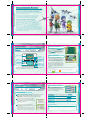
Wi-Fi Battle
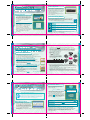
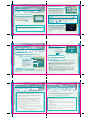
Choosing Wi-Fi Play
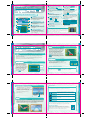
Wi-Fi Battle let you choose the ship you want to pilot. You can
play against up to three other players.
In Wi-Fi Mode, you can choose two
different versus modes: Battle Royale and
Free Battle. In Free Battle, you can
choose from four different games. Once
an opponent has been found, the entry
screen will display. When enough players
have been found, the game will begin.
Wi-Fi Modes
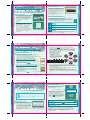
Wi-Fi Connection Set Up
Choose Wi-Fi Play on the Wi-Fi Battle menu,
then confirm your selection by tapping OK to
initiate Nintendo WFC set up.
If you’re connecting to Nintendo WFC for the
first time, a Friend Code (p. 38) will
automatically be created for you.
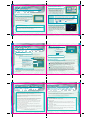
Battle Royale—
Free Battle—
Choose Battle Royale to soar into combat against three other
fighters. Results will effect each player’s ranking. (p. 35)
Select Friend Battle to play against one to three people
registered on your friend roster. If you choose Random
Battle, you can select the number of players per game.
You can also select the number of players per game.
Choose from
two players,
three players,
and
four players.
Wi-Fi Play Rules
Troubleshooting
If you can’t connect to Nintendo WFC, an error message and error
code will be displayed. For more information, please refer to the
Nintendo Wi-Fi Connection instruction booklet.
In this mode, you will compete three times
against the same competitor. Wi-Fi Play
rules are basically the same as those for
Download Play (p. 31). Shoot down other
fighters to make stars appear. The pilot who
gathers the most stars within the time of the
match wins.
36
37
Wi-Fi Battle
Friend Code
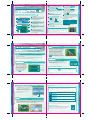
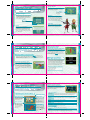
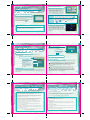
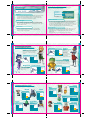
1 Enter a Friend Code
When you see the screen shown to the right,
you can enter a Friend Code. Once you
input all 12 digits, select OK.
If you and a friend register each others' Friend Codes, you can face each other
in a Friend Battle while playing the Free Battle portion of Wi-Fi Play mode.
Number Buttons
Touch numbers to
enter them. Select
to move
the cursor.
Host System
Friend
Roster
Information on friends is displayed here. You can have up to 30
friends registered.
Selected Friend’s Ranking
Come here to view your own Friend Code.
Friend Roster
Code Exchange
The information on your
friend is displayed.
You can exchange Friend Codes via the DS Wireless system. (p. 32-33)
Delete
Select a name from the
roster and tap this to
delete that name from
the roster.
Input Code
38
Confirm Code
Come here to enter other players' Friend Codes and register them on your
Friend Roster. Be sure to go to Confirm Code and make note of your own
Friend Code.
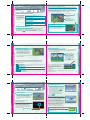
1 To exchange Friend Codes, first select Wi-Fi Battle from the main
menu, next choose Friend Code on the Wi-Fi Battle menu, and then
Code Exchange on the Friend Code menu. From here the host system
will choose Code Center, and the guest system will choose
Search Code
2 Once a search is successful, the host system’s nickname will
display on the guest system’s bottom screen. Select the host system’s
nickname to exchange Friend Codes with that system. There can be
up to four host system nicknames displaying at the same time on the
guest system’s bottom screen, but the exchanging of Friend Codes
can only be done with one system at a time.
39
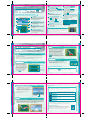
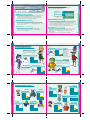
Nintendo Wi-Fi Connection
Rumble Pak
The Nintendo Wi-Fi Connection allows multiple Star Fox
Command owners to play together over the internet—even
when separated by long distances.
This game is compatible with the Nintendo DS Rumble Pak (sold
separately). The Rumble Pak includes built-in features that rumble
while you play, providing realistic feedback. Please read the
following before you play the game with Rumble Pak enabled.
• To play Nintendo DS games over the internet, you must first set up the
Nintendo Wi-Fi Connection (Nintendo WFC) on your Nintendo DS system. Please
see the separate Nintendo Wi-Fi Connection instruction booklet included with
this game for directions on setting up your Nintendo DS.
• Make sure the Nintendo DS is turned off.
• To complete the Nintendo WFC setup, you will also need access to a PC that
has a wireless network device installed (such as a wireless router) and an active
broadband or DSL internet account.
• Make sure to turn the power off before removing the Rumble Pak.
• If you do not have a wireless network installed on your PC, you can order a
Nintendo Wi-Fi USB Connector (sold separately) directly from Nintendo. See the
separate Nintendo WFC instruction booklet for more information.
• Nintendo Wi-Fi Connection game play uses more battery power than other
game play. You may prefer to use the AC Adapter to prevent running out of
power when using the Nintendo WFC.
• You can also play Nintendo WFC compatible games at selected internet
hotspots without additional setup.
• The Terms of Use Agreement which governs Nintendo Wi-Fi connection game
play is available in the Nintendo Wi-Fi Connection instruction booklet or online
at www.nintendowifi.com/terms.
For additional information on the Nintendo WFC, setting up your Nintendo DS, or a list of available internet
hot spots, visit nintendowifi.com (USA, Canada, and Latin America)
or call 1-800-895-1672 (USA/Canada only).
40
TM
• Insert the Rumble Pak into Slot-2 on the front of the Nintendo DS (the label
should face toward the bottom) just like loading a Game Boy Advance Game Pak.
Troubleshooting
• Nintendo DS Rumble Pak is making a sound
- When the Rumble Feature is on, the Rumble Pak will make sounds during game play.
• Does not rumble
- Make sure the Rumble Feature is turned on in the game (select Options in the
main menu).
- Make sure the edge connector of the Rumble Pak and the Nintendo DS system (Slot-2)
are not dirty.
• Does not stop rumbling
- Make sure the edge connector of the Rumble Pak and the Nintendo DS system (Slot-2)
are not dirty.
If the Rumble Pak still does not work properly after following these troubleshooting
measures, please call Nintendo customer service.
41