1
PixelPro Discovery Tool instruction manual
Ver1.20
1. Using PixelPro Discovery Tool
PixelPro Discovery Tool is the software to control IP address settings for GANZ
PixelPro series (ZN-Cxx, Dxx, Bxx) network camera.
Default setting of network is set to “DHCP” and “UPnP” function is set to ON.
So, your network have DHCP server and UPnP function is enabled on your PC,
you can find the network camera in “My network”.
If DHCP server is not available in your network, please assign IP address by
PixelPro Discovery Tool.
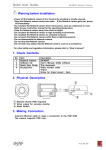
Click this button to find devices on network.
Click this button to set IP address settings to the camera.
Exit application.
1
PixelPro Discovery Tool instruction manual
Ver1.20
1) Copy PixelProDiscoveryTool.exe to your PC from “Software CD”
2) Execute PixelProDiscoveryTool.exe.
PixelPro Discovery Tool will show the network camera(s) in your network.
Note: The default setting for IP address is set to “DHCP”, if your network
does not support DHCP, IP address will be shown as “255.255.255.255”.
3) Select the camera which you want to set IP address in the list
4) Type-in the all network information.
5) Click “Apply” button, the setting will be showed in the list.
And select “OK” on pop-up window.
IP address will be changed and the list will be updated automatically.
6) If you want to change multiple camera IP address, repeat step 3) to 5).
2. Web browser connection
The PixelPro Discovery tool have a function to execute web browser.
Double click the camera in the list, Internet explorer will open automatically.
Note : The Network camera supports Internet Explorer 7 or above.
Please check version of your browser and update it if necessary.
When first access to the camera you need to download and install Active X
from camera to display Live image.
Default User and Password are set to “ADMIN” and “1234”.
the user ID and password to connect the network camera.
Please type in
2
PixelPro Discovery Tool instruction manual
Ver1.20
Note: By Default the cameras come with “Installation Mode” set to “ON” to
enable Analog output. You must turn installation mode off to use 720p
or 1080p streaming.
For further information for setup, please refer to User’s manual
in software CD.
3