1
IS0307
rev. B ecn 9055 11/2013
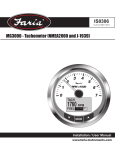
MG3000 - Tachometer (SmartCraft™)
TACH
1760
RPM
FUEL
Installation / User Manual
www.faria-instruments.com
IMPORTANT: This User’s Guide outlines the functionality and usage of the MG3000 tachometer.
Before using the MG3000 tachometer, first read and understand ALL of the supplied product literature,
as well as the boat’s user’s guide and outboard’s operator’s guide. This User’s Guide should be
stored onboard for reference at all times.
The photographs, illustrations and display screen used in this Guide might not depict actual models,
figures, data fields, equipment or software versions, but are intended as representative views for the
reference only. The continuing accuracy of this Guide cannot be guaranteed.
† SmartCraft is a regulated trademark of the Brunswick Corporation or its subsidiaries.
About This Guide
IMPORTANT: Read this User’s Guide carefully before using the MG3000 digital instrumentation.
This User’s Guide should be kept onboard at all times during operation.
Need Assistance?
For any questions regarding the boat or outboard operation, please refer to the boat’s user’s guide, or
outboard’s operator’s guide for support information.
For questions or problems regarding the MG3000 tachometer, contact your dealer.
IMPORTANT: This guide was written for the 4 inch MG3000 tachometer.
DATE
Rev.
10/10/12
12/13/12
04/26/2013
DESCRIPTION
Program Version
Preliminary release
PGF370 Rev. X11C
Pre
Updates to program
PGF400_X06
A
Release of manual
PGF400_X06
Gauges with other software versions may have features not documented in this guide. To view the
gauge software version, refer to Software Version page 18.
IS0307
Index
Installation . . . . . . . . . . . . . . . . . . . . . . . . . . . . . . . . . . 1
Wiring Diagram. . . . . . . . . . . . . . . . . . . . . . . . . . . . . . . . 2
Power On . . . . . . . . . . . . . . . . . . . . . . . . . . . . . . . . . . 3
System Setup . . . . . . . . . . . . . . . . . . . . . . . . . . . . . . . . . 3
Select System Language. . . . . . . . . . . . . . . . . . . . . . . . . . . 3
Offset Settings. . . . . . . . . . . . . . . . . . . . . . . . . . . . . . . 3
Engine Initialization. . . . . . . . . . . . . . . . . . . . . . . . . . . . . 3
Default Display Units . . . . . . . . . . . . . . . . . . . . . . . . . . . . 4
Tank Setup . . . . . . . . . . . . . . . . . . . . . . . . . . . . . . . . 4
Remaining Fuel Source . . . . . . . . . . . . . . . . . . . . . . . . . . . 4
Number of Tanks. . . . . . . . . . . . . . . . . . . . . . . . . . . . . . 4
Set Type of Tank. . . . . . . . . . . . . . . . . . . . . . . . . . . . . . 4
Default Pages and Display Settings . . . . . . . . . . . . . . . . . . . . . . 5
Menu Options . . . . . . . . . . . . . . . . . . . . . . . . . . . . . . . . . 6
Enter the Menu Options page. . . . . . . . . . . . . . . . . . . . . . . . . 6
Reset Fuel Totalizer . . . . . . . . . . . . . . . . . . . . . . . . . . . . 6
Display Settings. . . . . . . . . . . . . . . . . . . . . . . . . . . . . . 7
Contrast Settings . . . . . . . . . . . . . . . . . . . . . . . . . . . . 7
Backlight Settings . . . . . . . . . . . . . . . . . . . . . . . . . . . . 7
Lighting Source. . . . . . . . . . . . . . . . . . . . . . . . . . . . . 8
Fuel Level . . . . . . . . . . . . . . . . . . . . . . . . . . . . . . . . 8
Setting the Fuel Level. . . . . . . . . . . . . . . . . . . . . . . . . . . 8
Adding Fuel to the Fuel Tank. . . . . . . . . . . . . . . . . . . . . . . . 9
Trip Data. . . . . . . . . . . . . . . . . . . . . . . . . . . . . . . . . 9
View Trip and Season Data. . . . . . . . . . . . . . . . . . . . . . . . 9
Resetting Trip and Season Data . . . . . . . . . . . . . . . . . . . . . . 9
Troll Control. . . . . . . . . . . . . . . . . . . . . . . . . . . . . . . 10
Turn Troll Control ON / OFF . . . . . . . . . . . . . . . . . . . . . . . . 10
Set Troll Control. . . . . . . . . . . . . . . . . . . . . . . . . . . . 10
Depth Warning. . . . . . . . . . . . . . . . . . . . . . . . . . . . . . 11
Keel Offset. . . . . . . . . . . . . . . . . . . . . . . . . . . . . . 11
Shallow . . . . . . . . . . . . . . . . . . . . . . . . . . . . . . . . 11
Deep . . . . . . . . . . . . . . . . . . . . . . . . . . . . . . . . . 12
Edit Menu . . . . . . . . . . . . . . . . . . . . . . . . . . . . . . . . . 11
Appendix - System Menu . . . . . . . . . . . . . . . . . . . . . . . . . . 13
Initialization. . . . . . . . . . . . . . . . . . . . . . . . . . . . . . 13
System Language. . . . . . . . . . . . . . . . . . . . . . . . . . . . 14
Audio Settings . . . . . . . . . . . . . . . . . . . . . . . . . . . . . 14
Setting Saved Audio Setting. . . . . . . . . . . . . . . . . . . . . . 14
Button Press Audio Setting. . . . . . . . . . . . . . . . . . . . . . . 15
All Sounds. . . . . . . . . . . . . . . . . . . . . . . . . . . . . 15
Clock Settings. . . . . . . . . . . . . . . . . . . . . . . . . . . . . 15
Change Clock Data Type. . . . . . . . . . . . . . . . . . . . . . . 16
Change Clock Time Offset. . . . . . . . . . . . . . . . . . . . . . . 16
Alarms . . . . . . . . . . . . . . . . . . . . . . . . . . . . . . . . 16
Viewing Current Alarms . . . . . . . . . . . . . . . . . . . . . . . . 16
Clear Alarms. . . . . . . . . . . . . . . . . . . . . . . . . . . . 16
Set Units. . . . . . . . . . . . . . . . . . . . . . . . . . . . . . . 17
Performing a Self Test. . . . . . . . . . . . . . . . . . . . . . . . . . 17
Software Version . . . . . . . . . . . . . . . . . . . . . . . . . . . . 18
Perform a Master Reset. . . . . . . . . . . . . . . . . . . . . . . . . 18
Appendix - Fuel Set Up . . . . . . . . . . . . . . . . . . . . . . . . . . . 19
Fuel Tank Setup. . . . . . . . . . . . . . . . . . . . . . . . . . . . 19
Setting the Fuel Level . . . . . . . . . . . . . . . . . . . . . . . . . 19
IS0307
Adding Fuel to the Tank. . . . . . . . . . . . . . . . . . . . . . . . 19
Setting the Tank Size. . . . . . . . . . . . . . . . . . . . . . . . . 20
Calibrating the Fuel Sender. . . . . . . . . . . . . . . . . . . . . . . . 20
Low Fuel Warning Level . . . . . . . . . . . . . . . . . . . . . . . . 20
Fuel Totalizer. . . . . . . . . . . . . . . . . . . . . . . . . . . . . 21
Reset the Fuel Totalizer. . . . . . . . . . . . . . . . . . . . . . . . . 21
Appendix - Calibration. . . . . . . . . . . . . . . . . . . . . . . . . . . 22
Calibrate Speedo. . . . . . . . . . . . . . . . . . . . . . . . . . . . 22
Calibrate Sender Transition . . . . . . . . . . . . . . . . . . . . . . 22
Calibrate Paddle Wheel sender . . . . . . . . . . . . . . . . . . . . . 22
Calibrate Pitot sender . . . . . . . . . . . . . . . . . . . . . . . . . 22
Calibrate Trim. . . . . . . . . . . . . . . . . . . . . . . . . . . . . 23
Appendix - Max Speed . . . . . . . . . . . . . . . . . . . . . . . . . . . 24
View Max Speed. . . . . . . . . . . . . . . . . . . . . . . . . . . . 24
Resetting Max Speed. . . . . . . . . . . . . . . . . . . . . . . . . . 24
Appendix - Display Settings. . . . . . . . . . . . . . . . . . . . . . . . . 25
Setting the Number of Data Pages. . . . . . . . . . . . . . . . . . . . . 25
Screen Setup. . . . . . . . . . . . . . . . . . . . . . . . . . . . . 25
Setting the Line 2 Data . . . . . . . . . . . . . . . . . . . . . . . . . . 25
Data Page Auto Scrolling Setting . . . . . . . . . . . . . . . . . . . . . . 26
Change the Auto Scrolling Interval Time . . . . . . . . . . . . . . . . . 26
LCD Color. . . . . . . . . . . . . . . . . . . . . . . . . . . . . . . 26
Appendix - Data Sources. . . . . . . . . . . . . . . . . . . . . . . . . . 27
Tanks. . . . . . . . . . . . . . . . . . . . . . . . . . . . . . . . 27
Engine . . . . . . . . . . . . . . . . . . . . . . . . . . . . . . . . 27
Engine Maintenance Interval . . . . . . . . . . . . . . . . . . . . . . 28
Reset the Maintenance Interval . . . . . . . . . . . . . . . . . . . . . 28
Engine ID . . . . . . . . . . . . . . . . . . . . . . . . . . . . . 28
Remaining Fuel Source . . . . . . . . . . . . . . . . . . . . . . . . . 29
Appendix - Pop up Messages. . . . . . . . . . . . . . . . . . . . . . . . 29
Turn Pop Up Alerts On or Off. . . . . . . . . . . . . . . . . . . . . . . 29
Set Pop Up Alerts Threshold Value . . . . . . . . . . . . . . . . . . . . . 29
Set Pop Up Alerts Duration . . . . . . . . . . . . . . . . . . . . . . . . 30
Trouble Shooting. . . . . . . . . . . . . . . . . . . . . . . . . . . . . 31
Engine Warnings. . . . . . . . . . . . . . . . . . . . . . . . . . . . . 31
Silence the Warning. . . . . . . . . . . . . . . . . . . . . . . . . 31
Network Trouble shooting Chart. . . . . . . . . . . . . . . . . . . . . . . 32
Abbreviations Used - Tachometer . . . . . . . . . . . . . . . . . . . . . . . 32
Warning Buzzer . . . . . . . . . . . . . . . . . . . . . . . . . . . . . . 33
Default Functions Displayed in LCD by Engine Type. . . . . . . . . . . . . . . 34
Program Map. . . . . . . . . . . . . . . . . . . . . . . . . . . . . 35-37
IS0307
Installation
Description
The MG3000 instruments use a “plug and play” networking technology based on SmartCraft data communication
standards. These standards provide communications through a serial data network utilizing a Controller Area Network
(CAN) integrate circuit (IC). The network allows multiple electronic devices to be connected together on a common
channel for easy information sharing. Multiple digital displays can be used to monitor and broadcast equipment and
engine data.
The MG3000 tachometer is controlled by a three-button keypad. The buttons and a brief description of their uses:
•
UP and DOWN: Used to scroll through available pages in Normal Mode or options within the system menus.
•
MODE: Used to access system menus, a short push of less than one second exits a menu and a long push of
greater than one second makes a selection.
TACH
1760 RPM
FUEL
1
3
1. DOWN button
2.
MODE button
3.
UP button
2
Panel Thickness
Instruments can be mounted in panels up to 1” (13 mm) thick and in panels up to 1.5” with trimming the back clamp.
Hole Sizes
IMPORTANT: check space behind panel to be sure there is adequate clearance for instruments exists before drilling
panel.
Cut a 3 3/8” (85 mm) diameter hole in the panel for the 4” instruments.
Cut a 4 3/8” (112 mm) diameter hole in the panel for the 5” instruments.
Attaching The Back Clamp
Insert instrument into the panel cut-out. Slide back clamp on gauge, place washer and finger tighten the nut (6-8 inch
pounds), repeat for second stud.
Page 1
IS0307
MG3000 Wiring Diagram
Speedometer
Tachometer
6
5
4
3
2
1
6
5
4
6
5
4
3
2
1
6
12- pin connector
7
8
9
11
10
12
1
2
3
7
8
9
11
10
12
1
2
3
Pin 1
Pin 2
Pin 3
Pin 4
Pin 5
Pin 6
Pin 7
Pin 8
Pin 9
Pin 10
Pin 11
Pin 12
7.7 vDC (Faria Bus +)
Faria Bus A
Faria Bus B
Ground
12vDC Ignition
Analog Input 1
Analog Input 2
Analog Input 3
N/C
• SmartCraft Ground
• SmartCraft 1+
• SmartCraft 1-
7.7 vDC (Faria Bus +)
Faria Bus A
Faria Bus B
Ground
12 vDC Ignition
N/C
N/C
N/C
7.7 vDC (Faria Bus +)
Faria Bus A
Faria Bus B
Ground
6- pin connector
Pin 1
Pin 2
Pin 3
Pin 4
Pin 5
Pin 6
RS232 Rx
Ground (bootload)
NMEA 0183 (+)
NMEA 0183 (-)
RS232 Prog. Sw (bootload)
RS232 Tx
Ignition
Multifunction Gauge
Ignition
Analog Input 1
Analog Input 2
Analog Input 3
Pin 1
Pin 2
Pin 3
Pin 4
Pin 5
Pin 6
Pin 7
Pin 8
Pin 9
Pin 10
Pin 11
Pin 12
5
4
12- pin connector
Pitot
connection
for Speed.
6- pin connector
Pin 1
Pin 2
Pin 3
Pin 4
Pin 5
Pin 6
Information from the ECU
RS232 Rx
Ground (bootload)
Depth Signal (+)
Depth Signal (-)
RS232 Prog. Sw (bootload)
RS232 Tx
Wire Jacket
4- pin connector
4- pin connector
Pin A
Pin B
Pin C
Pin D
8.4 vDC Faria Bus (+)
Faria Bus A
Faria Bus B
Ground
Faria Bus
Pin A
Pin B
Pin C
Pin D
8.4 vDC Faria Bus (+)
Faria Bus A
Faria Bus B
Ground
Faria Bus
(To other gauges)
Page 2
IS0307
Power On
Turn the ignition key to the ON position. It is not required to start the engine for system
initialization. The power on sequence for the tachometer and speedometer consists of
a Self-Test which occurs at every power on event. The Self-Test process consists of
the following steps:
1) At POWER ON the LCD screen displays the current software information and the
MG3000 will cycle through several lighting variations.
2) All system pointers will sweep to full scale.
3) Then displays the SmartCraft Networked logo.
4) All system pointers will go to current value.
When the Self-Test is complete, if the gauge displays data then the system initialization
has already been completed. To customize the data displayed in the LCD go to Display
Settings on page 25.
Otherwise, if this is the first time you have powered on your MG3000 tachometer, you
will be prompted to System Setup. Complete the required system setup.
System Setup (Tachometer)
The tachometer initialization is required for the installed system to operate correctly. In
order to complete the initialization process the user must select the default language,
set the number of engines in the system, set the identifier of the engine to monitor,
select the system default units and setup the fuel system information. The following
sections describe the steps necessary to complete the tachometer initialization.
Select System Language
The first part of the initialization is selecting the language for the system.
1) Use the UP or DOWN buttons to select the desired language to be used. The
available languages are: ENGLISH, SPANISH, FRENCH, ITALIAN and GERMAN.
2) Press and hold the MODE button to save the language selection. The LCD
screen displays SETTING SAVED! along with an audible beep.
Clock Offset Settings
The Clock data field is available if a GPS is connected to the system. Select the current
time zone offset for the Clock to show the correct time.
1) Use the UP or DOWN button to select the correct CLOCK OFFSET value.
2) Press and hold the MODE button to save the setting. The LCD screen displays
SETTING SAVED! and the MG3000 issues an audible beep.
Once System Setup is completed and a GPS is connected to the MG3000 tachometer
you can make further adjustment to the clock display. See Clock Settings, page
15.
Engine Initialization
1) Use the UP or DOWN buttons to select the number of engines installed on the
Page 3
SELF TEST
SOFTWARE REV
PGF###_X##
IS0307
boat. The MG3000 tachometer supports up to 4 engines.
2) Press and hold the MODE to save the number of engines. The LCD screen
displays SETTING SAVED! and the MG3000 issues an audible beep.
If more than one engine is installed continue to steps 3 and 4.
3) Use the UP and DOWN buttons to select the engine identifier. The engine
identifier assigns each tachometer to monitor a specific engine.
The engine can be identified as either: PORT, STARBOARD, MID PORT and MID
STARBOARD. If only one engine is identified the tachometer will automatically select
the engine identifier and save.
SET ENGINE ID
PORT
STARBOARD
4) Press and hold the MODE button to save the setting. The LCD screen displays
SETTING SAVED! and the MG3000 issues an audible beep.
Default Display Units
The default display units will set the units for all data fields in the instrument package.
Using the advanced settings, the user can adjust individual data field’s units to differ
from the default units, see page 17 Set Units.
1) Use the UP or DOWN buttons to select the desired display units. Available display
options are: US and EURO.
2) Press and hold the MODE button to save the selection. The LCD screen displays
SETTING SAVED! and the MG3000 issues an audible beep.
Tank Setup
Important: All fuel tank information MUST be set up in the PORT tachometer if more
than one MG3000 tachometer is in use.
Number of Tanks
1) Use the UP or DOWN buttons indicate the number of fuel tanks in the system.
The MG3000 tachometer supports up to five (5) fuel tanks.
2) Press and hold the MODE button to save the selected number of fuel tanks.
The LCD screen displays SETTING SAVED! and the MG3000 issues an audible
beep.
Set Type of Tank
For each tank indicated in the system the MG3000 tachometer will ask the type of tank
used. Tank types available are OIL LEVEL, FRESH WATER, BAITWELL, BALLAST,
GRAY WATER, BLACK WATER and FUEL.
1) Use the UP and/or DOWN buttons to select the type of tank in SET TANK #
TYPE.
SET TANK #
TYPE
FUEL
OIL LEVEL
2) Press and hold the MODE button to save the selection.
3) Repeat steps 1 and 2 for the additional tanks.
4) When Tank Setup is complete, and all available tank types have been identified
the tachometer’s initialization is complete and the display will read “BASIC
INITIALIZATION COMPLETE!”. The MG3000 will perform a POWER ON Self
Test and return to the Normal mode.
Page 4
IS0307
Default Pages And Display Settings
When initialization for the tachometer is complete the MG3000 tachometer is ready for
use. The tachometer’s LCD display will show the default data page. Use the UP or
DOWN buttons to scroll through the default display pages.
The default pages are: BREAK IN (Shown during BREAK IN period), BATTERY 1,
TRIM (Analog), WATER PRESS, FUEL INST, FUEL USED, T1: FUEL, ENGINE TEMP,
ENGINE HRS, SPEED, RPM and T1: FUEL (Analog).
In addition to these common screens each SmartCraft engine type has their own
additional screens. See page 34.
BREAK IN
BATTERY 1
13.6 V
TRIM
WATER PRESS
9.5 PSI
FUEL INST
FUEL USED
30.6 GPH
T1: FUEL
ENGINE TEMP
ENGINE HRS
SPEED
RPM
T1: FUEL
60 M LEFT
3000 RPM
Page 5
100 GAL
136 ˚F
249.3 HRS
12.3 GPH
12.0 MPH
IS0307
Menu Options
While in Normal Mode, pressing the MODE button once will show the Tachometer Menu
Options. The Tachometer Menu Options are:
•
RESET TOTALIZER: Resets the total fuel used.
•
TRIP DATA: records Engine Hours, Fuel Used, Odometer and Fuel Rate.
•
TROLL CONTROL: is used to operate the Troll functions of your engine.
•
FUEL LEVEL: is used for quick access to add fuel to one of the fuel tanks.
•
EDIT MENU: is used to make global Tachometer settings changes.
•
CONTRAST: is used to adjust the Tachometer and Speedometer’s display.
•
LIGHTING: is used to adjust the lighting level(s).
•
DEPTH WARN: is used to set the depth of the water alarms (if available)
For more information about the Menu Option look in the back of this manual in the
Appendix section.
Note: Some functions may not be present in your version of the MG3000 program.
Engine and Boat manufactures have the ability to customize the program to fit their build
requirements. If you are looking for a feature listed in the Appendix and your MG does
not show the function required please consult your Engine and Boat manufacturer’s
User manual.
Enter the Menu Options page.
1) Press the MODE button once to display the Menu Options.
2) Use the UP or DOWN buttons to select the desired menu option.
3) Press and hold the MODE button to enter the desired menu option.
LIGHTING
Note: LIGHTING is available only if the source for LCD, DIAL or SYSTEM is set to
INSTRUMENT.
To reset the Totalizer Fuel Used:
Reset Fuel Totalizer
The Fuel Totalizer is used when more than one Fuel Tank is installed in the system.
The Totalizer will monitor all of the installed Fuel Tanks, gather the data and combine for
fuel usage data that represents the entire system. The MG3000 automatically collects
the fuel data based on the settings in the individual tank settings completed in SYSTEM
SETUP. If you have not completed or wish to change the individual tank set up go to
FUEL SETUP on page 19.
Use the Fuel Totalizer to monitor select TFUEL USED, TFUEL LEFT, TFUEL INST
TFUEL FLOW or TFUEL AVG in the default pages.
TFUEL USED - Total Fuel Used - Displays the total amount of fuel used since the last
reset.
TFUEL LEFT - Total Fuel Left - Displays the total amount of fuel left since last reset.
TFUEL INST - Total Instantaneous Fuel Flow - Measures how much fuel is flowing at
Page 6
IS0307
this time for all engines combined into one amount.
TFUEL AVG - Total Average Fuel Flow - Average of fuel flow from all engines taken
over a period of time.
The only user selectable function in the Fuel Totalizer is the RESET TOTALIZER.
Warning: Resetting the totalizer will also reset all collected Fuel economy data.
To reset the Fuel Totalizer:
1) Press and hold the MODE button from the NORMAL mode.
2) Use the UP or DOWN buttons to select RESET TOTLIZR.
3) When prompted, TOTALIZER RESET? use the UP or DOWN buttons to select
YES to reset the totalizer fuel used, or select NO to exit.
4) Press and hold the MODE button to save the setting. The LCD screen displays
SETTING SAVED! and the MG3000 issues an audible beep.
HOLD MODE
TO ENTER
RESET TOTLIZR
TRIP DATA
TOTALIZER
RESET?
Display Settings
Adjusting the display settings may improve visibility.
1) Press the MODE button once to view the menu options.
2) Press the UP or DOWN buttons to select LIGHTING or CONTRAST.
3) Press and hold MODE to make the selection.
•
To adjust the contrast in the tachometer and speedometer (if connected) display,
go to Step 4.
•
To adjust the tachometer’s backlight intensity, go to Backlight Settings.
Contrast Settings
There are 22 defined contrast levels. The contrast level will change to negative mode,
white font on dark background, halfway through the 22 predefined contrast settings.
4) Press the UP button to increase or the DOWN button to decrease the contrast
level in the LCD display.
5) The contrast setting is automatically saved to the tachometer and synchronized to
all gauges linked to the MG3000
Backlight Settings
ADJUST
LCD
CONTRAST
PRESS OR
ADJUST
LCD
CONTRAST
PRESS OR
By default the Dial Backlight (all gauges connected to the MG3000 tachometer) and
the Display Backlight (tachometer and speedometer LCD) are synchronized, they get
brighter or dimmer at the same time. Use the MG3000 tachometer to adjust the lighting
options. Enter the menu options, then:
1 Use the UP or DOWN button to select the LIGHTING to adjust.
2) Press and hold the MODE button to make the selection.
3) Use the UP or DOWN button to select the lighting level to adjust.
From the MG3000 tachometer you can adjust the tachometer LCD lighting and Dial
Page 7
LIGHTING
ADJUST DIAL
ADJUST SYSTEM
SOURCE
IS0307
lighting and the System lighting, which will adjust all instruments connected to the
tachometer.
4) Press and hold the MODE button to make the selection.
5) Use the UP button to increase the lighting intensity or press the DOWN button to
dim the lighting intensity.
ADJUST DIAL
BRIGHTNESS
100 %
PRESS OR
6) Press and hold the MODE button to save the setting. The LCD screen displays
SETTING SAVED! and the MG3000 issues an audible beep.
Lighting Source
Note: The LIGHTING adjustment at the tachometer is only available if the source for
LCD, DIAL or SYSTEM is set to INSTRUMENT.
1) Use the UP and/or DOWN buttons to select SOURCE.
2) Press and hold the MODE button to enter the selection.
3) Use the UP or DOWN button to make the selection.
4) Press and hold the MODE button to save the setting. The LCD screen displays
SETTING SAVED! and the MG3000 issues an audible beep.
SOURCE
BUS DATA
INSTRUMENT
ANALOG #1 P1-6
Fuel Level
Use FUEL LEVEL to quickly add fuel amounts to each fuel tank and set the tank indicator
FULL after a fuel fill up. By keeping accurate accounts of the fuel added to the tanks
at fill up the MG3000 tachometer can help you by calculating accurate fuel economy
values such as Fuel Flow, Range and Trip data.
Enter the Menu options then:
1) Use the UP or DOWN buttons to select FUEL LEVEL.
2) Press and hold the MODE button to make the selection.
3) Use the UP or DOWN buttons to select the fuel tank to make an adjustment to.
4) Press and hold the MODE button to enter the selection.
SLECT TANK TO
ADD FUEL TO
T:1 FUEL
T:2 FUEL
5) Follow the steps in the next sections.
Setting The Fuel Level
Setting the Fuel Level in the MG3000 tachometer is performed in the PORT tachometer
if more than one MG3000 tachometer is in use. To set the fuel level to full, enter the
FUEL LEVEL menu, then:
1) Use the UP or DOWN buttons to select SET FULL.
T#: FUEL
SET FULL
ADD FUEL
2) Press and hold the MODE button to set fuel tank to FULL.
3) At prompt, SET TANK FULL, use the UP or DOWN buttons to select YES, the fuel
tank is indicating full, or NO to return to the SET FULL menu.
Note: A full indication indicates that the amount of fuel added to the fuel tank is equal
to the capacity of the fuel tank set up in the initialization setup. The MG3000 uses this
number to calculate the Fuel economy calculations. An inaccuracy in this number will
SET TANK FULL
NO
YES
Page 8
IS0307
result in faulty calculations.
4) Use the MODE button to make the selection.
If YES was selected the LCD screen will display SETTING SAVED! and then return you
to the SET FULL menu.
Adding Fuel to the Fuel Tank:
1) Use the UP or DOWN buttons to select ADD FUEL
2) Press and hold the MODE button to enter the TANK # ADD menu.
3) Use the UP or DOWN buttons to set the volume of Fuel that has been added to
the fuel tank.
4) Press and hold the MODE button to save the setting. The LCD screen displays
SETTING SAVED! and the MG3000 issues an audible beep.
Note: Holding the UP or DOWN button will increase or decrease the amount in a more
rapid fashion.
Trip Data
The Trip Data feature records ENGINE HOURS, FUEL USED, ODOMETER and FUEL
RATE for two trips and the season. To view the Trip Data enter the Menu options, then:
1) Use the UP or DOWN buttons to select TRIP DATA
T#: FUEL
ADD FUEL
SET FULL
T#: FUEL
0.0 GAL
HOLD MODE
TO ENTER
TRIP DATA
TROLL CONTROL
2) Press and hold the MODE button to enter the selection.
3) Follow the steps in the next sections.
View Trip and Season Data
1) Use the UP or DOWN buttons to select TRIP A, TRIP B or SEASON.
2) Press and hold the MODE button to enter the selection.
3) Use the UP or DOWN buttons to select VIEW DATA.
4) Press and hold the MODE button to make a selection.
5) Use the UP or DOWN buttons to select information to be shown.
Note: Available Trip information is; Engine Hours, Fuel Used, Distance and Fuel Rate.
Resetting Trip and Season Data
1) Use the UP or DOWN buttons to select TRIP A, TRIP B, or SEASON.
2) Press and hold the MODE button to enter the selection.
3) Use the UP or DOWN buttons to select RESET DATA.
4) Press and hold the MODE button.
At the prompt: RESET DATA?
5) Use the UP or DOWN buttons to select YES to reset the data, or select NO to exit.
Page 9
TRIP A FAVG
4.7 GPH
TRIP A ODO
32.8 MI
IS0307
6) Press and hold the MODE button to reset the data. The LCD screen displays
SETTING SAVED! and the MG3000 issues an audible beep.
Troll Control
The “Troll Control” function allows the operator to set the engine RPM and have the
engine maintain the RPM setting automatically.
The upper and lower limits for these functions are preset in the engine ECU and can not
be changed by the operator. For the troll control function to operate the engine control
MUST be “In Gear” and at “Idle”.
Turn Troll Control ON / OFF
To view the Troll Control enter the Menu options, then:
1) Use the UP or DOWN buttons to select TROLL CONTROL
2) Press and hold the MODE button to enter the selection.
Note: A short cut has been built into the software to enter the TROLL CONTROL. Press
and hold the UP and DOWN buttons together for longer than 1 second. You can do this
from any screen and you will be taken directly into the TROLL CONTROL menu.
3) Use the MODE button to select ON to turn on TROLL CONTROL or OFF to turn
control off.
Note: The engine control must be “In Gear” and set to “Idle” for the troll control to
function. The “PLEASE MAKE SURE ENGINE IS IN GEAR” or “PLEASE MAKE SURE
ENGINE IS IN IDLE” (not shown) screens will appear if these conditions have not been
met. Troll Control requires engine support; please make sure a Mercury® SmartCraftTM
engine with the Troll function has been installed.
TROLL CONTROL
ON
OFF
SET RPM 1850
PRESS OR
4) Use the UP or DOWN buttons to set the RPM value to maintain while trolling.
There is no manual way to return to the “Normal” mode from the “Toll Control” mode, if
no buttons are pressed for 15 seconds the unit will automatically return to the “Normal”
mode. Troll control will continue to work until you manually turn it off.
5) TROLL CONTROL WILL DISENGAGE if the engine is returned to NEUTRAL or if
the throttle is moved beyond the idle mode.
When the Troll Control is on, the warning LED’s will flash once every 20 seconds. This
indicates that the Troll Control is active.
Page 10
IS0307
Depth Warnings
Lets the user know when the water below the transducer as received from the SmartCraft
bus is above or below the threshold for alarms. The user can set these alarms for
shallow water and deep water.
To enter the DEPTH WARN menu enter the Menu options then;
1) Press the UP or DOWN buttons to select DEPTH WARN.
2) Press and hold MODE to make the selection.
HOLD MODE
TO ENTER
DEPTH WARN
RESET TOTLIZR
Keel Offset
When setting the Keel Offset, negative numbers indicate that the Depth Dounder
transducer is located ABOVE the deepest part of the hull (typical). Allow for worst case
boat loading when adjusting the Keel Offset as this setting affects the Shallow Alarm.
1) Use the UP or DOWN buttons to select the KEEL OFFSET.
2) Press the MODE button to make the selection.
3) Use the UP or DOWN buttons to set the offset.
4) Use the MODE button to save the setting. The LCD screen displays SETTING
SAVED! and the MG3000 issues an audible beep.
DEPTH WARN
KEEL OFFSET
SHALLOW WTR
DEEP WATER
SET
KEEL OFFSET
1.0FT
Shallow Water
1) Use the UP or DOWN buttons to select the SHALLOW WTR menu.
2) Press the MODE button to make the selection.
3) Use the UP or DOWN buttons to set the “Shallow Water” depth setting.
4) Press the MODE button to save the setting. The LCD screen displays SETTING
SAVED! and the MG3000 issues an audible beep.
Page 11
DEPTH WARN
SHALLOW WTR
DEEP WATER
KEEL OFFSET
DEPTH WARN
SHALLOW WTR
1.0FT
IS0307
Deep Water
1) Use the UP or DOWN buttons to select the DEEP WATER menu.
2) Press the MODE button to make the selection.
3) Use the UP or DOWN buttons to set the “Deep Water” depth setting.
4) Press the MODE button to save the setting. The LCD screen displays SETTING
SAVED! and the MG3000 issues an audible beep.
DEPTH WARN
DEEP WATER
KEEL OFFSET
SHALLOW WTR
DEPTH WARN
DEEP WATER
1.0FT
Page 12
Appendix - Edit menu - System
Edit Menu
While in Normal Mode, pressing the MODE button once will show the Menu Options.
Scroll until EDIT MENU is highlighted, then hold the MODE button to enter. A brief
description of the Edit Menu options follows:
•
SYSTEM: is used to make global tachometer changes for Audio, perform a SelfTest or Master Reset and view the Software version.
•
CAL SPEEDO: Used to calibrate the Paddlewheel and Pitot senders to a know
reference source.
•
CAL TRIM: Calibrates the trim sender.
•
FUEL SETUP: is used to set and manage the fuel devices.
•
DISPLAY: is used to edit the data pages that are shown in Normal Mode as well
as adjust lighting and contrast.
•
DATA SOURCES: is used to select the data sources for Engine parameters,
battery, oil sender and analog inputs.
•
POP UP ALERTS: is used to set user definable information pop ups when
changes occur in a monitored data value.
•
CUSTOM ALARMS: is used to set special pop up alerts in the MG3000.
•
MAX SPEED: The MG3000 tachometer records the highest speed during the last
period since reset.
Note: Although the manual may identify a particular function as being part of the MG3000
architecture individual functions may not be available for your installation. Check with
your engine and boat manufacturer for function availability.
System
Use the SYSTEM edit menu to initialize the tachometer, set the system language,
control the Audio settings, perform a Self-Test or Master Reset and to view the current
software version for the tachometer. Follow the steps below to view the SYSTEM edit
menu options.
1) Press the MODE button once.
2) Use the UP and/or DOWN buttons to select EDIT MENU.
3) Press and hold the MODE to enter the EDIT MENU options.
4) Use the UP and/or DOWN buttons to select SYSTEM.
5) Press and hold the MODE button to make the selection.
Initialization
When the MG3000 tachometer is first powered on the MG3000 goes into the
INITIALIZATION mode.
If you wish to initialize the tachometer after the initial set up was completed, ENTER
SYSTEM menu then:
1) Use the UP or DOWN buttons to select INITIALIZE.
2) Press and hold the MODE button to make selection.
3) Use the UP or DOWN buttons to select YES to initialize or NO to return to the
Page 13
EDIT MENU
SYSTEM
FUEL SETUP
CAL SPEEDO
Appendix - Edit menu - System
EDIT menu.
4) Press and hold the MODE button to make selection.
To complete the initialization process select the default language, set the number of
engines in the system, set the identifier of the engine to monitor, select the system
default units and setup the fuel system information.
ENTER
INITIALIZATION
YES
NO
If the MG3000 tachometer has not been initialized previously when the power is first
applied the tachometer will automatically start up into the INITIALIZATION mode. See
System setup on page 2.
System Language
Enter the SYSTEM menu then:
1) Use the UP or DOWN button to select LANGUAGE.
2) Press and hold the MODE button to make the selection.
3) Use the UP or DOWN buttons to select the desired language to be used. The
available languages are: ENGLISH, SPANISH, FRENCH, ITALIAN and GERMAN.
4) Press and hold the MODE button to save the language selection. The LCD
screen displays SETTING SAVED! along with an audible beep.
Audio Settings
The Audio menu is used to turn on or off the buzzer. To make changes to the system
audio enter the SYSTEM menu and then:
1) Use the UP or DOWN buttons to select AUDIO options.
2) Press and hold the MODE button to make the selection.
3) Use the UP or DOWN buttons to select the desired menu.
SYSTEM INFO
AUDIO
CLOCK SETTING
SET UNITS
4) Press and hold the MODE button to make the selection.
Page 14
Appendix - Edit menu - System
Setting Saved Audio Setting
Use SET SAVED to turn the buzzer ON or OFF after a setting is saved in the tachometer.
To change the setting enter the SYSTEM menu, then:
1) Use the UP or DOWN buttons to select the SET SAVED.
AUDIO SETTING
SET SAVED
BUTTON PRESS
ALL
2) Press and hold the MODE button to enter the selection.
3) When prompted, select the SETTING SAVED AUDIO STATUS. Use ON to have
the tachometer beep when saving a setting, or OFF to turn off the beep and return
to the AUDIO options menu.
4) Press and hold the MODE button to save the setting. The LCD screen displays
SETTING SAVED! and the MG3000 issues an audible beep.
SETTING SAVED
AUDIO STATUS
ON
OFF
Button Press Audio Setting
Use BUTTON PRESS to turn the buzzer on or off whenever a button is pressed on the
tachometer.
Enter the SYSTEM menu then:
1) Use the UP or DOWN buttons to select the BUTTON PRESS.
2) Press and hold the MODE button to enter the selection.
3) When prompted, select the BUTTON PRESS AUDIO STATUS. Use ON to have
the tachometer beep after every button press, or OFF to turn off the beep and
return to the AUDIO options menu.
4) Press and hold the MODE button to save the setting. The LCD screen displays
SETTING SAVED! and the MG3000 issues an audible beep.
AUDIO SETTING
BUTTON PRESS
ALL
SET SAVED
BUTTON PRESS
AUDIO STATUS
ON
OFF
All Sounds
Use ALL to turn the buzzer ON or OFF for ALL the Audio menu options.
Enter the SYSTEM menu then:
1) Use the UP or DOWN buttons to select the ALL
2) Press and hold the MODE button to enter the selection.
3) When prompted, select the ALL BEEPS AUDIO STATUS. Use ON to have the
tachometer beep for all audio feedback or OFF to turn off the beep and return to
the AUDIO options menu.
4) Press and hold the MODE button to save the setting. The LCD screen displays
SETTING SAVED! and the MG3000 issues an audible beep.
Clock Settings
You will be asked to select the current time zone offset for the Clock to show the correct
time in the INITIALIZATION mode when you first start the MG3000. The Clock data
field is available only if a GPS is connected to the system. Clock data can be shown
using a 12 or 24 hour format.
Page 15
AUDIO SETTING
ALL
SET SAVED
BUTTON PRESS
ALL BEEPS
AUDIO STATUS
ON
OFF
SYSTEM INFO
CLOCK SETTING
SET UNITS
SELF-TEST
Appendix - Edit menu - System
To set the Clock, enter the SYSTEM menu, then:
1) Use the UP or DOWN buttons to select CLOCK SETTING.
2) Press and hold the MODE button to enter the selection.
To change the Clock Data Type:
3) Use the UP and/or DOWN buttons to select TYPE.
4) Press and hold the MODE button to enter the selection.
5) Use the UP or DOWN button to select 12 HOUR or 24 HOUR time format.
6) Press and hold the MODE button to save the selection. The LCD screen displays
SETTING SAVED! and the MG3000 issues an audible beep.
To change the time offset:
1) Use the UP and/or DOWN buttons to select TIME OFFSET.
2) Press and hold the MODE button to enter the selection.
3) Use the UP or DOWN button to select the correct TIME OFFSET value.
4) Hold the MODE button to save the selection. The LCD screen displays SETTING
SAVED! and the MG3000 issues an audible beep.
Alarms
The MG3000 digital gauge package is equipped with an ALARMS menu that enables
the user to view current and past alarms.
Viewing Current Alarms
To view the current alarms enter the SYSTEM menu, then:
1) Use the UP or DOWN buttons to select ALARMS.
ALARMS
VIEW
CLEAR
2) Press and hold the MODE button to enter the selection.
3) Use the UP or DOWN buttons to highlight VIEW.
4) Press and hold the MODE button to make the selection.
If there are current alarms, the screen will show the first alarm. Use the UP or DOWN
buttons to view all alarms. When finished, press the MODE button to escape.
CHECK
ENGINE
ACTIVE
06/10/09
Note: Date information is only available if a SmartCraft GPS antenna is in the system.
If there are no current alarms, the screen will display NO STORED ALARMS FOUND!
for two seconds and the MG3000 issues an audible beep. .
Clear Alarms
To clear all alarms in the MG3000 enter the SYSTEM menu, then:
Warning: This will clear all recorded alarms the MG3000 has recorded and this action
CAN NOT BE UNDONE. It is best to leave this action to a trained service technician.
ALARMS
CLEAR
VIEW
1) Use the UP or DOWN buttons to select ALARMS.
Page 16
Appendix - Edit menu - System
2) Press and hold the MODE button to enter the selection.
3) Use the UP or DOWN buttons to highlight CLEAR.
4) Press and hold the MODE button to make the selection.
5) Use the UP or DOWN buttons to select YES.
6) Press and hold the MODE button to save the selection. The LCD screen displays
SETTING SAVED! and the MG3000 issues an audible beep.
Set Units
Use the Set Units menu to change the units for the data recorded in the MG3000
tachometer. Use the Set Units menu to change the units on all data or individual
data type. For instance, change all units from US standard to Euro. The units of the
following information can be changed; ALL UNITS, VOLUME, DISTANCE, SPEED,
TEMPERATURE, DEPTH , PRESSURE, GPS COG and FLOW RATE. To make a
change to the units, enter the System Menu then:
1) Use the UP or DOWN buttons to select SET UNITS.
2) Press and HOLD the MODE button to enter the selection.
3) Use the UP or DOWN buttons to select the data type to make a change to.
4) Press and hold the MODE button to enter the selection.
SYSTEM INFO
SET UNITS
SELF TEST
ALARMS
5) Use the UP or DOWN buttons to select the desired units type.
Data
Units Available
All Units
US
EURO
Volume
Gal
Liter
Distance
Mile
Kilometer
Nautical Mile
Knots
Speed
MPH
KMH
Temperature
Fahrenheit
Celsius
Depth
Feet
Meter
Fathom
Pressure
PSI
BAR
kPA
GPS COG
True
Magnetic
Flow Rate
Gal Per HR
Liter Per HR
6) Press and hold the MODE button to save the selection. The LCD screen displays
SETTING SAVED! and the MG3000 issues an audible beep.
Performing A Self Test
Use the SELF-TEST feature to test the tachometer and gauges connected to the
tachometer are communicating. To perform a Self-Test, enter the System Menu then:
1) Use the UP or DOWN buttons to select SELF TEST.
2) Press and hold the MODE button to enter SELF TEST.
3) Use the UP or DOWN buttons to select YES.
4) Press and hold the MODE button to begin the SELF TEST.
Page 17
SYSTEM INFO
SELF-TEST
ALARMS
MASTER RESET
Appendix - Edit menu - System
During the SELF-TEST:
The MG3000 tachometer will run through a series of scripted self test programs designed
to test the operation of the tachometer. The pointer will move through a series of angles
and the buzzer will beep. When finished the tachometer LCD will display SELF TEST
COMPLETE and then cycle through a normal start up self test. Once complete the
display will return to the NORMAL mode.
THE
SELF TEST
MODE IS
IN PROGRESS
Software Version
The Software feature is used to show the current version of software that is operating
in the tachometer. This is particularly useful information when communicating with
technical support.
To view the current Software version enter the System Menu, then:
SYSTEM INFO
1) Use the UP or DOWN buttons to select SOFTWARE.
2) Press and HOLD the MODE button to enter the selection.
The display will show
• the program identifier (starts with PGF followed by three numbers),
• the revision for the program identifier
SOFTWARE
PGFXXX
REV: X##
MM/DD/YYYY
• the release date for the software
Performing A Master Reset
The Master Reset feature is used to reset the tachometer to the factory default settings.
To perform a Master Reset, enter the SYSTEM menu, then:
1) Use the UP or DOWN buttons to select MASTER RESET.
2) Press and hold the MODE button to enter the selection.
3) When prompted to PERFORM MASTER RSET?. use the UP or DOWN buttons to
select YES or NO.
SYSTEM INFO
MASTER RESET
SOFTWARE
INITIALIZE
MASTER RSET?
If NO is selected the gauge will exit to the SYSTEM menu. If YES is selected continue
with the next step.
A warning message will display for five seconds while beeping three times which is then
replaced with “CONTINUE WITH RSET?”.
4) Use the UP or DOWN buttons to select YES or NO.
5) Press and hold the MODE button to enter the selection.
If NO is selected, the gauge will exit to the SYSTEM menu.
If YES is selected, the MG3000 tachometer will be reset to factory default settings.
CONTINUE WITH
MASTER RSET?
NO
YES
Page 18
Appendix - Edit menu - Fuel Set Up
Fuel Set Up
Fuel Set Up is used to define the characteristics associated with each tank in the system
and the Totalizer Functions. Use the Fuel Set Up screens to add fuel, reset the fuel
used, set the tank size, select the fuel sender, calibrate the fuel sender, set the low fuel
warning and select the fuel remaining source for each tank. The Totalizer settings are
used to reset Totalizer fuel data and to set the Totalizer low fuel warning.
To enter the FUEL SETUP menu:
1) Press the MODE button once.
2) Use the UP or DOWN buttons to select EDIT MENU.
3) Press and hold the MODE button to enter the selection.
4) Use the UP or DOWN buttons to select FUEL SETUP.
5) Press and hold the MODE button to enter the selection.
Fuel Tank Setup
Use FUEL SETUP to set fuel tank capacity, select fuel sender, calibrate fuel sender,
set the low fuel warning, add fuel, reset fuel used, and select fuel remaining source for
each fuel tank.
Follow the steps below for performing each of these tasks:
1) Use the UP or DOWN buttons to select the fuel tank you wish to make adjustment
to.
2) Press and hold the MODE button to enter the selection.
3) Follow the steps in the next sections.
SLECT TANK TO
ADD FUEL TO
T:1 FUEL
T:2 FUEL
Setting The Fuel Level
Setting the Fuel Level in the MG3000 tachometer is performed in the PORT tachometer
if more than one MG3000 tachometer is in use. To set the fuel level to full enter the
FUEL SETUP menu, then:
1) Use the UP or DOWN buttons to select SET FULL.
2) Press and hold the MODE button to set fuel tank to FULL.
3) At prompt, SET TANK FULL, use the UP or DOWN buttons to select YES, the fuel
tank is full, or NO to return to the SET FUEL menu.
4) Use the MODE button to make the selection.
If YES was selected the LCD screen will display SETTING SAVED! and then return you
to the SET FUEL menu.
T#: FUEL
SET FULL
ADD FUEL
SET TANK FULL
NO
YES
Adding Fuel to the Fuel Tank:
This measurement is used in calculating the Economy information like Trip and Fuel
Used. If NO is selected you will be taken directly to the NORMAL mode.
Page 19
T#: FUEL
ADD FUEL
SET FULL
Appendix - Edit menu - Fuel Set Up
1) Use the UP or DOWN buttons to select ADD FUEL
2) Press and hold the MODE button to enter the TANK # ADD menu.
3) Use the UP or DOWN buttons to set the volume of Fuel that has been added to
the fuel tank.
T#: FUEL
0.0 GAL
4) Press and hold the MODE button to save the setting. The LCD screen displays
SETTING SAVED! and the MG3000 issues an audible beep.
Note: Holding the UP or DOWN button will increase or decrease the amount in a
more rapid fashion.
Setting The Tank Size
Enter the Fuel Setup menu then:
1) Use the UP or DOWN buttons to select TANK SIZE.
2) Press and hold the MODE button to enter the TANK SIZE menu.
3) Use the UP or DOWN buttons to set the capacity of the fuel tank.
4) Press and hold the MODE button to save the setting. The LCD screen displays
SETTING SAVED! and the MG3000 issues an audible beep.
Note: Holding the UP or DOWN button will increase or decrease the amount in a more
rapid fashion.
SET FUEL
T:1 FUEL
0
GAL
PRESS OR
Calibrating The Fuel Sender
Each Fuel Tank sender can be individually calibrated using the steps below. The Fuel
Sender can be calibrated by a 2, 3 or 5-point calibration. To begin the calibration the
fuel tank must be empty. It is recommended that a 5-point calibration be performed to
achieve the best fuel level accuracy. To calibrate the sender enter the FUEL SETUP
menu then:
1) Use the UP or DOWN buttons to select CAL SENDER.
2) Press and hold the MODE button to enter the selection.
3) Use the UP or DOWN buttons to select the desired 2, 3, or 5 point calibration
method.
4) Press and hold the MODE button to begin the calibration process.
5) Follow the on-screen prompts for each step of the calibration process. Be sure to
press and hold the MODE button to save each calibration point. The LCD screen
displays SETTING SAVED! and the MG3000 issues an audible beep.
Low Fuel Warning Level
The low warning alarm is used to let the user know when the tank has emptied below a
set volume. To set the LOW WARN alarm enter the FUEL SETUP menu select a tank
then:
1) Use the UP or DOWN buttons to select LOW WARN.
2) Press and hold the MODE button to enter the selection.
3) Use the UP button to increase or the DOWN button decrease the low fuel warning
Page 20
Appendix - Edit menu - Fuel Set Up
level.
4) Press and hold the MODE button to save the setting. The LCD screen displays
SETTING SAVED! and the MG3000 issues an audible beep.
Note: Holding the UP or DOWN button will increase or decrease the amount in a more
rapid fashion.
Fuel Totalizer
The Fuel Totalizer is used when more than one Fuel Tank is installed in the system.
The Totalizer will monitor all the installed Fuel Tanks, gather the data and combine for
fuel usage data that represents the entire system. The MG3000 automatically collects
the fuel data based on the settings in the individual tank settings completed in FUEL
SETUP. If you have not completed the individual tank set up go to Fuel Set.
The Fuel Totalizer allows the user to select TFUEL USED, TFUEL LEFT, TFUEL INST
TFUEL FLOW or TFUEL AVG in the default pages set up.
TFUEL USED - Total Fuel Used - Displays the total amount of fuel used since the
last reset.
TFUEL LEFT - Total Fuel Left - Displays the total amount of fuel left since last reset.
TFUEL INST - Total Instantaneous Fuel Flow - Measures how much fuel is flowing at
this time for all engines combined into one amount.
TFUEL AVG - Total Average Fuel Flow - Average of fuel flow from all engines taken
over a period of time.
To reset the Totalizer Fuel Used:
The only user selectable function in the Fuel Totalizer is the RESET TOTALIZER.
Warning: Resetting the totalizer will also reset all collected Fuel economy data.
To reset the Fuel Totalizer:
1) Press and hold the MODE button from the NORMAL mode.
HOLD MODE
TO ENTER
RESET TOTLIZR
TRIP DATA
2) Use the UP or DOWN buttons to select RESET TFUEL.
3) When prompted, RESET DATA? use the UP or DOWN buttons to select YES to
reset the totalizer fuel used, or select NO to exit.
4) Press and hold the MODE button to save the setting. The LCD screen displays
SETTING SAVED! and the MG3000 issues an audible beep.
Page 21
TOTALIZER
Appendix - Edit menu - Max Speed
Max Speed
The Max Speed function records the highest speed during the last period since reset.
To view or reset the max speed enter the EDIT menu then:
1) Use the UP or DOWN buttons to select MAX SPEED.
2) Press and hold the MODE button to enter the selection.
3) Follow the steps in the next sections.
View Max Speed
1) Use the UP or DOWN buttons to select VIEW.
2) Press and hold the MODE button to enter the selection.
Note: The MAX SPEED is displayed on the MG3000 tachometer display.
Resetting Max Speed
EDIT MENU
MAX SPEED
DISPLAY
DATA SOURCES
MAX SPEED
VIEW
RESET
MAX SPEED
57.4 MPH
1) Use the UP or DOWN buttons to select RESET.
2) Press and hold the MODE button to enter the selection.
3) Use the UP or DOWN buttons to select YES to reset the Max Speed or NO to exit.
4) Press and hold the MODE button to reset the data. The LCD screen displays
SETTING SAVED! and the MG3000 issues an audible beep.
MAX SPEED
RESET
VIEW
Page 22
Appendix - Edit menu - Calibration
Calibrate Speedometer
Note: The speed calibration requires the boat speed to be in the range of the device
your are calibrating. If you are calibrating the paddle wheel, the boat speed must be
below the transition point. If you are calibrating the pitot, the boat speed must be above
the transition point.
The transition point is the point where the speed sender is changed from the paddlewheel
to the pitot tube. Typically, the paddle wheel is best for low speeds and the pitot tube is
best for higher speeds.
1) Press the MODE button once.
2) Use the UP or DOWN buttons to select EDIT MENU.
3) Press and hold the MODE button to enter the selection.
4) Use the UP or DOWN buttons to select CAL SPEEDO.
5) Press and hold the MODE button to enter the selection.
EDIT MENU
CAL SPEEDO
CAL TRIM
FUEL SETUP
Set Sender Transition
To set the transition point enter the CAL SPEEDO menu, then:
1) Use the UP or DOWN buttons to select SET SENDERTRSN.
2) Press the MODE button to make the selection.
3) Use the UP or DOWN buttons to set the speed in which the transition will take
place.
4) Use the MODE button to save the setting.
Calibrate Paddle Wheel sender
Note: The speed calibration requires the boat speed to be below the transition point.
Set the boat speed in the mid range. Verify speed using a known reference source, ie
GPS or other standard.
1) Use the UP or DOWN buttons to select CAL PADDLEWHL.
2) Press the MODE button to make the selection.
3) Use the UP or DOWN buttons to set the speed to match the known reference
standard.
4) Use the MODE button to save the setting.
Calibrate Pitot sender
Note: The speed calibration requires the boat speed to be above the transition point.
Set the boat speed in the mid range. Verify speed using a known reference source, ie
GPS or other standard.
1) Use the UP or DOWN buttons to select CAL PADDLEWHL.
2) Press the MODE button to make the selection.
3) Use the UP or DOWN buttons to set the speed to match the known reference
Page 23
CAL SPEEDO
SET SENDR TRSN
CAL PADDLEWHL
CAL PITOT
SET SENDER
TRANSITION
00.0
MPH
PRESS OR
CAL SPEEDO
CAL PADDLEWHL
CAL PITOT
SET SENDER TRSN
CALIBRATE
MID RANGE
00.0
MPH
PRESS OR
CAL SPEEDO
CAL PITOT
SET SENDR TRSN
CAL PADDLEWHL
CALIBRATE
MID RANGE
00.0
MPH
PRESS OR
Appendix - Edit menu - Calibration
standard.
4) Use the MODE button to save the setting.
Calibrate Trim
To calibrate the Trim sender enter the EDIT menu then:
1) Use the UP or DOWN buttons to select CAL TRIM.
2) Use the MODE button to make the selection.
EDIT MENU
CAL TRIM
FUEL SETUP
MAX SPEED
3) Lower the Trim tab to the full DOWN position. Use the MODE button to save the
setting.
4) Raise the Trim tab to the full UP position. Use the MODE button to save the setting.
The LCD screen displays SETTING SAVED! and the MG3000 issues an audible
beep.
Page 24
Appendix - Edit Menu - Display Settings
Display Settings
The Display Settings control the data page’s appearance and functionality. Use the
display settings set the number of data pages shown, edit the data fields that are shown
on each page, select the default data page, turn on or off the Normal Mode auto scrolling
feature and to set the display units.
To change the display settings:
1) Press the MODE button once.
2) Use the UP and/or DOWN buttons to select the EDIT MENU.
3) Press and hold the MODE button to enter the selection.
4) Use the UP and/or DOWN buttons select DISPLAY.
EDIT MENU
DISPLAY
DATA SOURCES
POP UP ALERTS
5) Press and hold the MODE button to enter the selection.
6) Press and hold the MODE button to enter the selection.
Setting the Number of Data Pages
Each data page can contain up to two data fields. To increase or decrease the number
of data pages shown in Normal Mode enter the DISPLAY menu, then:
1) Use the UP and/or DOWN buttons to select # OF SCREENS.
2) Press and hold the MODE button to enter the selection.
SCREEN SETUP
LINE 2 DATA
3) Use the UP button to increase or the DOWN button to decrease the number of
data pages.
4) Hold the MODE button to save the selection. The LCD screen displays SETTING
SAVED! and the MG3000 issues an audible beep.
Screen Setup
Use the Screen Setup to select the data fields that are shown on each page in Normal
Mode. See DEFAULT PAGES AND DISPLAY SETTINGS on page 6. To edit the data
fields displayed, enter the DISPLAY menu, then:
1) Use the UP and/or DOWN buttons to select SCREEN SETUP.
2) Press and hold the MODE button to enter the selection.
3) Use the UP or DOWN buttons to select the page number to edit the data fields.
4) Hold the MODE button to enter the page to edit.
5) Use the UP or DOWN buttons to select the data field to display on line one.
6) Press and hold the MODE button to save the selection. The LCD screen displays
SETTING SAVED! and the MG3000 issues an audible beep.
Setting the Line 2 Data
The MG3000 can show limited data on the second line of the LCD display. To select
the Line 2 data enter the DISPLAY menu, then:
1) Use the UP and/or DOWN buttons to select LINE 2 DATA.
Page 25
SCREEN SETUP
LINE 2 DATA
AUTO SCROLL
SCREEN #
TO SET UP
1
PRESS OR
SCREEN #
BATTERY 1
0.0 V
PRESS OR
Appendix - Edit Menu - Display Settings
2) Press and hold the MODE button to enter the selection.
3) Use the UP or DOWN button to select the data you wish to see in the line 2
display.
Note: The choices for the Line 2 Data can be selected from Fuel Level, Trim, Load,
Water Level, Oil Level and OFF.
4) Hold the MODE button to save the selection. The LCD screen displays SETTING
SAVED! and the MG3000 issues an audible beep.
Data Page Auto Scroll Setting
The AUTO SCROLL feature, when active, automatically scrolls through the data pages
at a user-defined interval. To set up and activate the auto scroll feature enter the
DISPLAY menu, then:
1) Use the UP and/or DOWN buttons to select AUTO SCROLL.
LINE 2 DATA
AUTO SCROLL
LCD COLOR
LINE 2 DATA
FUEL LEVEL
TRIM
WATER LEVEL
AUTO SCROLL
# OF SCREENS
SCREEN SETUP
2) Press and hold the MODE button to enter the selection.
3) Use the UP or DOWN button to select STATUS.
4) Hold the MODE button to enter the selection.
5) Use the UP or DOWN buttons to select ON or OFF.
6) Press and hold the MODE button to save the status selection. The LCD screen
displays SETTING SAVED! and the MG3000 issues an audible beep.
To change the Auto Scroll interval Time:
1) Use the UP or DOWN buttons to select TIME.
2) Press and hold the MODE button to enter the selection.
3) Use the UP button to increase or the DOWN button to decrease the interval.
4) Press and hold the MODE button to enter the selection.
The minimum Auto Scroll interval is one (1) second, the maximum interval is sixty (60)
seconds.
5) Press and hold the MODE button to save the interval setting. The LCD screen
displays SETTING SAVED! and the MG3000 issues an audible beep.
LCD Color
The MG3000 gauge package has the ability to change the color of the LCD back light.
To change the color of the LCD back lighting enter the DISPLAY menu, and then:
1) Use the UP or DOWN buttons to select LCD COLOR.
2) Press and hold the MODE button to enter the selection.
3) Use the UP or DOWN buttons to select the desired color.
Note: The color choices are WHITE, YELLOW, PINK, CORAL, TAN, PURPLE, AQUA
GREEN or BLUE.
4) Press and hold the MODE button to save selection.
LCD COLOR
# OF SCREENS
SCREEN SETUP
CHOOSE LCD
COLOR
WHITE
YELLOW
Page 26
Appendix - Edit menu - Data Sources
Data Sources
Use DATA SOURCES to set the engine instance and to set or reset the maintenance
interval for the engine. Use the data source menu to set the instance ID for the 2”
gauges connected to the tachometer for Battery and Oil Level gauges.
The MG3000 tachometer is capable of using up to five analog senders for Fuel, Trim,
Ballast, Bait Well, Rudder, Fresh Water, Gray Water or Black Water.
Refer to your manufacturers Gauge Installation Guide of installation instructions for
input values. To enter the data sources menu:
1) Press the MODE button once.
2) Use the UP and/or DOWN buttons to select EDIT MENU.
3) Press and hold the MODE button to enter the selection.
4) Use the UP or DOWN buttons to select DATA SOURCES .
POP UP ALERTS
5) Press and hold the MODE button to enter the selection.
Tanks
The Tanks data source is where the source of the information that is received from a
particular tank will display. The MG3000 tachometer can display information from an
analog (US 240-33, EU 10-180 Fuel Senders), or digital sources (Bus Data). To make
changes to the Tanks data source enter the DATA SOURCES menu, then:
1) Use the UP and/or DOWN buttons to select TANKS.
2) Press and hold the MODE button to enter the selection.
3) Use the UP or DOWN buttons to select the TANK # to make changes to.
4) Press and hold the MODE button to enter the selection.
5) Use the UP or DOWN buttons to select TANK SOURCE.
6) Press and hold the MODE button to save the new selection. The LCD screen
displays SETTING SAVED! and the MG3000 issues an audible beep.
Note: If an Analog source is picked you will be prompted to choose which pin the analog
signal is attached to the tachometer. Select the connector pin which the analog input is
attached. See the Wiring Diagram on page 2 for available pin points.
TANKS
ENGINE
FUEL REMAIN
TANK SOURCE
T1: XXXXX
T2: XXXXX
T1: XXXX2
TANK 1 SOURCE
US 240-33
EU 10-180
BUS DATA - 0
T1 (Tank 1) is programmed as a Fuel tank and the source is the fuel level sender by
default.
T2 (Tank 2) is programmed as an Oil tank and the source is the oil level sender by
default.
7) Repeat for all tanks.
Engine
The Engine Data Source was set during initialization. If there is a need to change the
Engine ID enter the DATA SOURCES menu, then:
1) Use the UP and/or DOWN buttons to select ENGINE.
Page 27
ENGINE
FUEL REMAIN
TANKS
Appendix - Edit menu - Data Sources
2) Press and hold the MODE button to enter the selection.
3) Use the UP or DOWN buttons to select ENGINE ID .
4) Press and hold the MODE button to enter the selection.
5) Use the UP or DOWN buttons to select Engine ID.
Note: You can set the engine ID to STARBOARD - Default one engine setup - MID
PORT, CENTER, MID STARBOARD and STARBOARD.
6) Press and hold the MODE button to save the new ENGINE ID. The LCD screen
displays SETTING SAVED! and the MG3000 issues an audible beep.
Engine Maintenance Interval
The MG3000 tachometer monitors the engine hours and notify the operator when
maintenance is needed. To set the MAINTENANCE INTERVAL enter the DATA
SOURCES menu, then:
1) Use the UP and/or DOWN buttons to select ENGINE.
2) Press and hold the MODE button to enter the selection.
3) Use the UP or DOWN buttons to select MAINT INTRVL.
4) Press and hold the MODE button to enter the selection.
5) Use the UP button to increase, or the DOWN button to decrease the Maintenance
Interval. (Refer to your ENGINE OWNERS MANUAL for the recommended
maintenance interval.)
ENGINE
MAINT INTRVL
ENGINE ID
VIEW ENG TYPE
SELECT MAINT
INTERVAL
0 HRS
PRESS OR
Note: A POP UP window will open when the Maintenance Interval is reached.
6) Press and hold the MODE button to save the setting. The LCD screen displays
SETTING SAVED! and the MG3000 issues an audible beep.
Reset the Maintenance Interval:
1) Use the UP and/or DOWN buttons to select ENGINE.
3) Press and hold the MODE button to enter the selection.
4) Use the UP or DOWN buttons to select RESET INTRVL.
5) Press and hold the MODE button.
RESET MAINT
INTERVAL ?
At the prompt: RESET MAINT INTERVAL YES/NO
6) Use the UP or DOWN buttons to select YES to reset the maintenance interval, or
select NO to exit. The LCD screen displays SETTING SAVED! and the MG3000
issues an audible beep.
View Engine ID
To view the engine ID enter the DATA SOURCES menu then:
1) Use the UP and/or DOWN buttons to select ENGINE.
ENGINE
ENGINE ID
RESET INTRVL
MAINT INTRVL
2) Press and hold the MODE button to enter the selection.
3) Use the UP or DOWN buttons to select ENGINE ID.
Page 28
Appendix - Edit menu - POP UP menus
4) Press and hold the MODE button to enter the selection.
5) Use the UP or DOWN buttons to select the location of the engine, the engine ID.
6) Press and hold the MODE button to save selection.
SET ENGINE ID
PORT
MID PORT
CENTER
Remaining Fuel Source
The Remaining Fuel Source can be changed in the Edit menu. Enter the DATA
SOURCES menu, then:
1) Use the UP and/or DOWN buttons to select FUEL REMAIN.
2) Use the MODE button to make the selection.
3) Use the UP or DOWN buttons to select either ENG FUEL RATE or FUEL LEVEL
to determine how the level of fuel remaining is found.
4) Press and hold the MODE button to save the selection. The LCD screen displays
SETTING SAVED! and the MG3000 issues an audible beep.
Pop Up Messages
The Pop Up feature alerts users when a change occurs in a monitored data field.
The MG3000 tachometer has Pop Ups available for RPM, TRIM CHANGE, FUEL
ECONOMY, SPEED, WATER TEMP, EST RANGE and DURATION.
By default all Pop Up messages set to OFF. To turn ON pop ups and set the threshold
for data fields:
FUEL REMAIN
TANKS
ENGINE
REMAINING
FUEL SOURCE
FUEL LEVEL
ENG FUEL RATE
EDIT MENU
POP UP ALERTS
SYSTEM
FUEL SETUP
1) Press the MODE button once.
2) Use the UP or DOWN buttons to select the EDIT MENU.
3) Press and hold the MODE button to enter the selection.
4) Use the UP or DOWN buttons to select POP UP ALERTS.
5) Press and hold the MODE button to enter the selection.
To turn a POP UP alert ON or OFF
1) Use the UP or DOWN buttons to select the POP UP alert you wish to use.
2) Press and hold the MODE button to make the selection.
3) Use the UP or DOWN buttons to select STATUS.
4) Press and hold the MODE button to enter the selection.
5) Use the UP or DOWN button to select ON or OFF.
6) Press and hold the MODE button to save the selection.
To set the POP UP threshold value:
The POP UP threshold value is the value that will trigger a POP UP alert to activate.
1) Use the UP or DOWN button to select VALUE.
Page 29
FUEL ECON
Appendix - Edit menu - POP UP menus
2) Press and hold the MODE button to enter the selection.
3) Use the UP or DOWN buttons to set the desired value to activate the pop-up.
4) Press and hold the MODE button to save the setting. The LCD screen displays
SETTING SAVED!.
Setting the Pop Up Duration
The Pop Up Duration setting defines the amount of time a Pop Up screen remains
active before returning to current the Normal Mode Data Page. Follow the steps below
to edit the Pop Up Duration:
1) Use the UP or DOWN buttons to select DURATION.
RPM
TRIM CHANGE
2) Press and hold the MODE button to enter the selection.
3) Press the UP button to increase or the press the DOWN button to decrease the
pop up duration.
4) Press and hold the MODE button to save the setting. The LCD screen displays
SETTING SAVED! and the MG3000 issues an audible beep.
Page 30
IS0307
Troubleshooting
Use a process of elimination to troubleshoot network problems.
1. If the MG3000 digital gauge package is displaying values of “0” for data fields it indicates the gauge is not
receiving the data signal from one or more devices.
•
Make sure data sources are configured.
•
If multiple data fields are displaying “0”, check common items such as cables and t-connectors.
•
Remove components from the network one at a time to isolate the failing component.
•
Look for damaged parts. Check connectors for corrosion.
•
Swap known good components (sensor, cables or tees) to isolate the faulty component.
•
Reconnect the good components to the network and remove the next one in line.
•
Continue the process for each device, cable or tee connector on the network until the faulty part is found.
Note: Once components are reconnected, if the digital display continues to show “0”, turn the power to the network
OFF and back ON to reset the gauge(s).
Engine Warnings
The MG3000 tachometer monitors engine conditions and displays warnings in the event of a malfunction. Refer to
the outboard Operator’s Guide if any engine warnings are displayed.
LCD
Type of Error
Over Heat
Engine Warning
RED
Critical
The engine is over heating
Possible Cause
Engine Oil Pressure Low
RED
Critical
Engine Oil Pressure is LOW
Low Oil Critical
AMBER
Warning
The level in the on-engine 2 stoke oil tank is low.
Low Oil
AMBER
Warning
The level in the 2 stoke oil tank is low.
Engine Over speed
RED
Critical
Battery Voltage High
AMBER
Warning
Battery Voltage is above normal limit
Battery Voltage Low
AMBER
Warning
Battery Voltage is below normal limit
RED
Critical
Water Pressure
Engine speed is too high
Procedure
Seek assistance to
return to a safe harbor
immediately and see your
dealer.
Reduce Engine Speed
Water pressure in the cooling system is low
Clearing Engine Warnings
There is no way to clear an Engine Warning except to repair the condition which prompted the warning.
Silence the Warning
1) Press and hold the MODE button to silence the alarm. The warning light will remain active and the Engine
Warning screen will display the warning in the Normal mode. Once the condition that prompted the warning is
repaired the warning light will return to normal. If the condition persists the ENGINE WARNING will pop up after
a short interval, usally about 5 minutes.
Page 31
IS0307
Network Troubleshooting Chart
Observation
Possible Cause
“0” displayed for data fields
Data sources are not configured
Use DATA SOURCES menu to configure data
source.
Tachometer does not power on.
Power supply harness fuse blown.
Check the Power Supply harness, fuses and
switched B+ from the ignition harness. See Note
below.
Power Supply harness blown fuse
Network current draw is exceeding 3A.
Check all connections and wiring. Disconnect
accessory connections to network. Isolate
possible overloads or shorted accessory.
No Speed display.
Speed Over Water (SOW) does not
display.
Requires input from SmartCraft
transducer, GPS or paddle wheel.
Procedure
Speed
Speed Over Ground (SOG) does not
display.
Requires input from SmartCraft GPS.
Water depth does not display.
Requires SmartCraft depth transducer.
Sea water temperature does not display.
Requires SmartCraft temperature transducer or
analog sender.
Fuel tank level does not display.
Requires fuel level sensor or analog sender.
No “Fuel Econ”.
Requires input from SmartCraft GPS.
Check that the device is installed and connected
to the network.
Note: The tachometer harness of the MG3000 network must be connected to the SmartCraft network using the device port of a t-connector.
Misaligned t-connectors can cause the SmartCraft network power supply fuse to blow and disrupt or eliminate communications in the system.
Observation
Possible Cause
Procedure
Oil tank level does not display.
Requires input from oil tank sender.
Each oil tank uses an outboard position-specific
converter.
Engine water pressure does not display.
Requires input from a water pressure transducer.
Use diagnostics equipment to set the water
pressure sensor setting.
Water pressure faults after initial setup.
Water pump is faulty.
Verify the operation of the water pump.
The block-mounted water pressure sensor is not
connected to the engine EMM.
Check the connection for the block-mounted
water pressure sensor at the engine EMM.
The SmartCraft network water pressure sensor is
not configured properly.
Replace the SmartCraft water pressure with a
known good component.
Engine EMM is not correctly configured for the
water pressure sensor.
Use diagnostics equipment to verify the water
pressure sensor setting.
Power supply batter voltage is less than 12.5V.
Check for a minimum 12.5 V across the terminals
of the power supply battery.
Instrument display is erratic.
One or more terminators are missing from the
SmartCraft network.
Check for installation of two terminators on the
SmartCraft network. Check network bus cable
and device connections.
Gauge repeatedly
defaults.
reset
to
factory If this occurs during heavy power use possible
poor battery condition exists.
Check system supply battery voltage with engine
running. Check ignition and ground connections
on pins 4 and 5 of the tachometer.
Page 32
IS0307
Abbreviations Used - Tachometer
Abbreviation
Function
Abbreviation
Function
RPM
Engine Speed, Revolutions per minute.
TFULE USED
Total Fuel Used
OIL PRESS
Oil Pressure
TFUEL LEFT
Total Fuel Remaining
OIL TEMP
Oil Temperature
TFUEL INST
Total Instantaneous Fuel Flow
COOLANT
Coolant Temperature
TFUEL AVG
Total Average Fuel Flow
PORT TEMP
Engine Temperature
FUEL ECON
Fuel Economy
PORT HOURS
Engine Hours
LAT/LONG
Latitude/Longitude
TRANS GEAR
Gear Position
GPS SPEED
GPS Speed
TRANS PRESS
Transmission Oil Pressure
COG
Course Over Ground
THROTTLE
Throttle Percentage
CLOCK
Clock
ENGINE LOAD
Engine Load
HEADING
Heading
FUEL TANK #
Fuel Tank 1-5
BATTERY #
Battery 1-5
FUEL USED
Fuel Used
TRIM
Trim
FUEL LEFT
Fuel Remaining
DEPTH
Depth
FUEL INST
Instantaneous Fuel Flow
WATER PRESS
Water Pressure
FUEL FLOW
Average Fuel Flow
BALLAST #
Ballast Tank 1-5
OIL LEVEL
Oil Level 1-5
TRIP A
Trip A Fuel Used
BAITWELL
Bait Well
TRIP A ODO
Trip A Odometer
BLACK WATER
Black Water
TRIP A FAVG
Trip A Average Fuel Flow
GRAY WATER
Gray Water
SEASN HOURS
Season Engine Hours
RUDDER
Rudder Angle
SEASN FUEL
Season Fuel Used
BAROMETER
Barometric Pressure
SEASON ODO
Season Odometer
TRIP A HOURS
Trip A Engine Hours
SEASN FAVG
Season Average Fuel Flow
BATTERY #
Battery Identification
FRESH WATER
Fresh Water Tank
BOOST
Engine Boost
EST RANGE
Estimated Range
ODOMETER
Odometer
BTN
Button
INTRVL
Interval
CAL
Calibrate
LVL
Level
CLR
Clear
MAINT INTRV
Maintenance Interval
CRRNT
Current
MID PORT
Middle Port Engine
CUSTM ALRMS
Custom Alarms
MID STRBD
Middle Starboard Engine
DEG
Degree
MSTR
Master
DEPNDNT
Dependent
PRESS
Pressure
DFLT
Default
RSET
Reset
DIAG MODE
Diagnostic Mode
REMAIN SRC
Remaining Source
ECON
Economy
SCRNS
Screens
ENGINE ID
Engine Identification
SET
Setting
EST
Estimated
SPEEDO
Speedometer
EURO
European
SRCS
Sources
GMT
Greenwich Mean Time
TEMP
Temperature
GPS
Global Positioning System
WARN
Warning
INDPNDNT
Independent
W/O
With Out
INSTRMENT
Instrument
#
Number
Page 33
IS0307
Warning Buzzer
Both the MG3000 Tachometer and the Speedometer have internal buzzers that are used for audio settings that are
controllable via the gauges’ edit menus.
Default Functions Displayed in LCD by Engine Type
Common to all styles of engines
Troll Control
Break In - removed when time completed.
BREAK IN
BATTERY 1
13.6 V
TRIM
WATER PRESS
9.5 PSI
FUEL INST
FUEL USED
30.6 GPH
T1: FUEL
ENGINE TEMP
ENGINE HRS
SPEED
RPM
T1: FUEL
60 M LEFT
3000 RPM
100 GAL
136 ˚F
249.3 HRS
TROLL CONTROL
ON
OFF
SET RPM 1850
PRESS OR
12.3 GPH
12.0 MPH
Use the UP and DOWN
buttons together in the
Normal mode to enter
TROLL mode.
DEPTH
28.5 FT
Dual Engines
* Available only with SmartCraft Depth bus data.
2 Cycle Outboard - all common screens and add:
SEA TEMP
56 ˚F
OIL LEVEL
74 %
4 Cycle Outboard - all common screens and add:
SEA TEMP
56 ˚F
Inboard/Outboard and 4-cycle Inboards - all common screens and add:
SEA TEMP
56 ˚F
OIL PRESS
9.5 PSI
STEER ANGLE
22 %
Verado - all common screens and add:
SEA TEMP
56 ˚F
OIL PRESS
9.5 PSI
OIL TEMP
30 ˚F
MNFLD PRESS
100 PSI
Diesel - all common screens and add:
SEA TEMP
56 ˚F
OIL PRESS
9.5 PSI
STEER ANGLE
22 %
MANFLD TEMP
53 ˚F
BOOST PRESS
25 PSI
GEAR PRESS
25 PSI
Jet Drive - all common screens and add:
OIL LEVEL
74 %
Page 34
Program Map - SmartCraft® Tachometer
NORMAL MODE
Default Screen
(Normal Mode)
Default Screen 2
Default Screen 3
Tap
Mode
Press & Hold
Enter Menu
Trip Data
View Data
Reset Data
Trip Data
Reset Totalizer
Default Screen 4
No
Yes
Troll Control
Default Screen 5
On
Off
Default Screen 6
Set RPM
Default Screen 7
Fuel Level
Tank to Add Fuel
Default Screen 8
Default Screen 9
Edit Menu
Default Screen 10
Default Screen 11
Default Screen 12
Adjust LCD
Contrast
Or
Page 35
TO EDIT MODE
LCD Max Brightness
100%
Or
Adjust LCD
Dial Max Brightness
100%
Or
Adjust Dial
System Level Bright
100%
Or
Adjust System
Bus Data
Instrument
Analog
Source
Shallow Depth Warn
0.0 FT
Or
Shallow Water
Deep Depth Warn
0.0 FT
Or
Deep Water
Set Keel Offset
0.0 FT
Or
Keel Offset
Contrast
Lighting
Depth
Tank#: Fuel
Set Full
Add Fuel
Program Map
Fuel Setup
FROM NORMAL MODE
Cal Speedo
Cal Trim
Cal Paddle Wheel
Cal Pitot
Set Sender Transition
Tank#: Fuel
Set Full
Add Fuel
Tank Size
Set Tank# Size
0.0 GAL
Or
Cal Sender
Low Fuel Warning
0.0 GAL
Or
Low Warning
Trim 0%
Trim Full Down
Max Speed
Trim 100%
Trim Full Up
Tank 100%
Fill to Full
Display
US 240-33
EU 10-180
Bus Data
Remaining Fuel
Tank 25%
Fill to ¼
Tank 75%
Fill to ¾
View
Tanks
Tank 0%
Empty Tank
Tank 50%
Fill to ½
Reset
Data Sources
EDIT MODE
Fuel Level
Fuel Level
#1
#2
#3
#4
#5
P1-6
P1-7
P1-8
P2-3
P2-4
# Of Screens
Select # Of Screens
12
Or
Screen Setup
Screen # To Setup
1
Or
Line 2 Data
Line 2 Data
Off
Available Data Types
Auto Scroll
LCD Color
Status
Choose
LCD Color
Available LCD Colors
Engine Fuel Rate
Engine
Screen #
AVLBLE DATA TYPES
Or
On
Time
Reset Interval
Maintenance Intrvl
Select Maint Interval
12 HRS
Or
Engine ID
PORT
MID PORT
CENTER
MID STARBOARD
STARBOARD
Off
Select # Of Screens
12
Or
View Eng. Type
EDIT MODE CONTINUED
Page 36
Program Map
EDIT MODE CONTINUED
On
Status
RPM
EDIT MODE
Pop Up Alerts
Off
RPM Pop Up Value
100 RPM
Or
On
Value
Status
Trim Change
Off
Trim Change Value
0%
Or
On
System
Value
Status
Initialize
Yes
Fuel Economy
Language
Off
Fuel Economy Value
0.0 GPH
Or
On
Value
Status
No
Audio
ENGLISH
SPANISH
ITALIAN
FRENCH
GERMAN
All
Button Press
Off
Speed Pop Up Value
0.0 MPH
Or
On
On
Value
Set Units
Status
Water Temp
Value
Status
Est Range
Off
Est. Range Value
0.0 MILES
Or
Value
Pop Up Duration
10 SEC
Or
On
Off
Off
Duration
Select Offset
All Units
US
EURO
Volume
GAL
LITER
Distance
MILE
KILOMETER
NAUTICAL MILE
Speed
MPH
KMH
KNOTS
Temperature
FAHRENHEIT
CELCIUS
Depth
FEET
METER
FATHOM
Pressure
PSI
BAR
kPA
GPS COG
TRUE
MAGNETIC
Flow Rate
GAL PER HOUR
LITER PER HOUR
Self Test
Alarms
Yes
View
Clear
Master Reset
Software
CONTINUED FROM LAST PAGE.
Page 37
On
Off
Clock
Off
Water Temp Value
75 °F
Or
On
Setting Saved
Speed
No
Yes
No
IS0307
Faria Corporation
Page 33
P.O. Box 983 - 385 Norwich-New London Turnpike
Uncasville, CT 06382, USA
860.848.9271