1
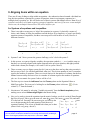
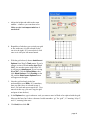
With Equation Editor open, these menus are
Equation Editor menus, not Word menus.
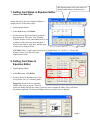
1. Setting Font Styles in Equation Editor
(see p. 6 for MathType)
Setting font styles & sizes in Equation Editor is a
simple process. Follow these steps:
1. Open Equation Editor.
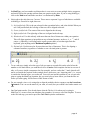
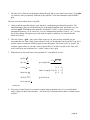
2. In the Style menu, click Define.
3. Set the styles to the desired font by using the
drop-down lists. The styles Text, Function,
Variable, Matrix-Vector, and Number may be set
to whatever font you want. Normally these 5
styles are the same as each other, and the same
as what you’re using in Word.
CAUTION: These 3 styles must always be set to Symbol font: L.C. Greek, U.C. Greek, and
Symbol. Failure to do this will cause
unpredictable results.
2. Setting Font Sizes in
Equation Editor
Don’t
change
these
styles!
1. Open Equation Editor.
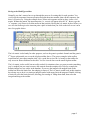
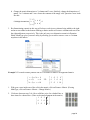
2. In the Size menu, click Define.
3. Set the Full size to the same size as your
text in Word. Use “pt” to denote points.
Suggestion: Set the Full size in points,
and the other sizes in percent. That way
when you change the full size setting, you don’t need to change the others. They will retain
the proper proportion. Use these percentage values as a guide; revise as desired:
page 3