1
Chapter
5 Operations in GUI Screens
Overview
You can perform scene searches, play the
searched scenes, and select scenes (edit clip list)
in Graphical User Interface (GUI) screens. The
GUI screens are your gateways to discs and the
data saved on discs.
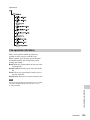
Switching between GUI screens
Chapter 5 Operations in GUI Screens
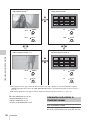
The most important GUI screens are:
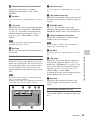
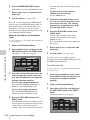
Clip thumbnail screen: Displays thumbnails of
clips on the disc. “Clip” is displayed as the
title at the upper left of the screen (see
page 96).
Clip list thumbnail screen: Displays thumbnails
of sub clips in a clip list. “Clip List” is
displayed as the title at the upper left of the
screen (see page 96).
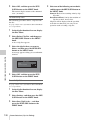
There are also two playback screens:
Clip playback screen: Playback screen for
normal video
Clip list playback screen: Playback screen for
clip list video
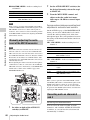
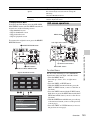
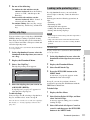
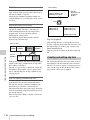
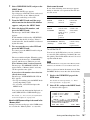
You will use the THUMBNAIL/ESSENCE
MARK button 1 and the SUB CLIP/DISC
MENU button 2 to switch between these four
screens. Each press of these buttons switches
between the screens as shown in the following
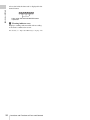
figure. The THUMBNAIL and SUB CLIP
indicators light as follows, according to the type
of screen that is currently displayed.
Notes
• To switch between these four screens, a disc
with recorded clips must be loaded in the unit.
• The GUI screens can display clip name, titles,
and other information in European languages
and Japanese, but they cannot display Chinese.
Overview
95