1
ON-SCREEN DISPLAY (OSD) MENU SETTINGS
OSD Menu Controls
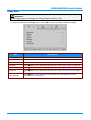
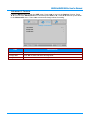
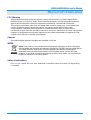
The projector has an OSD that lets you make image adjustments and change various settings.
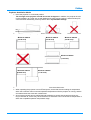
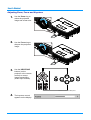
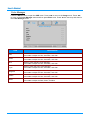
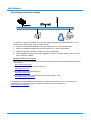
Navigating the OSD
You can use the remote control cursor buttons or the projector keypad to navigate and make changes
to the OSD.
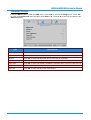
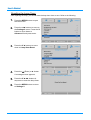
1. To enter the OSD, press the
MENU button.
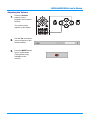
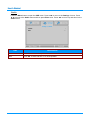
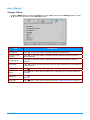
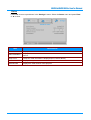
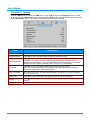
2. There are three menus. Press the
cursor ◄► button to move
through the menus.
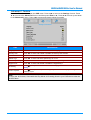
3. Press the cursor ▲▼ button to
move up and down in a menu.
4. Press ◄► to change values for
settings.
5. Press MENU to access a different
menu, leave a submenu or close
the OSD.
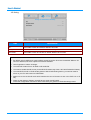
Note:
Depending on the video source, not all items in the OSD are available. For example, the PC Detail
Adjustment item in the Display menu can only be modified when connected to a PC. Items that are
not available cannot be accessed and are grayed out.
— 20 —