1
Wireless Network
UNI generates the vital signs information
displayed on the virtual monitor PC. The
information is transmitted through a wireless
ad-hoc connection between the two
computers in real time.
4.
Click “Set Dynamic IP”.to set the
wireless network dynamic.
5.
Click “Apply Wireless Network Settings”
to save the settings.
6.
Restart the computer.
The wireless settings are configured at the
factory, so no additional configuration is
required.
Use the “Create an ad-hoc Wireless
network” tool to configure the wireless adhoc link between the two computers. Then,
configure the connection between UNI and
the Gaumard Monitors software.
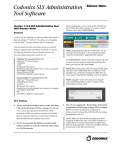
UNI NETWORK CONFIGURATION
Complete the next steps using the
“Controller - Create Ad-Hoc Wireless
Network” tool built in to UNI software.
1.
From the menu bar, go to Help >
“Create ad-hoc Wireless Network”
The “Controller - Create Ad-hoc
Wireless Network” window is displayed
2.
Select the “Wireless Network Adapter”.
If the wireless adapter is not listed, first
®
enable the adapter using the Windows
network menu and then return to this
window.
GAUMARD MONITORS NETWORK
CONFIGURATION
3.
Enter a wireless network name (case
sensitive). Use the same wireless
network name to configure the Gaumard
Monitors PC. “GaumardNet” is the
®
required name for Windows
7
computers.
After the UNI control computer is configured,
complete the next steps using the “Create an
ad-hoc network tool” included in Gaumard
Monitors software.
1.
On the virtual monitor computer,
click the Gaumard Monitors icon to
start the vital signs software.
Pediatric HAL S3005 | User Guide | 75