1
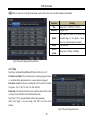
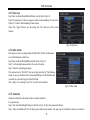
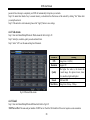
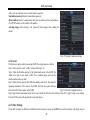
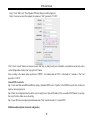
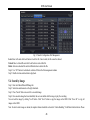
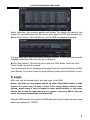
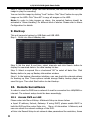
4/8/16-CH DVR Quick Start Guide Select resolution, fps, encode, quality and bitrate. The higher the value is, the clearer the recorded picture is. Of course, more space of HDD will be taken up. Click „Next‟ button. This will take you to the HDD management window. You can check your HDD information through this tab. If your HDD was recently installed, select the HDD from the list to format it. Click „Next‟ button. This will let you to see your DVR status. And then Click „Finish‟ button to end this wizard. You can also refer to the complete setup steps from the relevant sections of DVR User Manual. If you don‟t want to setup Wizard, please click Exit button to exit. 5. Login After you exit the wizard setup, you can login to the DVR. Notice: This DVR can only display options on either VGA/HDMI monitor or BNC monitor at a given point of time, if there is live image display without menu options,please check if there is display on other device/monitor, or long press ESC/Fn key to wait for login dialog box to appear. Long press ESC/Fn key can switch the output between BNC and VGA/HDMI. Click the MENU button to bring the LOGIN dialogue box and enter the user name: admin and password: 123456 5