1
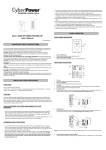
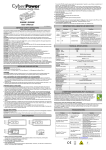
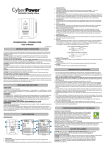
6. USB Port to PC This port allows connection and communication from the USB port on the computer to the UPS unit. The UPS communicates its status to the PowerPanel® Personal Edition software. CYBERPOWER GREENPOWER UPS™ TECHNOLOGY CyberPower’s Green Commitment CyberPower is dedicated to the development of green products, and has adopted Green practices throughout its business, including: membership in Climate Savers Computing Initiative (CSCI), accordance with the Restriction on Hazardous Substances (RoHS), Waste Electrical and Electronic Equipment (WEEE) protocols, as well as ISO 14001 and IECQ QC080000. CyberPower pledges to provide the advanced energy solution for the environment and become a leading eco-friendly organization in the UPS industry. Reduce Energy Cost with GreenPower UPSTM Technology CyberPower’s goal is not only to provide eco-friendly products but also to bring the best value for consumers. The advanced energy-saving design improves the operating efficiency and eliminates waste energy consumption. As a result, consumers will enjoy significant energy cost savings with the adoption of GreenPower UPSTM technology. NOTE: Only one of these two ports can be used as communication and control of the UPS unit at one time. TROUBLE SHOOTING Problem TECHNICAL SPECIFICATIONS Model Capacity (VA) Capacity (Watts) Input Frequency Output On Battery Output Voltage On Battery Output Frequency Overload Protection Physical Total # of UPS Receptacles Maximum Dimensions Weight Battery Sealed Maintenance Free Lead Acid Battery Typical Recharge Time Warning Diagnostics Indicators Audible Alarms Environmental Operating Temperature Operating Relative Humidity Communication PowerPanel® Personal Edition Software Management Auto-Charger Auto-Restart USB Value1200EILCD 1200VA 720W Value1500EILCD 1500VA 900W Value2200EILCD 2200VA 1320W 50/60Hz(Auto Sensing) Simulated Sine Wave at 230Vac +/-7% The UPS will not turn on. 50/60 Hz +/-1% On Utility: Circuit Breaker, On Battery: Internal Current Limiting 6 11.2 kg 180mm(H) 140mm(W) 326mm(D) 13.2 kg 14.5 kg 12V / 7Ah x2 12V / 8.5Ah x2 12V / 9Ah x2 Outlets do not provide power to equipment 8 Hours Power On, UPS Status Display, Capacity Display, Digital Value Display On Battery, Low Battery, Overload PowerPanel® Personal Edition is inactive 0C to 40C 0 to 90% Yes Yes Yes Line mode UPS Status Display Capacity Display Digital Value Display Select SW Load Cap. Battery Cap. V V V V V V X X X X X X ------- X X X X X X V V V X V V X X X V X X V X V X -- -- -- -- -- -- -- Press >3sec again (Sound Enable) V X X X -- -- -- -- -- -- -- (Overload) V X -- V -- -- -- -- -- -- -- % of Load % of Batt. Press “X” : Not Illuminated, Input Voltage Output Voltage Run Time % of Load % of Batt. V V V V V V “--“ : Either Battery mode UPS Status Display Capacity Display Digital Value Display Select SW Load Cap. Battery Cap. X X X X X X V V V V V V ------- X X X X X X X X V X X X V V X V V V X V V X -- -- -- -- -- -- -- Press >3sec again (Sound Enable) X V X X -- -- -- -- -- -- -- (Overload) X V -- V -- -- -- -- -- -- -- Press Initial 1st 2nd 3rd 4th 5th(Return) Press >3sec (Sound Disable) “V” : Illuminated, Recharge the battery by leaving the UPS plugged in. Battery is slightly worn out. Contact CyberPower Systems Technical Support. The on/off switch is designed to prevent damage by rapidly turning it off and on. Turn the UPS off. Wait 10 seconds and then turn the UPS on. The unit is not connected to an AC outlet. The unit must be connected to a 220-240V 50/60Hz outlet. The battery is worn out. Contact CyberPower Systems Technical Support. Mechanical problem. Contact CyberPower Systems Technical Support. Circuit breaker is tripped due to overload Turn the UPS off and unplug at least one piece connected equipment. Unplug the power cord of the UPS then press the circuit breaker knob. Batteries are discharged Allow the unit to recharge for at least 4 hours. Unit has been damaged by a surge or spike. Contact CyberPower Systems Technical Support. The serial/USB cable is not connected. Connect the serial/USB cable to the UPS unit and an open serial port on the back of the computer. You must use the cable that came with the unit. The unit is not providing battery power. Shutdown your computer and turn the UPS off. Wait 10 seconds and turn the UPS back on. This should reset the unit. For more information, visit www.cpsww.com All rights reserved. Reproduction without permission is prohibited. LCD Indication “V” : Illuminated, Solution Batteries are not fully charged. Windows 7/Vista/XP/2000/Server 2003, Linux DEFINITIONS FOR ILLUMINATED LCD INDICATORS Initial 1st 2nd 3rd 4th 5th(Return) Press >3sec (Sound Disable) The UPS does not perform expected runtime. Possible Cause “X” : Not Illuminated, “--“ : Either Input Voltage Output Voltage Run Time V V V V V V