1
Description
Introduction
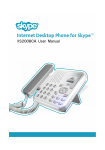
The WM4201 is a Wi-Fi (IEEE 802.11b/g) wireless phone that enables
you to make Skype™ calls without using a computer. The phone
enables you to use your normal Skype account with complete
mobility, allowing you to talk from any location where you have an
Internet connection through a nearby access point.
WM4201
Wi-Fi Phone
Volume
Button 10
1
LCD
Display
Package Checklist — The WM4201 Wi-Fi Phone package includes
these items:
Before preparing the Wi-Fi Phone for use, first become familiar with
its main keys, buttons, and other hardware features.
1.
LCD Display — Color software menu display.
2.
Navigation Key — Four-direction software navigation key.
Pressing the key down selects the current option.
3.
Right Soft Key — Negative action key. Cancels or returns to
previous menu.
• One Wi-Fi Phone (WM4201)
Navigation
2 Key
• One Lithium-Ion battery
Quick Start Guide
• One headset
• One mini USB cable
Left
9
Soft Key
3
Right
Soft Key
4
End/Power
Key
• One AC power charger
• This Quick Start Guide
Send
Key 8
• User Manual CD
Inform your dealer if there are any incorrect, missing or damaged
items. If possible, retain the carton, including the original packing
materials. Use them to repack the product in case there is a need
to return it.
The whole world
can talk for free.
Skype.Com
Headset
5 Jack
USB/Power
6
Charge Port
Warning: Risk of explosion if battery is replaced by an incorrect type.
Dispose of used batteries according to the instructions.
Remove Battery Compartment Cover — Place the phone face
down. Push and slide down the battery compartment cover until it
becomes free.
Install Battery — Place the battery into the compartment. Be sure
the text label on the battery is facing out and the battery’s three
metal contacts point to the top of the phone.
Press for two seconds to power on. Press two to four seconds
for menu. Press for more than four seconds to power off.
5.
Headset Jack — Jack for headset connection.
6.
USB/Power Charge Port — Power charger connection for
charging battery.
7.
Alphanumeric Keypad — Includes 0-9, A-Z, *, and # keys. The
[a/A *] key selects upper- or lower-case characters, numbers,
or hexadecimal. The [ 1 ] key selects common punctuation
marks during text input. The [ # ] key selects special
characters and symbols during text input
8.
Send Key — Calls a selected contact.
9.
Left Soft Key — Positive action key. Selects menu option.
10.
Volume Button — Adjusts volume of the speaker.
Alphanumeric
Keypad 7
Getting Started — After unpacking the Wi-Fi Phone, you must
install and charge the battery pack before turning on the phone.
Just follow the steps in this guide.
1. Install Battery
4. End/Power Key — Ends a call. Turns the power on and off.
2. Charge Battery
Keypad Lock — The phone keypad can be locked by pressing the
Left Soft Key together with the [a/A *] key. Pressing the two keys
again unlocks the keypad.
3. Power On Phone
Connect Battery Charger — Lift up the rubber cover on the mini
USB charger port and connect the power charger to the port. Then,
plug the charger into an AC electrical outlet.
Fully Charge Battery — For the first time use, allow eight hours to
fully charge the battery.
Power On Phone — Push and hold down the End/Power key for
more than two seconds to power on the phone.
Go to step 4 to learn how to make initial settings and start using
the phone.
After the first-time charge, the battery requires only three hours to
charge.
Note:
The power charger automatically adjusts to any voltage
between 100-240 volts at 50 or 60 Hz.
Push Off
Install Battery
Power On
Lift Cover
No.1, Creation Rd. III, Science-based Industrial Park,
Hsinchu 30077, Taiwan, R.O.C.
TEL: 886-3-5053801
FAX: 886-3-5780764
E-mail: [email protected]
www.edge-core.com
WM4201
E082006-EK-R03
150200026800E
Replace Battery Compartment Cover — Slide the battery
compartment cover back onto the phone until it clicks firmly into
place.
Connect
Charger
1
ABC 2
DEF 3
GHI 4
JKL 5
MNO 6
PQRS 7
TUV 8
WXYZ 9
a/A
*
+ 0
#
4. Make Initial Settings
4.
After powering on the Wi-Fi Phone for the first
time, perform the following procedure:
1.
5. Make a Call
Select the language of the display. The
default is English.
2.
When your Skype sign in is successful, you
can start making calls. Your current list of
contacts should display in the Contacts
screen.
If a security key is required, the phone
prompts for the key value. Security keys
should be provided by the wireless
network operator.
Note that large Contact lists may take a
few minutes to download during an initial
sing in.
The access point information is stored in
the phone’s memory as a “Preferred Network” and will be used
next time the phone is powered on.
Scroll down and read the entire Skype
Agreement. Press the Left Soft Key to
accept the Agreement.
5.
3.
From the wireless networks list, select the
wireless network that you want to connect
to and press the Left Soft Key to access
Options menu. Then select “Connect.”
The Phone LCD Display
The Main Menu
The Wi-Fi Phone’s color LCD display provides various status
indicators and access to the menu-based interface. The illustration
below shows the main screen and its elements.
Skype Online
Status
Skype Credit
Left Soft Key
Action
Be sure you have a valid network
connection before making a call.
2.
Press the Right Soft Key to select
Contacts.
3.
Use the Navigation key to scroll down and
select the contact name you want to call.
4.
Press the Send button to make the call.
5.
When you have finished the call, press the
End button.
You can also create a new account using
the phone.
Normally, you need to be within 90 m (300
ft) of a network’s wireless access point to
be able to connect to it. If the network you
want to connect to is not on the list, move
to another location and try again.
Wireless Signal
Status
1.
If you already have a Skype account, sign
in with your user name and password.
Note that if you are already signed in to
your Skype account from your PC, you
should sign out first before using the
phone. You cannot sign in to your Skype
account from two devices at the same
time.
The phone searches for nearby access
points and lists those that it finds.
To make a Skype call, follow these steps:
Battery Status
Notifications
Current Time
Do Not Disturb. You can set this status to indicate that you
are busy.
Skype Me. Makes your Skype Name available for anyone to
call.
The main menu provides access to all your Skype and phone settings.
The menus are easy to move through using the four-way Navigation
key. Just move the Navigation key up or down to highlight a menu
item, then push down on the key to select it.
The Power Key Menu
To access the Power Key menu, press the End/Power key for more
than two seconds, but less than four, and then release it. The menu
lists items depending on your current network connection and Skype
sign in status.
Away. You can set this status to indicate that you are away.
Not Available. You can set this status to indicate that you are
not available to answer calls.
Invisible. Indicates to others that you are offline, but you are
still signed in to Skype and can make calls.
Right Soft Key
Action
Battery Status — Indicates the status of the battery.
Wireless Signal Status — Indicates the strength of the Wi-Fi network
signal.
Phone Notifications — The notification icons alert you of certain
events and settings.
Skype Online Status — Indicates your current Skype online status.
You can set your online status by using the Menu to select “Status”
and then “Change status.”
Online. The normal status when you are signed in to Skype.
Offline. When you are not signed in to Skype.
Press for
Main Menu
Current Time — The current time set on the phone. You can set the
phone’s time and date by using the Menu to select “Settings” and
then “Time and Date.”
Press two seconds for
Power Key Menu
Skype Credit — Your current Skype Credit balance.
Right Soft Key Action — The action that happens when you press the
Right Soft Key. Typically, the Right Soft Key cancels the last action or
returns to the previous menu. From the main screen, this provides
access to your Contacts.
Left Soft Key Action — The action that happens when you press the
Left Soft Key. Typically, the Left Soft Key selects the current menu
item or confirms a setting. From the main screen, this provides
access to the user menu.
Menu
Description
Menu
Description
Contacts
Your Contacts and their Skype status
Switch Off
Powers off the phone
History
Lists missed calls, incoming and outgoing calls,
Voicemails, and detail requests
Silent/Sounds On
Sets the ring tone volume to off/on
Change Status
Changes your Skype online status
Status
Sets status and user profile, and signs out
Add Contact
Adds a Skype or SkypeOut number to your Contacts
Search
Searches for Skype contacts online
Services
Sets up Skype Credit, SkypeIn, and Skype Voicemail
Settings
Access to other phone settings
My Profile
Change your Skype profile information
Sign In/Out
Signs in or out from Skype
Find/View Networks
Displays list of detected Wi-Fi networks
Network Details
Displays network connection information