1
ENDRUN
TECHNOLOGIES
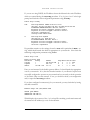
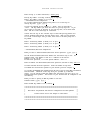
To perform the upgrade, log in as the root user to the Præcis Cntp using the local console
serial I/O port, telnet or ssh and perform these operations:
First enable the upgrade partition by issuing this command at the shell prompt:
cntpenableupgrade
This command will mount the FLASH disk root file system partitions. Now change the
working directory to the upgrade partition:
cd /rootfs_1
Now remove any previously installed root file system image that may be on the upgrade
partition:
rm /rootfs_1/*.gz
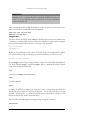
If you are using ftp to perform the upgrade, transfer the previously downloaded file
using binary transfer mode from the remote host to the working directory, /rootfs_1 using FTP (substitute the name of the root file system image that your are installing for
rootfsupgrade.gz):
ftp remote_host
bin
get rootfsupgrade.gz
quit
{perform ftp login on remote host}
{set transfer mode to binary}
{transfer the file}
{close the ftp session after the transfer }
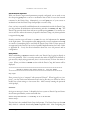
If you are using ssh, you may open another command window on the remote computer
and securely transfer the root file system image using scp from the remote computer. A
command like this could be used:
scp –p rootfsupgrade.gz [email protected]:/rootfs_1
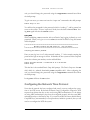
Now you must leave the /rootfs_1 directory in order to execute the updatelilo command and complete the upgrade:
cd /root
Update the LILO configuration by executing this shell script (substitute the name of the
root file system image that your are installing for rootfsupgrade.gz):
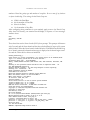
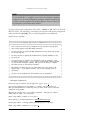
/boot/updatelilo 1 rootfsupgrade.gz
You should see these lines displayed if the update is successful:
Præcis Cntp User’s Manual
52