1
User Manual of DS-6600HFHI (/L) Series HD Audio/Video Encoder
Audio on Section 8.2 Configuring Video Settings.
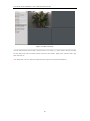
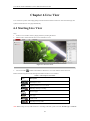
Full-screen Mode
You can double click on the live video to switch to the full-screen view mode. To switch back to the normal mode,
double click on the live video again.
Please refer to the following section for more information:
1.
Capturing pictures on Section 6.2 Capturing Picture. .
2.
Configuring recording on Chapter 9 Record Settings.
3.
Setting the image quality of live view on Section 7.1 Local Configuration.
4.
Setting the saving path for the recorded video files and captured pictures on Section 7.1 Local Configuration..
5.
Setting the OSD text on live video on Section 8.1 Configuring OSD Settings.
.
6.2 Capturing Picture
In live view mode, click the
button on the toolbar to capture the live pictures.
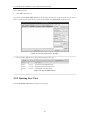
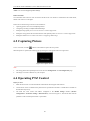
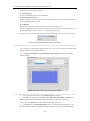
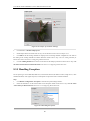
When the picture is captured, the following pop-up message box will appear at the lower right corner.
Figure 6.2 Capture Picture
Note:
1.
The saving path for the captured pictures can be set at the Configuration > Local Configuration page.
2.
The image is saved as a JPEG file on your computer.
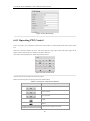
6.4 Operating PTZ Control
Before you start:
1.
Make sure the encoder is connected with the camera/dome which supports PTZ function.
2.
Connect the R+ and R- terminals of the pan/tilt unit or speed dome to RS-485 T+ and RS-485 T- terminals of
the DS-6600 respectively.
3.
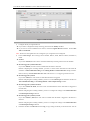
The baud rate, PTZ control and address configured in the RS-485 Settings interface (Remote
Configuration > Serial Port Settings > 485 Serial Port), as shown in Figure 6.3, must be the same with the
parameters of the connected pan/tilt unit or speed dome.
35