1
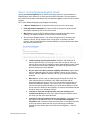
EHR Certification Page
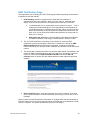
This page allows you to identify your EHR Technology and attach supporting documentation.
It appears for both AIU and MU
1. Understanding checkbox: signifies that you agree with the statement of
understanding next to the checkbox. When you check this box, additional fields
display. If you do not check this box, the system will not allow you to continue.
a. “I understand that it is my responsibility, as the provider, to ensure…” This is
a statement of understanding as to your responsibility to demonstrate that
your EHR technology is certified through the ONC. When you check the box
before this statement, you will be required to complete the other field on the
page. If you do not check the box before this statement, the system will not
allow you to continue.
b. ONC public web service link: opens the Office of the National Coordinator
for Health Information Technology’s Certified Health IT Product List site.
2. The Your EHR Certification Information section. When you select the EHR
Certification option in the Navigation Bar and are a member of a Group, the CMS
EHR Certification ID field may already be populated, containing a certification
number entered by your Group’s contact. Otherwise you will have to enter the correct
number.
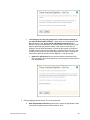
3. This section also includes instructions to access the ONC website, find software, and
retrieve an EHR Certification Number (http://onc-chpl.force.com/ehrcert). Once this
number is entered into the EHR Certification Number field and the Save &
Continue button is clicked, SLR will validate that the number represents approved
software.
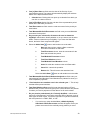
4. Save & Continue button: saves the information you have just entered. If you have
left a required field blank or entered information incorrectly, you will receive an error
message.
Once you have successfully saved the information on all pages within the AIU Attestation of
EHR, the status icon on your home page will change to indicate that your Attestation of EHR
section is complete. The system will now allow you move onto Step 4.
SLR Group Administrator User Guide
34