1
PsiGate
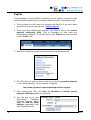
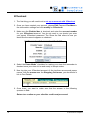
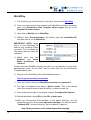
1. The first thing you will need to do is set up an account with PsiGate.
2. Once you have opened your account with PsiGate and have been
accepted, open your Ecommerce Plus Template admin pages and go
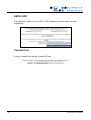
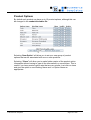
to the Payment Provider section.
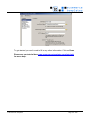
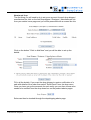
3. Now click on Modify next to PsiGate.
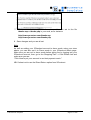
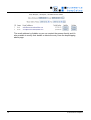
4. Where it says "Merchant ID" you want to enter the "ID" that was sent to
you by PsiGate.
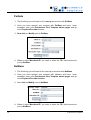
NetBanx
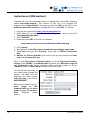
1. The first thing you will need to do is set up an account with NetBanx.
2. Once you have opened your account with Netbanx and have been
accepted, open your Ecommerce Plus Template admin pages and go
to the Payment Provider section.
3. Now click on Modify next to NetBanx.
4. Where it says "Merchant ID" you want to enter the "ID" that was sent to
you by NetBanx.
62
© Ecommerce Templates