1
ArborSonic 3D
User’s Manual
Hardware – Bluetooth connection
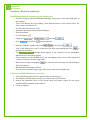
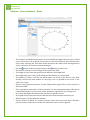
Establishing Bluetooth connection to the Battery Box
•
•
•
•
If you are using an external USB Bluetooth dongle, always put it in the same USB place on
the computer.
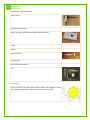
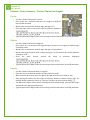
Turn on the Battery Box, start adding a New Bluetooth device in the Control Panel. The
device name is ArborSonic 3D.
The PIN code of the device is 1234.
Remember the number of the installed COM port.
Start the software.
•
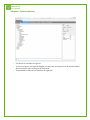
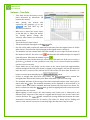
Go to the options
•
Change the
•
Go to
•
Select the COM port number and set the
•
Turn on the Battery Box, wait 5 seconds until the LED stops blinking and click
build up the connection.
•
The
message should appear, if the connection can be established.
Otherwise an error message appears.
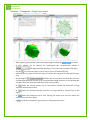
If the connection can be established, you can start tapping on the sensors. Each tap should
result in a new time row and a ding sound.
•
•
•
•
•
.
to
and click the
and click
.
button on this tab.
to 20 and click
.
to
When you are ready with tapping,
the connection first and then turn off the Battery
Box to save battery.
Maximum Bluetooth range is 20 feet.
If you need to extend the range, longer cable cam be used on the amplifier box.
If you can’t establish Bluetooth connection
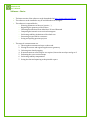
1. Turn off the Battery Box, turn it on again and try reconnecting to it.
2. The COM port number may be wrong. Try to find out the correct number.
3. Remove the Bluetooth Device in the Control Panel and install it again. Set the newly
installed COM port number in the software.
4. Call us for support.